
Speed Package Sales
Speed Package Sales (screen title Package Sales) lets you sell paidfaster internet packages to your guests. The guest picks a package,package on the hotel portal or on the exit page that opens after connecting to Wi-Fi; the amount is charged to theirthe room, reception approves it,room and when the guest'stime runs out the guest goes back to the previous speed by itself.
What is raised.it for?
How
When do
Iyou openuse it?
Before you start
screen?device, a yellow warning appears.Fromblock (Portal Design).Step by step
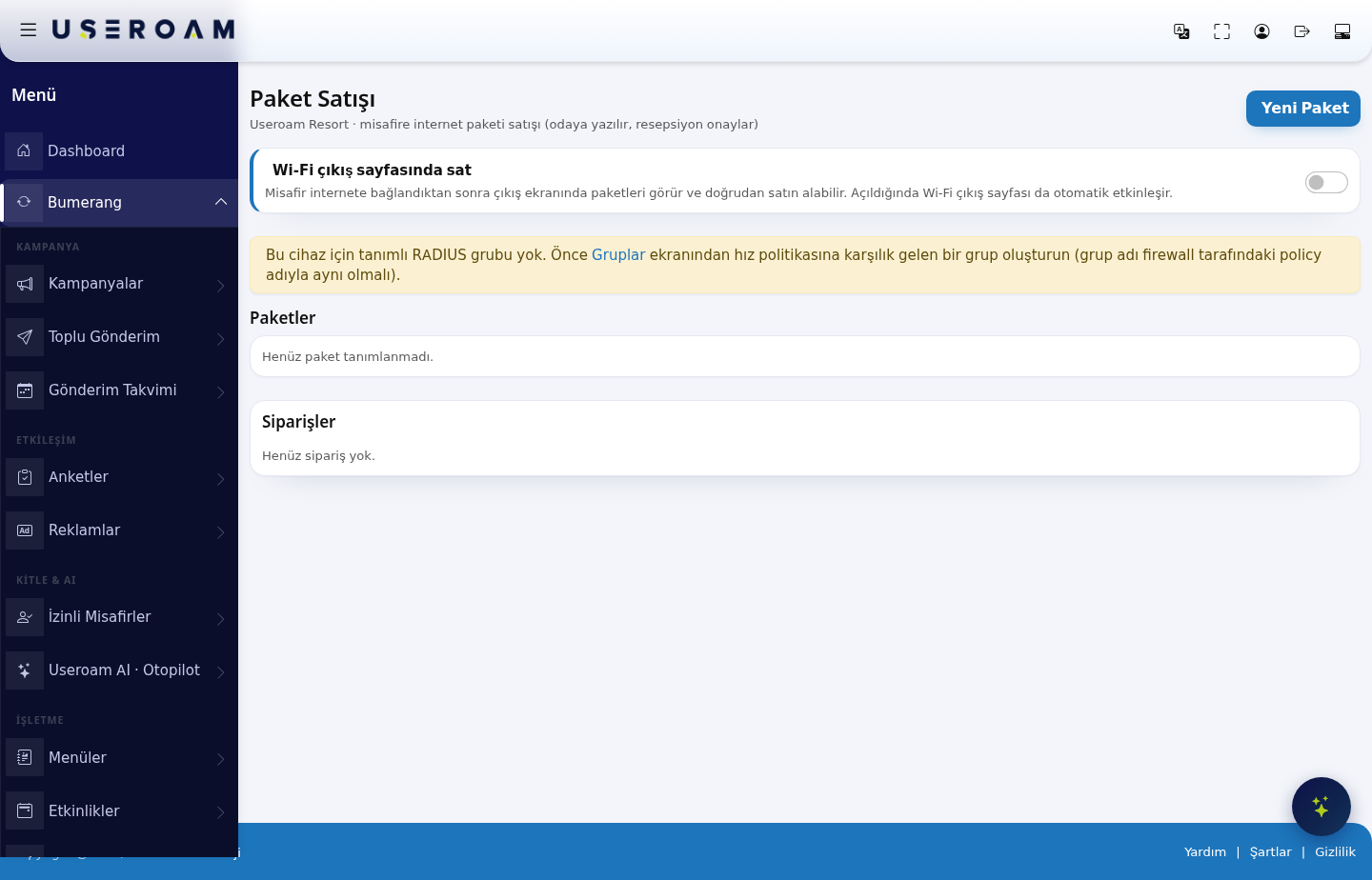
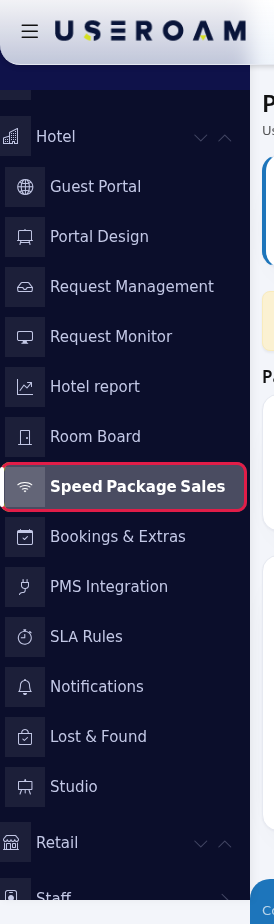
menu,menu go topress Bumerang → BUSINESSHotel → Speed Package Sales.
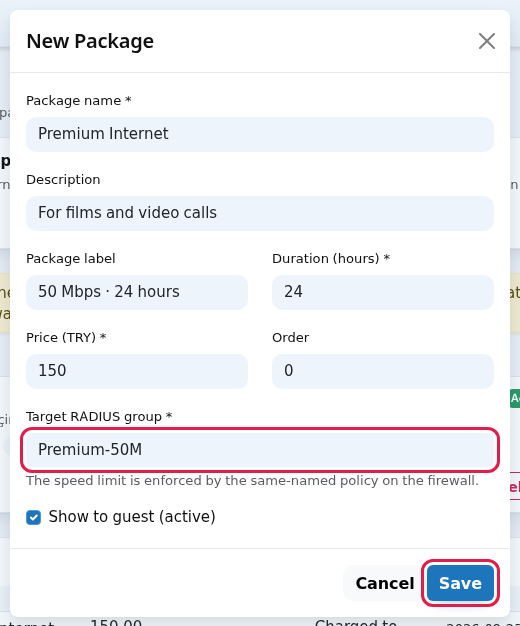
Premium Internet), Description, Package label (the short label guests see, for example 50 Mbps · 24 hours), Duration (hours), Price (TRY), Order and Target RADIUS group. Leave Show to guest (active) ticked. Press Save.
Every field and button on the screen
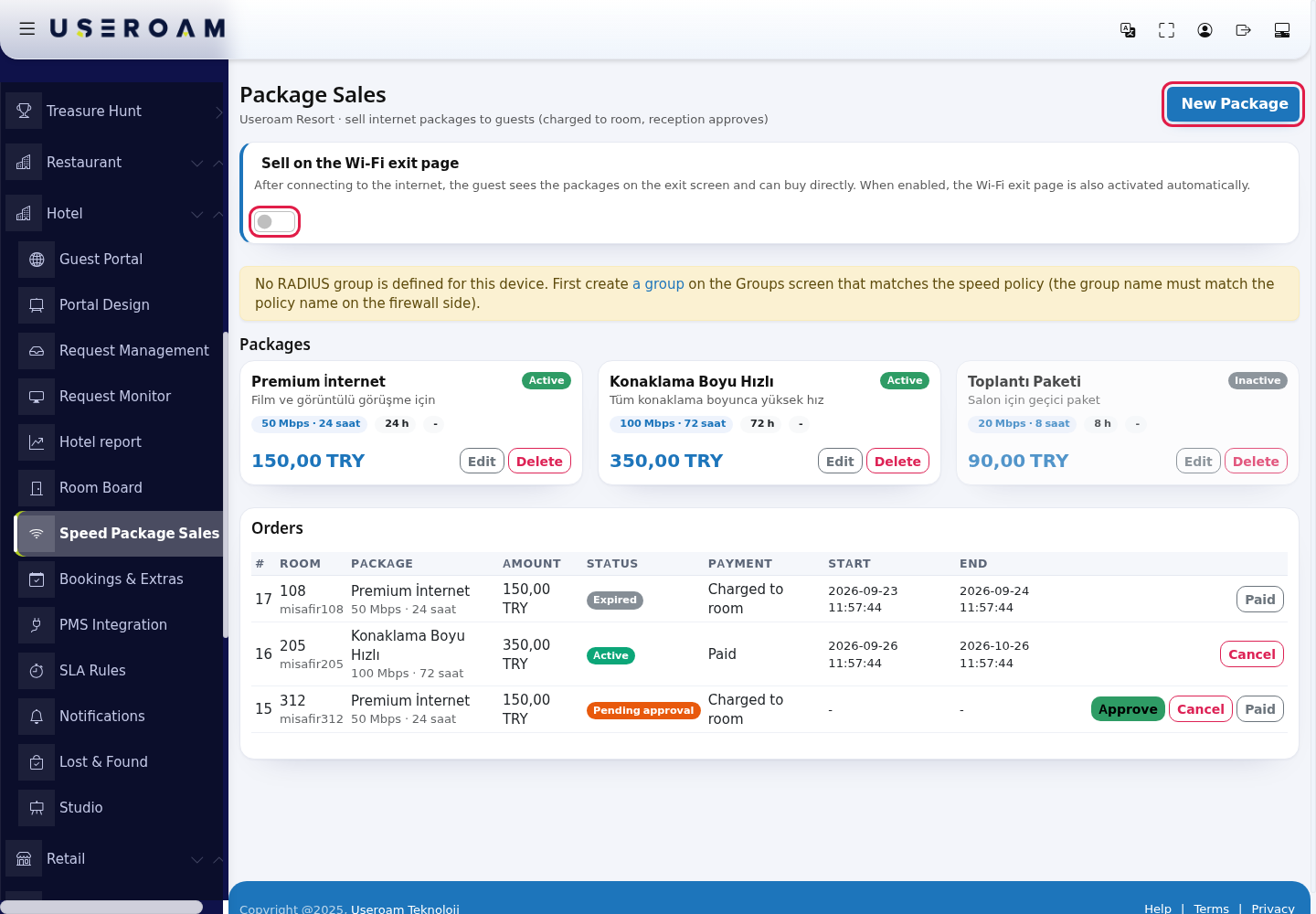
Top section and package cards
| Field / button | What it does | Example |
|---|---|---|
| Subtitle: ... sell internet packages to guests (charged to room, reception approves) | - | - |
| New Package | Opens the package window. | - |
| Sell on the Wi-Fi exit page | Explanation: After connecting to the internet, the guest sees the packages on the exit screen and can buy directly. When enabled, the Wi-Fi exit page is also activated automatically. A package bought on the exit page becomes active at once, without reception approval, and is charged to the room. This sales path currently works on Sophos and Coslat based login pages. | on |
| Warning: No RADIUS group is defined for this device. First create a | Without
| - |
| Package card | Name, description, Active / Inactive badge, package label, duration (24 h), group name and price. Edit (Edit Package window) and Delete (Delete this package?). | 150.00 TRY |
| No packages defined yet. | Shown when there are no packages. | - |
Package window
| Field | What it does | Example |
|---|---|---|
| Package name * | The name guests see. Required. The box shows Example: Premium Internet. | Premium Internet |
| Description | Short introduction. | For films and video calls |
| Package label | Short label; it does not set the | |
| Duration (hours) * | How | 24 |
| Price (TRY) * | Amount | 150 |
| Order | Display order. | 0 |
| Target RADIUS group * | The group the | Premium-50M |
| Show to guest (active) | When off, the package is not offered. | ticked |
| Cancel | - | - |
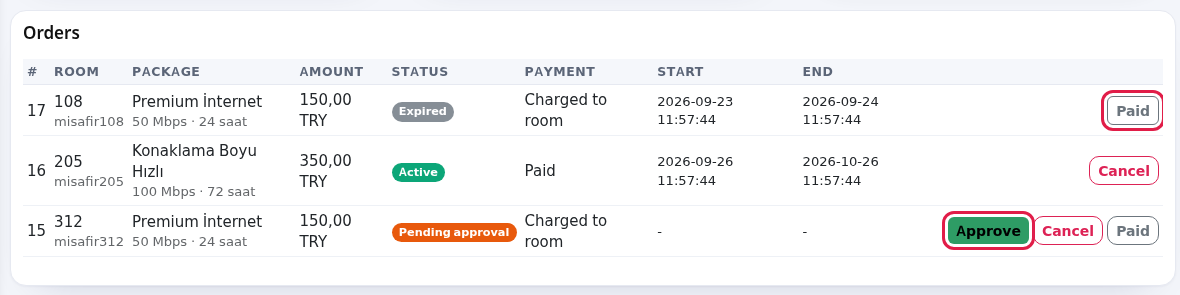
Orders
| Column / button | What it shows / does |
|---|---|
| #, Room, Package, Amount | Order number, room (with the guest's Wi-Fi username below), package and label, amount. |
| Status | Pending approval, Approved, Active, Expired, Cancelled. |
| Payment | Charged to room, Paid, Cancelled. |
| Start, End | When the package is active. |
| Approve | Only on pending orders. Activates the package. |
| Cancel | On
|
| Paid | Sets the |
| Shown when there are no orders. |
Messages
| On screen | Meaning / what to do |
|---|---|
| Package saved. / Package deleted. / Order approved, speed package active. / Order cancelled. / Payment status updated. | Done. After switching the exit page sale the panel shows a confirmation that is currently only in Turkish (Wi-Fi çıkış sayfası satış ayarı güncellendi.). |
| Form data is missing or the target group is invalid. | Enter a package name, pick a group and save again. |
| No username is linked to the order. | The guest's Wi-Fi account was not found; ask the guest to connect to Wi-Fi once. |
| No target group is defined in the package. | Edit the package and pick a group. |
| The RADIUS group could not be updated. | Try again; if it continues, contact support. |
| Order status is not eligible. / Order not found. / This order does not belong to this device. | Refresh the page; someone else may have handled the order. |
| Security check failed, please try again. / The operation could not be completed. | Refresh the page and try again. |
Frequently asked questions
I approved it but the guest says the speed didn't change.
Check that the group name matches the firewall speed policy exactly. The guest may need to reconnect to Wi-Fi.
What happens when the time runs out?
A background check runs every few minutes; an expired package becomes Expired and the guest goes back to the previous group.
Can a guest buy the same package twice?
Not while they have an open order; the current order must finish first.
Related pages:pages
- Groups
Groups·(RADIUS group),Hotel Solution → Request Management,Captive Portal →Portal Settings