
Menu Editor
What is it for?
How do I open this screen?
UnderOnBumerang → BUSINESS (İŞLETME)Restaurant → Menus(Menüler),pressclick Edit(Düzenle)on your menu.
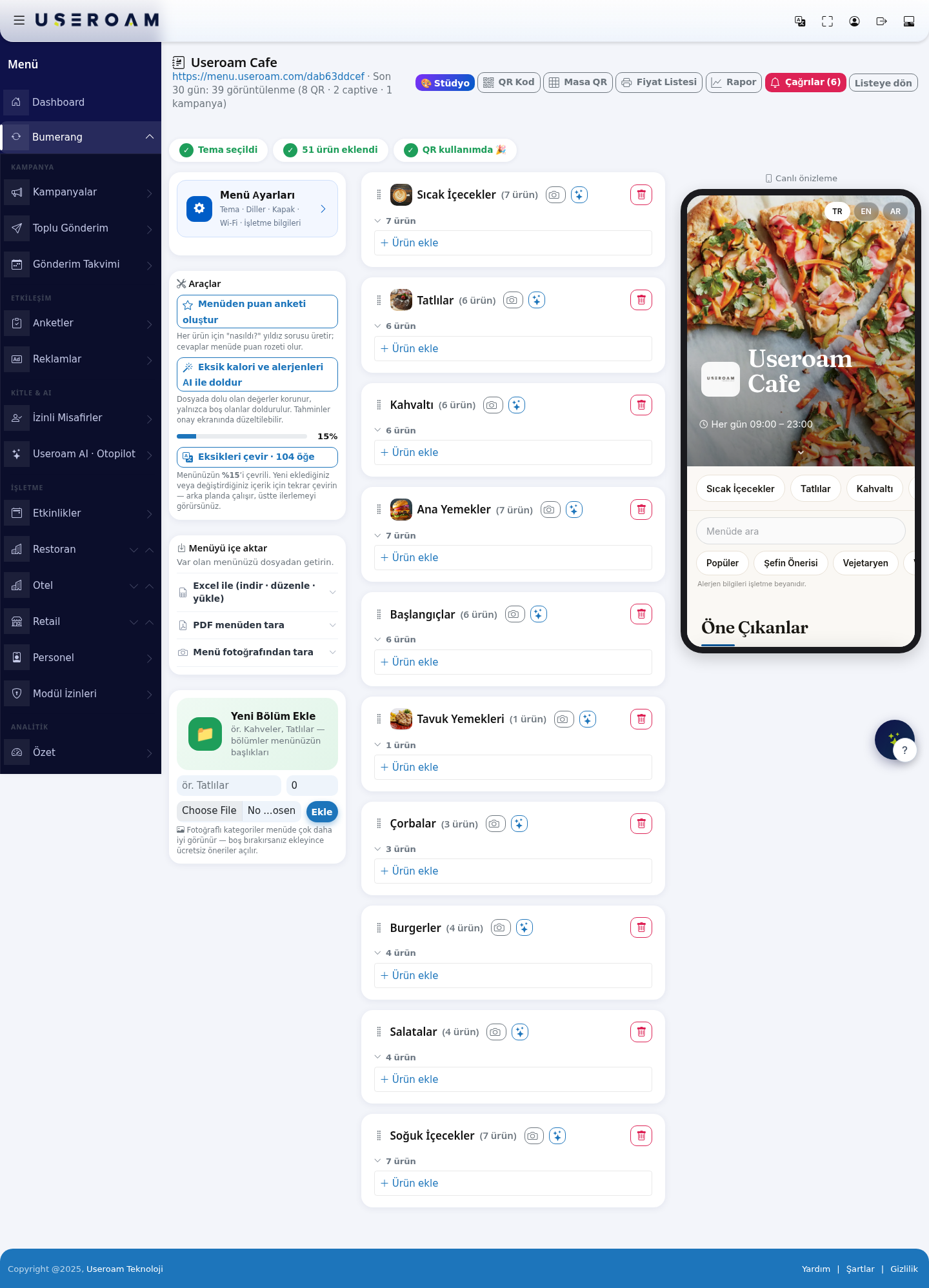
1. Top bar
The heading carriesor the menu name,name its public address (e.g. menu.useroam.com/dab63ddcef) and the view count for the last 30 days broken down by source — e.g. 39 views (8 QR · 2 captive · 1 campaign). That tells you straight away which channel guests actually openon the menu from.card.
When nextdo toI ituse lead to the module's other screens:it?
🎨ToStudioadd(Stüdyo):sectionsDesignandtheproducts,lookor change a price or description.- To mark a product out of stock or hide it from the menu.
- To print the menu QR or the table QRs.
- To import the menu from Excel, PDF or a photo, and translate it into other languages.
- To turn features such as table ordering, the welcome page or the welcome coupon on or off.
Top of the screen
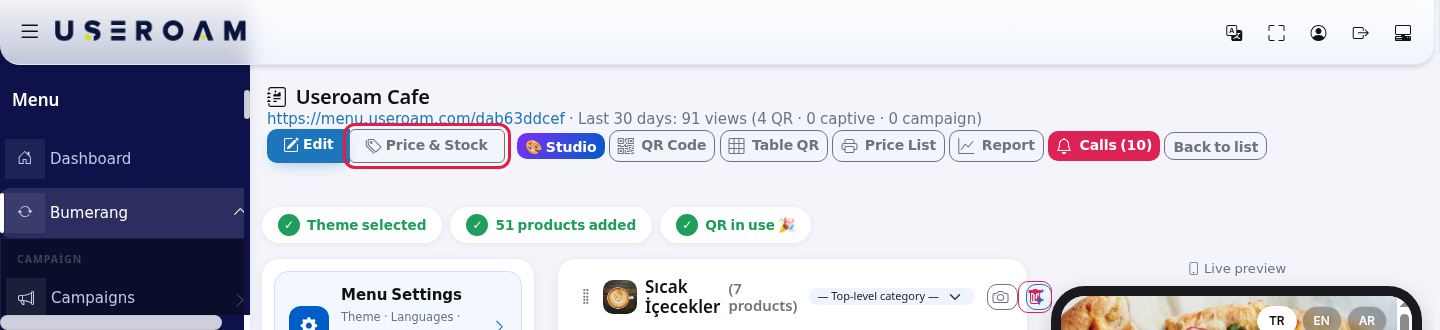
| Button | What it does |
|---|---|
| Edit | This full editing view. |
| Price & Stock | One table for all product prices and stock status (below). |
| 🎨 Studio | Opens Menu Studio. |
| QR Code | The menu's |
| Table QR | A |
| Price List | Printable price list |
| Report | Menu Report. |
| Calls ( | Operations |
| Back to list | Back to Online Menu. |
If a published product has price 0, a yellow warning appears: "Some products are missing a price. By the Price Tag Regulation, all published products must show a price. Products with a price of 0: ... Please enter a price or hide the product."
2.Step by step: add a section (category)
- In the green Add New Section card on the left, type a name (
e.g. Desserts), optionally an Order number and a Parent category (Top-level category means top level), upload a Category photo (recommended) and click Add. Without a photo, free image suggestions open after adding. The top says "Section added."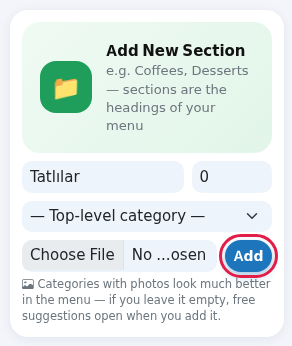
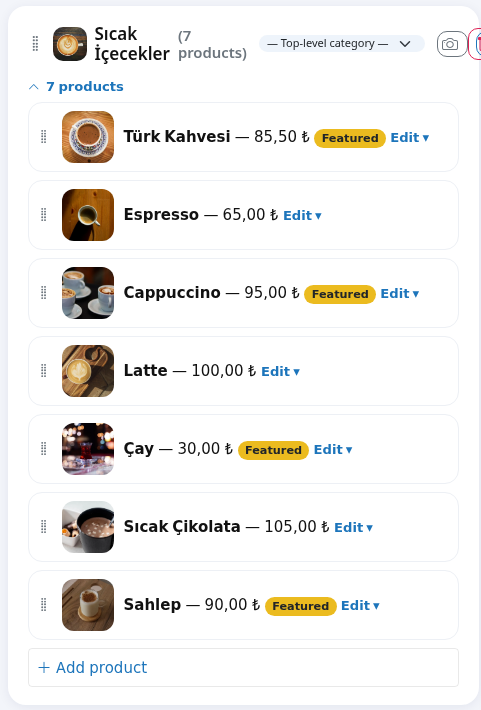
A section card has a drag handle (reorder), photo, name and product count, a Parent category box, a camera (Upload category photo), a sparkle (Suggest a free image) and a bin. The bin asks "This section and all products in it will be deleted. Are you sure?" A section with sub-sections is not deleted: "This category has sub-categories. Move or delete them first."
Step by step: add a product
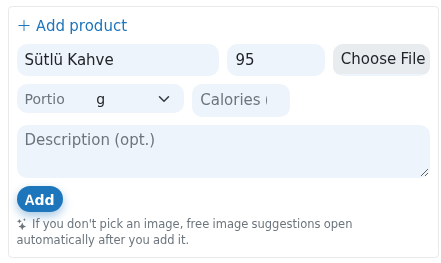
- On the section card, click the line such as 7 products to open the products, then click + Add product at the bottom. Type the Product name, price and Description (opt.), pick an image if you like and click Add. Without an image, free suggestions open automatically after adding. The top says "Product added."
Step by step: edit a product
- Click Edit ▾ on the product row. Change the form and click 💾 Save ("Product updated."). Delete asks for confirmation ("Are you sure? Click again").
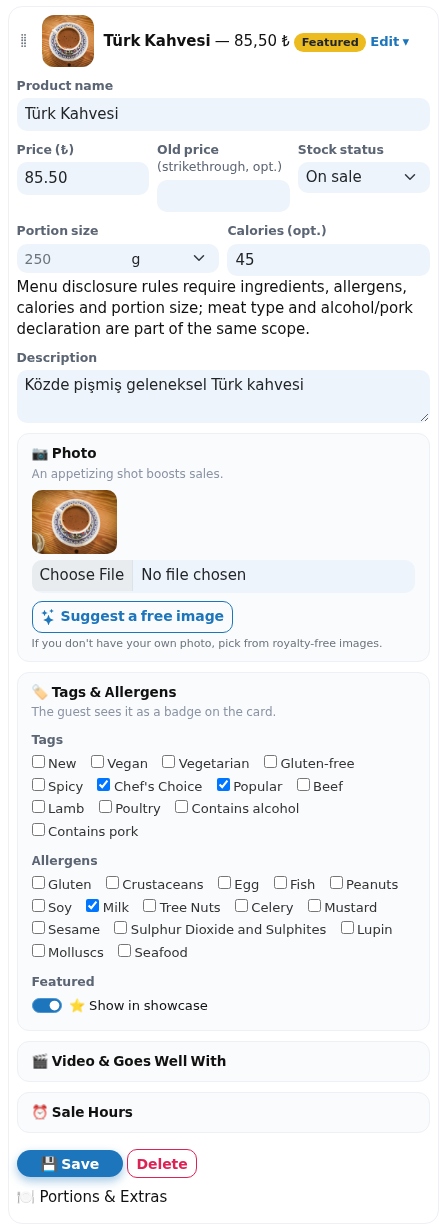
| Field | What it does | Example |
|---|---|---|
| Product name | Name shown in the menu. | Turkish Coffee |
| Price (₺) | Selling price. Dot or comma for decimals. | 85.50 |
| Old price (strikethrough, opt.) | A struck-through old price to show a discount. | 95 |
| Stock status | On sale, Out of stock (shown, cannot be ordered), Hide in menu. The list shows an Out of stock / Hidden badge. | On sale |
| Portion size | Amount and unit. | 250 g |
| Calories (opt.) | Calorie value. | 45 |
| Regulation note | "Menu disclosure rules require ingredients, allergens, calories and portion size; meat type and alcohol/pork declaration are part of the same rules." | - |
| Description + Write description with AI | Product description; the button writes one from the product name (the name is needed first). | - |
| 📷 Photo | Upload a file or choose a royalty-free image with Suggest a free image. | - |
| 🏷️ Tags & Allergens | Tags: New, Vegan, Vegetarian, Gluten-free, Spicy, Chef's Choice, Popular, Beef, Lamb, Poultry, Contains alcohol, Contains pork. Allergens: 14 allergens. Featured: ⭐ Show in showcase (a Featured badge in the list). | Milk |
| 🎬 Video & Goes Well With | Video link (YouTube/mp4, opt.) and Goes well with suggestion (No suggestions or another product). | - |
| ⏰ Sale Hours | Days (Mon-Sun) and Start / End time. Leave empty to sell always. | Mon-Fri 07:00-11:00 |
| 🍽️ Portions & Extras | + Portion: portion name and price (120 g / 180 g). + Option: group (Extras), name and extra price (extra cheddar +₺35). | - |
Clicking a product thumbnail opens the free image suggestions window: Upload my own photo (JPG, PNG or WebP) or click a suggestion ("Downloading and linking to your menu…"). Images come from Openverse and are CC0 / public domain. Skip for now: continue without a photo closes the window.
Menu Settings

| Field | What it does |
|---|---|
| Name, Design, Currency | Menu name, ready design, currency symbol. |
| Languages | TR, EN, AR, RU, DE, FA. TR cannot be turned off. |
| Logo (portal logo is used if empty), Background (opt.), Suggest a cover image | Logo and cover picture. |
Phone, Instagram (@business), Address, Working hours | Contact details shown on the cover and at the bottom of the |
| A weekly menu report summary by e-mail. | |
| Show guest ratings in the menu (from the survey) | Shows rating survey results on product cards. |
| Rating on menu (let guests give stars) | Product cards show 5 stars; a rating survey is created automatically if none exists. The average shows after at least 3 ratings. |
| Sign-up form on menu (for guests not on Wi-Fi) + fields to ask (Name, | A sign-up form at the bottom of the menu. The mobile number is required and verified by SMS code. No automatic campaign goes to people who sign up; the list builds up and you send from bulk messaging. |
| When | |
Welcome Coupon + Coupon code (WELCOME), % discount / Amount, Value | Applied automatically when a guest |
| Show a Menu button on the Wi-Fi login page | Adds a menu button to the guest Wi-Fi login page. |
| Accept orders from the QR | Table ordering. The table QR must carry the table; orders go to the Operations Screen. When off, guests cannot order and only call waiter and request bill remain. On-screen |
| Menu published | When off, guests cannot see the menu. |
| Save / Delete | Saves settings / deletes the menu "Are you sure? Click again"). |
3.Tools Toolsand translation
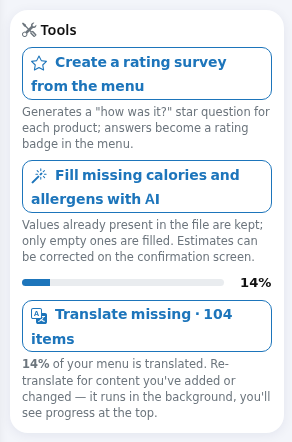
- Create a rating survey from the
menu:menu:Generatescreates a survey draft with a "how was it?" star questionforpereveryproduct.item;Message:the"Ratinganswerssurveyappeardraftascreateda(51ratingquestions):badgeeditnextandtopublishthefromitem.Bumerang > Surveys." With no products: "Rating survey could not be created: this menu has no items." - Fill missing calories and allergens with
AI:AI:Onlyasksemptyfirstfields("Missingarecaloriefilled,andexistingallergenvaluesdataare left alone. Estimates can be corrected on a confirmation screen before they are saved. Translate what is missing:Shows how much ofin the menu will be filled with AI estimates. Continue?") and fills only empty values. Result: "Calorie/allergen filled for 12 products." or "No product istranslatedmissing(e.g.calorie or allergen data." Check the estimates.- Translation bar:
15%"In target languages 14% translation rate". Translate missing · 104 items)translates new andtranslateschangedthecontent;rest.Re-translate all content starts over. Translation runs in thebackgroundbackground:with"Translatingprogressyourshownmenu…",atthenthe"✅top.TranslationRuncomplete:ityouragainmenuafterisaddingreadyaninitemallorlanguages".editingWithtext.no extra language: "There are no additional languages to translate in this menu".
Importing 4. Import athe menu
- With
Excel:Excel (download · edit · upload): click Download as Excel, edit thetemplate,filefill(columns:itCategory · Product · Description · Price · Calorie · Allergen · Tag, order does not matter), then click Upload and preview. Optionally tick Let AI estimate products with empty calorie or allergen fields. A product with the same name in the same category is updated, new rows are added, anduploadnothingitmissingback.from the file is deleted. Check the Excel preview and confirmation screen and click Add and update. Result: "3 products added, 12 products updated, 1 new categories created."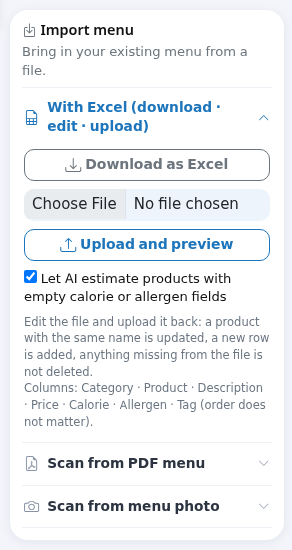
- Scan from
aPDF menu: choose your PDFmenu:and click Scan. A waiting window appears while AI reads it ("Your menu is being prepared"). The PDF PreviewReadopensinwiththeaPDFresult such as "8 categories, 60 products found"; untick what youalreadydohave.not want and click Approve and add to menu. - Scan from menu photo: upload a
menu photo:Upload aclear photo of yourprintedmenu andextract the content.
5. Sections and items
Type a name intoclick Add New SectionScan (e.g. Coffees, Desserts) and press Add. Sections are the headings of your menu; each shows its item count and an Add item button.
Item fields
Name,description,priceand astruck-through pricefor showing a discount.Weightwith its unit, andcalories.Imageand an optionalvideo link.Allergens:The EU's 14 mandatory allergens — gluten, crustaceans, eggs, fish, peanuts, soya, milk, tree nuts, celery, mustard, sesame, sulphur dioxide, lupin, molluscs.Tags:new,vegan,vegetarian,gluten-free,spicy,chef's choice,popular,beef,lamb,poultry,alcohol,pork.Stock statusand afeaturedflag.Sale hoursandsale days:Show an item only on certain days and times (breakfast on weekdays 07:00–11:00, for instance).Variants:Different sizes or portions of; the sameitem,previeweach with its own price.opens.Order:The item's position within its section.
ItemsResult:without"Imported: 8 categories, 60 products. You can add photos to the products." If it cannot be read: "Couldn't extract aphoto:menuRoyalty-free suggestions open when you go to upload an image. They comeline fromOpenversethe PDF." or "Couldn't extract a menu from the image."; Cancel deletes the draft ("Draft deleted.").QR Code and
areTableallQRCC0
/- Click
publicQRdomain;Code:youthecan upload your own photo instead (JPG, PNG or WebP) or useSkip for nowand continue without one.
6. Menu QR code
Code 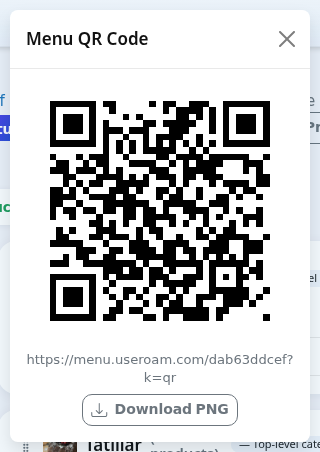
7. Table QR codes
Enter ain numberNumber of tablestables: or type the table names separated by commas in namesor names: (e.g. a10, b2, c5, terrace1), click Create, then press Create; Print outputsthe themcards. all at once.
Each table's QR opens the menu with that table number.number; This has three consequences: the guestguests can call a waiterwaiter, and ask for the bill from the menu, and order if enabled; the report gainsshows a per-table breakdown.breakdown. WithoutWith an invalid name you see "No valid table QRname codes,found orders(use letters, numbers and calls-)."
do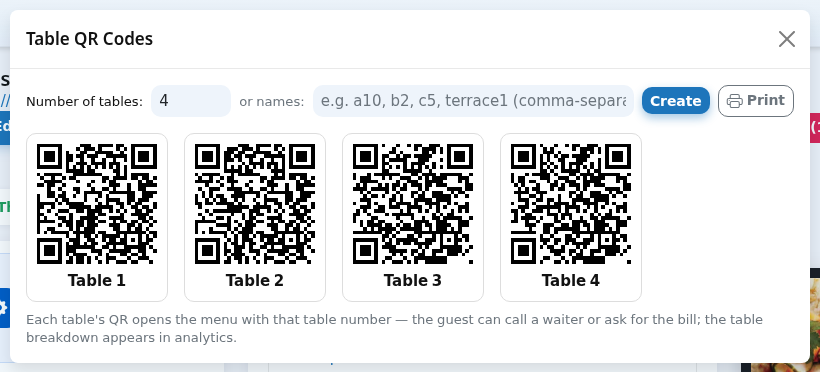
8.Price Live& previewStock view
The
- Click
livePricepreview& Stock at thebottomtop. In the Price and stock update table (Product, Category, Price, Stock) type prices and choose On sale / Out of stock / Hide in menu, then click Save changes at the bottom. Only rows you changed are saved. Message: "5 products updated."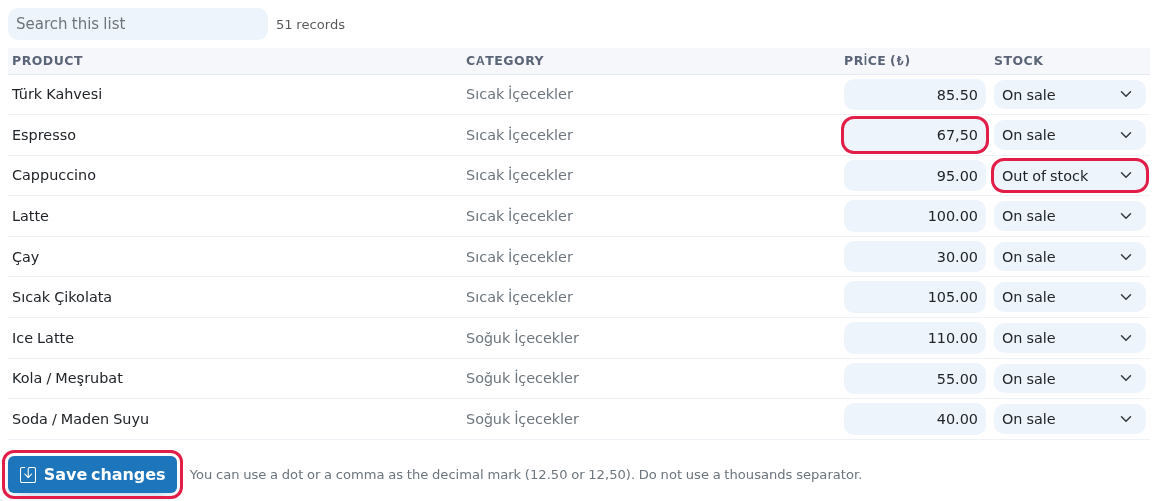
- Use a dot or a comma for decimals (
12.50or12,50); do not use a thousands separator. - The price must be between 0 and 9,999,999; other rows are not saved: "2 rows were not saved because the price is invalid (must be between 0 and 9,999,999)."
- Search this list filters the table.
Large menus and branch menus
Other messages you may see
| Message | Meaning and what to do |
|---|---|
| Saved. / Product updated. / Product deleted. / Category deleted. / Category photo updated. | Done. |
| Portion added. / Portion deleted. / Option group added. / Option group deleted. | Portion and extras actions done. |
| Invalid parent category selection. | Choose another parent category. |
| Enter the product name first. / Product name is empty. | Type the product name before AI description or image suggestion. |
| AI couldn't respond right now, please try again. / Hourly AI limit reached: try again shortly. / AI descriptions are being tested on the demo device right now. | Try again later or write the description yourself. |
| Suggestions aren't available right now: you can upload your own photo. / Hourly search limit reached... / Couldn't download the image: try another suggestion. / No selection found: refresh the search. | Pick another suggestion or upload your own photo. |
| 6 jobs added to the translation queue: translation started right away... | Translation started; it appears in the menu within seconds. |
| 2 rows skipped because they do not belong to this menu. | The price table contained another menu's product; refresh the page. |
| Saving… / Error / Connection error | While saving the branch table; try again on error. |
Frequently asked questions
My change does not show in the menu.
Make sure you saved and refresh the guest page. The product may be set to Hide in menu or be outside its sale hours.
How do I turn on table ordering?
Why does a product with price 0 give a warning?
The regulation requires a price for published products. Enter a price or hide the product.