
Online Menu
What is it for?
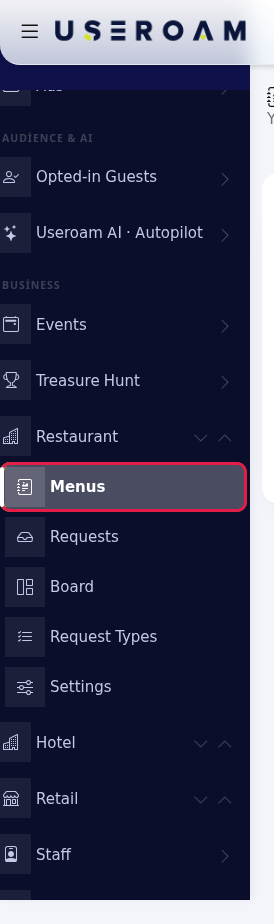
How do I open this screen? In the Business section of the left menu, go to Restaurant → Menus. The Create digital menu button in the setup wizard also comes here.
When do I use it?
- To create your first QR menu.
- To open a separate menu for breakfast, dinner or the bar.
- When a branch should use the main menu's products (chain menu).
- To take a menu you no longer use offline.
Page layout
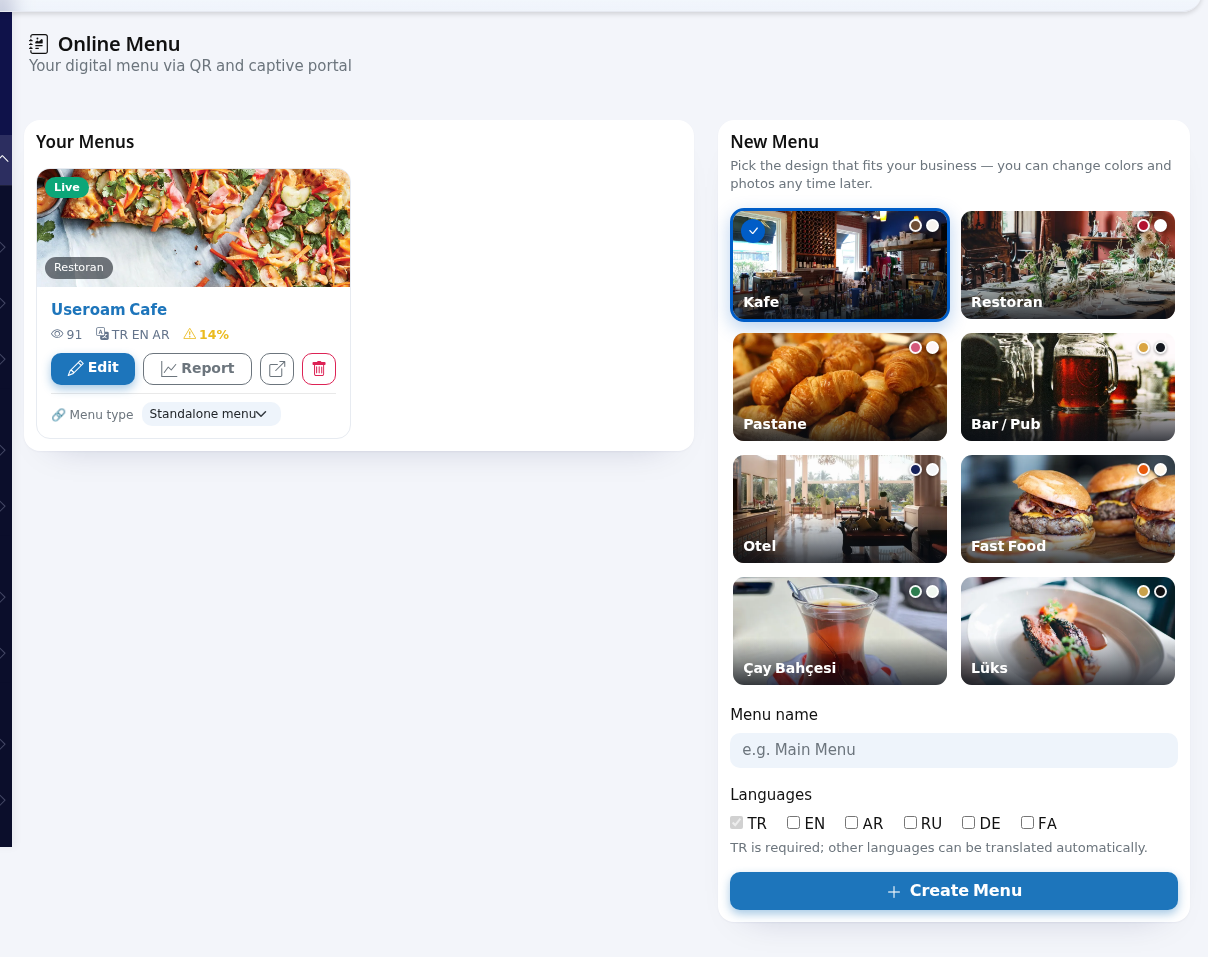
- A cover picture, a green Live or grey Off badge top left, and the design name at the bottom (for example Restoran).
- The menu name (click to open the editor).
- Eye icon and number: views in the last 30 days. Language icon: the menu's languages (for example TR EN AR). Yellow triangle and percentage: translation incomplete; hovering shows "Translation 14% complete · 104 items missing. Open the menu and press "Translate missing"."
- Edit (menu editor), Report (menu report), an arrow icon (View menu: the guest page in a new tab), a red bin (Delete menu).
- Menu type: Standalone menu or Branch → main menu name. A menu that has branches shows a "Main menu · 2 branches" badge instead.
Step by step: create a new menu
- In the New Menu card, pick the design that fits your business (the names are shown in Turkish: Kafe, Restoran, Pastane, Bar / Pub, Otel, Fast Food, Çay Bahçesi, Lüks; you can change colours and photos later). Type the Menu name (for example
Main Menu). Tick the Languages to offer (TR is required; other languages can be translated automatically). Click Create Menu.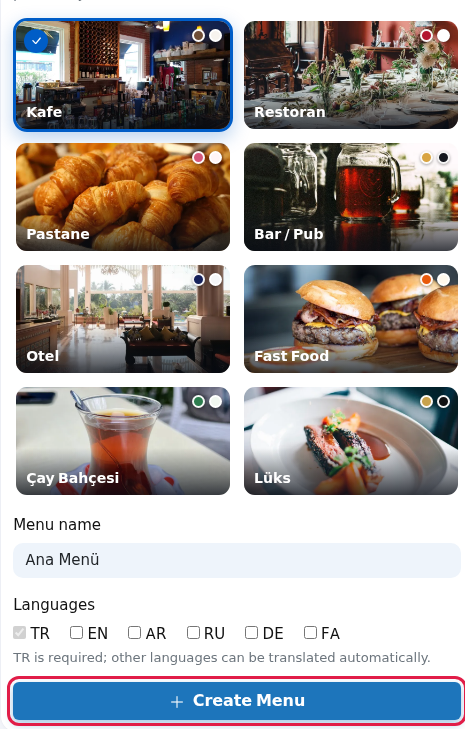
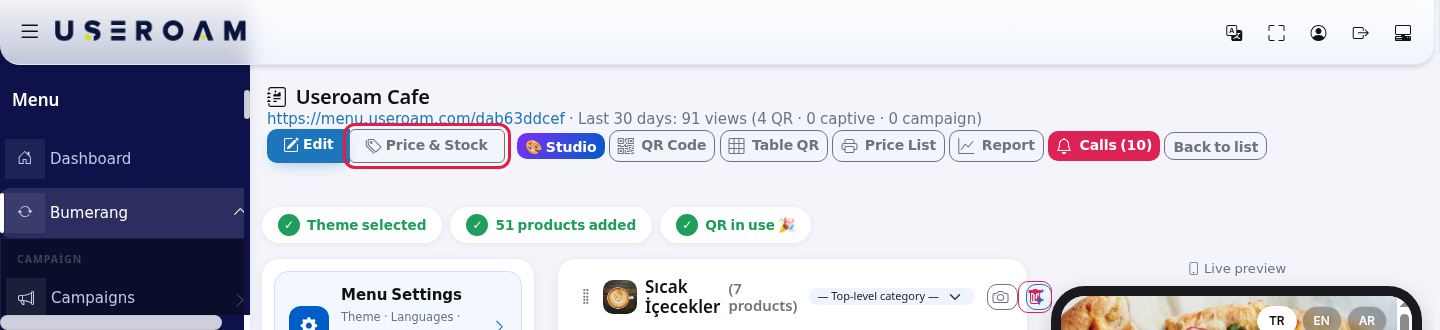
- The menu editor opens. Add sections and items, or import your menu from Excel, PDF or a photo. Details: Menu Editor and Setting up the QR menu from start to finish.
Step by step: make a menu a branch (chain menu)
- On the card of the menu that should become a branch, choose Branch → main menu name in Menu type. The choice saves by itself. The branch uses the main menu's items; branch-specific price, sold out and hide settings are set in the branch menu's editor. Choose Standalone menu again to separate it.
Step by step: delete a menu
- Click the red bin on the menu card. The window says "You are about to delete the menu Useroam Cafe.", a content summary ("This menu has 10 sections, 51 products and 76 view records.") and a safety note. Click Delete Menu to delete or Cancel to go back.
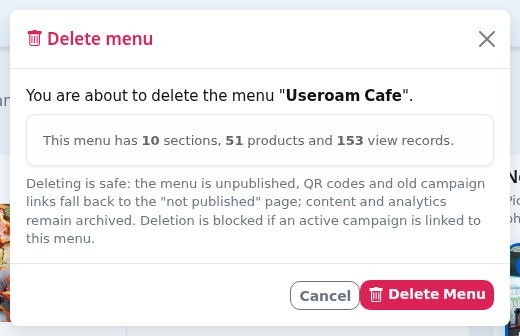
Deleting is safe: the menu goes offline, table QRs and old campaign links fall back to the "not published" page; content and analytics stay archived. If an active Bumerang campaign links to the menu, it is not deleted: "Could not delete: these active campaigns are linked to this menu: ... Change the campaign link or pause the campaign first."
Every field and button
| Field / Button | What it does | Example |
|---|---|---|
| Design tiles | Starting look of the new menu. | Kafe |
| Menu name | Name of the menu (required). | e.g. Main Menu |
| Languages | TR, EN, AR, RU, DE, FA. TR is always on. | TR, EN |
| Create Menu | Creates the menu and opens the editor. | - |
| Edit / Report | Menu Editor / Menu Report. | - |
| View menu | Opens the guest page. | - |
| Delete menu | Opens the delete window. | - |
| Menu type | Standalone or a branch of a main menu. | Standalone menu |
Messages you may see
| Message | Meaning and what to do |
|---|---|
| Menu "Useroam Cafe" was deleted. Old links fall back to the "not published" page; content and analytics remain archived. | Deleted. |
| Could not delete: these active campaigns are linked to this menu: ... | Change the campaign link or pause the campaign, then try again. |
| Menu could not be created. / Error: ... | Check the name and try again. |
| Menu not found. / Could not be deleted. | Refresh the page; the menu may belong to another device. |
Other on-screen texts
The hints, counters, waiting and status texts below appear on screen as written (numbers and names are examples; "..." is replaced with your data).
Frequently asked questions
I deleted a menu. What does the table QR show?
The "not published" page. To hide a menu for a while, do not delete it; turn off Menu Settings → Menu published in the editor instead.
Can my menu appear on the Wi-Fi login page?
What does the yellow percentage mean?
The translation into your chosen languages is incomplete. Click Translate missing in the editor's Tools card.