
Menu Studio
What is it for?
How do I open this screen? Click 🎨 Studio at the top of the Menu Editor.
When do I use it?
Before you start
- Everything you choose in the Studio is applied to the published menu immediately; there is no separate Save button. A green dot and Ready at the top show it was saved. If you pick something by mistake, click Undo.
- The first time you open it a short tour appears (The phone is the editor, Theme, Classic editor).
Left strip
| Button | What it does |
|---|---|
| Back arrow | Back to classic editor: opens the Menu Editor. |
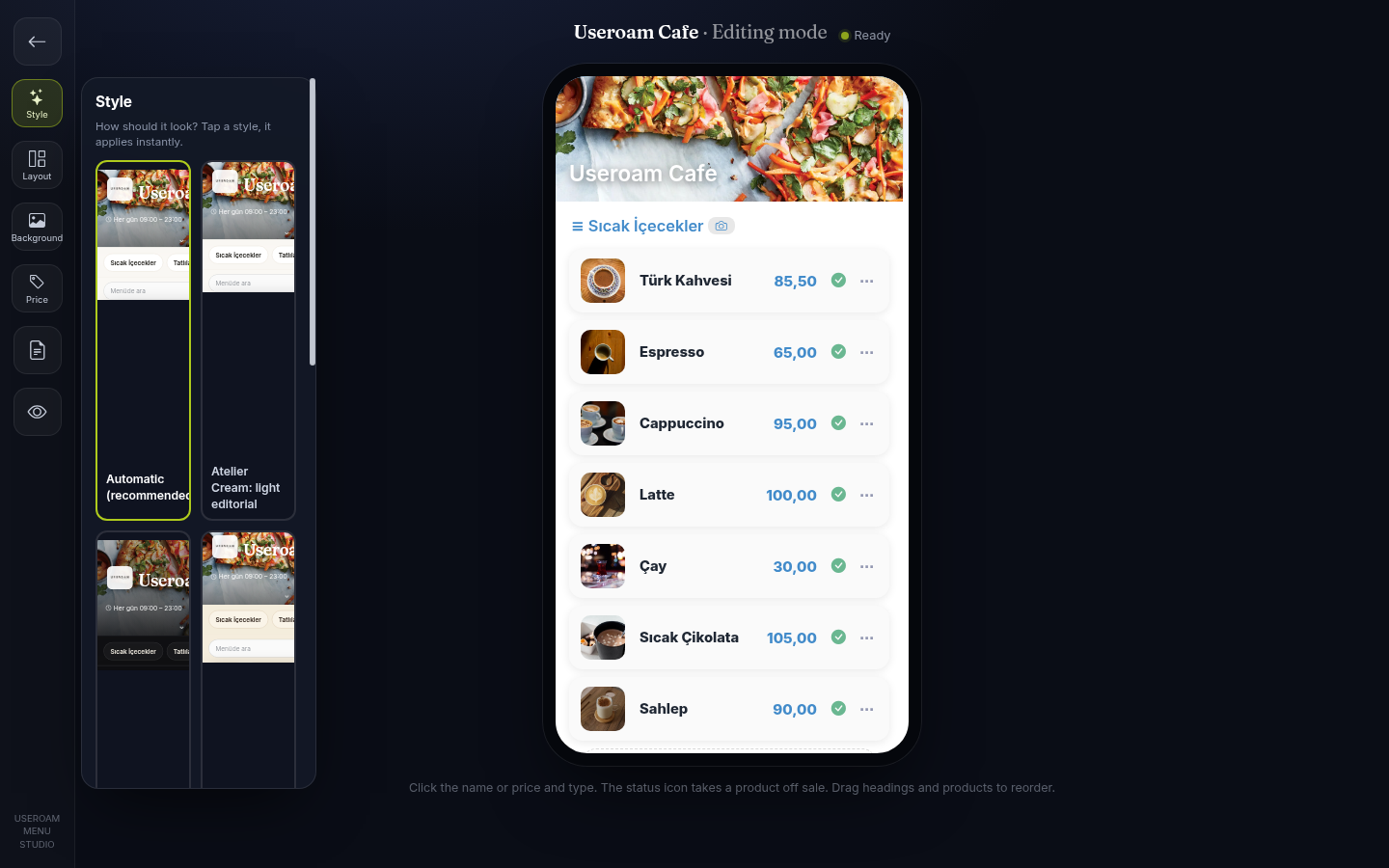
| Style | "How should it look? Tap a style, it applies instantly." Ready styles plus colour and font. |
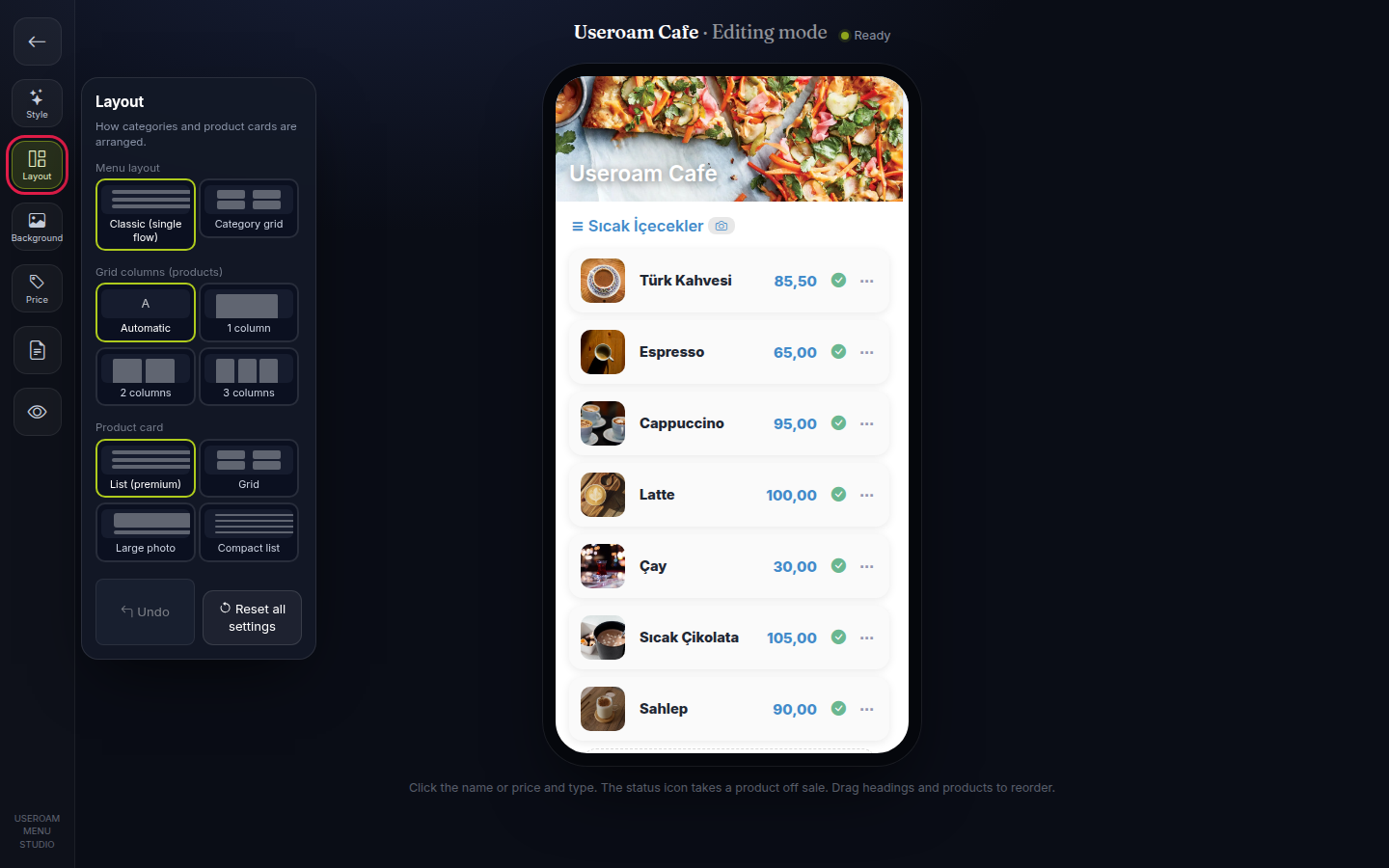
| Layout | "How categories and product cards are arranged." |
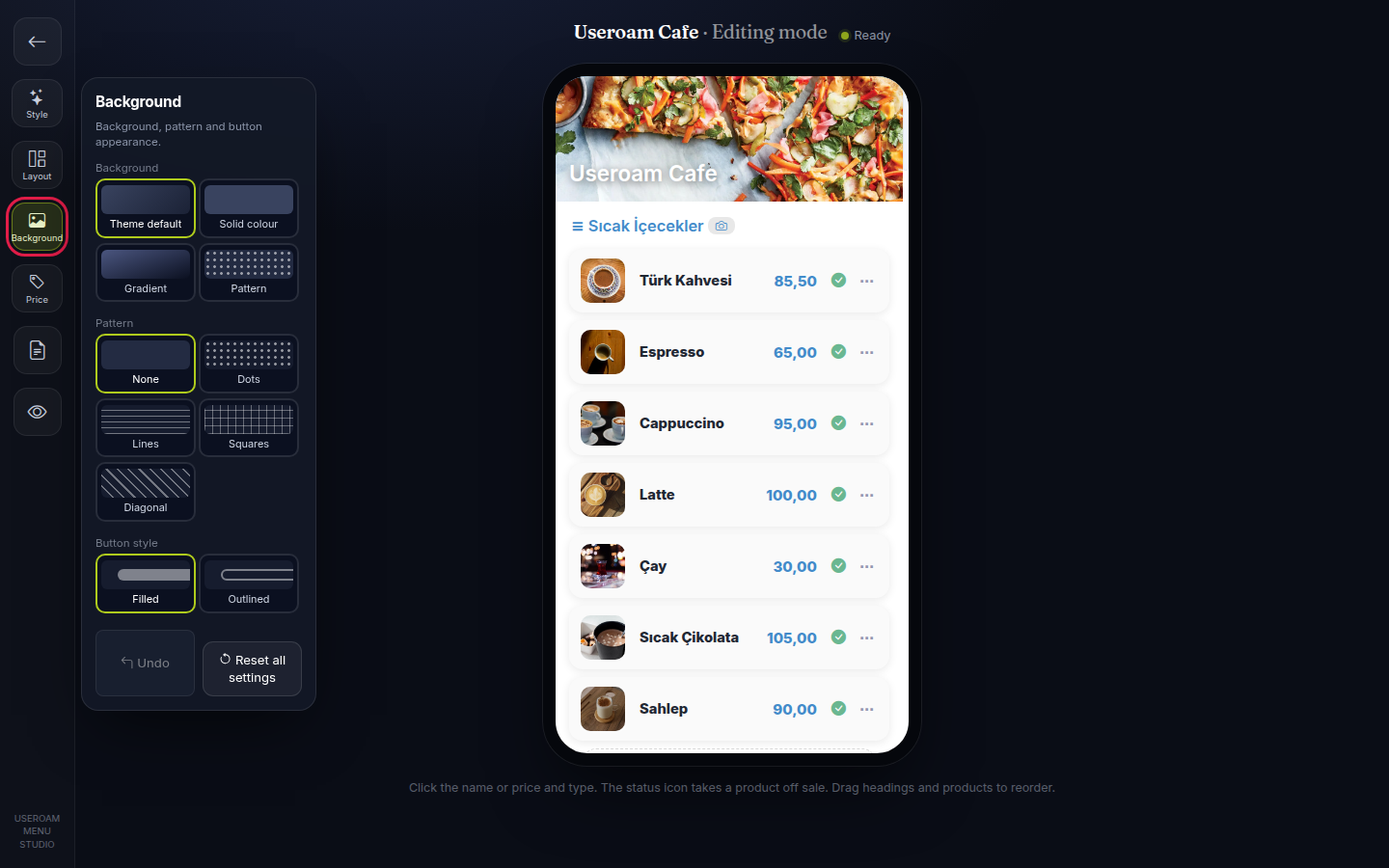
| Background | "Background, pattern and button appearance." |
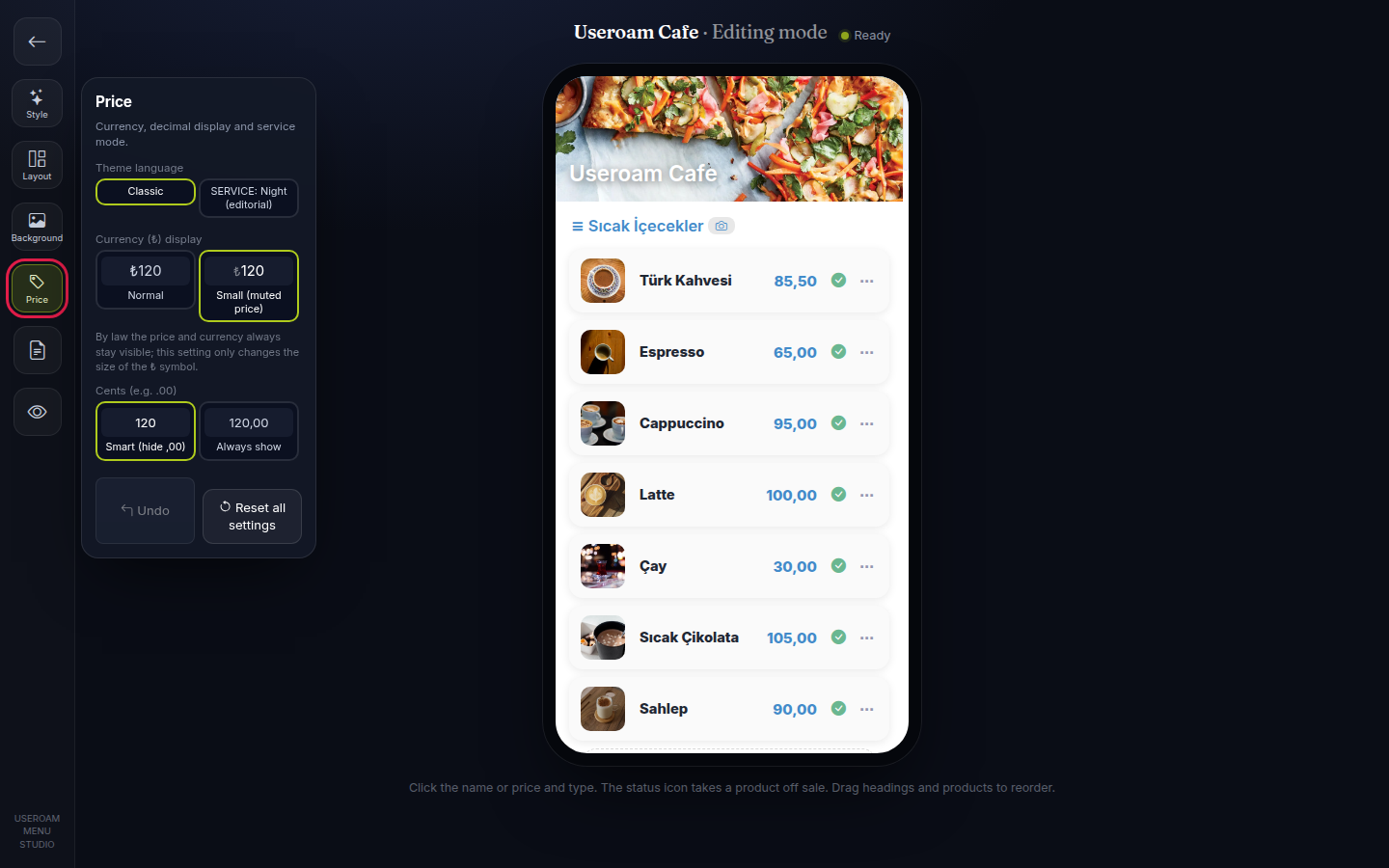
| Price | "Currency, decimal display and service mode." |
| Document icon | Import PDF (classic): opens the Menu Editor, where the import tools are. |
| Eye icon | Live menu: opens the guest page in a new tab. |
Step by step
- Click Style and tap a tile. Each tile is a live view of your own menu: Automatic (recommended), Atelier Cream: light editorial, Night · Noir: dark, centered, Hearth: kraft, restaurant menu, Vivid: bright, large photo. It is applied to the published menu and your brand colour is kept. The same section has Secondary accent colour and Font (Theme font or another font).
- Click Layout. Menu layout: Classic (single flow) or Category grid (categories show as cards; products appear after a category is opened). Grid columns (products): Automatic, 1 column, 2 columns, 3 columns. Product card: List (premium), Grid, Large photo, Compact list.
- Click Background. Background: Theme default, Solid colour, Gradient, Pattern. Pattern: None, Dots, Lines, Squares, Diagonal. Button style: Filled or Outlined.
- Click Price. Theme language: Classic or SERVICE: Night (editorial). Currency (₺) display: Normal or Small (muted price); note: "By law the price and currency always stay visible; this setting only changes the size of the ₺ symbol." Cents (e.g. .00): Smart (hide ,00) or Always show.
- Change products on the phone in the middle: click the name or price and type, tap the green status icon to switch a product between in stock / sold out, use the three dots for All details (label, portion, video; opens in the classic editor), use the camera next to a section title to add a Section image (upload or free suggestion), and drag headings and products to reorder. At the end of the list are + add product and + new section. The hint under the phone: "Click the name or price and type. The status icon takes a product off sale. Drag headings and products to reorder."
Under every section there are Undo (reverts the last change) and Reset all settings (returns the Studio settings to the design's defaults).
On an empty menu
Other on-screen texts
The hints, counters, waiting and status texts below appear on screen as written (numbers and names are examples; "..." is replaced with your data).
- In category grid, products appear after you open a category; column and product card settings apply there.
- Change cover photo
- Section image (upload / free suggestion)
- Tap: photo
- Tap: in stock / sold out
- Free images
- Openverse · CC0 / public domain. If none fit, upload your own photo.
- This phone is your live menu. Tap a product name or price and type directly; it saves automatically.
- Tap the colour palette and your menu instantly takes on the new theme.
- Go back to the classic editor for detailed fields (translation, variants, sale hours).
Frequently asked questions
How do I save?
You do not need to; each choice is saved at once and shows on the guest menu. Ready at the top confirms it.
Are Design in Menu Settings and Style in the Studio the same?
Design (Kafe, Restoran...) chooses the starting theme; Studio style, layout and background settings are applied on top of it. Reset all settings clears the Studio settings; the design stays.
Why are products hidden with Category grid?
With this layout guests see categories first, and products open when they enter a category. Column and product card settings apply there too.