
Setting Up Store QR Sign-up and the Coupon Wheel
What is it for?
This page sets up QR sign-up in your store and the coupon wheel that sign-ups can spin, from start to finish. When you are done, a customer scans the QR in your window, enters their name and phone, spins the wheel and shows the coupon code they won at the till. The cashier checks and redeems the code in the panel.
When to use it
- You are turning on the Store module for the first time.
- You are printing a new QR code for the storefront, entrance or checkout.
- You want to give customers who sign up a discount or a gift.
Before you start
- Your account needs the Bumerang (marketing) package. Without it the store page a customer opens says "Bulunamadı" (Not found).
- Select the right device (the store's device) in the panel. The store is created for the selected device; each device has one store.
- The design (logo, colour, background) and the KVKK privacy notice come automatically from your guest Wi-Fi login screen. You can change them later in Studio.
Step by step
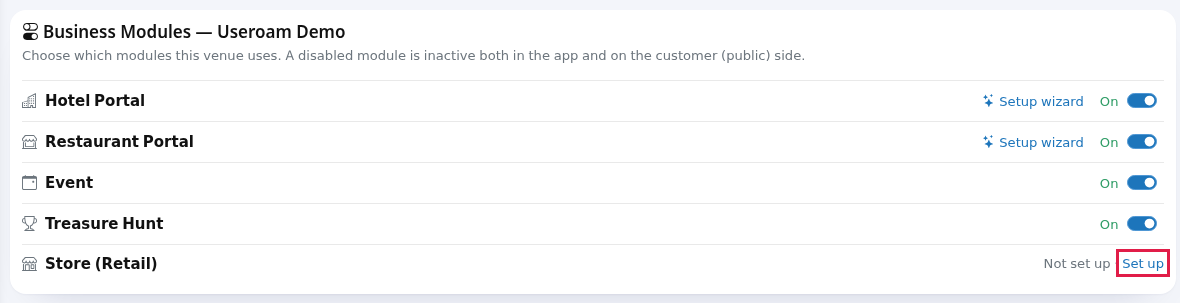
- If the Store module is not set up yet, Retail does not appear in the left menu. Open Module Permissions in the Business section of the left menu. In the Business Modules card, the Store (Retail) row says "Not set up"; click the Set up link next to it.
- In the Create your store card, type your store name in Store name (example:
Cafe Boutique) and press Create. "Store created." appears at the top and the store screen opens. Retail now shows in the left menu.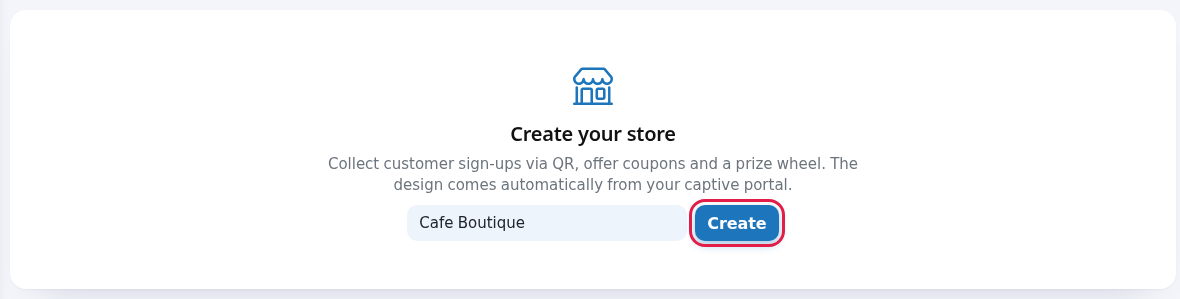
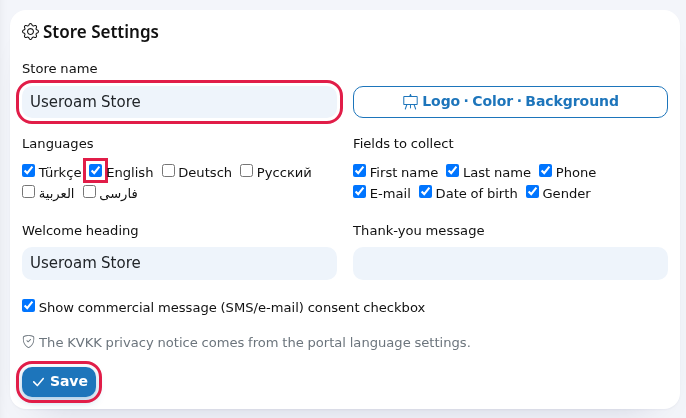
- In the Store Settings card, tick the form Languages and the information you want to ask (Fields to collect). If you want to send campaign SMS, leave Show commercial message (SMS/e-mail) consent checkbox ticked. A customer who ticks this box gets a 6-digit code on WhatsApp (by SMS if WhatsApp fails); the consent is only recorded once they enter the code. So if you collect consent, the phone must be ticked under Fields to collect: without a phone field no consent can be recorded. Press Save.
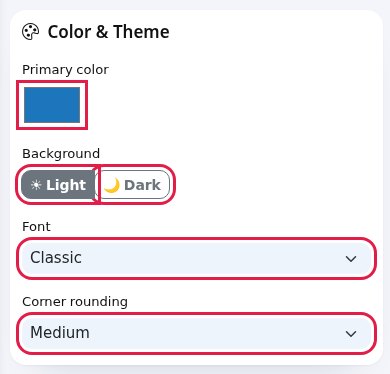
- To change your logo and colour, open Retail > Studio in the left menu. Colour, background, font and corner choices save instantly and the phone preview on the right updates right away. Details: Retail Studio.
- In the QR Points card on the store screen, define where the QR will go: choose a Type (for sign-up: Storefront, Entrance or Checkout), type a Label (example:
Window right), optionally a Location (opt.), and press Add.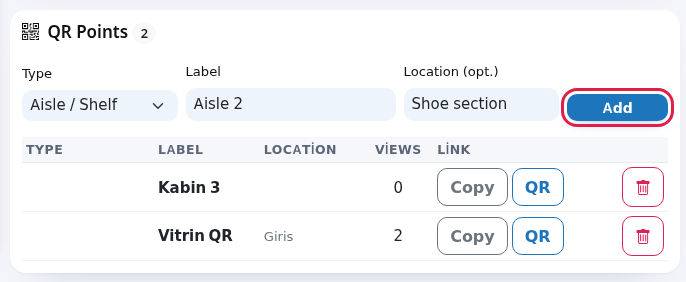
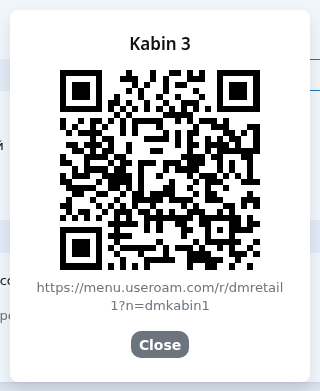
- Press the QR button on the point's row. A window shows the QR code with its address underneath. Take a screenshot and print it, or use Copy to paste the address into your own QR tool. Close the window with Close.
- Open Retail > Coupon & Wheel in the left menu. In the Coupons card, define the coupon: Title (example:
Welcome 10%), Type, Value and optionally an End date. Press Add; the coupon shows as Active in the list.
- On the same screen, edit the slices in the Spin-to-Win Wheel card. Choose your coupon in the box next to the slice that should give it; leave No prize on slices that should not. Keep Wheel active ticked and press Save Wheel.
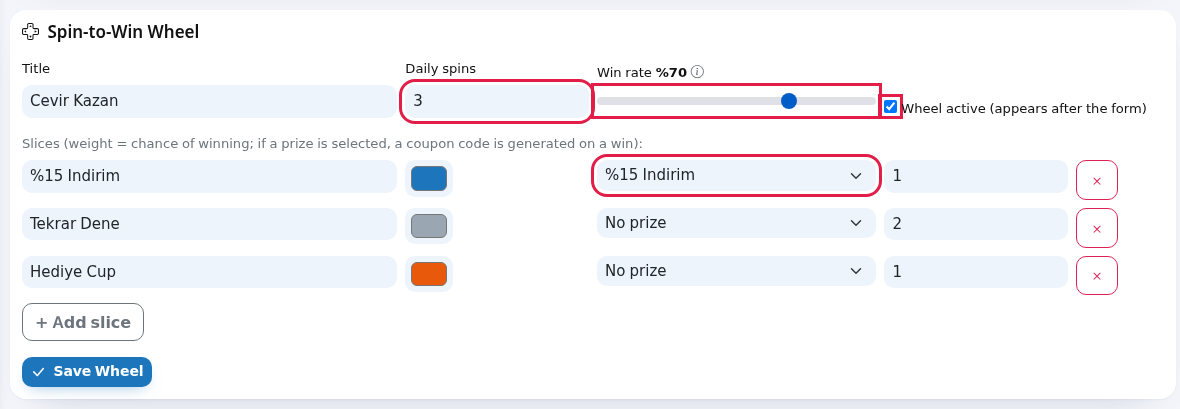 Important: check the prize boxes every time you save the wheel. The screen currently cannot show the coupon you chose before, so the box opens as No prize; if you save without checking, the slices lose their prizes.
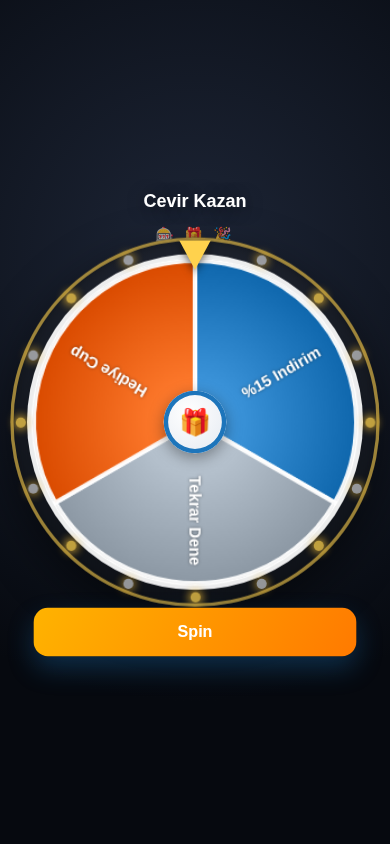
 - Scan the QR with your own phone and try it as a customer: fill in the form, tick the privacy notice box and press Sign up. If you also tick the offers consent box, a verification code arrives on your phone first; type it and press Verify and sign up. The wheel opens; press Spin. If you win, your coupon code appears. All customer screens: The Store Page Your Customers See.
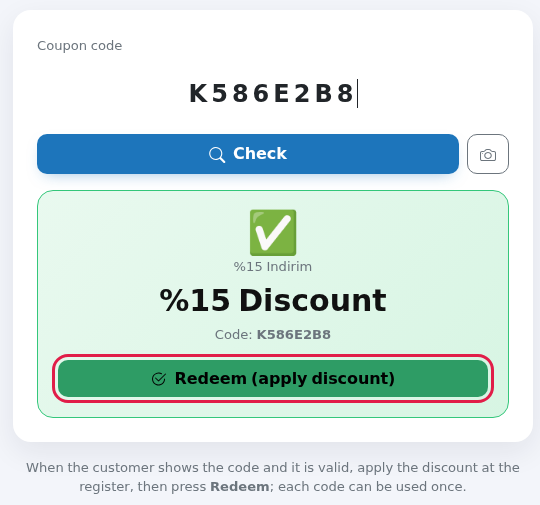
- At the till, open Retail > Checkout / Verify Coupon, type the code and press Check. If it is valid, apply the discount and press Redeem (apply discount). Details: Till / Coupon Validation.
Checklist after setup
| Check | Where to see it |
|---|---|
| Did your test sign-up arrive? | Retail Reports > Collected Records |
| Was a coupon issued? | Did Generated/Used go up in the Coupons & Wheel list? |
| Are QR scans counted? | The QR point's Views count on the store screen. |
Frequently asked questions
The customer scanned the QR but sees "Bulunamadı" (Not found).
There are three possible reasons: the Bumerang (marketing) package on your account is off or expired, the Store was turned off in Module Permissions, or the QR address was copied wrongly. For the package, contact our support team or your reseller.
No wheel appears; the customer gets a coupon straight away.
If the wheel is off or was never saved, the customer gets the newest active coupon whose distribution is After the form. If the wheel is on, no form coupon is given; only the wheel appears.
Why does the aisle or fitting room QR not open the sign-up form?
QRs of type Fitting Room and Aisle / Shelf open a "Call Staff" screen instead. For sign-up use Storefront, Entrance, Checkout or General.
Is any SMS sent?
This setup sends no SMS. For automatic SMS you need to turn on a rule in Automation.