
Blocked Users
What is it for?
Blocked Users is the list of people you do not want on your Wi-Fi. When a number or user name on this list tries to sign in, the login is rejected. Here you can block someone manually or remove a block.
When do I use it?
- You want to stop a guest who causes trouble or misuses the network from connecting again.
- You want to block a number in advance, before it has ever connected.
- You want to remove the block of a guest who was blocked by mistake.
Before you start
- A block only applies to the selected device. The top of the page shows the device, for example "Active device: Useroam Demo". To block the same person at another location, select that device and repeat.
- Blocking stops the guest's next sign-in. If they are connected right now, they are not dropped automatically; on devices whose firewall is connected to the panel you can drop them at once with Disconnect on the Active Guests screen.
- This menu item is shown to users who are allowed to see the SMS/Whatsapp list.
Step by step: blocking a number
- In the left menu open Guests and click Blocked Users.
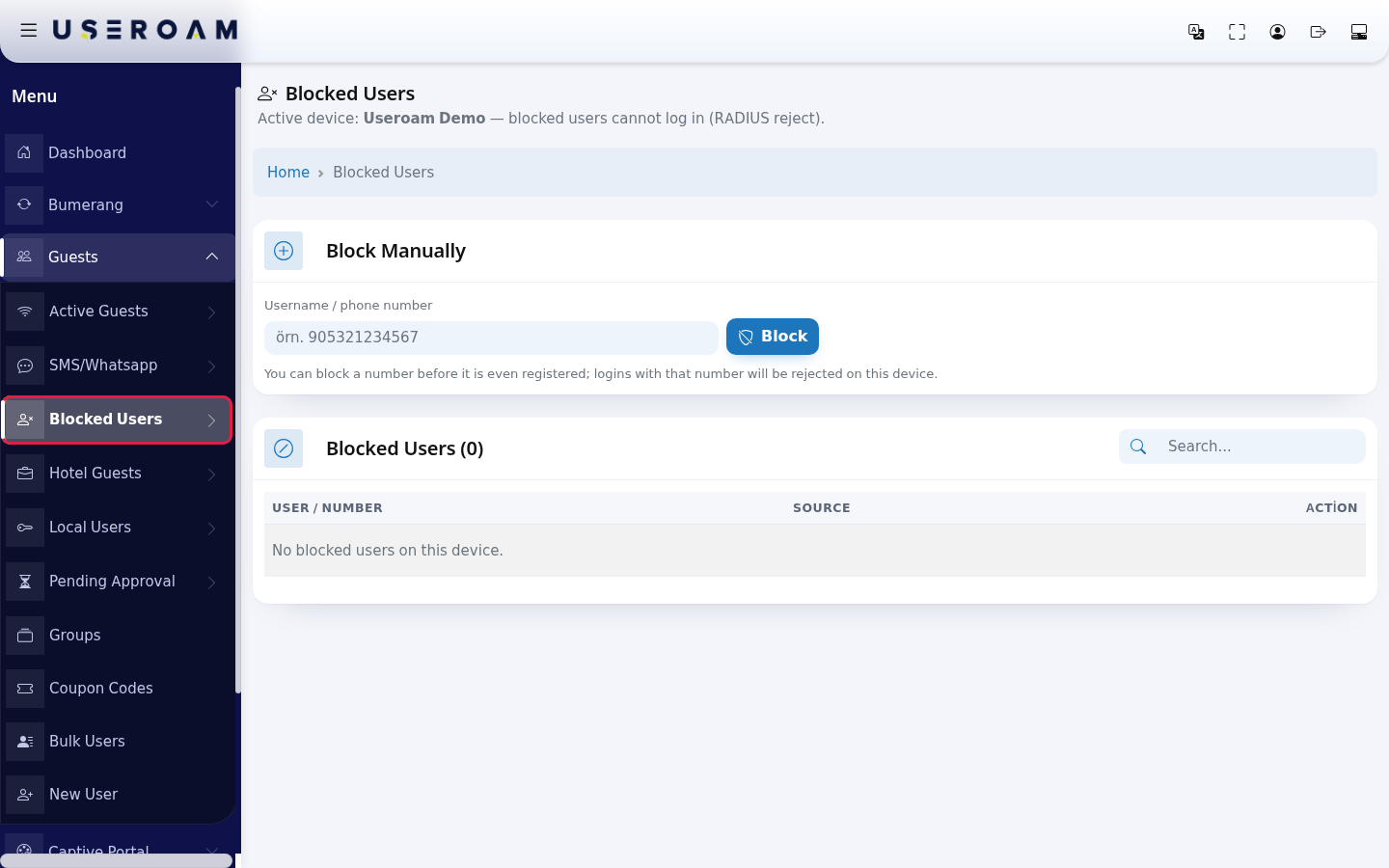
- In the Block Manually card, type the number in Username / phone number (example:
5321234567). A leading 0 or 90 and spaces or dashes are cleaned automatically. Press Block. A green "Blocked: 5321234567" message appears at the top.
- The blocked person appears in the list below. The number in the heading is the total count (example: Blocked Users (2)). To find someone, type in the Search... box on the right.
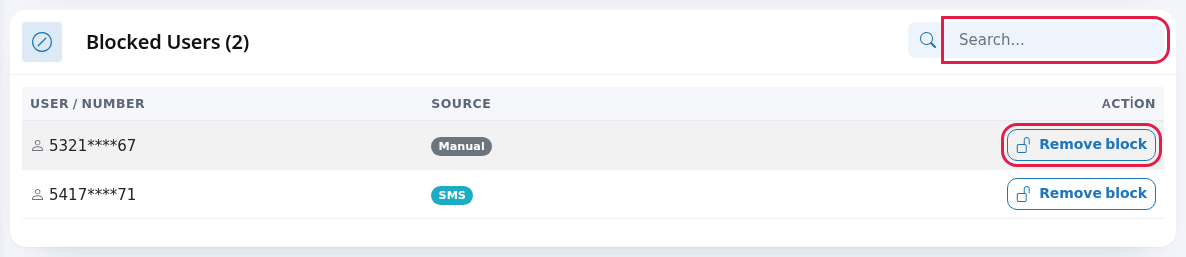
- To remove a block, press Remove block on the row and confirm "Remove this block?". The message "Block removed." appears; the person can sign in on their next attempt.
Another way: blocking from the guest list
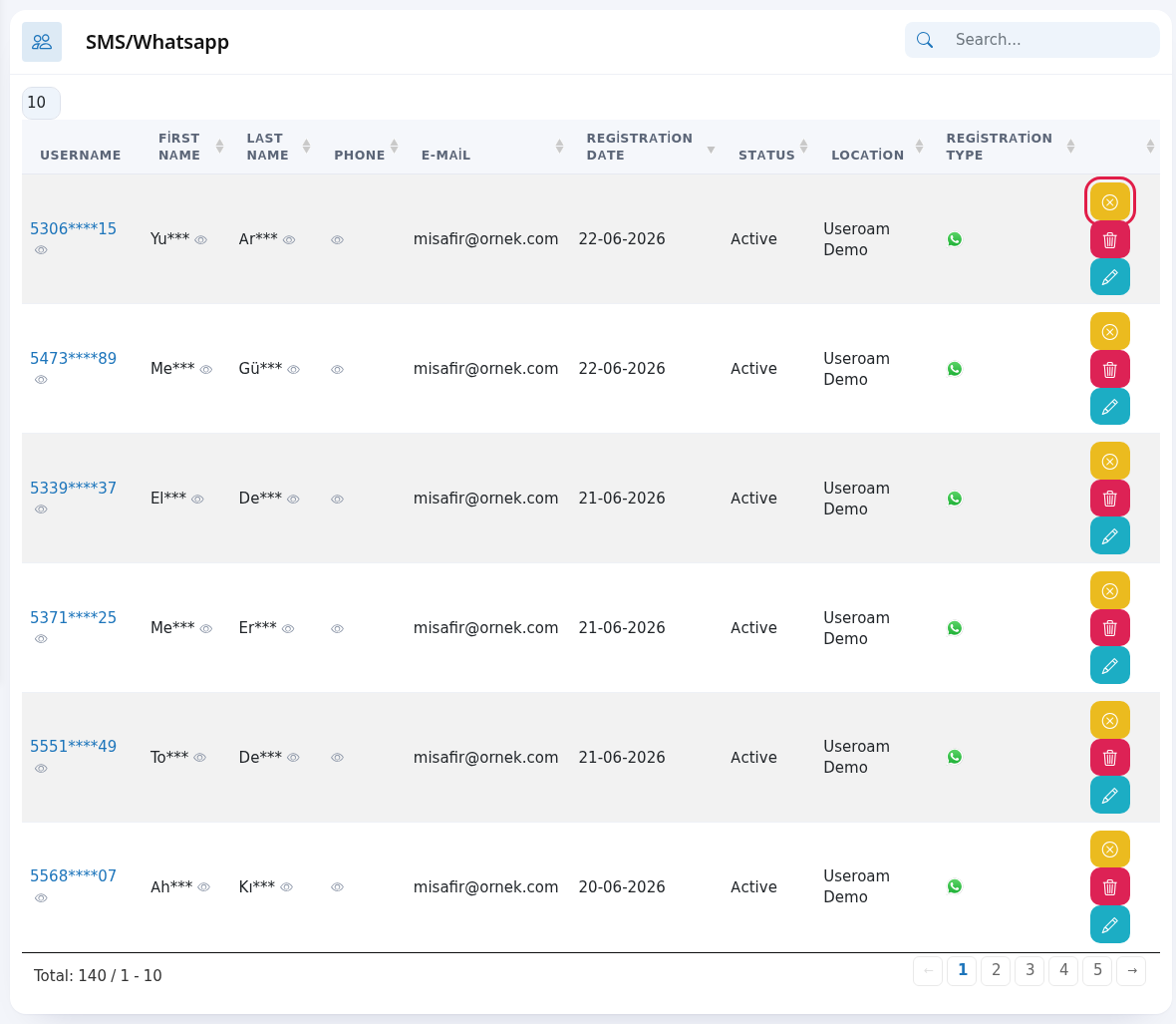
On the SMS / WhatsApp Users list, every guest row has a yellow button with a cross icon; hovering over it shows Disable User. A guest blocked this way appears on this list with its source (example: SMS). On a blocked guest's row the button turns green (Enable User) and removes the block.
Every field and button on the screen
| Field / Button | What it does |
|---|---|
| Active device: … | The device the block applies to. Next to it: "blocked users cannot log in (RADIUS reject)." |
| Username / phone number | Number or user name to block. Example: 5321234567. The example text inside the box is still Turkish ("örn." = e.g.). |
| Block | Blocks the number on this device. |
| Note under the card | "You can block a number before it is even registered; logins with that number will be rejected on this device." |
| Blocked Users (…) | List heading and total count. |
| Search... | Searches the list instantly. |
| User / Number | The blocked number (masked). The eye icon reveals the full number (if you are allowed; every reveal goes to the audit log). |
| Source | Where the block came from: grey Manual (from this screen), blue SMS, ID Card, Social, Staff or Hotel (blocked from the related guest list). |
| Action / Remove block | Removes the block after asking. |
Messages you may see
| Message | Meaning / what to do |
|---|---|
| Blocked: … | The number is blocked. |
| This user is already blocked on this device. | The number is already on the list. Nothing to do. |
| Username / number cannot be empty. | Type a number in the box. |
| Could not save the block, please try again. | Saving failed; the number is not blocked. Try again; if it keeps happening, contact support. |
| Block removed. | The person can sign in again. |
| No blocked users on this device. | The list is empty. |
| No active device found. Please select a device from the top menu. | Select a device on the Device Selection screen first. |
Frequently asked questions
I blocked the guest but they are still online.
A block stops new sign-ins. To end their open connection now, use Active Guests; if there is no disconnect button, the connection ends when its time runs out or the device leaves the network.
How should I type the number?
Any way you like: 0532 123 45 67, 905321234567 or 5321234567. They are all saved as the same number.
Does the blocked person get a message?
No. They only see on the login screen that they cannot sign in.
Where can I see who blocked someone?
The Audit Log lists block and unblock actions together with who did them.