
SMS Portal Settings
What is it for?
The SMS Portal Settings screen isswitches used tothe switchRegister registrationwith bySMS mobilebutton phoneon numberthe guest login screen on or off onand sets what the welcomeSMS screen.sign-up form asks for (e-mail, name, coupon code, province and district). The guest enterstypes their number,mobile isnumber verifiedand logs in with the password received by the confirmation SMS, and gets internet access.SMS.
How do I open this screen?
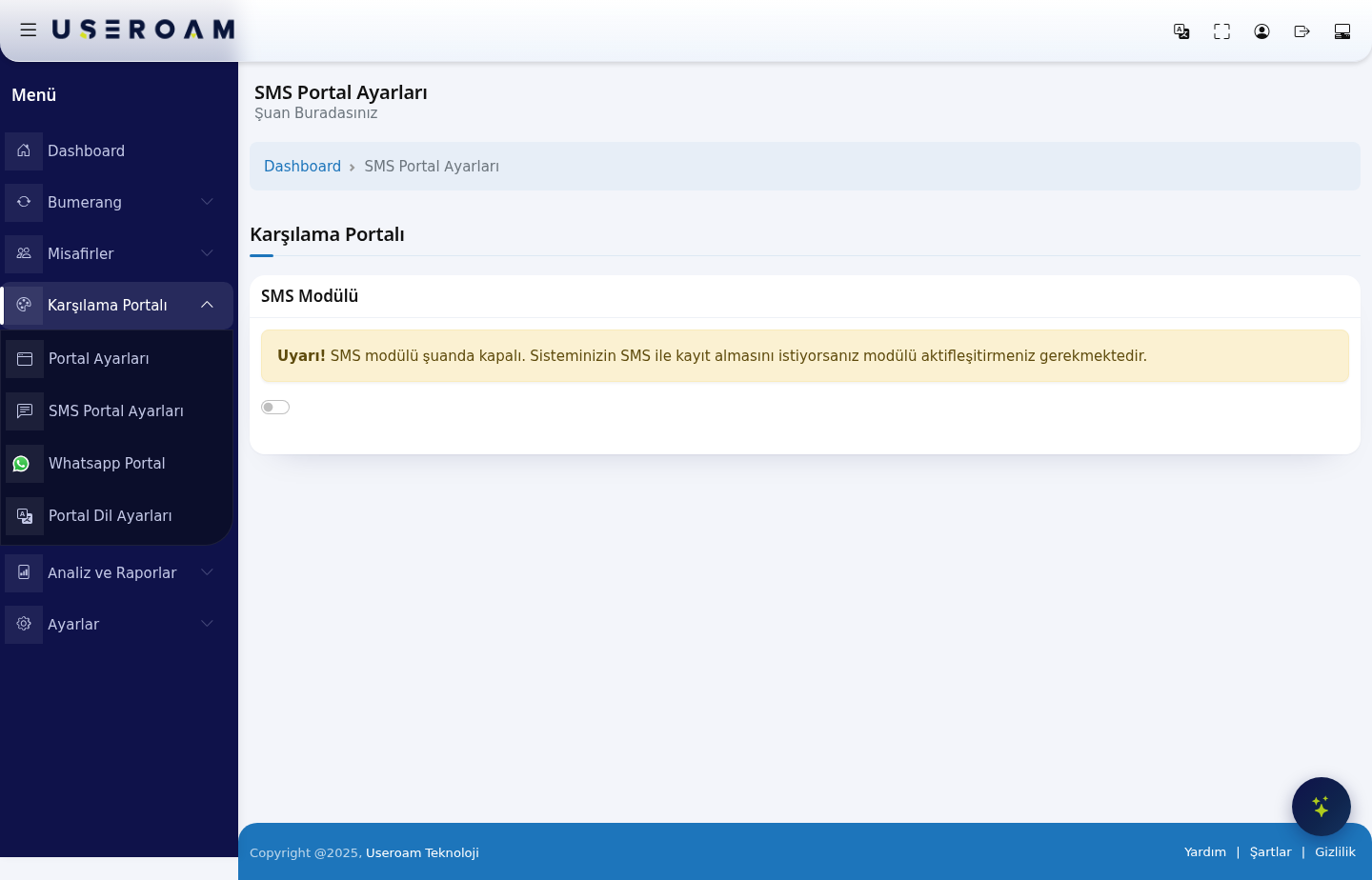
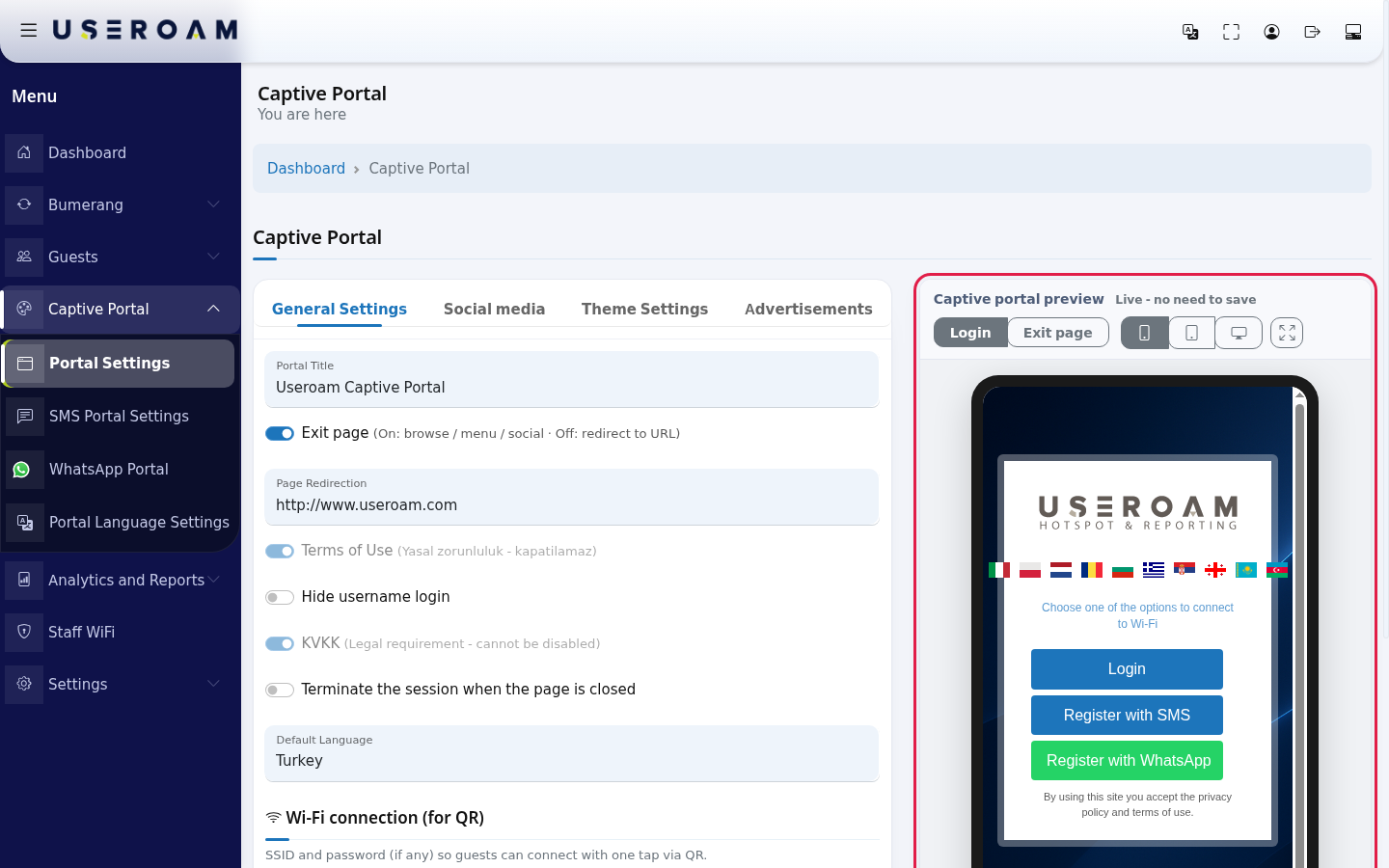
FromIn the left menu,go toclick Captive Portal → SMS Portal Settings. You are here appears under the title; Dashboard in the path line takes you to the home screen.
When Indo practiceI thisuse it?
- You want guests to register with their phone number and get online.
- You want to ask for e-mail or name on the sign-up form, optionally as required fields.
- Only guests with a coupon code should be able to register (e.g. codes you hand out to customers).
- You do not want guests online before you approve new sign-ups.
Before you start
- SMS login works with two screens. This screen
doesturns one job: turningon the module on or off.
The welcome screen's title, appearance, the details requestedbutton and the legalform; textsthe password format, SMS text and the guest group are allon managedSettings → SMS Settings. If that is incomplete, guests get no password.
If you turn on coupon sign-up, create the codes first on Coupon Codes.
If you use Waiting for Approval, pending sign-ups go to Pending Approval. To get an e-mail about them, the user approval e-mail must be on in Notifications.
Step by step
SMS Module
- You want guests to register with their phone number and get online.
- You want to ask for e-mail or name on the sign-up form, optionally as required fields.
- Only guests with a coupon code should be able to register (e.g. codes you hand out to customers).
- You do not want guests online before you approve new sign-ups.
Before you start
- SMS login works with two screens. This screen
doesturnsone job: turningon themodule on or off.
Step by step
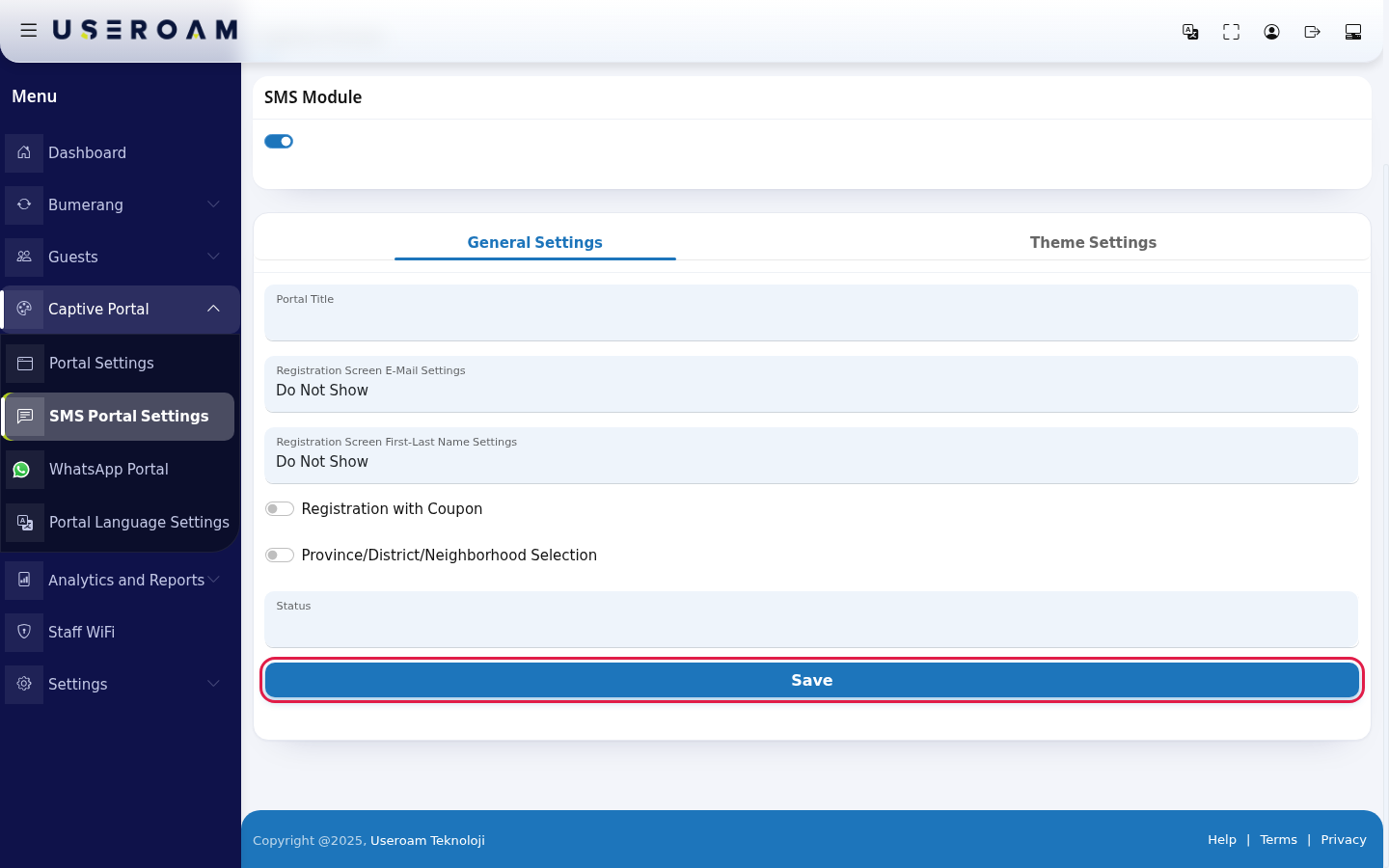
The SMS Module switch sits at the top of the page. WhileIf the module is off, the screenSMS Module card shows onlya switch that is off and this warning:
"Warning! SMS module is currently turned off. If you want your system to accept registration via SMS, you must activate the module."
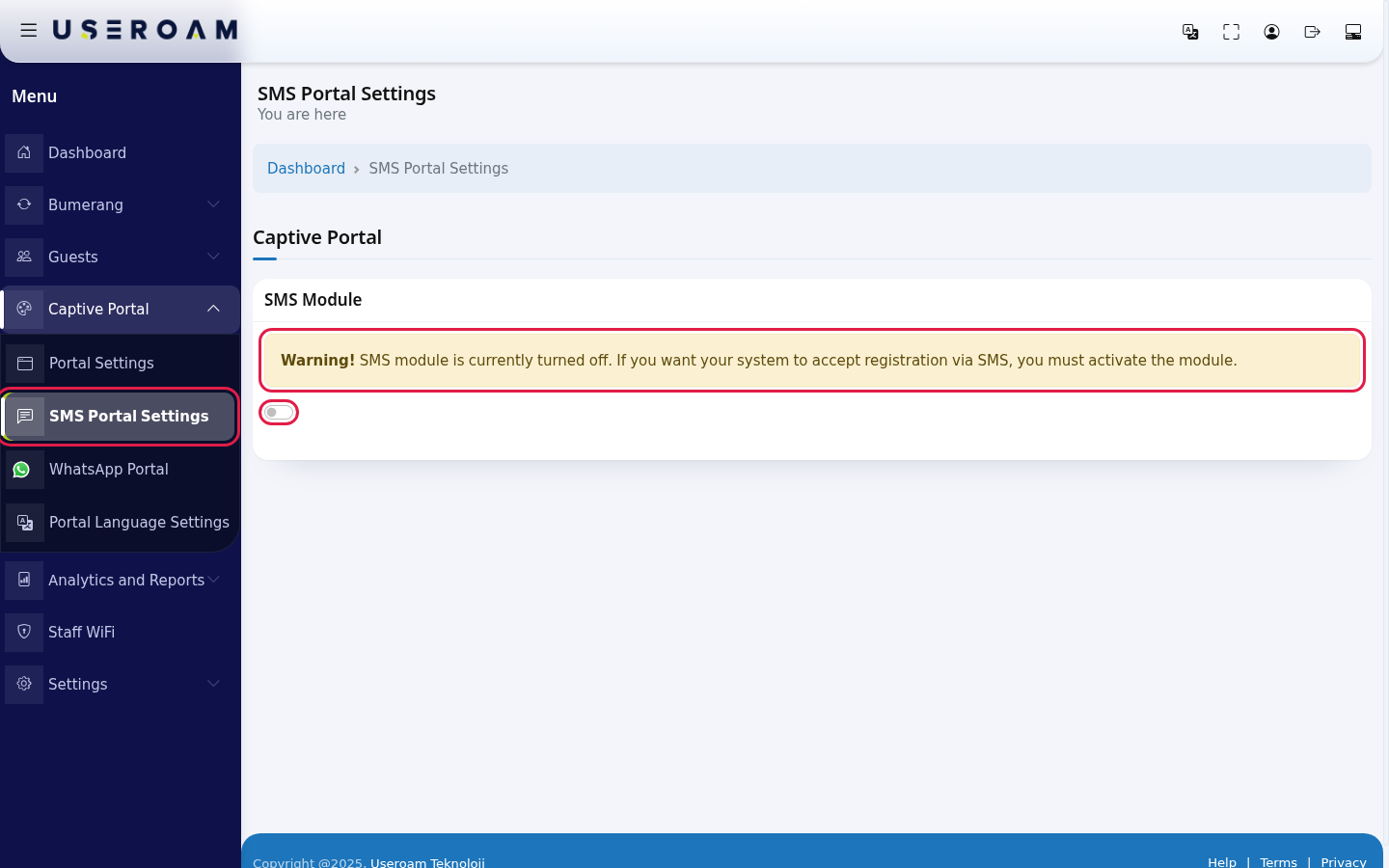
Turn the switch on. You do not need to save: it is saved the moment it changes and a Successful window says SMS module activated. You can configure your registration page settings. Close it with Ok. If you turn it off it says SMS module deactivated. and the Register with SMS button disappears from the login screen.
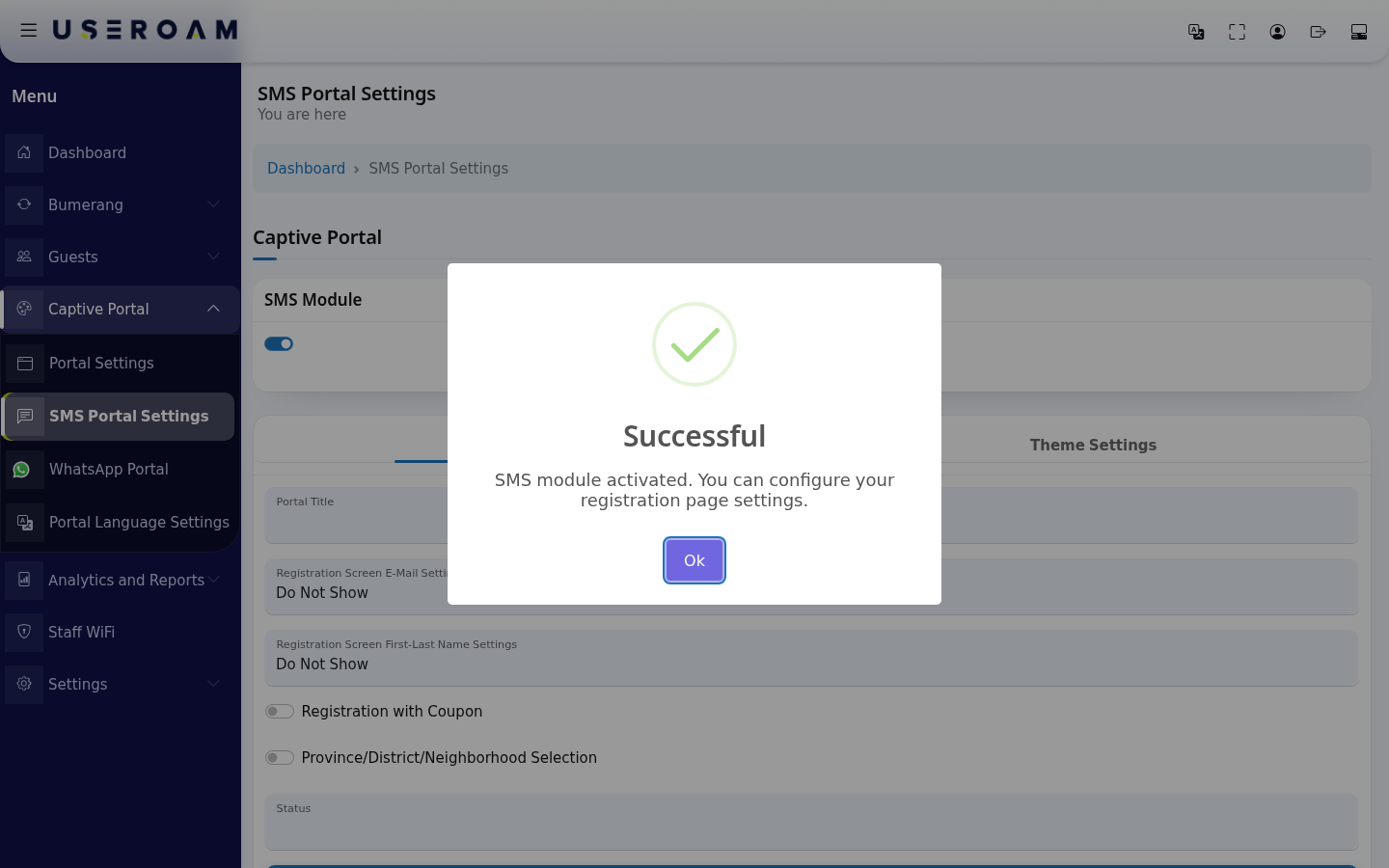
With the switch on, the General Settings and Theme Settings tabs appear below. Set up the sign-up form on General Settings:
SwitchRegistrationoff:Screen E-Mail Settings: Show (optional e-mail box), Show and Required, Do Not Show.- Registration Screen First-Last Name Settings: the same three options for the first and last name boxes.
- Registration with Coupon: asks for a coupon code; a wrong code blocks the sign-up.
- E-mail delivery permission: only appears while the e-mail box is shown. It is meant to control the commercial message consent box. Note: on the login screen that box is shown when your business has the Bumerang (marketing) licence; this switch alone does not decide it.
- Province/District/Neighborhood Selection: asks for province, district and neighbourhood.
- Status: what happens to new sign-ups. Active: the guest
doesgetsnotaseepassword and logs in right away. Waiting for Approval or Passive: theSMSsign-uploginwaitsoptionfor your approval; the password is sent when you approve.
To show the form that appears with the switch on, this image was produced on the welcomedemo screen.account without pressing the switch.
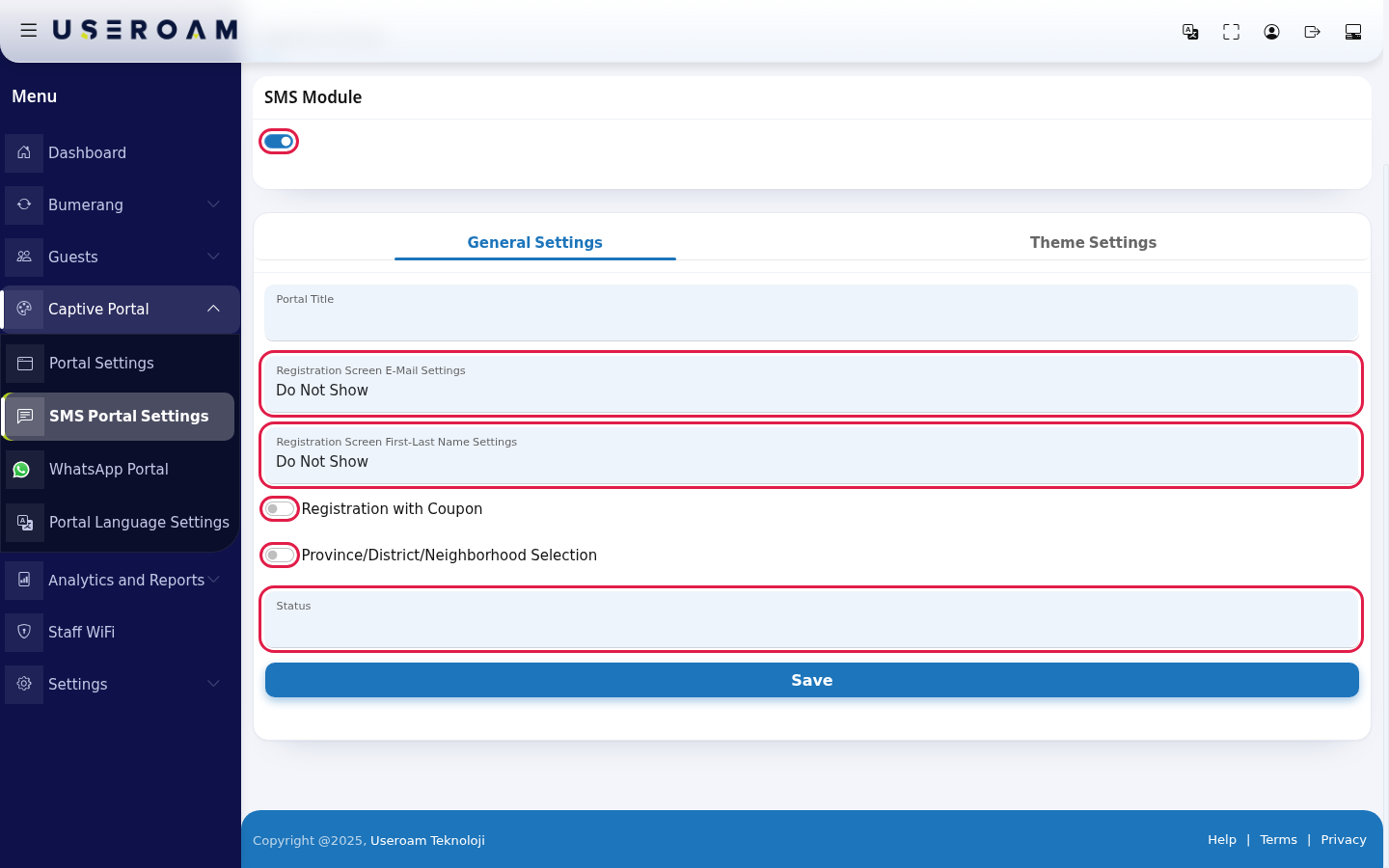
Press SwitchSave on:at the bottom of the tab. The page reloads and your choices stay in place. At the moment no separate confirmation message appears; your choices staying in place shows the save worked.
Check the login screen in the preview on Portal Settings: the Register with SMS button must be visible. Then join the guest network with a real phone and register once; if no SMS registrationarrives, flowcheck becomesSMS available.Settings.
Every field and button on the screen
| Field / Button | What it does | Example |
|---|---|---|
| Turns the Register with SMS button on or off. Saved the moment it changes. | On | |
| General Settings, Theme Settings | Two tabs visible while the switch is on. | - |
| Portal Title | Title for devices that use the old separate sign-up page. On the current login screen the title comes from Portal Settings. | Can stay empty |
| Registration Screen E-Mail Settings | Show, Show and Required, Do Not Show. | Show |
| Registration Screen First-Last Name Settings | Show, Show and Required, Do Not Show. | Show and Required |
| Registration with Coupon | Asks for a coupon code. | Off |
| E-mail delivery permission | Commercial message consent box. Whether it shows on the login screen depends on the Bumerang licence. | - |
| Province/District/Neighborhood Selection | Asks for province, district and neighbourhood. | Off |
| Status | Active, Passive, Waiting for Approval. | Active |
| Save | Saves General Settings. | - |
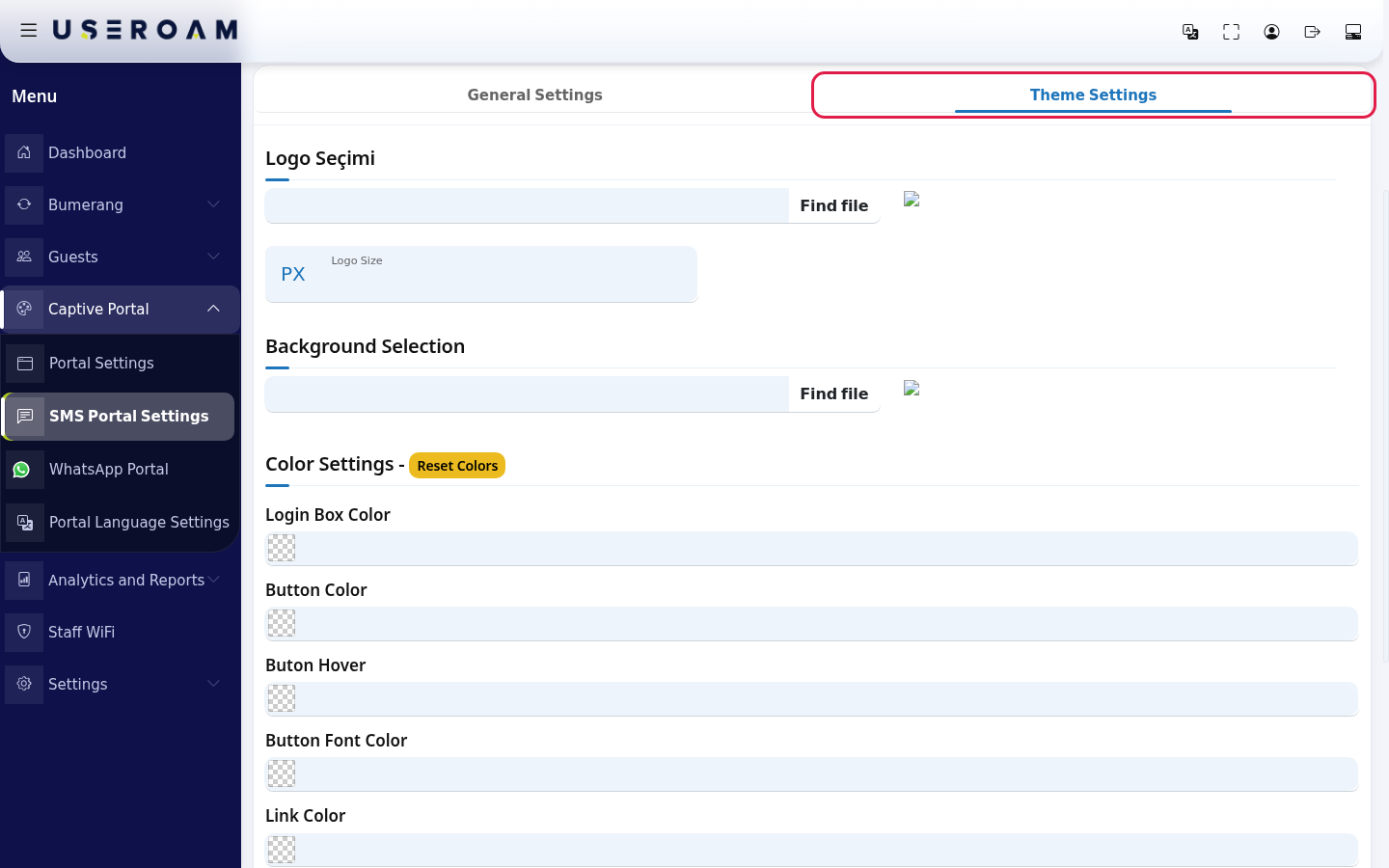
| Theme Settings: Logo Seçimi (logo selection; shown in Turkish),Logo Size, Background Selection, Color Settings (Login Box Color, Button Color, Button Font Color, Link Color, Font Color), Reset Colors, Save | Only applies to devices that use the old separate sign-up page (e.g. old Cyberoam installations). On Sophos, MikroTik, Fortinet and other current login screens the look comes from Portal Settings → Theme Settings. | - |
The SMS form the guest sees
With the module on is not enough on its own: foron, the guest totaps receiveRegister with SMS. A country code list and a verificationmobile phone box appear, then depending on your choices first name, last name, e-mail, coupon code, yourprovince providerand details,district lists and a neighbourhood box. The KVKK consent box is always there. You change these texts and the error messages (e.g. Please enter a coupon code, Coupon code is wrong) on the screen described in Editing Portal Texts.
Frequently asked questions
I turned the switch on but guests get no SMS.
Check that the message text and the group theare guestset ison added to must be configured under Settings → SMS Settings. Sent SMS messages appear in SMS / WhatsApp Reports.
I pressed Save and nothing seemed to happen..
No confirmation message appears on this screen after saving. If your choices are still in place after the modulereload, the save worked.
I set Status to Waiting for Approval. What does the guest see?
The guest sees the waiting-for-approval message. When you approve on Pending Approval, their password is onsent.
I turned off E-mail delivery permission but the SMSconsent settingsbox arestill missing,appears.
The commercial message consent box on the login screen follows your Bumerang (marketing) licence.
I changed the logo on Theme Settings, the login screen did not change.
On the current login screen the logo and colours come from Portal Settings → Theme Settings. Change them there.
Related pages
How do I testfor the result?
first Aftertime
saving, open the welcome screen as the guest sees it. Connect a device to your test network's portal address (for example http://192.168.2.1:8090/) and confirm the login options appear as expected.
SettingsPortal
Related pages:Captive Portal → Portal Settings(appearance and login fields),Settings → SMS Settings (provider and message),Guests →SMS / WhatsApp Users ,Analytics·andPendingReportsApproval→·SMSCoupon/CodesReports.