
Agreement Approval
Before you start using Useroam Cloud you must approve two agreements on behalf of your business: the SaaS Customer Agreement and the Useroam Data Processing Agreement (DPA). The approval screen opens by itself in the panel; this page explains it step by step.
Note: the agreement texts and some labels on this screen are currently Turkish only, even with the English panel. Turkish labels are given with their meaning in parentheses.
What is it for?
It puts the scope of the service and how guest data is processed (KVKK, the Turkish data protection law) in writing. Your approval is recorded with the date, agreement version and a fingerprint (hash) proving the document was not changed; no wet signature is needed.
When do I use it?
- The first time someone from your account signs in and selects a device.
- When Useroam publishes a new version of the agreements (only the new version is asked).
Before you start
- Approval is per account: one person from your business is enough. Until then, every administrator of the account sees this screen instead of the panel.
- Your name and username are recorded as the approver. The person authorised to sign for the business should approve.
- Have your legal company title and full address ready (asked if missing).
- Dealer accounts and Useroam staff do not see this screen.
Step by step
Step 1: Complete your company details (only if missing)
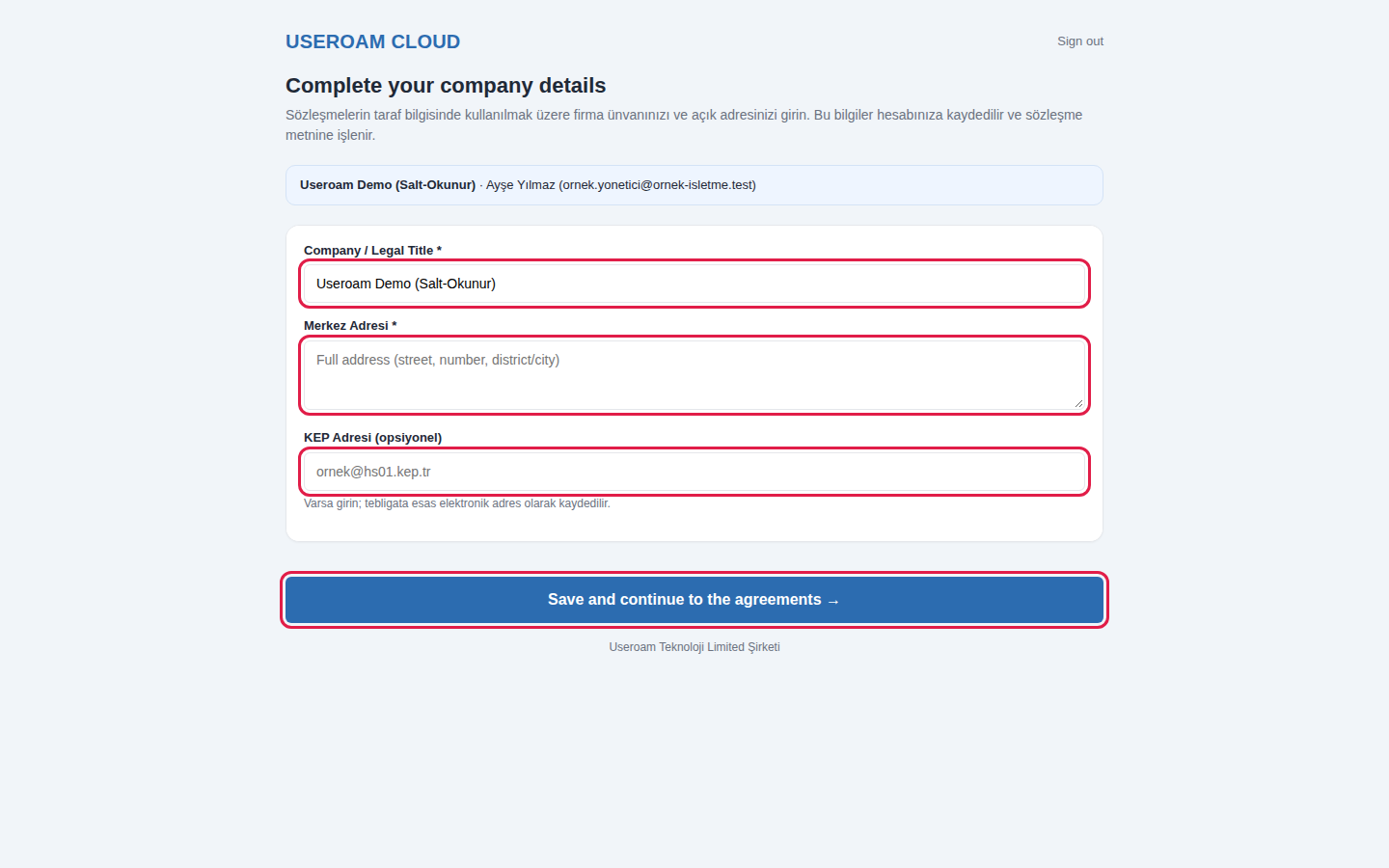
If your account has no company title or address, Complete your company details opens first. The blue box shows your company and your name.
- Company / Legal Title *: the official name written in the agreement, e.g.
ABC Tourism and Hotel Management Ltd.(at least 3 characters). - Merkez Adresi * (Head office address): street, number, district/city. At least 10 characters.
- KEP Adresi (opsiyonel) (registered e-mail address, optional): Turkish registered electronic mail address if you have one, e.g.
ornek@hs01.kep.tr.
Press Save and continue to the agreements. The details are saved to your account and filled into the agreement text (highlighted in yellow).
Step 2: Read the first agreement to the end
On Approve the service agreements each agreement is in its own card, with its name and version (Version 2.3, for example) at the top. Scroll inside the text box all the way down. Below the box: "The confirmation box becomes active once you scroll the document to the end." The box cannot be ticked before that.
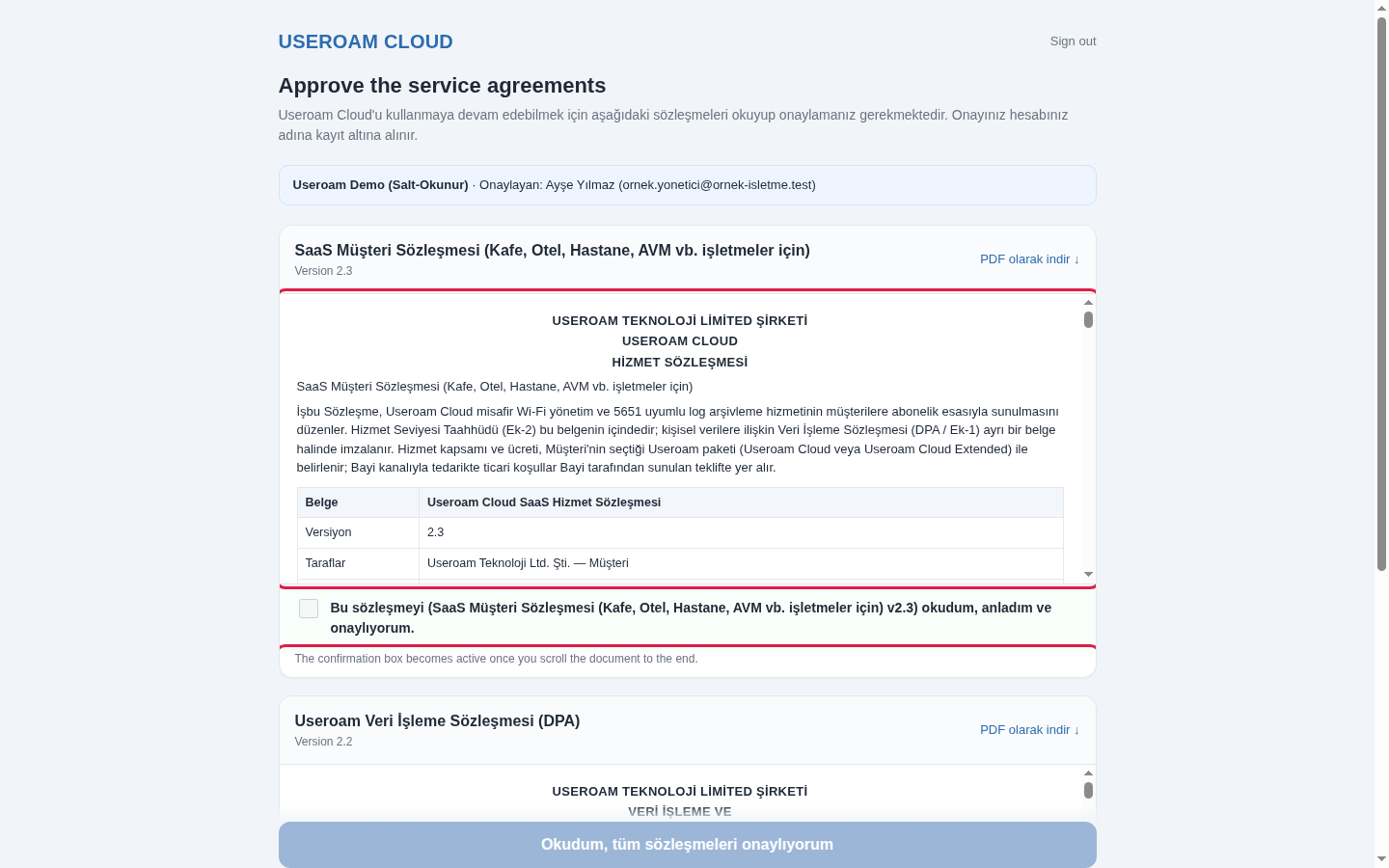
To keep a copy or send it to your legal team, use PDF olarak indir (Download as PDF) at the top right of the card.
Step 3: Tick the confirmation box
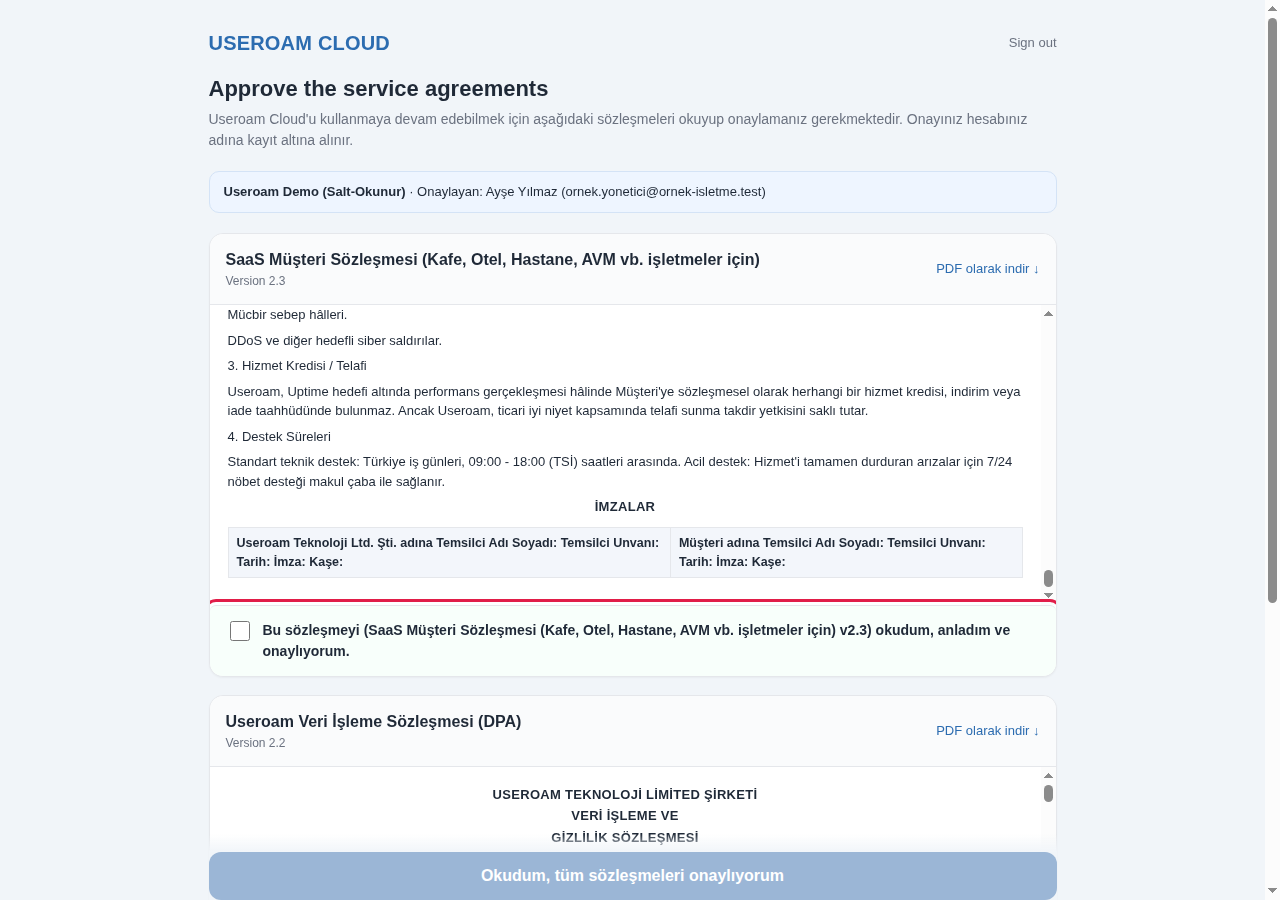
At the end of the text the note disappears and the box "Bu sözleşmeyi (...) okudum, anladım ve onaylıyorum." (I have read, understood and approve this agreement) becomes active. Tick it.
Step 4: Repeat for the second agreement and approve
Do the same in the Useroam Veri İşleme Sözleşmesi (DPA) card. When both boxes are ticked, the Okudum, tüm sözleşmeleri onaylıyorum (I have read and approve all agreements) button at the bottom turns blue; press it.
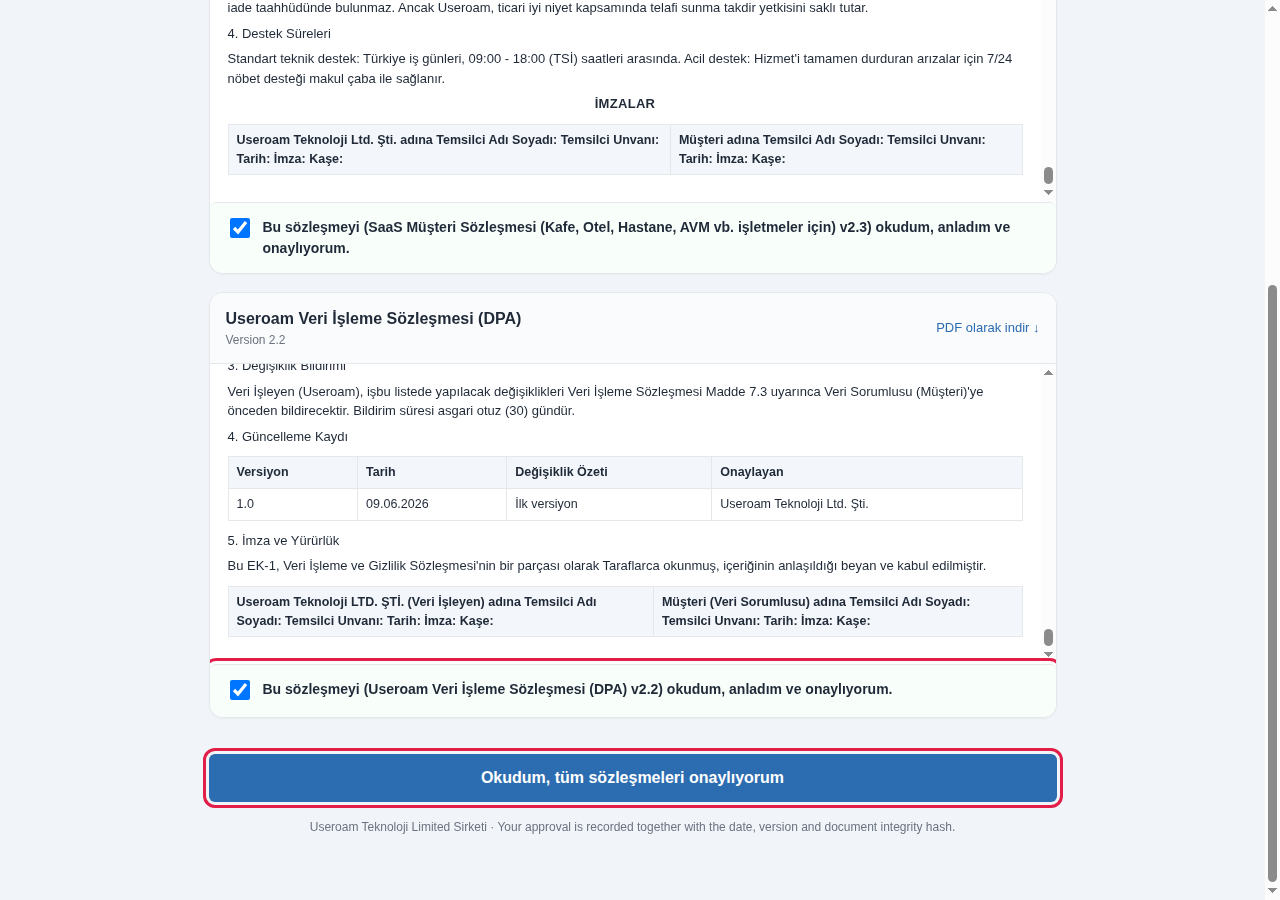
The Dashboard then opens. The footer note says: "Your approval is recorded together with the date, version and document integrity hash."
Every field and button
| Field / Button | What it does | Example |
|---|---|---|
| Company / Legal Title * | Official name of the customer party. | ABC Tourism Ltd. |
| Merkez Adresi * (Head office address) | Customer address in the agreement. | Liman Cad. No:5 Kemer/Antalya |
| KEP Adresi (opsiyonel) | Official notification address. | ornek@hs01.kep.tr |
| Save and continue to the agreements | Saves company details and opens the agreements. | |
| Blue info box | Company name and "Onaylayan" (approver) with name and username. | |
| Version | Version of the agreement you approve. | 2.3 |
| PDF olarak indir (Download as PDF) | Opens the PDF in a new tab. | |
| Confirmation box | Declares you read that agreement. Active after scrolling to the end. | |
| Okudum, tüm sözleşmeleri onaylıyorum | Records the approval if all boxes are ticked and opens the panel. | |
| Sign out (top right) | Leaves without approving. The screen appears again next time. |
Warnings and errors
| Message | What to do |
|---|---|
| Please enter your company title and full address completely. | Title at least 3, address at least 10 characters. |
| To continue you must read each agreement and tick its confirmation box. | Scroll both agreements to the end and tick both boxes. |
| Your session has expired, please refresh the page. | Refresh and approve again. |
| The document could not be loaded. | Refresh; contact support if it continues. |
Frequently asked questions
Can I use the panel without approving? No. Every panel page redirects to this screen until approval. The Useroam Go staff app is not affected; your staff keep working.
The box will not tick. Scroll the text to the very bottom with the card's own scroll bar; scrolling the page itself is not enough.
I typed the wrong company address. After Save and continue to the agreements, company details cannot be changed on this screen. Contact Useroam support or your dealer.
Where can I see the agreement later? Keep the copy you get with PDF olarak indir; you can also ask Useroam.