
Quick Start: Your First Sign-in
Signing in to the Useroam panel for the first time? This page takes you step by step from the sign-in screen to the home screen (Dashboard). It takes about 10 minutes. Keep your phone at hand: you will install a verification app on it.
What is it for?
It lets you sign in securely, prepares your account for first use and shows you where to do what.
When do I use it?
- When Useroam or your dealer sends you a panel username and password (first sign-in).
- When you forget your password or move to a new phone.
- When a new administrator in your team signs in for the first time: send them this page.
Before you start
- Your username (your e-mail address) and password, given to you by Useroam or your dealer.
- A smartphone with one of these free apps from the App Store or Google Play: Google Authenticator, Microsoft Authenticator or Authy.
- An up-to-date browser (Chrome, Edge, Safari, Firefox). Panel address: https://panel.useroam.com
Sign-in order (summary)
On your first sign-in the screens appear in this order. Later you are only asked for the 6-digit code instead of step 2's setup, and step 5 does not come back.
- Sign-in screen: e-mail, password, language.
- Two-factor authentication setup (first sign-in only).
- Device Selection: which business (device) to open.
- Company details (once, only if missing).
- Agreement approval (once; again if a new version is published).
- Dashboard (home screen).
Step by step
Step 1: Open the sign-in screen
Go to https://panel.useroam.com. You see the time and date at the top left, and the Useroam logo with the sign-in boxes in the middle.
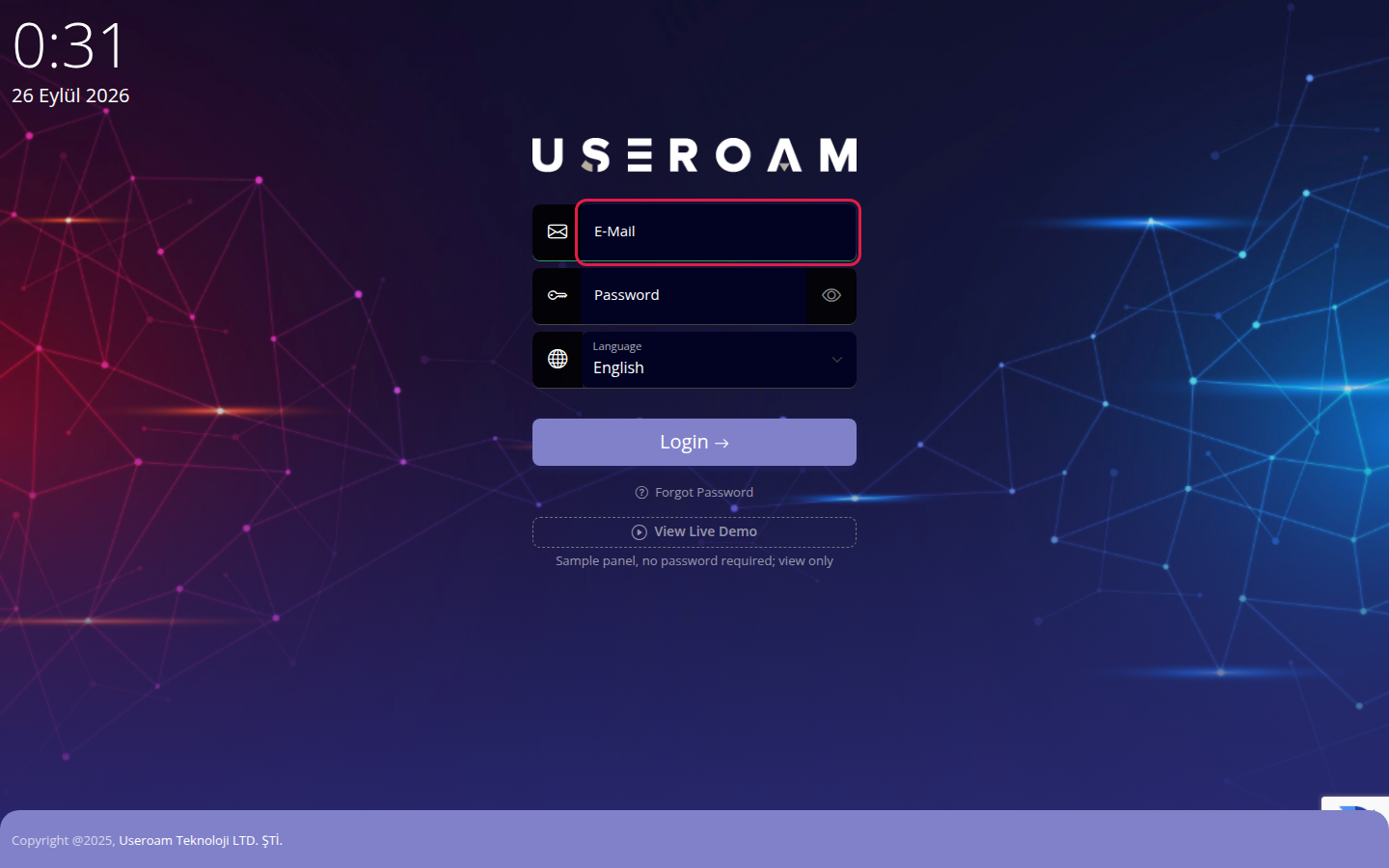
Important: if you want to change the language, do it before typing your e-mail and password (Step 3). Changing the language reloads the page and empties the boxes.
Step 2: Type your e-mail and password, then press Login
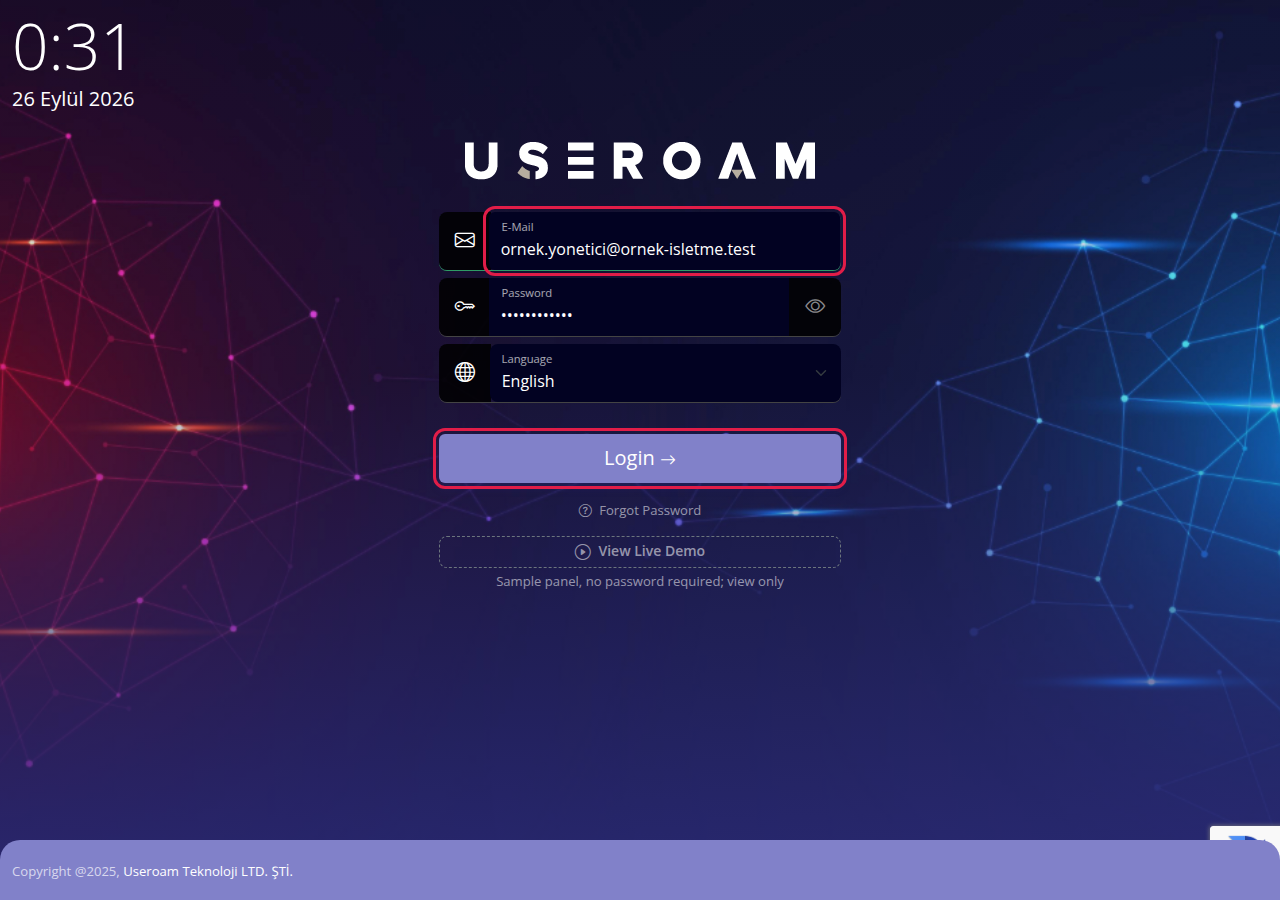
Type your username in E-Mail and your password in Password, then press Login. The eye icon on the right of the password box shows what you typed.
Step 3 (optional): Choose the language
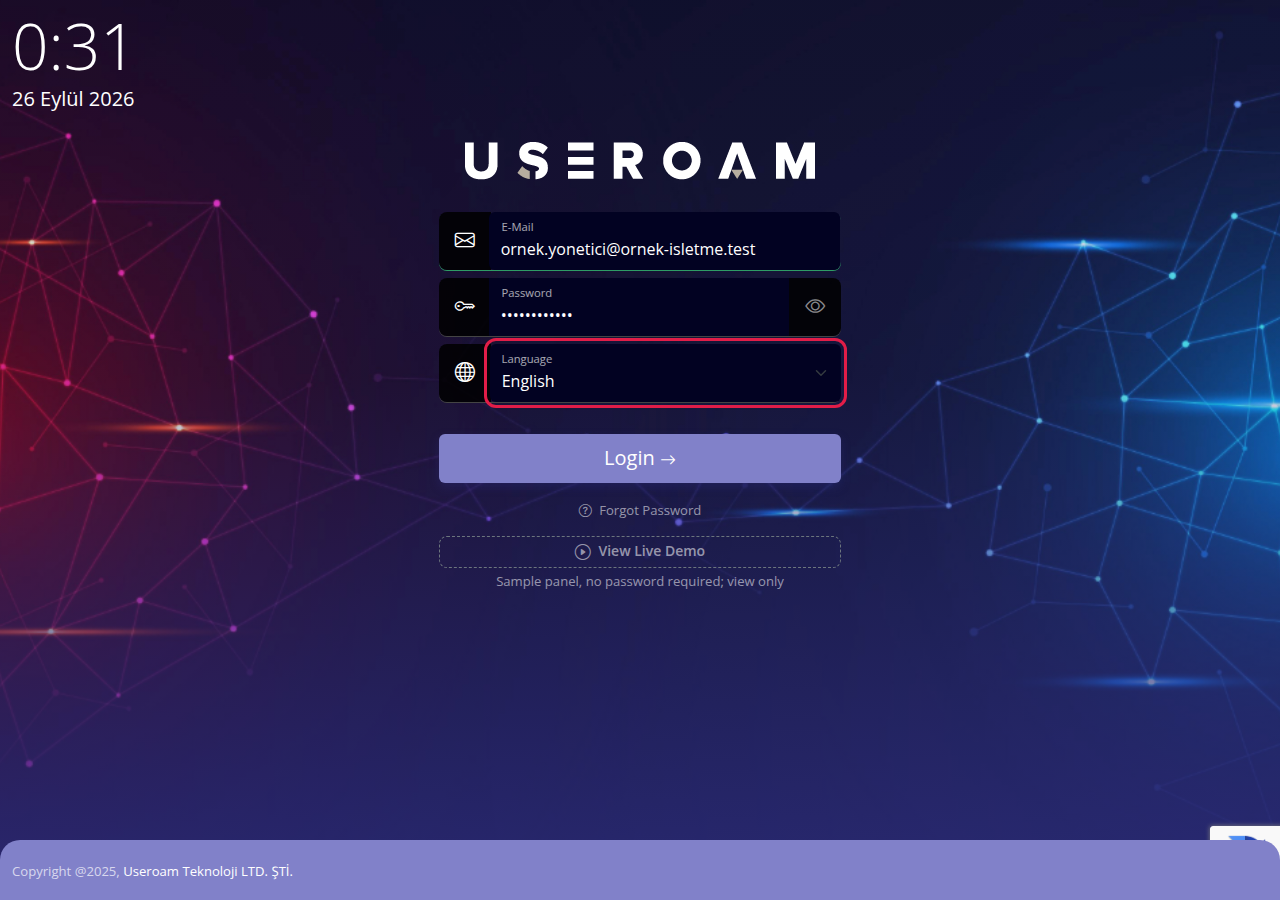
Choose Türkçe or English in the Language box. The page reloads in that language at once and your browser remembers the choice for one year. It also sets the panel language, unless you saved a panel language in My Profile, which then wins.
Step 4: Set up two-factor authentication (first sign-in only)
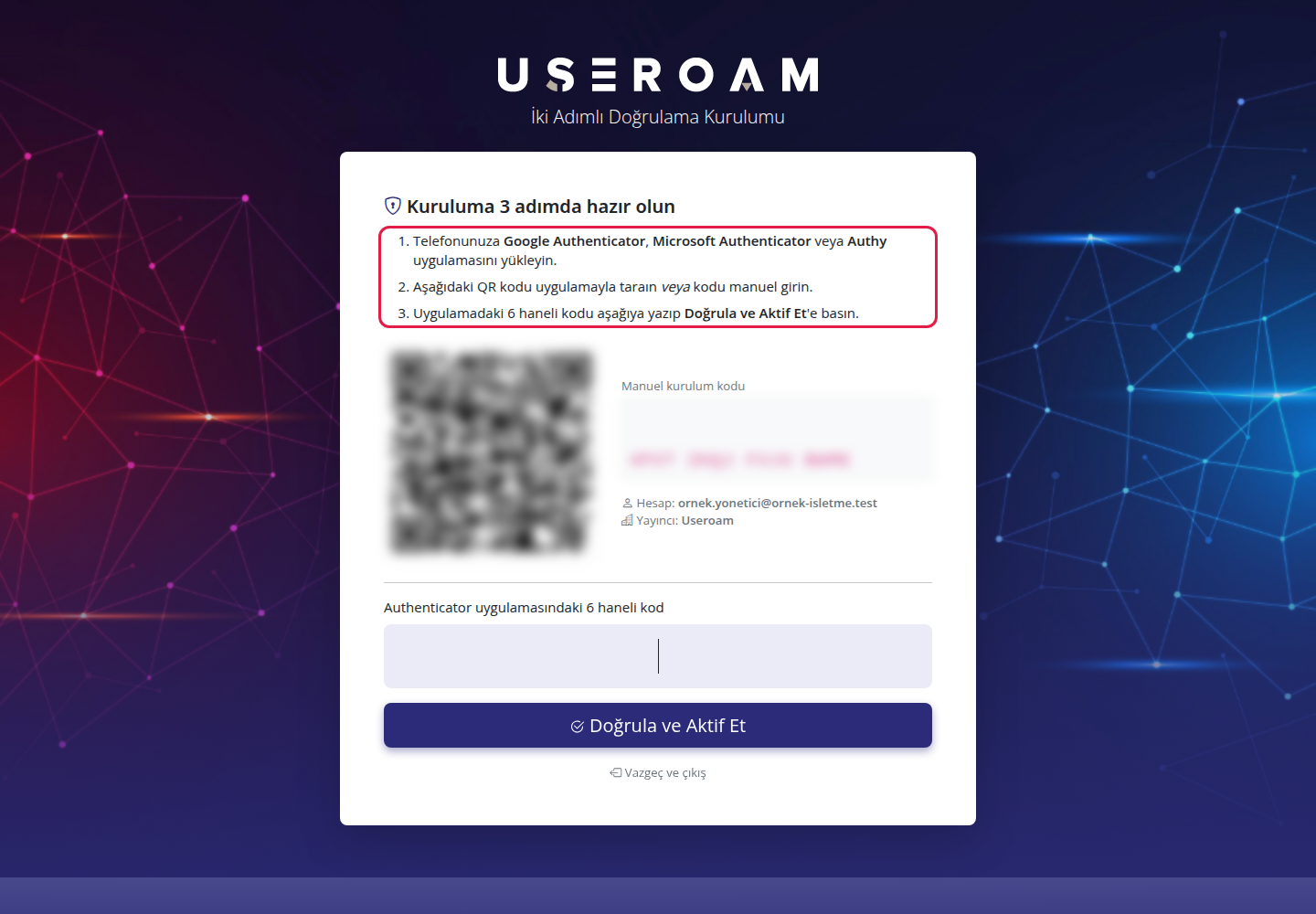
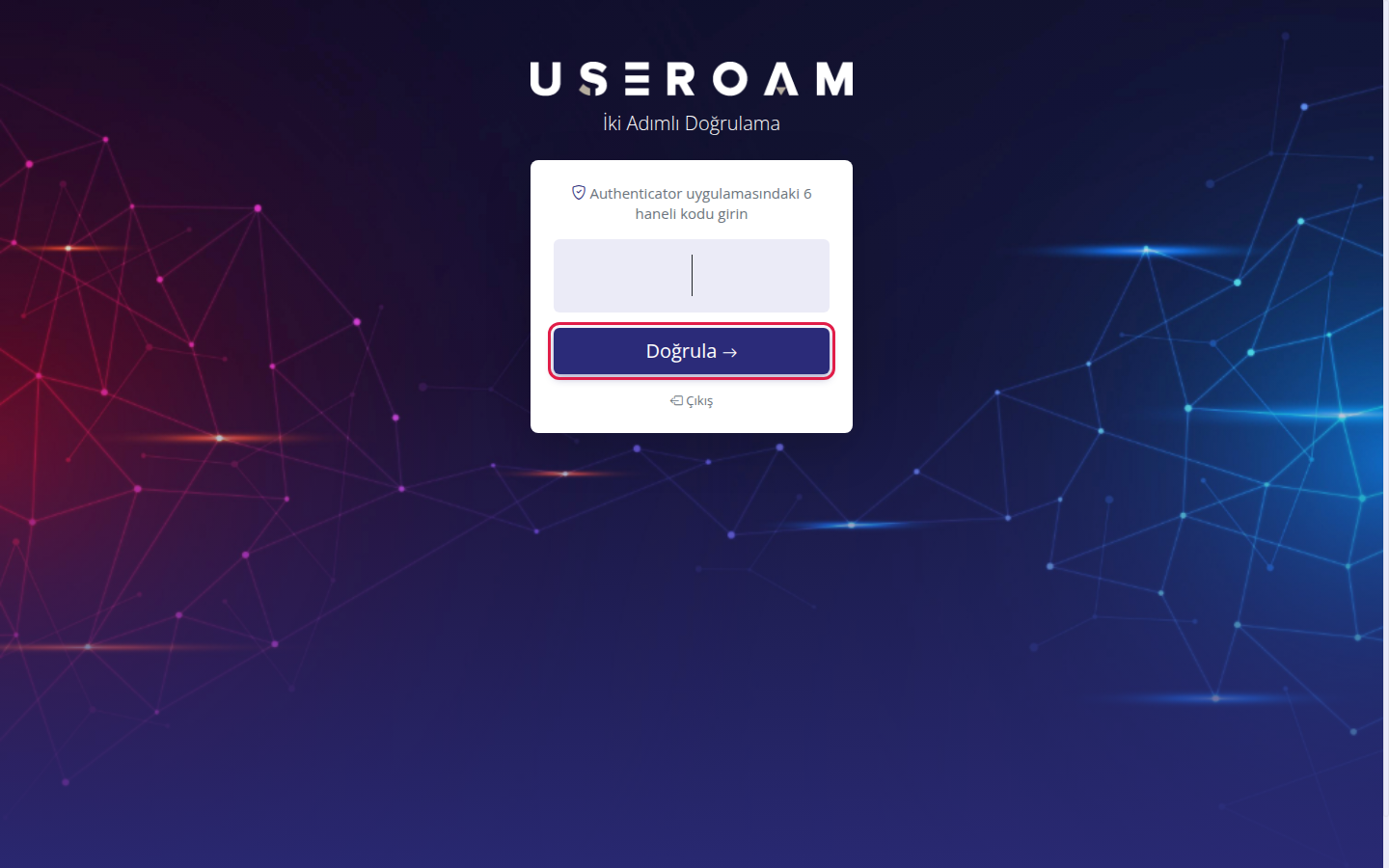
If your password is correct, the İki Adımlı Doğrulama Kurulumu (Two-Factor Authentication Setup) screen opens. This step is mandatory. Scan the QR code with the verification app on your phone and type the 6-digit code it shows. Full guide with screenshots: Two-Factor Authentication (2FA). This screen is currently shown in Turkish only.
On later sign-ins you only see the İki Adımlı Doğrulama (Two-Factor Authentication) screen and type the current 6-digit code from the app:
Step 5: Select your device
Next, the Device Selection screen opens. In Useroam every branch or guest Wi-Fi network is a "device" (the firewall or router guests connect through). Click the card of the device you want to manage. All features of this screen: Device Selection.
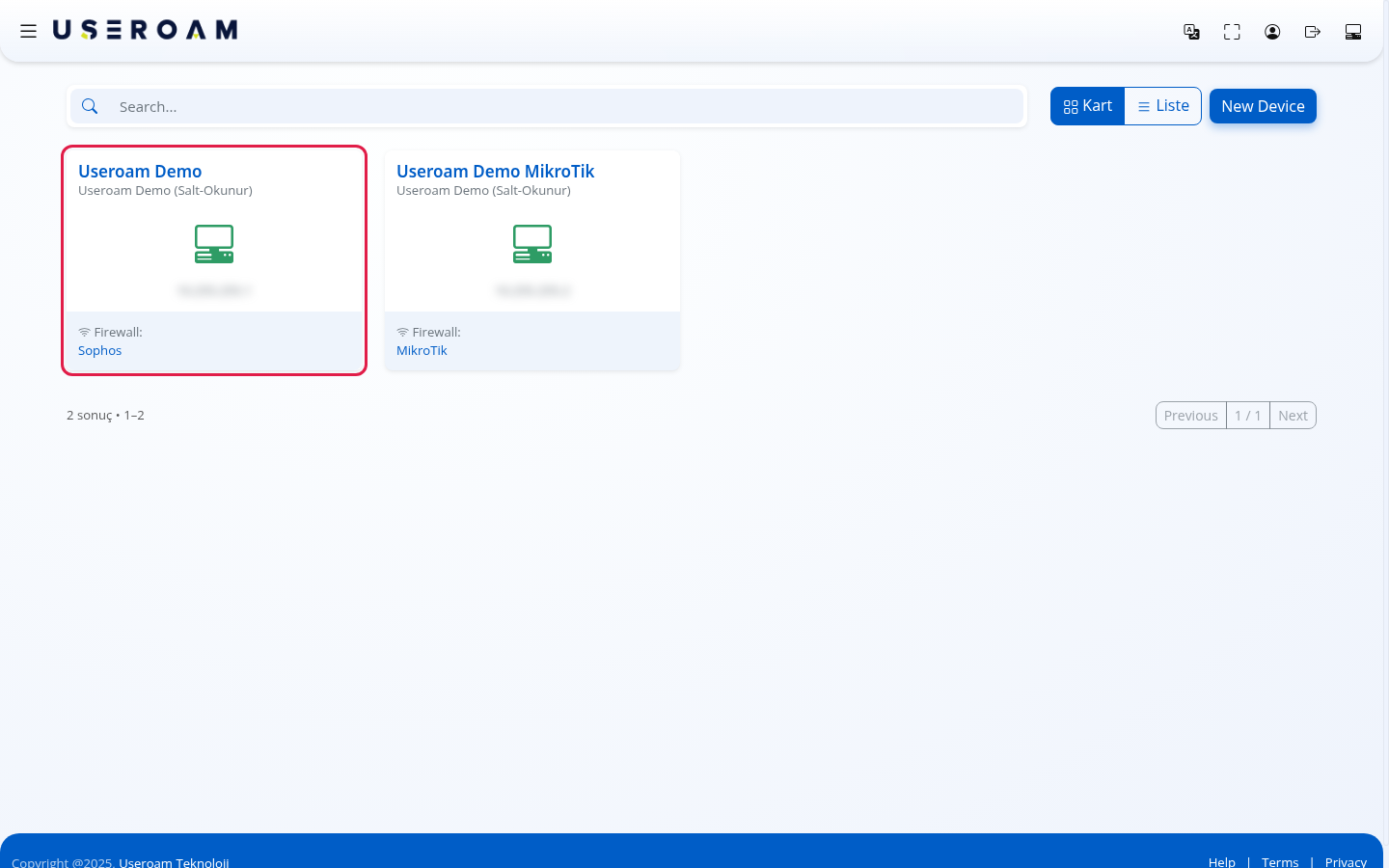
If the list is empty, no device has been assigned to you yet. Add one with the New Device button at the top right: Adding a New Device.
Step 6: Complete your company details (only if missing)
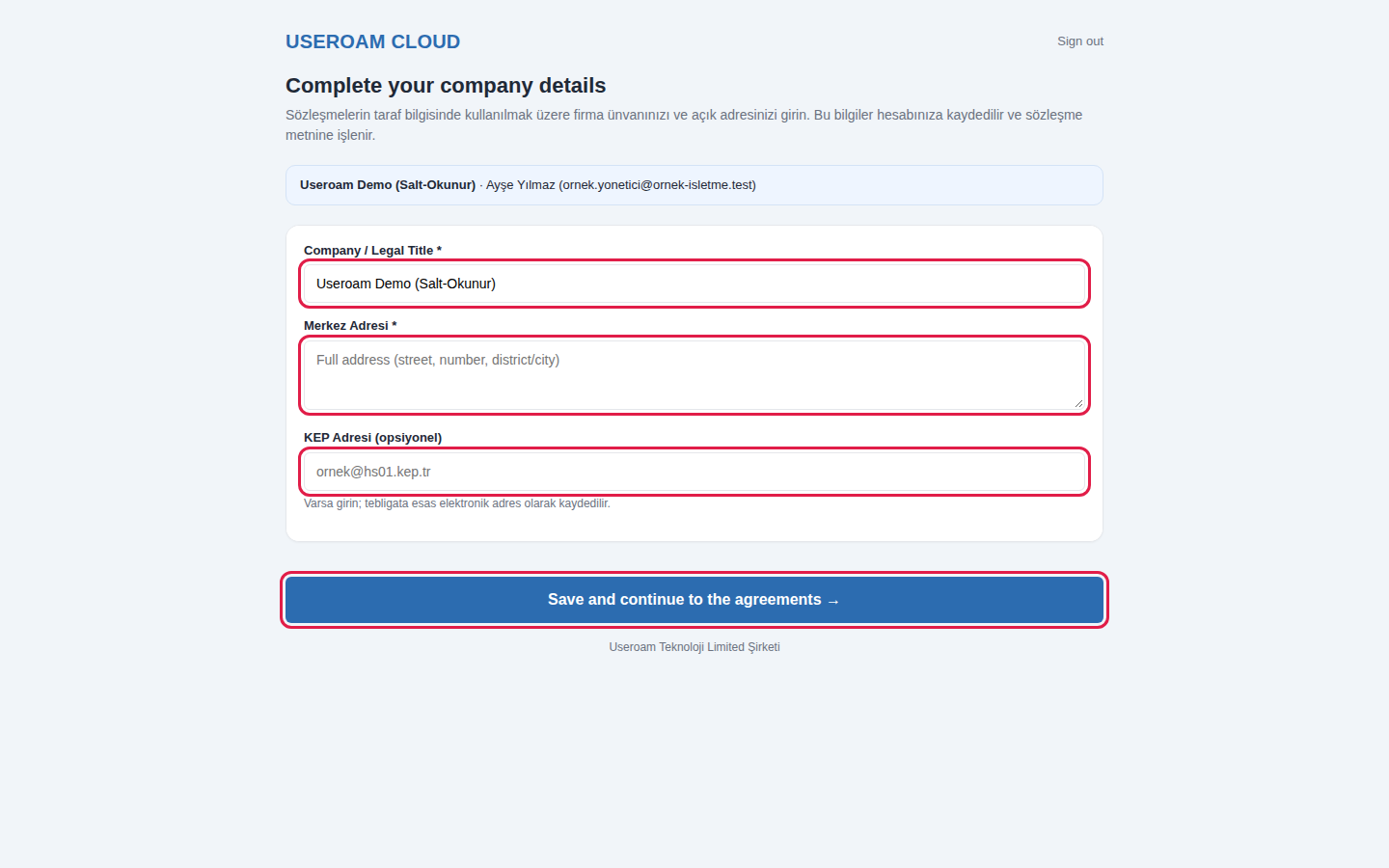
If your account has no company title or address, the Complete your company details screen opens after you pick a device. Enter the legal title and full address, then press Save and continue to the agreements.
Step 7: Approve the agreements (once)
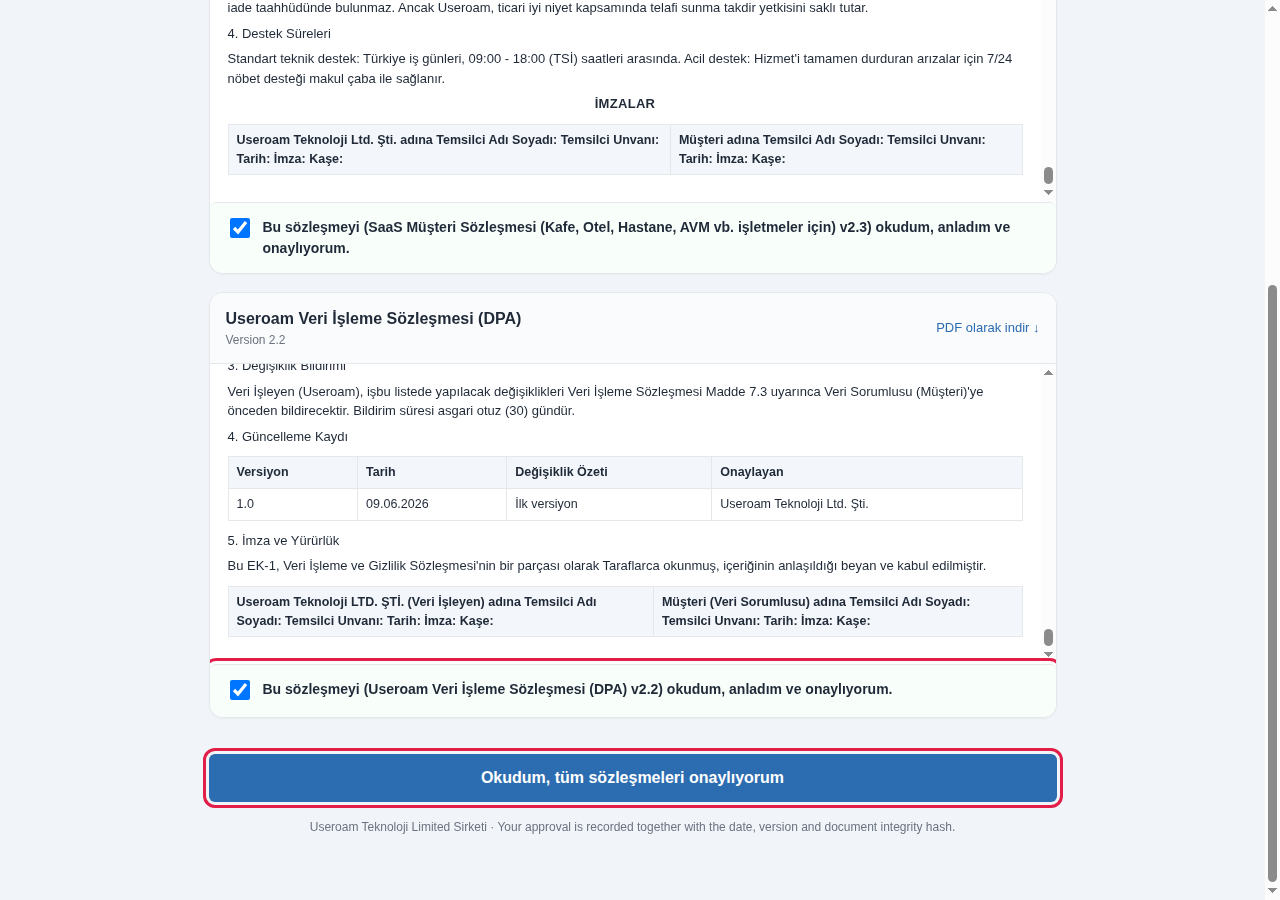
The Approve the service agreements screen has two agreements. Scroll each one to its end inside its box, tick the box below it and press Okudum, tüm sözleşmeleri onaylıyorum (I have read and approve all agreements). Details: Agreement Approval.
Step 8: You have reached the Dashboard
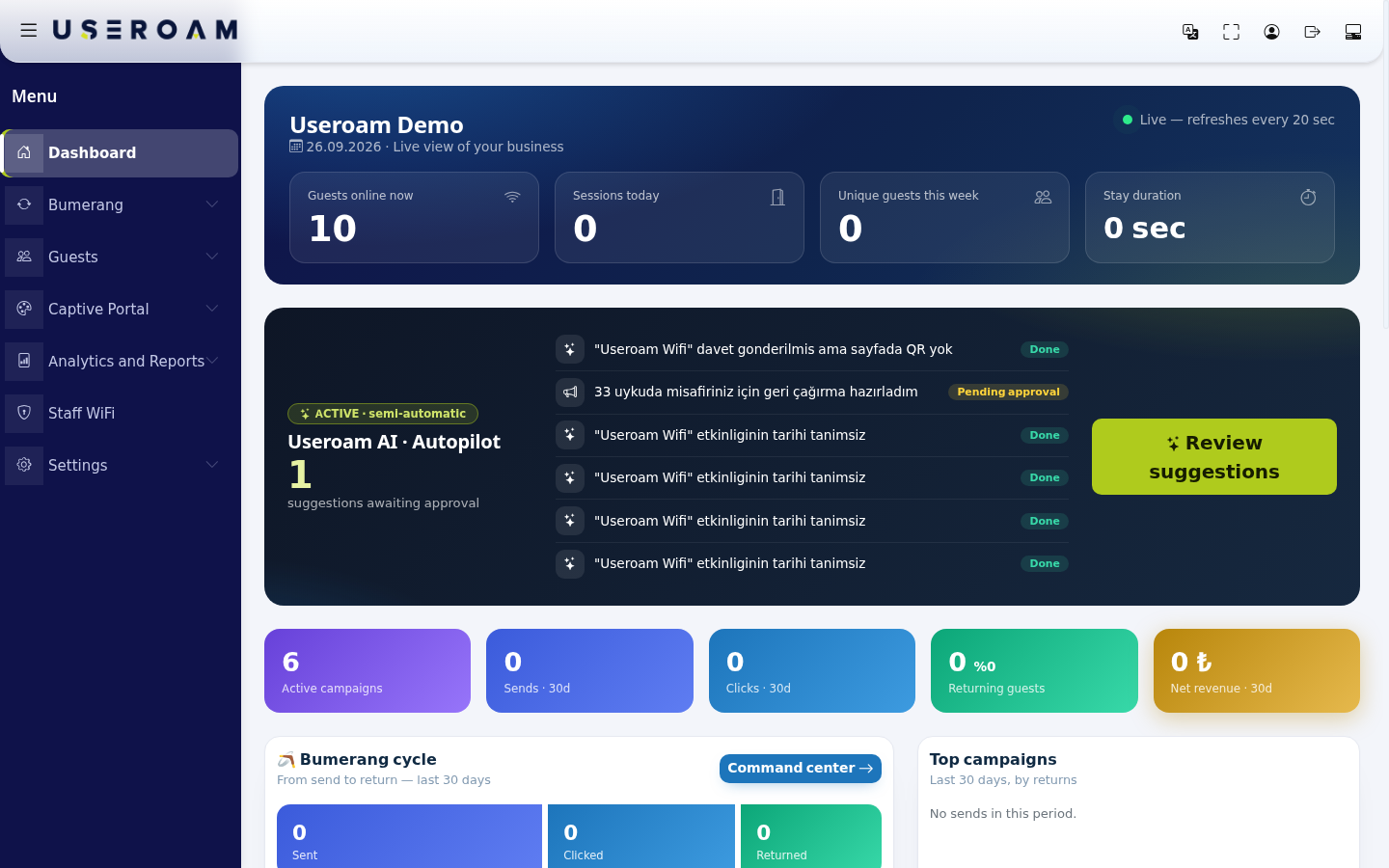
After approval the Dashboard opens. The menu is on the left; language, profile and sign-out icons are at the top. Screen guide: Dashboard (Home Screen). Where everything is in the menu: Panel Layout: Side Menu, Top Bar and Language.
What should I do next?
If you are not sure where to start, see What Do I Want To Do? Which Page?. For most businesses the first three jobs are:
- Set up the page guests see when joining the Wi-Fi: Portal Settings.
- Add other administrators: Administrators.
- Check your own profile and mobile number: My Profile.
Forgot password
Under the Login button there is a Forgot Password link. The View Live Demo button below it opens a sample panel without a password ("Sample panel, no password required; view only"); nothing is saved there.
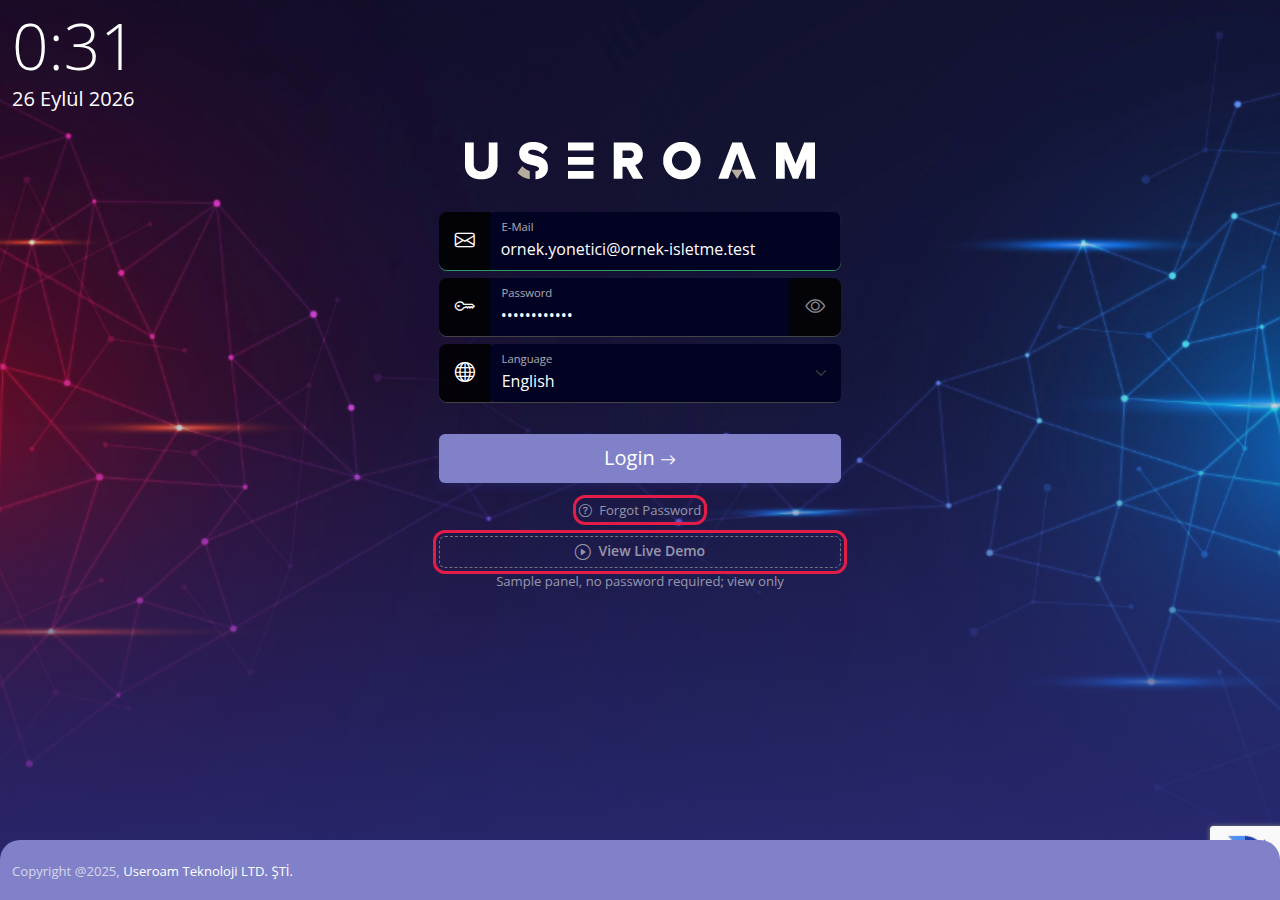
- Click Forgot Password. The Şifremi Unuttum (Forgot Password) screen opens (currently Turkish only).
- Type your registered e-mail in the E-posta veya kullanıcı adı (e-mail or username) box and press Şifremi Sıfırla (Reset my password).
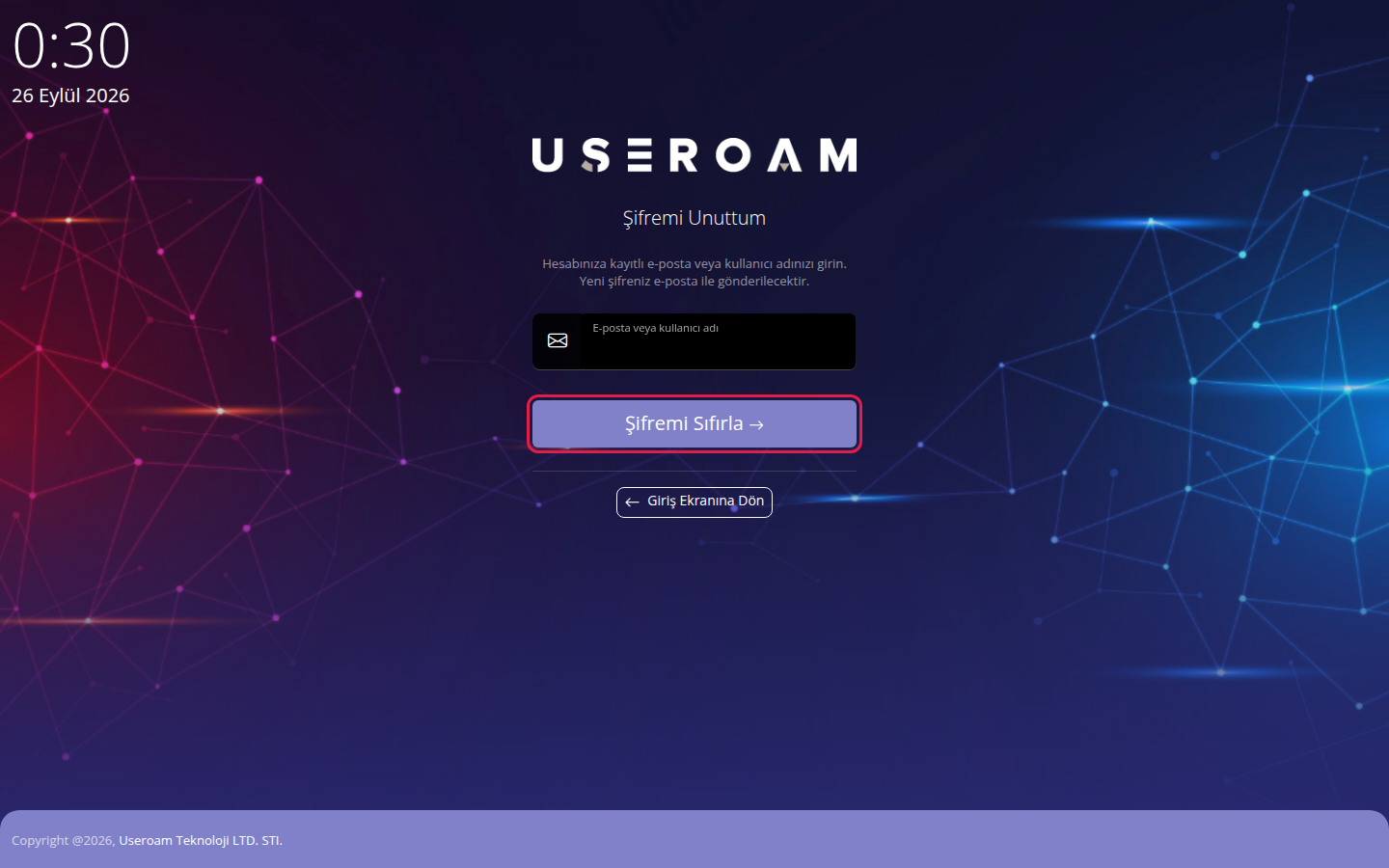
A message then says your new password will be e-mailed within a few minutes if the address is registered. The same message appears even if it is not registered (for security). Sign in with the new password from the e-mail; check your spam folder if it does not arrive. Resetting the password also resets two-factor authentication, so you will be asked to scan a QR code again (Step 4). Giriş Ekranına Dön (Back to sign-in) returns to the sign-in screen. To choose your own password afterwards, use the Change Password tab in My Profile.
Every field and button
| Field / Button | What it does | Example |
|---|---|---|
| Your panel username. | ayse@mybusiness.com | |
| Password | Your panel password. The eye icon shows it. | |
| Language | Language of the sign-in screen and the panel. | Türkçe / English |
| Login | Checks your details and moves on to two-factor authentication. | |
| Forgot Password | Opens the screen that e-mails you a new password. | |
| View Live Demo | Opens a view-only sample panel without a password. | |
| E-posta veya kullanıcı adı (Forgot Password) | Finds the account to send the new password to. | ayse@mybusiness.com |
| Şifremi Sıfırla | Creates a new password and e-mails it. |
Warnings and errors
| Message | Meaning | What to do |
|---|---|---|
| Username or password incorrect (red box) | Wrong e-mail or password. | Type again, watching upper and lower case. If it still fails, use Forgot Password. |
| Güvenlik doğrulaması başarısız. Lütfen tekrar deneyin. (Security check failed. Please try again.) | The robot check failed, usually after the page stayed open for a long time. | Refresh the page and try again. |
| This field is required | E-mail or password is empty. | Fill in the box. |
| Şifre sıfırlama isteğiniz alındı. Yeni bir istek için lütfen 5 dakika bekleyin. (Request received, please wait 5 minutes.) | A second reset request was made from the same computer within 5 minutes. | Wait 5 minutes and check your e-mail meanwhile. |
| E-posta veya kullanıcı adı zorunludur. (E-mail or username is required.) | The Forgot Password box is empty. | Type your e-mail. |
| Oturum doğrulaması başarısız. Sayfayı yenileyip tekrar deneyin. (Session check failed.) | The page stayed open too long. | Refresh the page. |
Frequently asked questions
The reset e-mail did not arrive. Check spam. A second new password is not created for the same person within 10 minutes; wait for the first e-mail. If it still does not come, contact your panel administrator or Useroam support. The reset e-mail is currently in Turkish.
I changed phones and cannot generate a code. If you still have the old phone, reset it from My Profile, 2FA Management. If not, use Forgot Password: resetting the password also resets two-factor authentication and setup is asked again at sign-in.
I signed in but Device Selection is empty. No device has been assigned to your account yet. Add one with New Device or ask the administrator who added you for device access.
I cannot tick the agreement box. It becomes active when you scroll the agreement text to the very end inside its own box. Do this for both agreements.
I want to use the panel in English. Choose it in the Language box on the sign-in screen, or with the language icon in the top bar once inside.