
API Keys
API Keys is where you create keys that let another piece of software (an automation tool, your own app, a reporting or CRM system) connect to the Useroam panel securely. Keys are on the API Keys tab of My Profile.
What is it for?
With a key, software can pull almost every report you see in the panel: 5651 signed logs, hotspot usage (connected guests, unique visitors, busy hours), Bumerang campaign results, survey answers, QR menu orders, hotel requests, task/maintenance/stock reports, event attendance and retail reports.
Every key is bound to a single device. The key sees the data of the device that was selected in the panel when it was created; it cannot reach another device or another customer's data. If you have several devices, create a separate key for each.
When to use it
- Your IT team wants to pull 5651 logs into its own archive automatically.
- You want reports in your own reporting tool (Power BI, Excel, Google Sheets).
- You are connecting an automation tool such as n8n or Zapier.
- An integrator or developer asks you for an "API key".
If you have no such need, you do not have to use this tab.
Before you start
- Select the device at the top of the panel. The key is bound to that device.
- Get the public IP address of the server that will use the key (your developer will give it). Example:
203.0.113.10or a block of at most 256 addresses such as203.0.113.0/24. - Find out which data the software needs; you will allow only that.
- Only users with full rights on the device can create keys. If your rights are restricted, the tab shows "You are not allowed to manage API keys for this device." and the New Key button is disabled; ask your account administrator.
Step by step
Step 1: Open the API Keys tab
Open My Profile with the person icon in the top bar and switch to the API Keys tab. Under the title you see "These keys can only access this device: device name"; check that you are on the right device. If there are no keys yet, "You do not have an API key yet. Use the button above to create one." appears. Click New Key on the right.
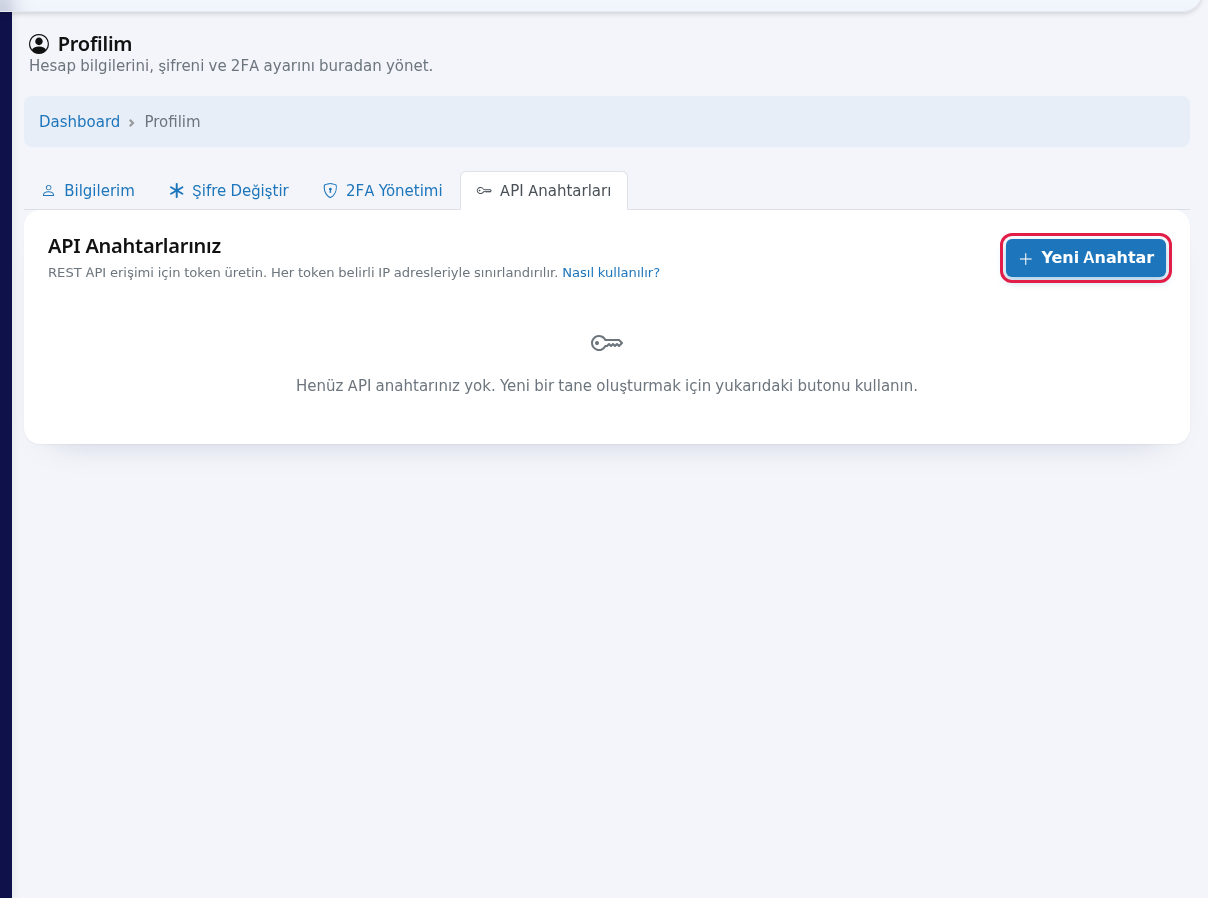
Step 2: Fill in label, IP, access and validity, then click Create
- Label *: a name that reminds you what the key is for. Example: Power BI reports, Log archive. Up to 120 characters.
- IP Whitelist *: the IP addresses the key may be used from, one per line (commas also work). A block can be at most
/24(256 addresses); wide blocks such as0.0.0.0/0are rejected. Requests from other addresses are refused. - What can it access? *: tick only what is needed:
- 5651 signed logs (ticked by default)
- Hotspot usage: connected guests, unique visitors, busy hours, login success, Excluded Users report
- Bumerang campaigns, Surveys, QR Menu, Hotel, Operations (restaurant, tasks, maintenance, stock), Events, Retail and coupons
- Guest list and marketing consents: contains personal data (phone, name, email). Off by default; turn it on only if really needed. While it is off, phone numbers and names in reports are masked (e.g. 5307****73).
- Validity (days): up to 365 days (1 year). The key stops working when it expires.
The yellow box warns that the key is shown only once. Click Create.
Step 3: Copy the key right away
A green New API Key Created box appears at the top. The key starts with usr_. Click Copy and send the key to your developer through a secure channel. When you refresh the page the box disappears and the key is never shown again.
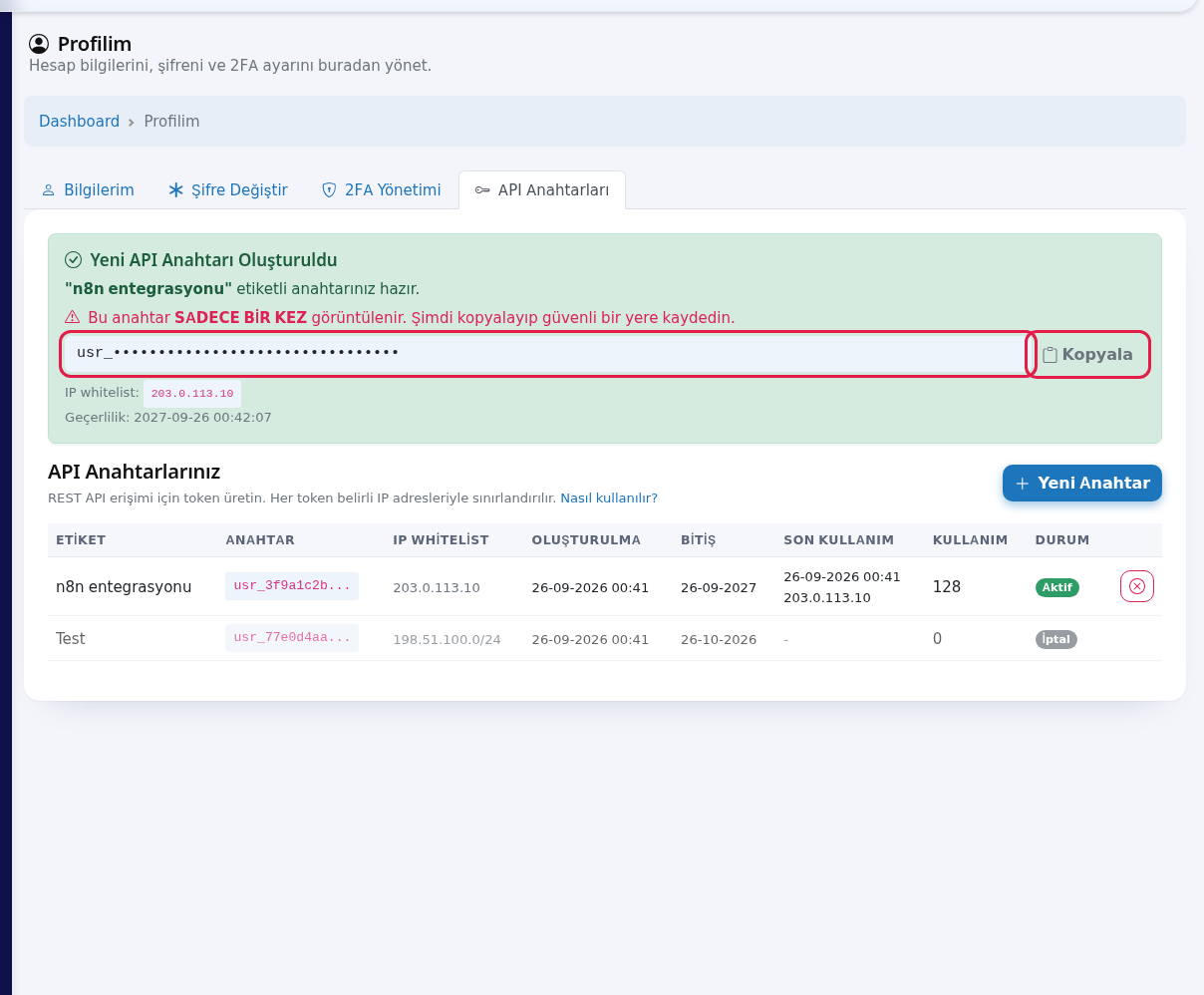
Step 4: Give the documentation link to your developer
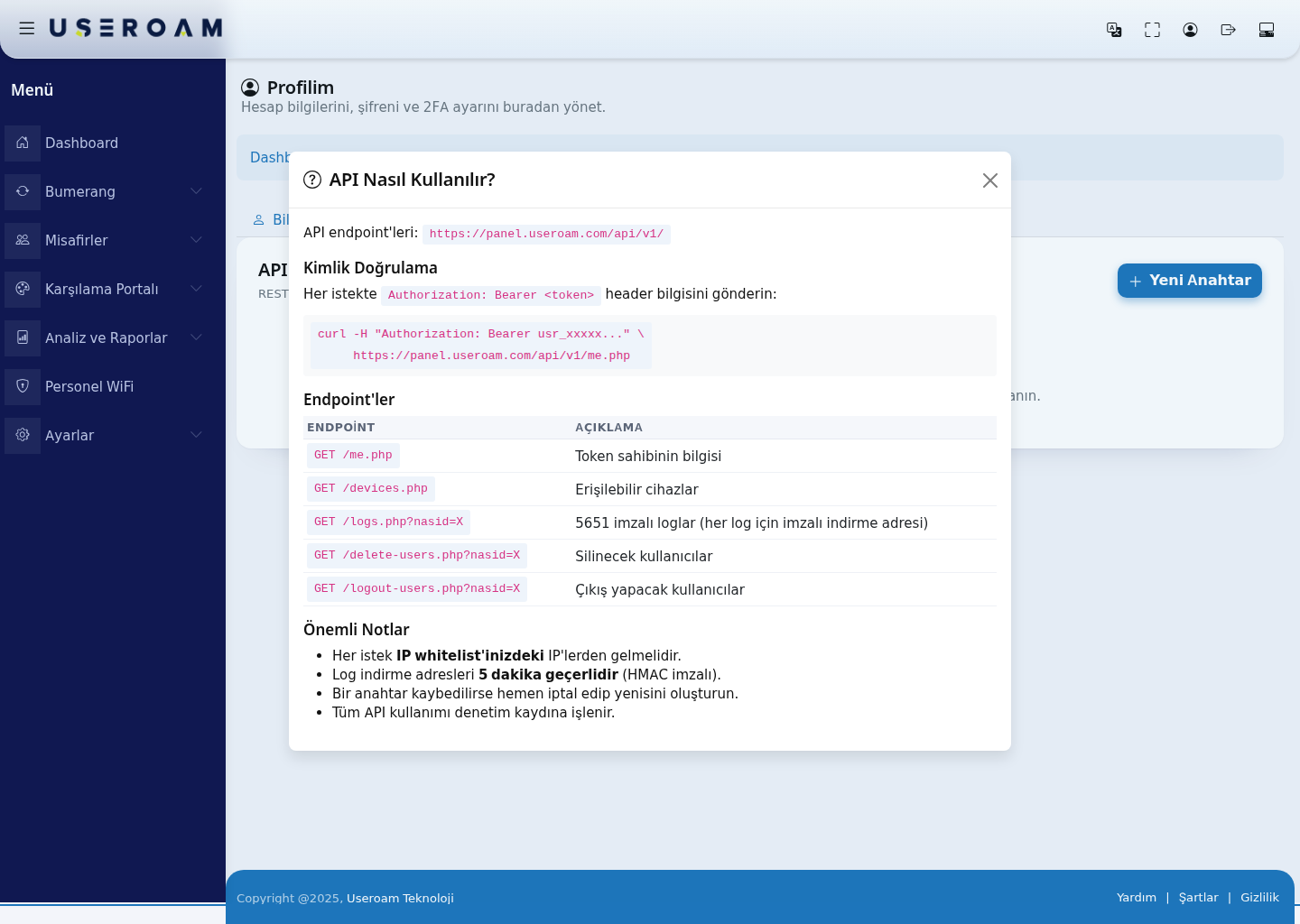
The API documentation (all endpoints) link under the title, or the button in the How to use? window, opens the documentation with every endpoint's parameters, required access type and sample responses: panel.useroam.com/api/docs. Requests can be tried there in the browser.
In short:
- Send the header
Authorization: Bearer usr_...with every request. - Call
GET https://panel.useroam.com/api/v1/devices.phpfirst; the returnednasid(an encrypted text such asOT37I3...) is thenasidparameter for every other request. The device number you see in the panel does not work. - List the ready reports with
reports.php?nasid=...and run one withreports.php?nasid=...&key=gunluk_ziyaret_trendi&gun=30.
| Endpoint | What it returns | Required access |
|---|---|---|
me.php, devices.php | Key info and its device | Any key |
reports.php | More than 70 ready reports (each report has its own module) | The report's module |
logs.php | 5651 signed log list and download links | 5651 signed logs |
hotspot.php | Usage summary and daily series; Excluded Users report; g=radar returns the panel live Radar screen | Hotspot usage |
bumerang.php | Campaigns, results, deliveries; rapor= returns the 12 ready-made panel reports; g=komuta Marketing Command Center; g=misafir360 Guest 360 segments | Bumerang campaigns |
anket.php | Surveys, answer distributions, NPS, raw answers | Surveys |
menu.php, menu-report.php | Menu analytics, orders, calls, feedback; g=rapor returns the panel Menu Report | QR Menu |
otel.php, otel-report.php | Hotel requests, speed package sales; g=rapor returns the panel Hotel Report | Hotel |
operasyon.php | Task board, restaurant requests, maintenance, stock; g=rapor returns the panel Operations report | Operations |
etkinlik.php | Events, attendance report, attendees | Events |
retail-report.php, coupon-redeem.php | Retail report (g=rapor returns the panel Retail report), coupon check and redeem | Retail and coupons |
guests.php, consents.php, logout-users.php, delete-users.php | Guest list, marketing consents, logout/deletion requests | Guest list and marketing consents |
Important: requests must come from your whitelisted IPs; log download links are valid for 5 minutes; a request to an endpoint the key has no access to returns 403 scope_denied; all API usage is written to the audit log.
Step 5: Revoke unneeded or leaked keys
Click the red cross (Revoke) at the end of an active key's row and confirm. The row moves down with a grey Revoked badge and requests with that key are refused. Every user with full rights on the device can revoke that device's keys, whoever created them.
Key list columns
| Column | What it shows |
|---|---|
| Label | The name you gave. |
| Key | The first 12 characters of the key. The full key is never shown again. |
| IP Whitelist | Allowed addresses. |
| Access | What the key can read (e.g. 5651 signed logs, QR Menu). |
| Created by | The user who created the key. |
| Created / Expires | Creation time and last valid day. |
| Last used | When and from which IP it was last used; a dash if never. |
| Usage | Total number of requests. |
| Status | Active (green), Expired (yellow) or Revoked (grey). |
The list shows all keys of the currently selected device.
Warnings and error messages
| Message | What to do |
|---|---|
| You are not allowed to manage API keys for this device. | Ask your account administrator to create the key. |
| Select at least one access type. | Tick at least one box under "What can it access?". |
| IP whitelist cannot be empty. | Enter at least one IP address. |
| Invalid IP: ... | Write the address like 203.0.113.10. |
| Invalid or too wide IP block (at most /24): ... | Write the block as 203.0.113.0/24 or narrower; wider blocks are not accepted for security. |
| Validity period must be between 1 and 365 days. | Enter a number from 1 to 365. |
FAQ
I forgot to copy the key. It cannot be shown again. Revoke the old key and create a new one.
Can one key read several of my devices? No. For security each key is bound to one device; create one key per device.
Phone numbers in reports have asterisks. The key does not have "Guest list and marketing consents". If really needed, create a new key with that access.
Can I get the same reports I see in the panel? Yes. The API uses the same calculation as the panel report, so the results are identical. Bumerang: bumerang.php?rapor=ozet (other types: kampanya, tiklayan, donus, misafir, menu, urun, anket, cagri, otel, izinli, otel_ariza). Hotel: otel.php?g=rapor&r=ozet (tip, personel, oda, sla, gelir). Operations: operasyon.php?g=rapor. QR Menu: menu.php?g=rapor. Marketing Command Center: bumerang.php?g=komuta. Guest 360: bumerang.php?g=misafir360 (segment with sf=sadik for example, page with sy=2; searching by name or phone with q= needs the guest access). Radar: hotspot.php?g=radar. Retail: retail-report.php?g=rapor. The panel filters (date, channel, staff, room and so on) work with the same names. Add &lang=en for English titles. In Bumerang reports phone numbers and names are always masked, as in the panel, even when the guest access is enabled.
Can I extend an expired key? No. Create a new key and replace it in your software.
We moved the device to another account. Keys created for that device stop working automatically; create a new key in the new account.
Related pages
- My Profile (Account Info)
- 5651 Logs
- Audit Log