
Fortigate Integration Guide
This guide covers the full integration between a FortiGate firewall and Useroam Cloud: RADIUS authentication, the captive portal replacement messages, the firewall policies, and 5651 syslog forwarding.
Before you start: you need administrator access to the FortiGate web interface (and CLI access if a second syslog server is required), plus the WAN IP address of the firewall.
1 - Adding the device to the Useroam panel
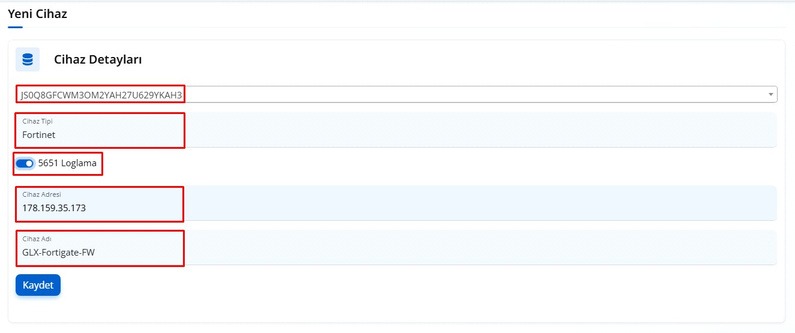
Sign in to your panel at panel.useroam.com and add a New Device. The system selects your license automatically.
- Device type: select Fortinet.
- Device address: enter the WAN IP address of the firewall. If you have more than one WAN IP, the firewall usually sends this request from the first WAN interface by default.
Note: if you want the traffic to leave over a different WAN interface, create an SNAT rule to route it through the interface you want.
2 - Adding the RADIUS server
On your firewall, go to User & Authentication > RADIUS Servers and click Create New to define the Useroam Cloud server.
- Authentication method: Specify / PAP
- Primary Server IP/Name:
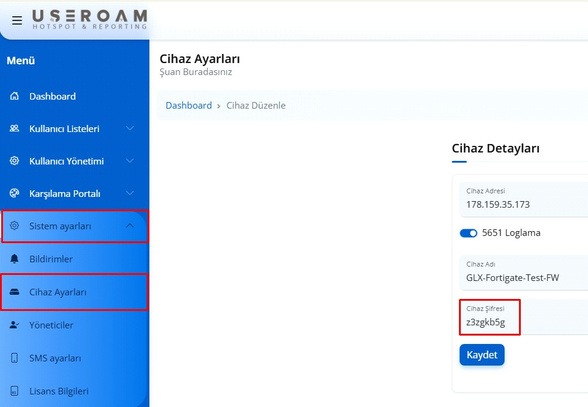
panel.useroam.com, or by IP address:104.247.174.120 - Secret: after adding the device in Useroam Cloud, copy the automatically generated device password from Settings > Device Settings and paste it here.
Test Connectivity: you can run a RADIUS test from your firewall against Useroam Cloud.
3 - Captive portal messages (Replacement Messages)
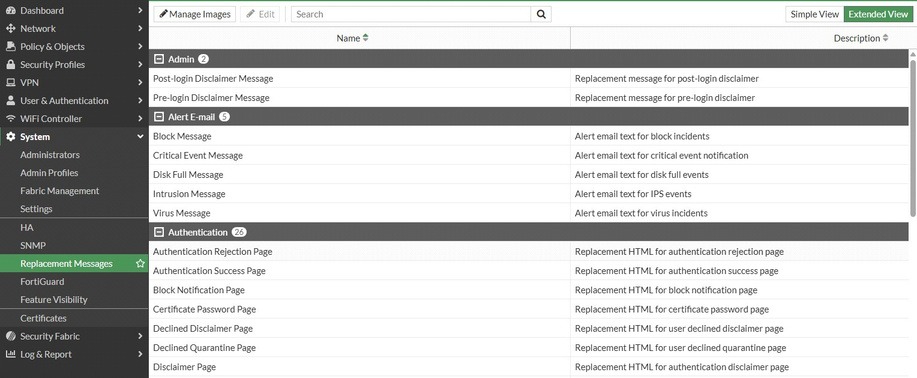
Three fields under System > Replacement Messages need their code replaced. Switch to Extended View from the top-right corner first.
3A - Login Failed Page
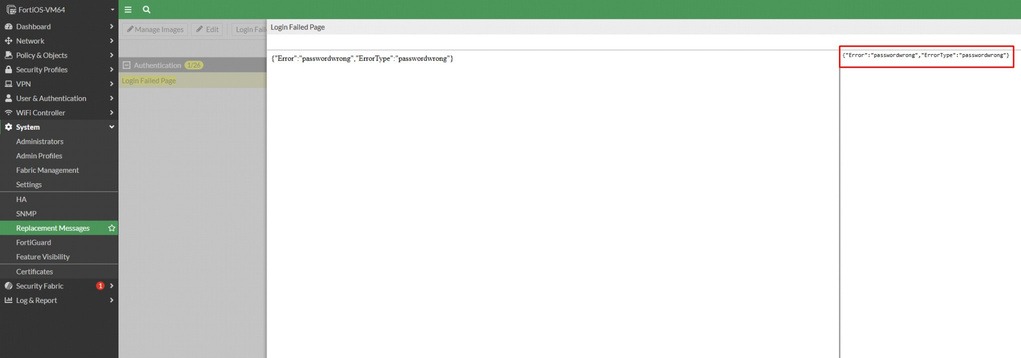
Search for Login Failed Page. On the screen that opens, clear the code area on the right, paste in {"Error":"passwordwrong", "ErrorType":"passwordwrong"} and save.
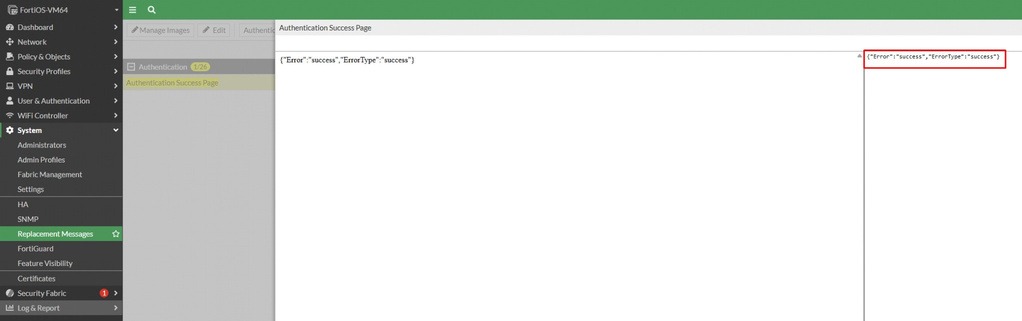
3B - Authentication Success Page & Login Page
Search for Authentication Success Page. Clear the code area on the right, paste in {"Error":"success", "ErrorType":"success"} and save.
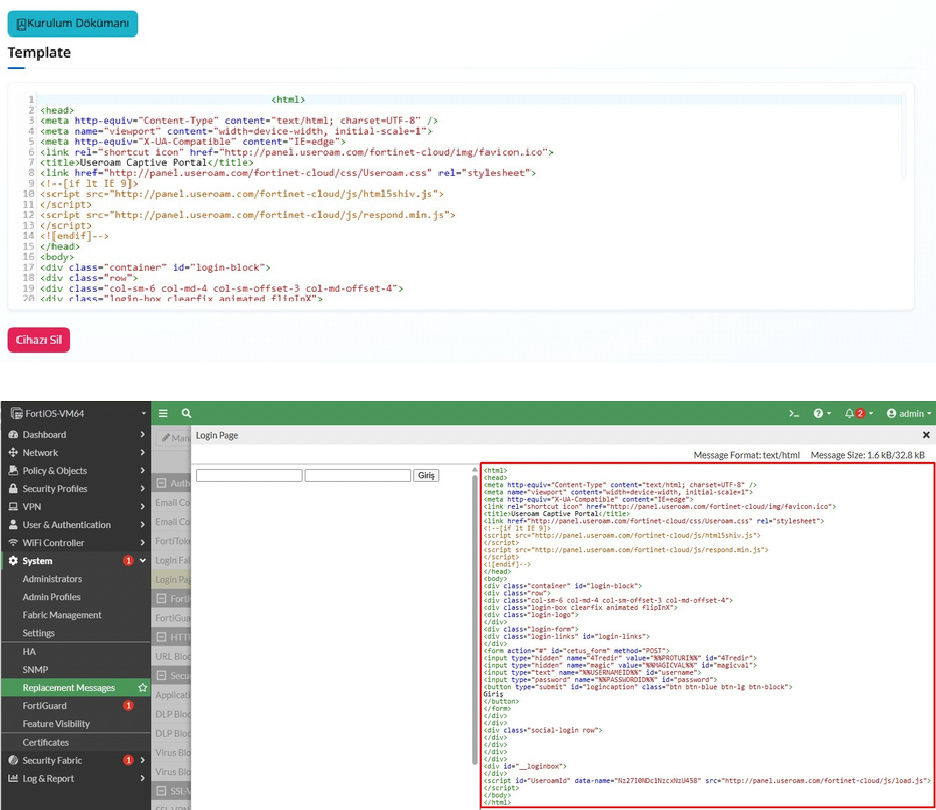
Finally, for Login Page, paste the entire code you copied from the Useroam Cloud panel (Settings > Device Settings).
4 - Creating the user group (User Groups)
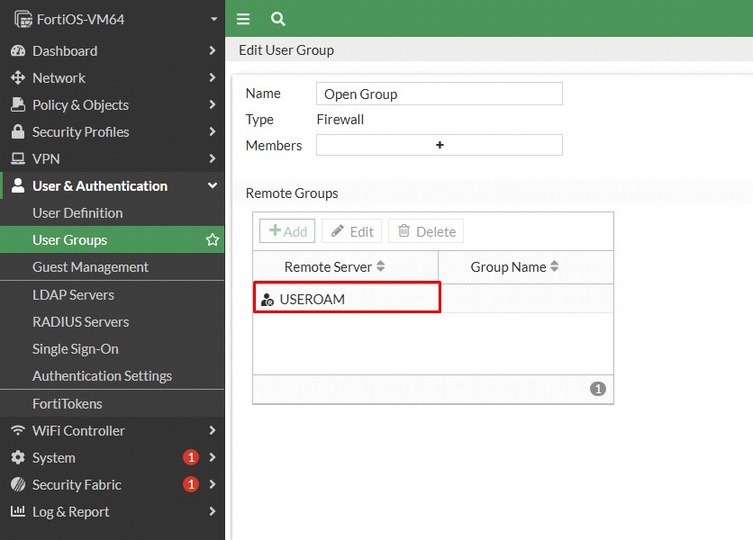
Go to User & Authentication > User Groups and create a group for Useroam Cloud.
5 - Interface configuration
On the firewall, edit the relevant port from the Interface menu.
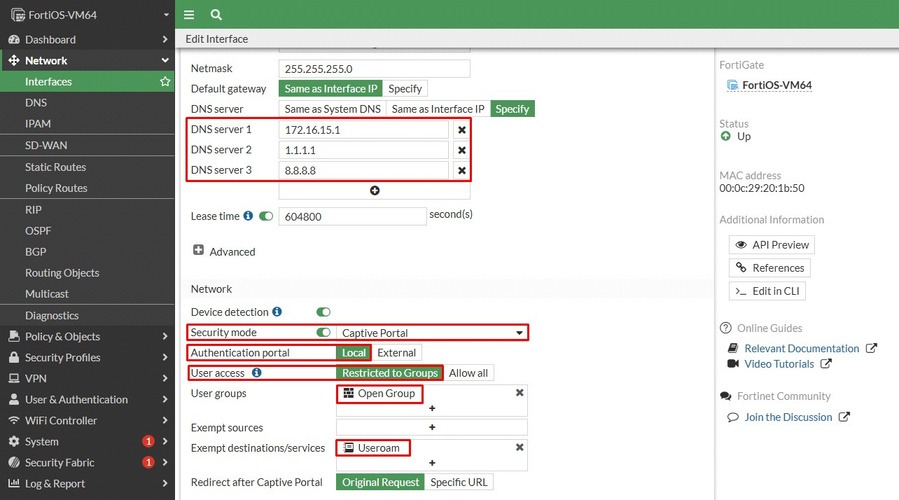
- DNS Server: first enter the firewall's gateway IP for this interface, then define the DNS servers.
- Security Mode: enable Captive Portal.
- User Access: Restricted to Groups
- User Groups: select the group you created in the previous step (for example Open Group).
- Exempt destinations/services: create an FQDN object for
panel.useroam.comand select it.
Creating the firewall policies
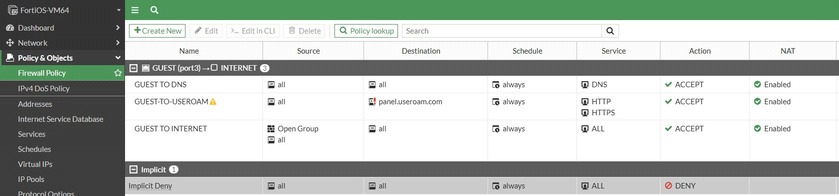
To create the rules, go to Policy & Objects > Firewall Policy on the FortiGate firewall.
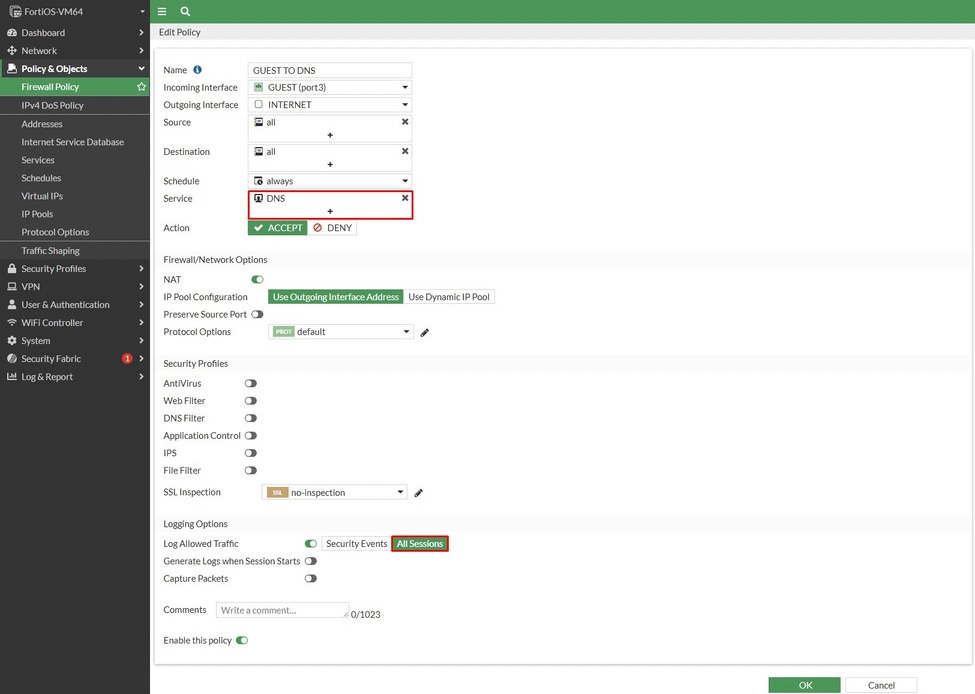
RULE 1: Guest to DNS
Create your DNS rule first. Selecting only the DNS service is enough.
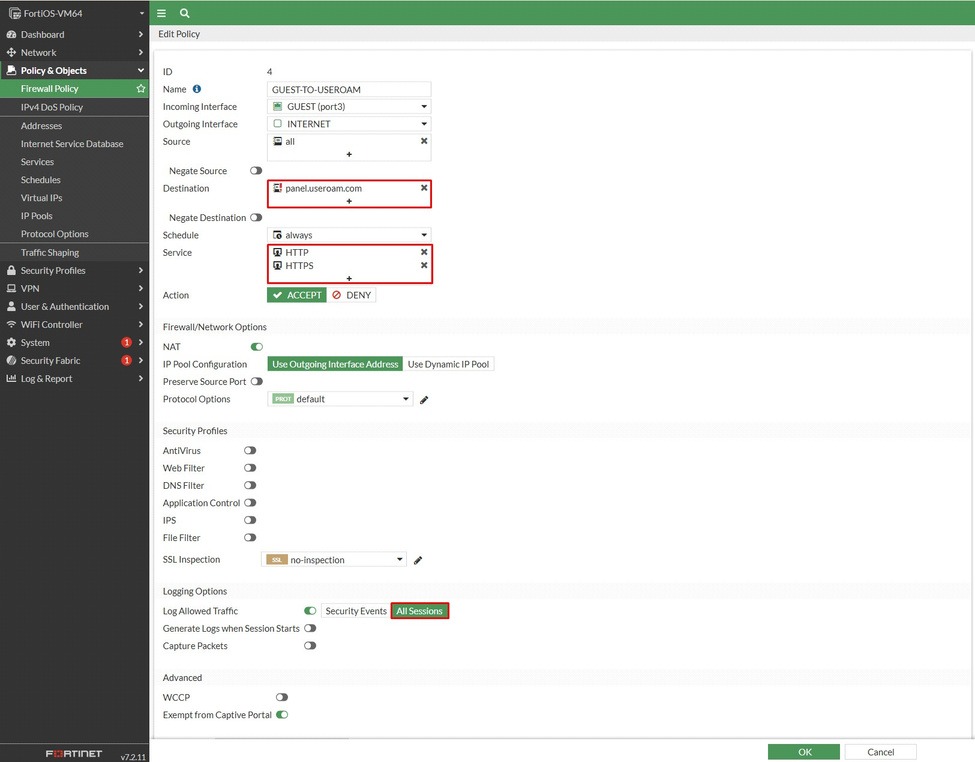
RULE 2: Guest to Useroam
This rule lets users in the zone where you enable Useroam reach the panel.useroam.com panel. Under Service, select the HTTP/HTTPS services.
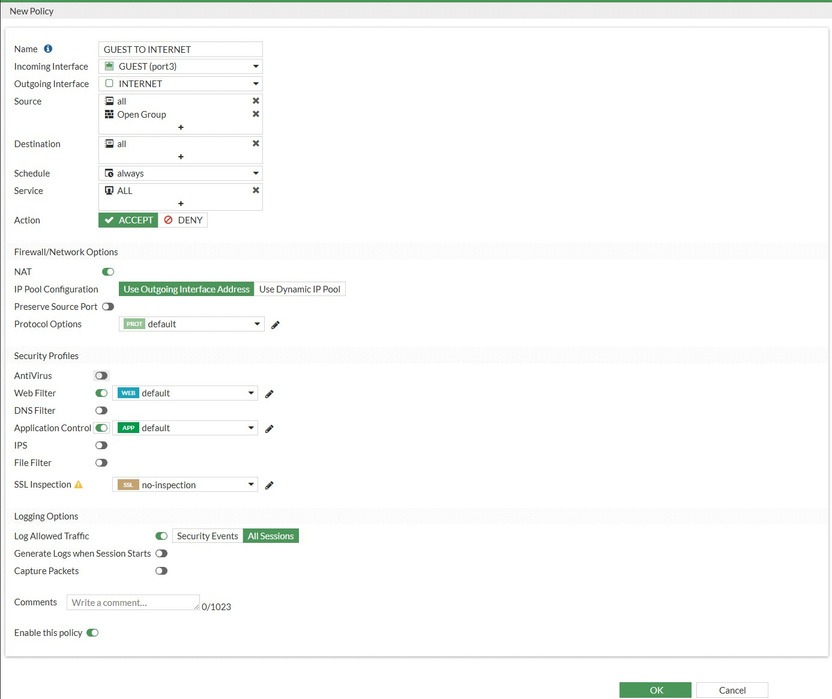
RULE 3: Guest to Internet
This rule is your general internet access rule. Add the User Group (Open Group) object you created as the Source, and the ALL service under Service.
Forwarding logs to the Useroam device
Under Log & Report > Log Settings, set Syslog logging to Enable. Then enter the server details in the IP Address/FQDN field as panel.useroam.com.
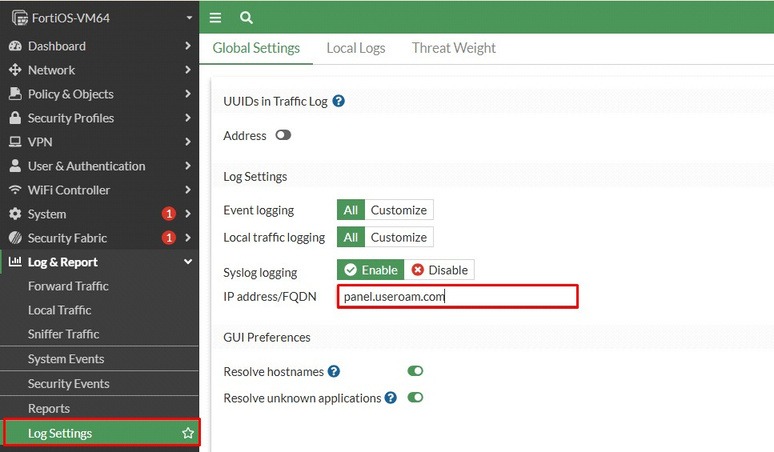
syslogd2 already contains another configuration, you can use the example command block below:config log syslogd2 settingset status enableset server "panel.useroam.com"set port 514set format defaultend
Important — integration complete
That's it — your FortiGate integration is complete. If you run into any problems during the process, contact our support team at destek@useroamteknoloji.com.
Login with WhatsApp — firewall allowlist (walled garden)
For the Login with WhatsApp flow to work while the guest is still behind the captive portal (before internet access is granted), the following addresses must be allowed in your firewall or walled-garden configuration. Without these rules the WhatsApp login screen will not open and the automatic login based on delivery confirmation will not work.
Domains to allow (FQDN)
*.wa.me*.whatsapp.com*.whatsapp.netg.whatsapp.netmmg.whatsapp.netfbsbx.com*.useroam.com
IP addresses to allow
157.240.0.0— Meta / Facebook network block31.13.0.0— Meta / Facebook network block104.247.174.120— Useroam panel
Note: 157.240.0.0 and 31.13.0.0 are typically /16 network blocks (Meta infrastructure); we recommend defining them as blocks in the firewall (157.240.0.0/16, 31.13.0.0/16). 104.247.174.120 is the Useroam panel IP (/32). Use the domain list if your firewall supports FQDN-based filtering; otherwise use the IP blocks.