
Requests
What is it for?
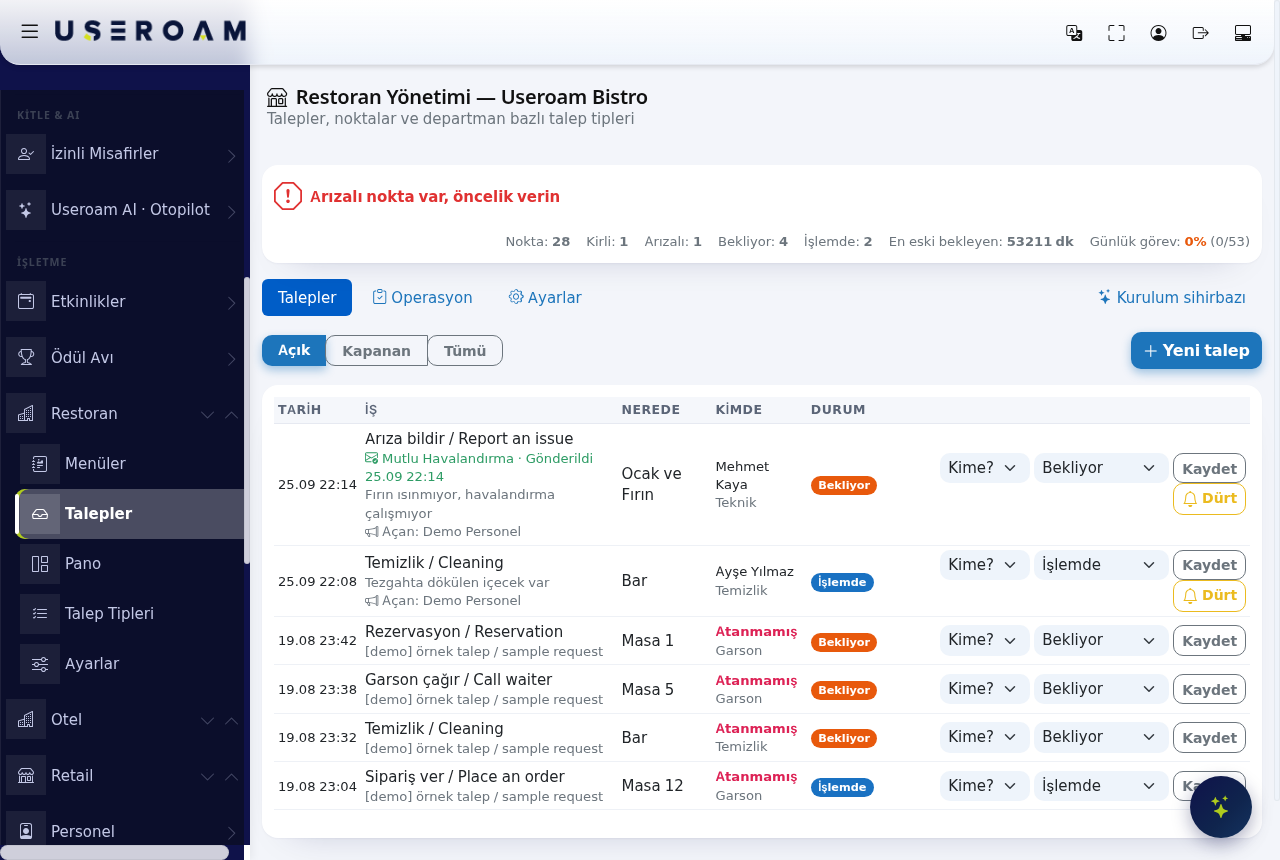
Restaurant Management brings floor and kitchen operations together on one screen: requests raised by guests or staff, points that carry the cleaning and fault status of every physical unit, and request types that decide which department answers. The Requests tab is the module'slist entrywhere screenevery —job itin your restaurant flows in (waiter calls, cleaning, faults, jobs staff open in the app). You see who has which job, hand a job to someone else, change its status, and send a reminder to the phone of whoever is running late (Nudge). The header shows theRestaurant currentManagement workloadwith your venue name, and letsthe yousubtitle raise"Requests, apoints and department-based request manually.types".
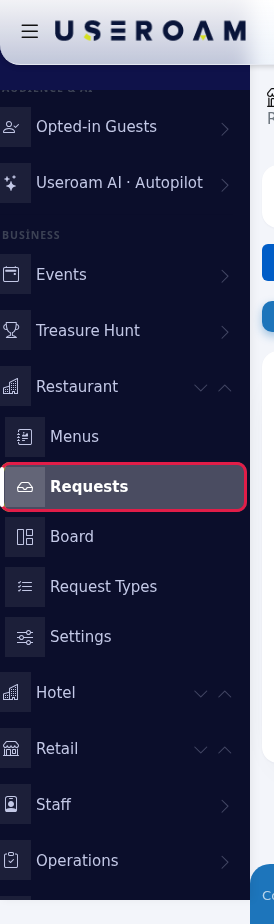
How do I open this screen? In the Business section of the left
menumenu, go toBumerang → BUSINESS (İŞLETME) →Restaurant(Restoran)→ Requests. If you open the restaurant for the first time, the panel first takes you to the Venue Setup Wizard.
When do I use it?
- To see waiting jobs and who has them during the day.
- To give a job to another staff member or fix its status by hand.
- To remind the person responsible with a notification.
- To enter a request that came by phone or in person.
1.Before Statusyou stripstart
- Your request types should be linked to a department (Request Types). A request with no department still goes to the least busy staff member, but not to the right team.
- Staff who take jobs must be added on the Staff screen with a department. They see jobs in the Useroam Go app.
Top of the screen: status summary
The screentop openscard tells you the restaurant's current state in one sentence, with numbers beside it. It shows a single verdict, in this order of priority:

| Verdict | When it appears | What to do |
|---|---|---|
| Out-of-range measurement, check now (red) | A measurement task went outside its limits today. | Check the |
| A point is out of order, prioritise it ( | At least one point is Out of order. | Open the red box on Operations → Points. |
| A task's time has passed and it is not done. | Remind the person responsible. | |
| A waiting request is overdue (orange) | A waiting request is older than 30 minutes. | Give it to someone in the list or click Nudge. |
| Open work (orange) | A dirty point or a | Normal working state. |
| All good (green) | No open work. | - |
The numbers on the currentright: statePoints —(total), "AllDirty, good"Out whenof nothingorder, needsWaiting, attention,In aprogress, warningOldest linewaiting when(minutes) workand isDaily pilingtasks up.(done today / total time slots, percent).
Tabs
Points:Requests:Totalthisnumber of defined points (tables, restrooms, kitchen equipment and so on).page.Dirty:Operations:Points waiting to be cleaned.Out of order:Points marked as faulty.Waiting:Requests nobody has picked up yet.In progress:Requests a staff member has taken on.Daily tasks:Completion rate of today's task list (e.g.0% (0/23)).
2. Tabs
Restaurant Management now has two tabs: Requests and Settings (containing Request Types, SLA and General). Dailydaily tasks, points and the report are on a separate screen; this tab takes you there (Operations).
Request list
By default the list shows only open requests. Use the buttons at the top to change the filter: Open (waiting and in progress), Closed (completed and cancelled), All. The newest 200 requests are listed.
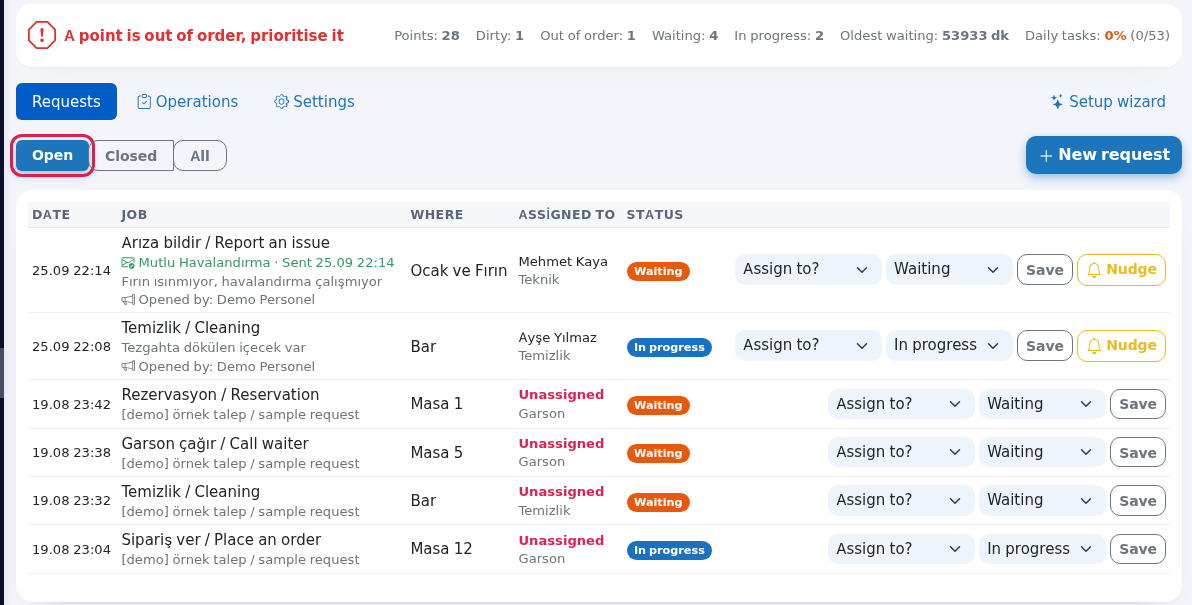
| Column | What it shows |
|---|---|
| Date | Day and time the request was opened. |
| Job | The request type. Below it: the description, an Opened by: line when a staff member opened it in the app, and photos: a red-framed thumbnail is Malfunction (before), a green-framed one Resolved (after). Requests that match an automation rule get a supplier badge (see below). |
| Where | Table or point name (for example Table 5, Bar). A dash if there is no place. |
| Assigned to | The person who took or was given the job, with the department below. If nobody, a red Unassigned. |
| Status | Waiting (orange), In progress (blue), Completed (green), Cancelled (grey). |
| Last column | Assign to? box, status box, Save, and Nudge on open jobs. |
Step by step: give a job to someone else
- On the request's row, pick the person in Assign to?. If needed, change the status in the box next to it (for example In progress or Completed), then click Save. The new person gets a new-job notification on their phone; if someone had already taken the job, they are told it moved to someone else. Setting Completed or Cancelled closes the request and moves it to the
Venue → OperationsClosedscreenfilter.
Note: Assign to? lists the active staff of this venue. The names in the leftpicture menu;are examples.
Step by step: nudge the person responsible
- On an open request (waiting or in progress) that is assigned to someone, click the yellow
OperationsNudgelinkbutton. The person gets a reminder notification and the top of the page says "Reminder notification sent."
- You can nudge the same request once every 5 minutes. Too early and you see "A reminder was already sent for this request in the last 5 minutes. Please try again shortly."
- Nudge does not appear if nobody has the request. If you see "This request is not assigned to anyone. First pick a person in the row and save.", choose someone in Assign to? first.
Automation badge (notice to a support company)
If you set up a rule on the screenAutomation takesscreen, a matching request shows a line with the company name in the Job column:
- Green "Company · Sent 25.09 22:14": the e-mail to the company was queued.
- Blue Company: Notify company button: the rule runs with approval. Click it to notify the company; you
there.come
back to the same page and the line turns green. - Red "Company · Not sent": the e-mail could not be prepared. See the reason in the Recent sends table on the Automation screen.
3.Step Createby step: open a new request manuallyfrom the panel
PressClick+New request.at the top right.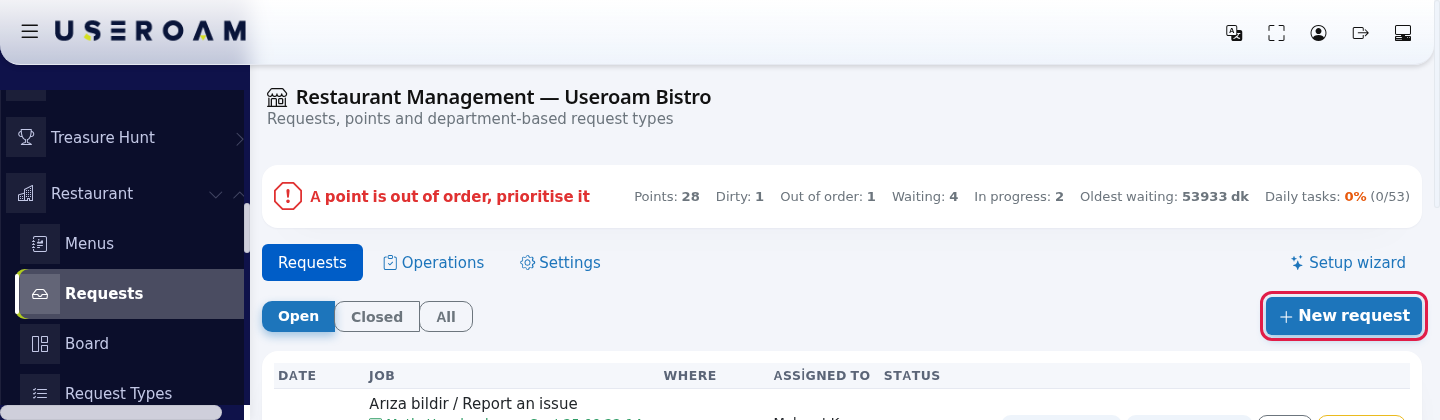
PickIn the window, in order: choose the request type in 1. What happened?. Choose the point in 2. Where? (e.g.orCleaning,NoReportspecifican issueplace). Type a short note in 3. Description (optional) (for exampleGlass broken near table). In 4. Who should do it? pick someone or leave Automatic: least busy person now.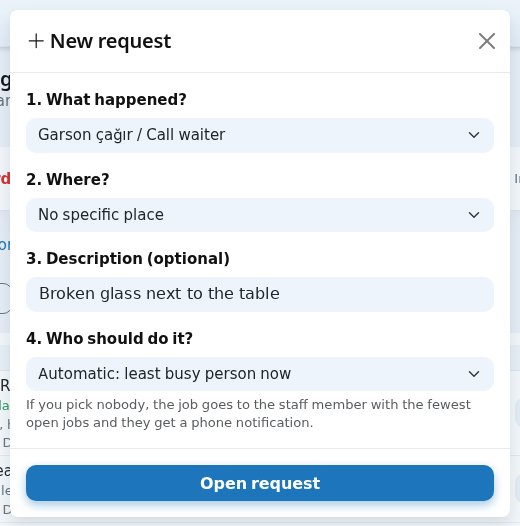
PickIforthe place is not listed, choose + Add a new point at the bottom of 2. Where? and type theplace.Optionally pick a person. If you don't, the job goes automatically to the least busy staff member of the department; a manager gets it only if no one else isname in thedepartment.box that appears (for exampleTerrace). The point is saved and shows in lists from then on.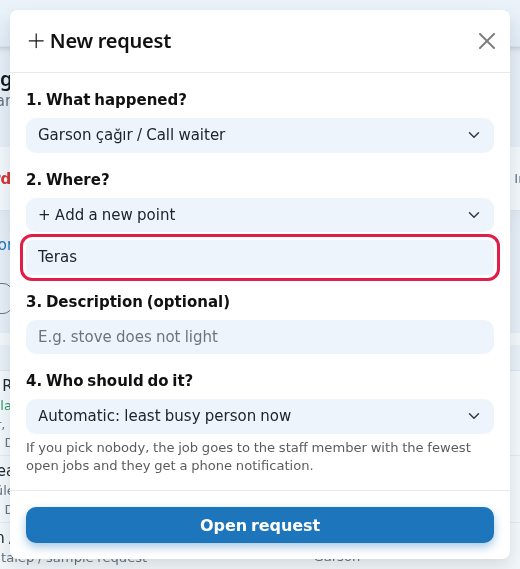
PressClick Open request. Thechosentop says "Request created." If you picked nobody, the job goes to the staff member in that department with the least work right now, with a phone notification; if the department has nobody, it goes to the least busy persongetsamongaallnotification.staff. If you have an automation rule, the notice to the support company also runs now.
Every 4.field Requestand listbutton
Filter
| Field | What it does | Example |
|---|---|---|
| Open | Filters the | Open |
| New request | Opens the new request window. | - |
Who
| Ayşe | |
| Status | Waiting | In progress |
| Save | Saves the | - |
| Sends a reminder to the person | - | |
| Notify company | Sends the e-mail for a rule that needs approval. | - |
| Photo thumbnail | Opens the | - |
| Window: 1. What happened? | Request type (required). | Cleaning |
| Window: 2. Where? | Point; sub-points are indented. + Add a new point asks for a name (E.g. Terrace). | Bar |
| Window: 3. Description (optional) | Note, up to 300 characters. | E.g. stove does not light |
| Window: 4. Who should do it? | A person or Automatic: least busy person now, with the hint "If you pick nobody, the job goes to the staff member | Automatic |
| Open request | Creates the request. | - |
Messages you may see
| Message | Meaning and what to do |
|---|---|
| Saved. | The row change was saved. |
| Request created. | The new request was created and assigned. |
| Reminder notification sent. | Nudge worked. |
| A reminder was already sent for this request in the last 5 minutes... | Try again in a few minutes. |
| This request is not assigned to anyone... | First pick a person in |
| Invalid request type. | The type was deleted. Refresh and choose again. |
| No requests yet. | No requests in the selected filter. Try All. |
| Company · Not sent | The automation e-mail could not be prepared; see Automation → Recent sends. |
Frequently asked questions
Where do guest requests come from?
In a restaurant guests use Call waiter and Request the bill in the QR menu; these land on the Operations Screen (Calls and Orders). This list gets jobs staff open in the app, thejobs jobyou becomes theirs and their name appearsopen in the panel, point status changes (for example setting a point to AssigneeOut of order) column.and
Why did the Unassigned requests go to nobody?
If the venue had no oneactive holdsstaff iswhen shownthe withrequest was opened, it stays in the pool. Pick someone in Assign to? and save.
Staff closed the request in the app but it still looks open here.
Refresh the page; the list does not refresh by itself.
Can I reopen a redclosed request?
Yes. Under UnassignedClosed, label.
Related pages:Restaurant Solution → Operations,Automation,Request Types,SLA,SettingsSave.
Can staff open requests?
Managers always can. For other staff to open requests in the app, turn on the setting on the Staff screen. Details: Useroam Go: Requests.