
Role Guide: Restaurant Manager
This page is for the person running the restaurant team: handing out jobs, following up late work and managing daily tasks.
1. What this role sees
- All tabs: Requests, Points, Tasks, Orders, Calls, Floor, Event (with an active event), Summary, Profile.
- All points, including those without an owner.
- Extra buttons: Assign, Nudge, + Add task, Edit; extra chips: Unassigned, Overdue.
2. Morning check
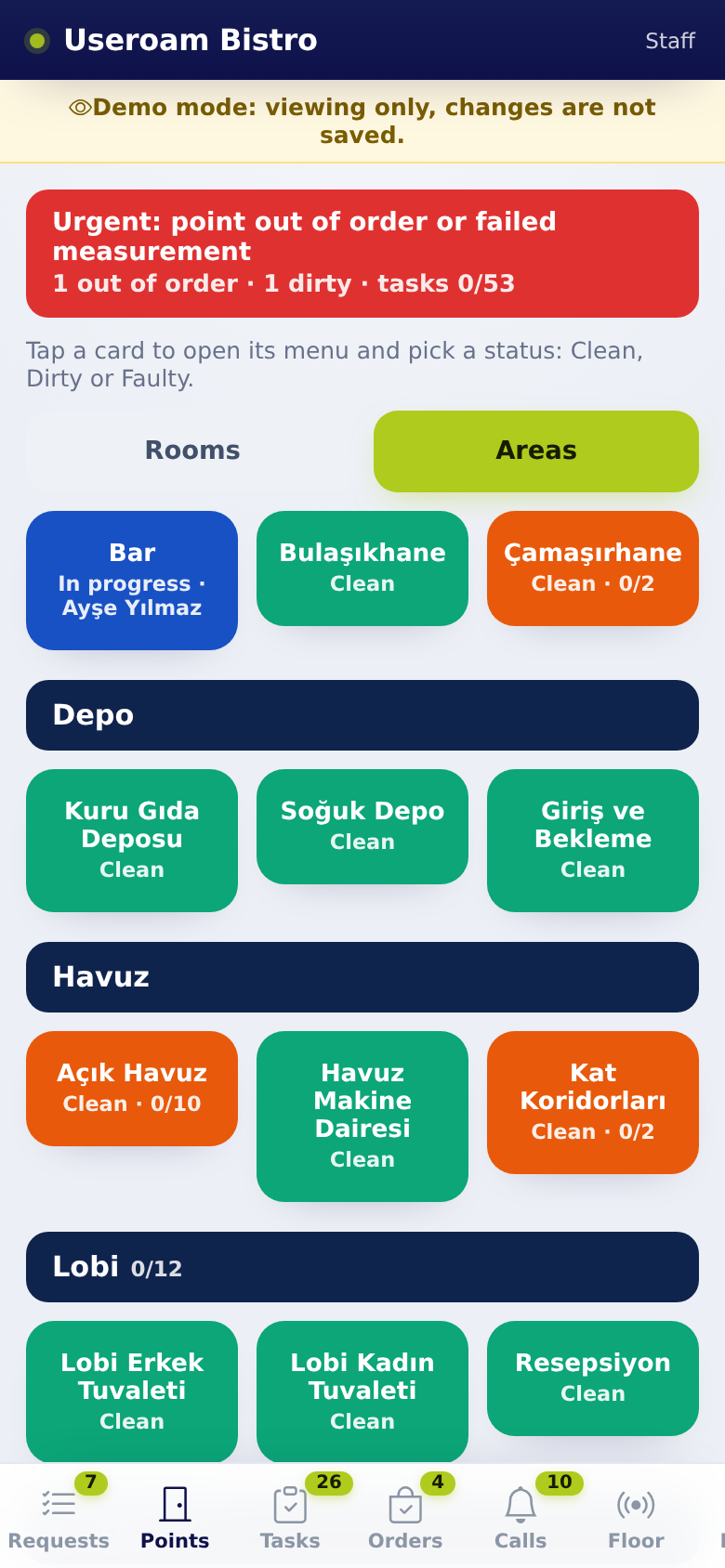
- Look at the strip at the top of Points: All good, Open work or Urgent: point out of order or failed measurement.
- Tap red and orange tiles to see open jobs.
- On Requests, tap the Unassigned chip.
3. Handing out jobs
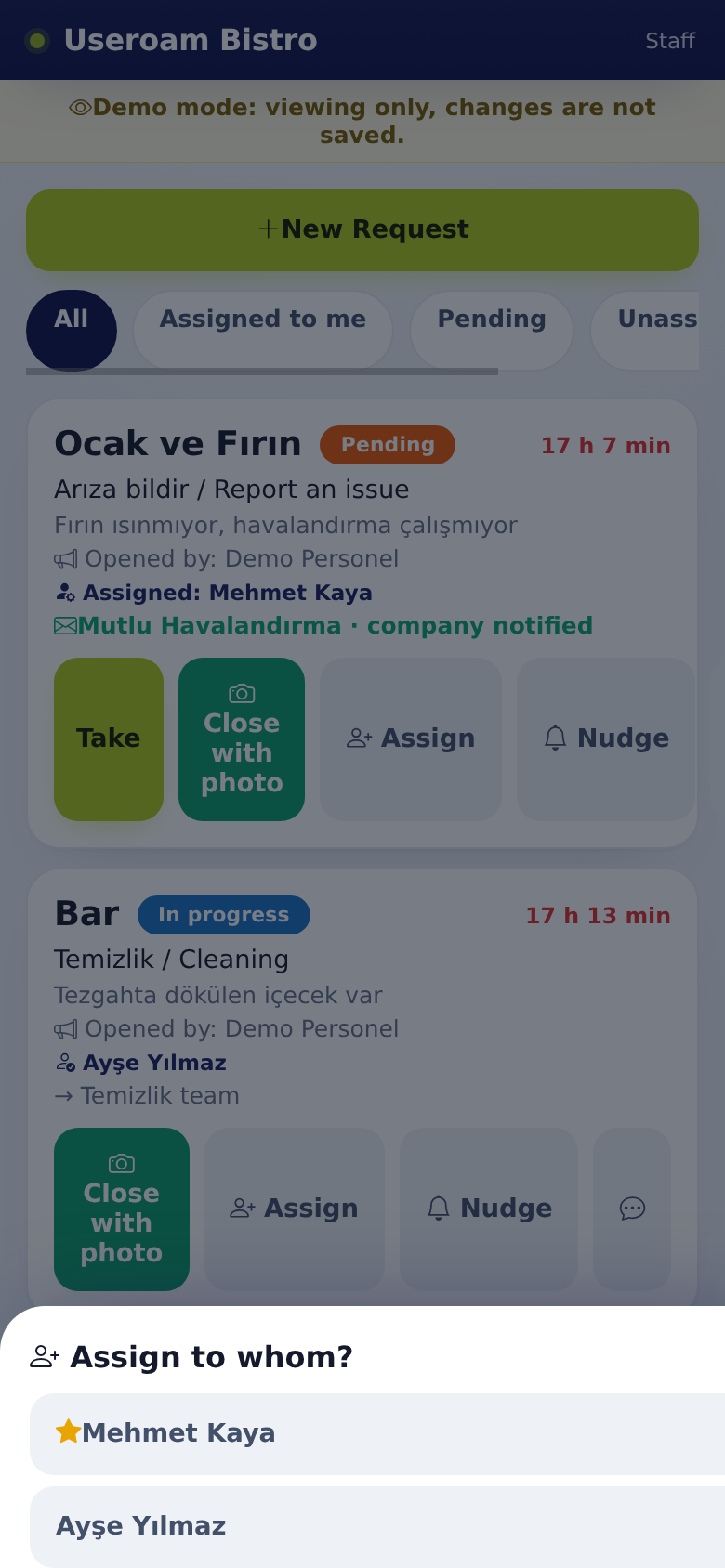
- On an unassigned request tap Assign.
- Pick someone from Assign to whom? (starred people belong to the request's department).
- They are notified. If you took the job from someone else, that person gets Job moved to someone else.
4. Following up late work
- Tap the Overdue chip.
- Tap Nudge on the card; the job holder gets a reminder. One nudge per job every 5 minutes.
- Restaurant requests past their SLA also reach you by notification and SMS, and a warning strip appears on Requests.
- If a daily task is still not done 30 minutes after its time, you get Task overdue (the assignee too, if the task is assigned to one person).
- When a job is closed from the panel or the app, or an order is delivered, you get Job completed; not if you closed it yourself.
- If your email address is filled in and Email notifications is on in the panel's Staff screen, assignment, overdue and job done notifications also arrive by email (Staff).
- If needed, chat with staff using the speech bubble on the card.
5. Managing daily tasks
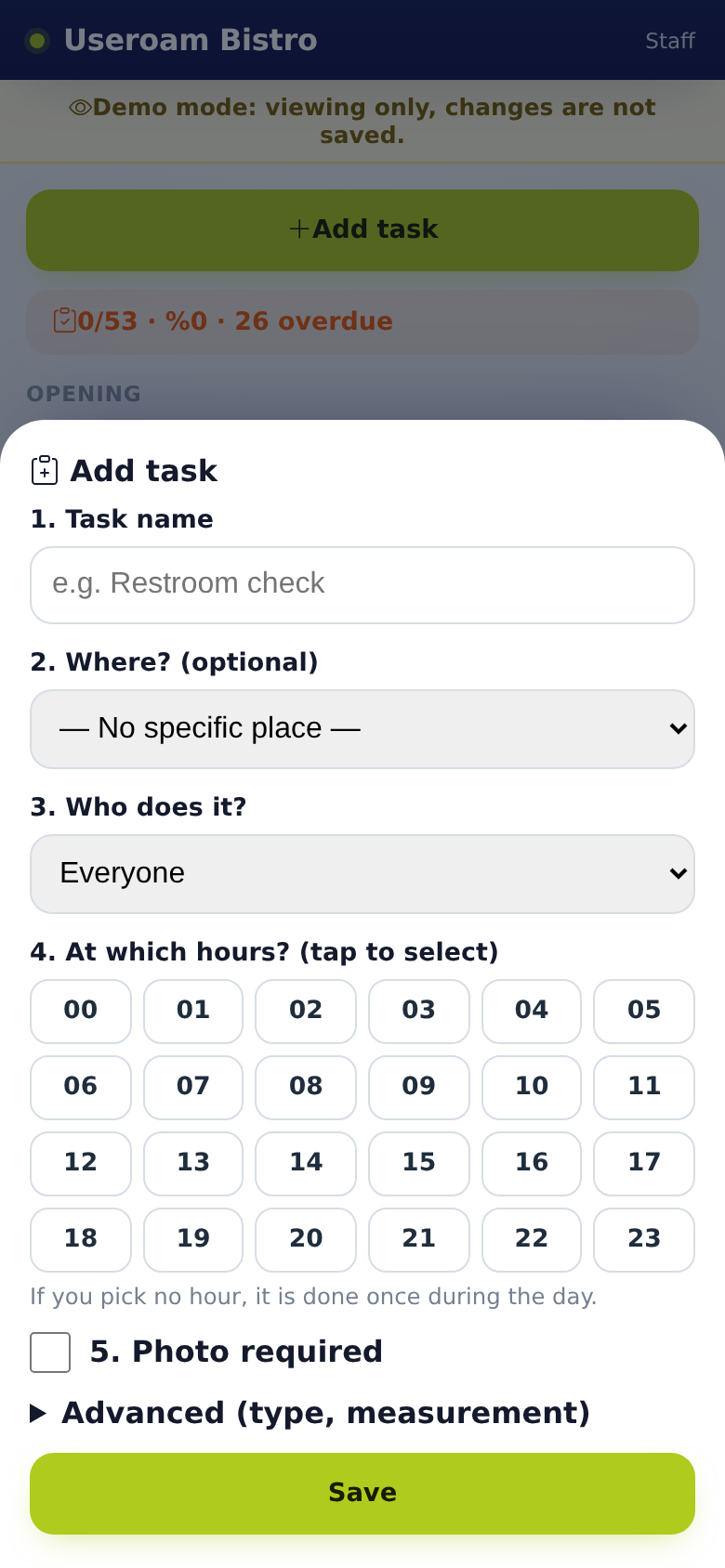
- On Tasks tap + Add task.
- Choose the task name, place, who does it and the hours; add Photo required and measurement limits if needed.
- Tap Save.
- Change or delete an existing task with Edit. Use Nudge on overdue tasks.
When staff finish a task you get Task completed. Tap a finished task's badge to see the photo and notes, and leave a note with Add note.
6. End of day
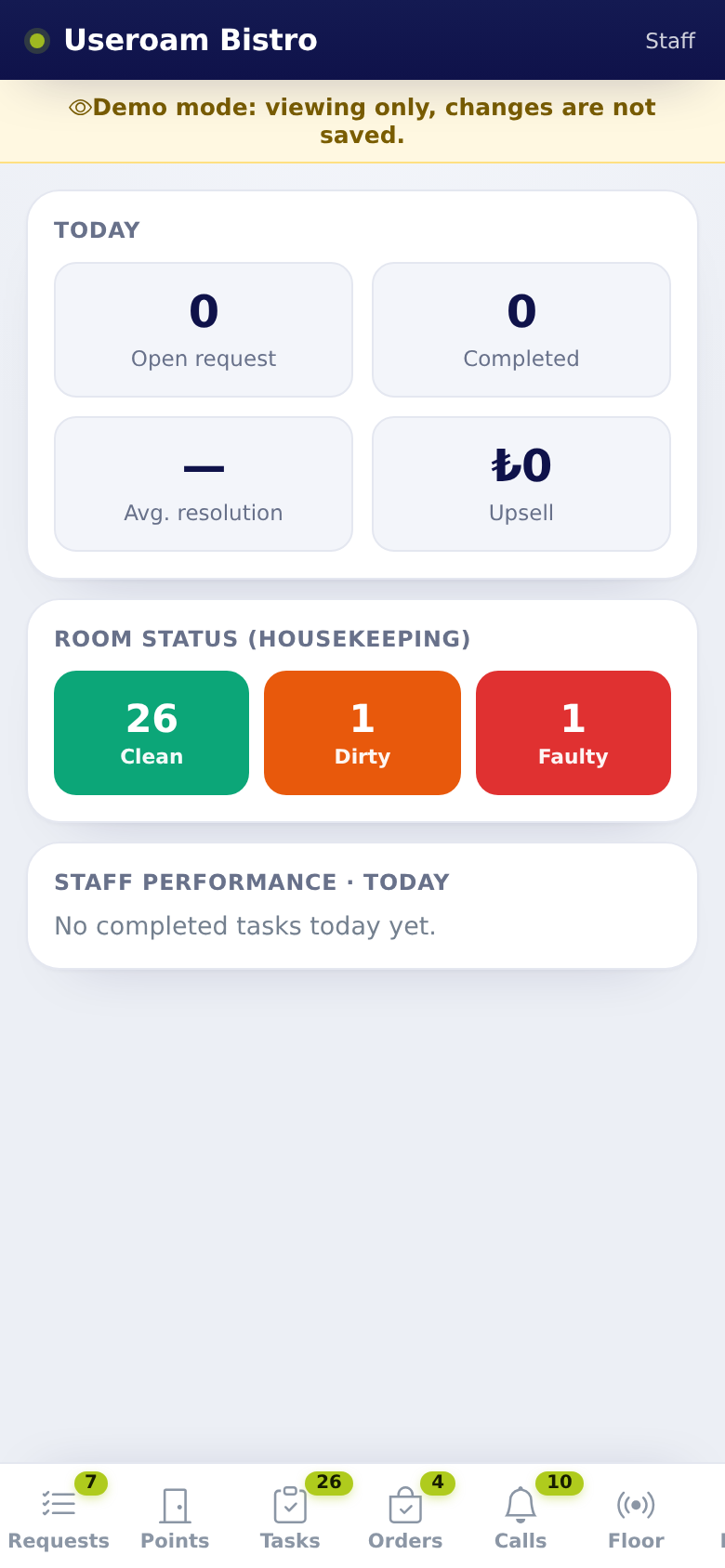
- On Summary, see open and completed jobs, average resolution time and per-person performance.
- Hand over jobs still open with Assign to the person on shift.
7. FAQ
A staff member sees no points. The points may have no owner; points without an owner are visible only to managers. Set owners on the panel's Operations screen.
Staff cannot see the tabs. Check that Requests, spots, tasks is ticked for their department (panel, Staff).
Nudge does not work. If nobody holds the job, use Assign first; a second nudge within 5 minutes is refused.
What is the envelope badge on a card? The request was reported to a support company automatically (company notified) or is awaiting approval.
Related pages: Useroam Go → Manager Tools and Tasks, Summary; Operations, Automation.