
SLA
What is it for?
SLA (delay rules) is where you set how quickly a request must be picked up or finished. When the time runs out and the request is still not picked up or not finished, the system writes a notification and sends an app notification to managers' phones; SMS too if you want. Forgotten jobs surface by themselves.
How do I open this screen? On Restaurant Management, click the Settings tab, then the SLA sub-tab. Step 5 of the setup wizard adds the same rule.
When do I use it?
- When waiter calls should be taken within, say, 5 minutes.
- To notice faults that are not fixed within a set time.
- So managers see waiting jobs straight away at busy times.
Before you start
- Notifications go to managers: at least one person on the Staff screen must have the Manager role.
- Without rules no notifications are created. The check runs every 5 minutes, so a notification can arrive a few minutes late.
Step by step: add a rule
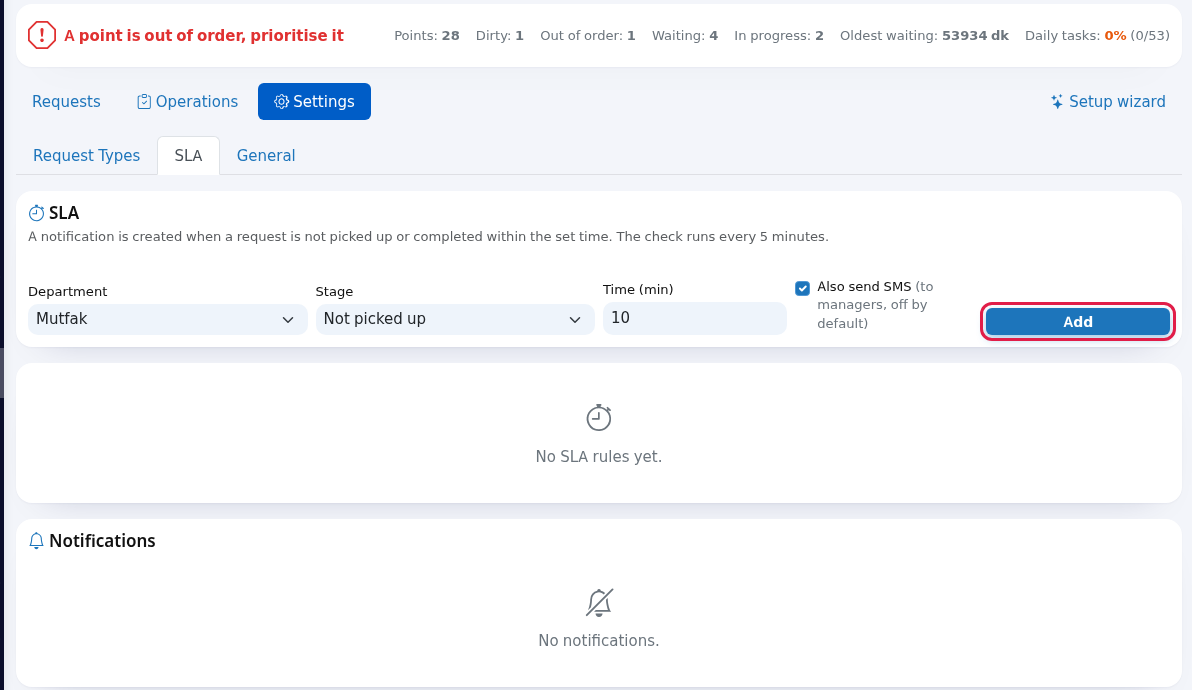
- Fill in the form and click Add. The top says "Saved." and the rule appears in the list.
- Department: where the rule applies. All departments covers everything, including requests with no department.
- Stage: Not picked up (the request is still Waiting when time runs out) or Not completed (still open, waiting or in progress).
- Time (min): minutes (for example
10; 1 to 1440, empty means 15). Time counts from when the request was opened. - Also send SMS with the note "(to managers, off by default)": sends an SMS to managers too, using your SMS credits.
Rule list
Without rules the card says "No SLA rules yet." Once you add a rule a table appears:
| Column / Button | What it shows / does |
|---|---|
| Department | The rule's department or All departments. |
| Stage | Not picked up / Not completed. |
| Time (min) | A badge such as 10 min. |
| SMS | Green phone icon: SMS goes too. Dash: app notification only. |
| Status | Green Active or grey Off. An inactive rule looks faded. |
| Enable / disable button | Stops the rule without deleting it, or turns it back on. |
| Delete button (bin) | Deletes the rule after the "Delete this?" confirmation. |
Notifications
The Notifications card at the bottom lists the alerts the rules created (newest 100). Unread ones have a red stripe and bold text; each row shows the alert text, the time and Request status: (the request's current status). With unread items, a Mark all as read button appears at the top right. With none, it says "No notifications."
A request is notified only once per rule. Managers receive the same alert as a notification in the Useroam Go app. Managers whose email address is filled in and whose Email notifications switch is on in the Staff screen also get the alert by email titled Job is overdue; this does not depend on the Also send SMS box and is free (Staff).
Every field and button
| Field / Button | What it does | Example |
|---|---|---|
| Department | Where the rule applies. | Kitchen |
| Stage | Not picked up / Not completed. | Not picked up |
| Time (min) | Waiting limit in minutes. | 10 |
| Also send SMS | Also sends an SMS to managers. | Off |
| Add | Saves the rule. | - |
| Mark all as read | Marks all notifications as read. | - |
Frequently asked questions
I added a rule but no notifications arrive.
Rules only look at open requests and run every 5 minutes. The request's department must match the rule (or the rule must be All departments). If the venue has no active manager, there is nobody to receive the app notification or SMS; the alert still shows in this list.
Does the wizard's test request create a notification?
No. The test request is created closed, so rules ignore it.
Will I get repeated SMS for the same request?
No. Each request is notified once per rule.