
Settings and Status
What is it for?
The two cards at the top left of the Staff WiFi screen show whether the feature is on and whether the setup will work. On the Settings card you turn the feature on and type the staff network name; on the Status card you see the state of Useroam Connector and of the issued certificates.
When do you use it?
- When you turn on Staff WiFi for the first time.
- When you change the name of the staff network.
- As the first place to look when staff say "I cannot finish the setup".
- When you want to pause new setups for a while.
Before you start
- You must be signed in with an administrator account.
- Pick the right device in the top menu. Settings are per device.
Step by step
- Open Staff WiFi in the left menu.
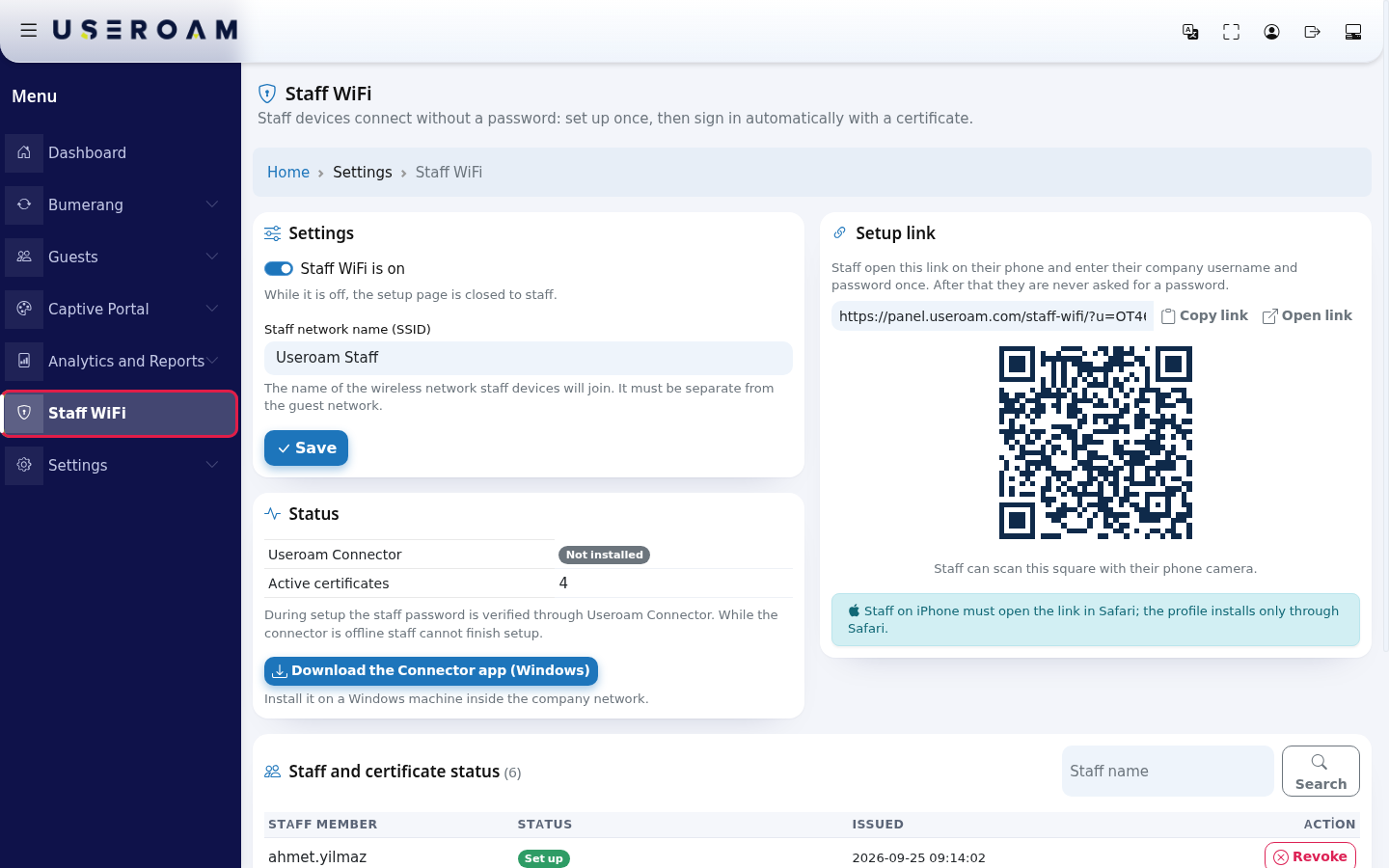
- On the Settings card turn on Staff WiFi is on. In Staff network name (SSID) type the name of the wireless network staff devices will join, exactly as it is written on the device (example:
Useroam Staff). Press Save.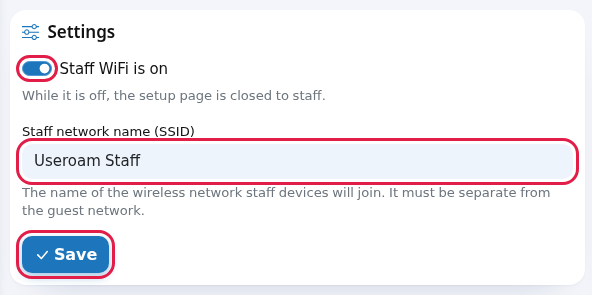
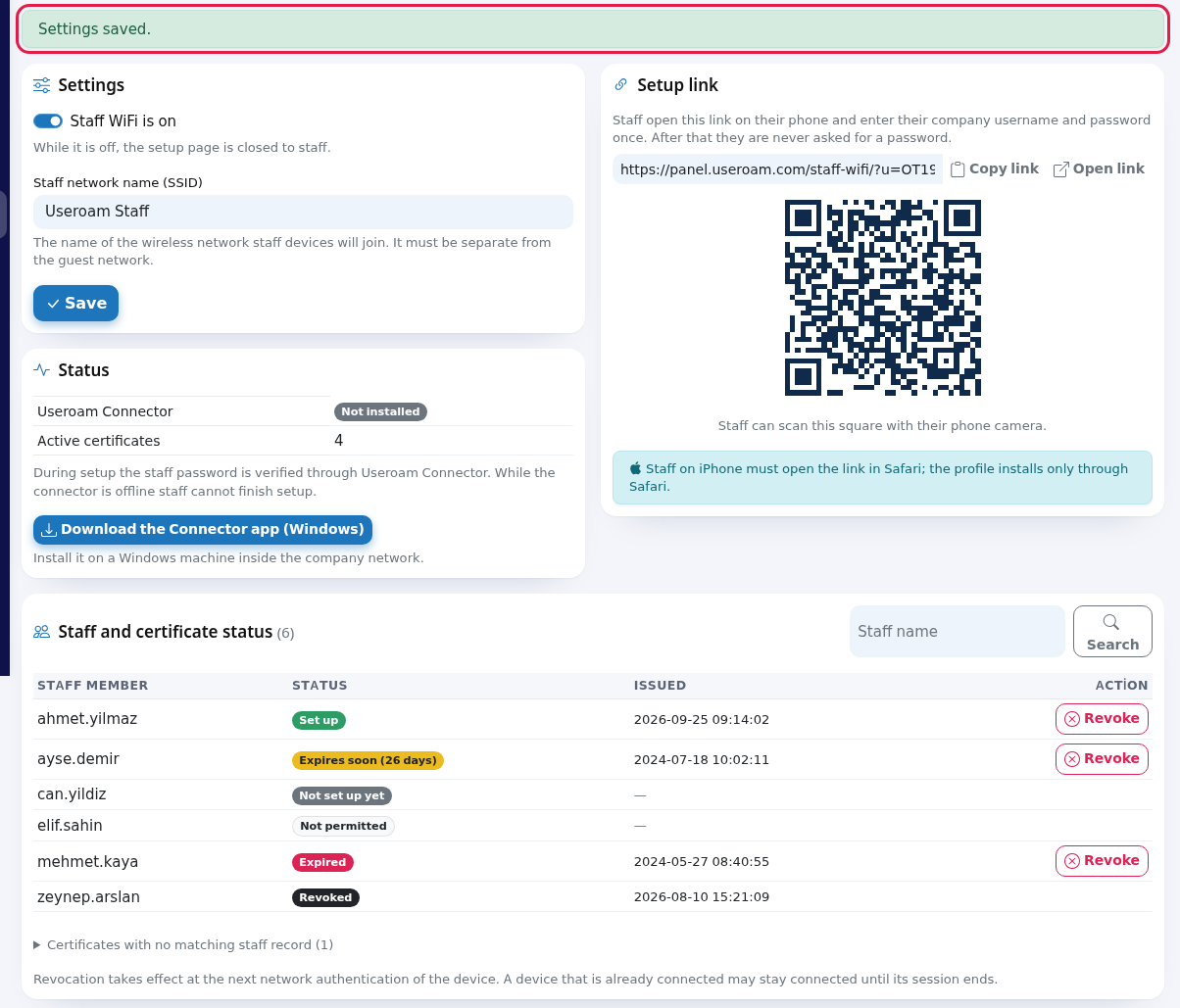
- Check for the green Settings saved. message at the top of the screen.
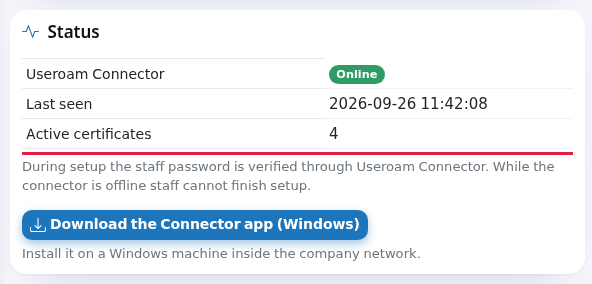
- Look at the Status card. If you work with Active Directory, the Useroam Connector row should say Online. If you work with local users, Not installed is normal.
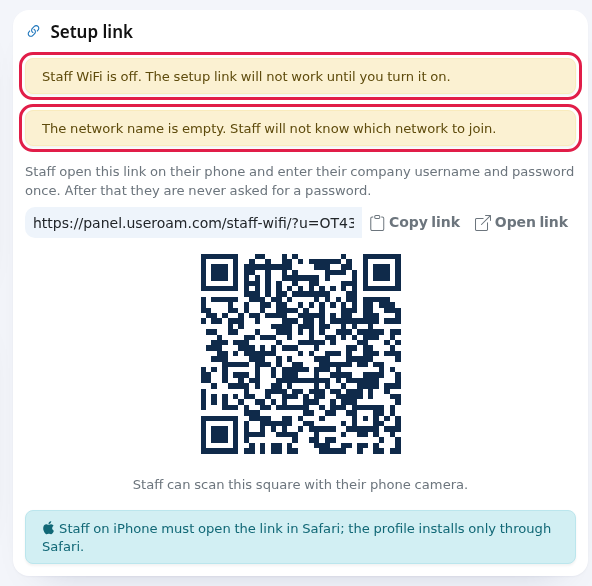
- Check that no yellow warning is left at the top of the Setup link card. If there is one, fix it using the table below.
Every field and button on the screen
| Field / Button | What it does | Example |
|---|---|---|
| Staff WiFi is on | While on, staff can use the setup link. The note below it: "While it is off, the setup page is closed to staff." Turning it off does not disconnect devices that are already set up; it only stops new setups. | On |
| Staff network name (SSID) | The network staff devices join. Up to 64 characters, cannot be empty. When empty it shows a grey "Staff". The note below it: "The name of the wireless network staff devices will join. It must be separate from the guest network." | Useroam Staff |
| Save | Saves both fields. | |
| Useroam Connector | One of three states: green Online (reached the panel in the last 5 minutes), yellow Offline (set up, but did not reach the panel in the last 5 minutes), grey Not installed (never set up for this device). | Online |
| Last seen | When the Connector last reached the panel. Hidden if the Connector has never connected. | 2026-09-26 11:42:08 |
| Active certificates | The number of certificates on this device that are not revoked. Expired but not revoked certificates are also counted. | 4 |
| Note under the card | "During setup the staff password is verified through Useroam Connector. While the connector is offline staff cannot finish setup." This applies to Active Directory users; local users can set up without the Connector. | |
| Download the Connector app (Windows) | Downloads the Connector installer. The note below it: "Install it on a Windows machine inside the company network." See Useroam Connector. |
Warnings and errors
| Message | What it means | What to do |
|---|---|---|
| Settings saved. (green) | Saved. | Nothing. |
| Staff WiFi is off. The setup link will not work until you turn it on. (yellow) | The switch is off. Staff opening the link see "Bu kurum için personel WiFi kurulumu kapalı. (S-09)" (setup is closed for this organisation). | Turn on Staff WiFi is on and press Save. |
| The network name is empty. Staff will not know which network to join. (yellow) | No network name has been entered. | Type the network name and save. |
| Enter the network name. (red) | You tried to save with an empty network name. | Type the network name. |
| No device selected. Pick a device from the top menu. | No device is selected in your session. | Pick a device in the top menu. |
Frequently asked questions
I changed the network name and iPhone users cannot connect.
The profile installed on iPhone and iPad carries the network name; it keeps looking for the old name. iPhone users must run the setup again. Android and Windows users pick the new network in the list and connect with the same certificate.
Where do I change the validation server name?
It is not managed in the panel. The setup page shows it to staff itself (panel.useroam.com); on Android and Windows it goes into the Domain field.
If I turn the switch off, do employees drop off the network?
No. Only new setups stop. To cut someone off, revoke their certificate: Certificates and Staff.