
Useroam Connector
What is it for?
Useroam Connector is a small application installed on a Windows computer inside your own network. In organisations using Active Directory or LDAP it does two jobs: it checks the password staff type during setup against your own directory, and it brings the staff list into the panel.
When do you use it?
- Your staff sign in to computers and e-mail with an Active Directory or LDAP account.
- You want the staff list to come from the directory instead of creating people one by one in the panel.
If you do not use Active Directory you do not need the Connector. Create staff in New User with the type Staff WiFi (certificate); the password is checked against the panel's own record. In that case Not installed on the Status card is normal.
Before you start
- A Windows computer or server inside your network that stays on.
- It must reach the directory server (Active Directory / LDAP) and the internet.
- The key that pairs the Connector with your device is provided by Useroam; ask your reseller or Useroam support during installation.
Step by step
- Open Staff WiFi in the left menu. On the Status card press Download the Connector app (Windows). The installer (
UseroamConnectorSetup.exe) downloads. Direct address:https://panel.useroam.com/api/connector-download.phpRun the downloaded file on the Windows computer inside your network and finish the installation; the application's own windows are on that computer, not in the panel.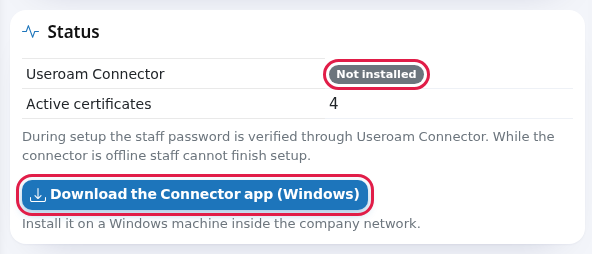
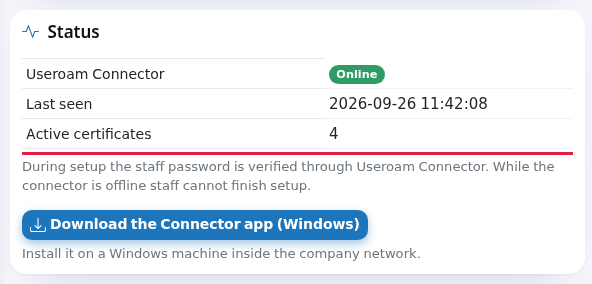
- After a few minutes refresh the panel. The Useroam Connector row should turn green Online, with a Last seen time below it.
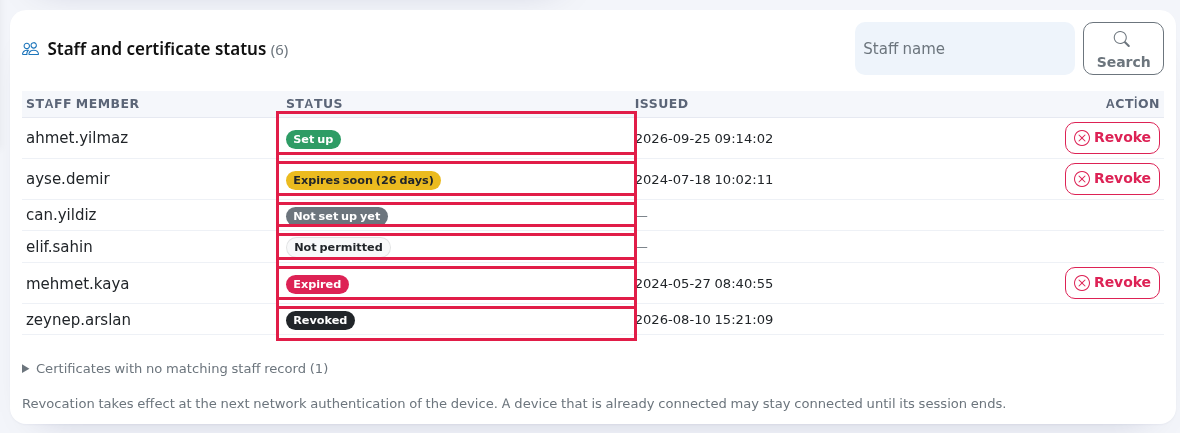
- Staff from the directory appear in the Staff and certificate status list. You can now share the setup link: Inviting Staff.
The three states of the status row
| Badge | What it means | What to do |
|---|---|---|
| Online (green) | The Connector reached the panel in the last 5 minutes. Staff can run the setup. | Nothing. |
| Offline (yellow) | The Connector is set up but has not reached the panel in the last 5 minutes. Active Directory users cannot finish the setup; the setup page waits a few seconds and says "Verification timed out". | Check that the computer running the Connector is on and online. |
| Not installed (grey) | No Connector was ever set up for this device. An Active Directory user trying the setup sees "Bu cihaz için connector tanımlı değil. (S-10)" (no connector defined for this device). | Install the Connector if you use Active Directory. Otherwise this is normal. |
Where does the password travel?
When staff type their password on the setup page, it is encrypted and held on the Useroam server for a very short time (a few seconds at most); the Connector picks it up, asks your directory and reports the result. The waiting record is deleted straight away; the password is never stored in readable form. When the staff list is synchronised, passwords are not transferred.
The public IP of the computer running the Connector does not need to match the device IP registered in the panel; the Connector identifies itself with the key it was given, not by IP.
Frequently asked questions
If the Connector is off, do devices that are already set up drop off?
No. Set-up devices join with their certificate, and that check does not go through the Connector. Only new setups and staff list updates stop. Do not leave the Connector off permanently.
I created a new employee in the directory and they are not in the list.
Wait for the Connector's next synchronisation. If the Last seen time is old, the Connector is not running.
Can one organisation have both Active Directory and local users?
Yes. Users created in the panel with the type Staff WiFi (certificate) are checked against the panel record, the others through the Connector.