
Certificates and Staff
What is it for?
The Staff and certificate status card lists the staff on this device one by one and shows each person's setup status. You close a departing employee's access here with the Revoke button.
When do you use it?
- When an employee leaves or loses their phone.
- When you want to see who has run the setup and who has not.
- To keep track of certificates that are about to expire (a look once a month is enough).
Before you start
- If the list is empty it says "No staff records on this device. Nobody can run the setup until staff are added." Add staff first: Useroam Connector for Active Directory, otherwise New User (type Staff WiFi (certificate)).
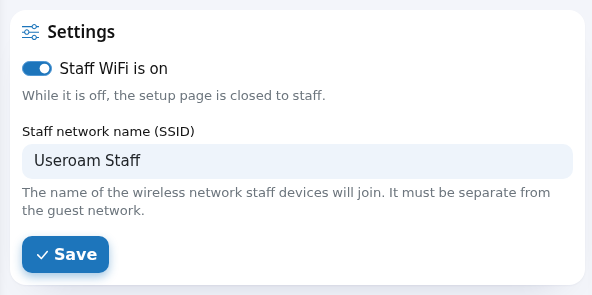
Step by step: closing an employee's access
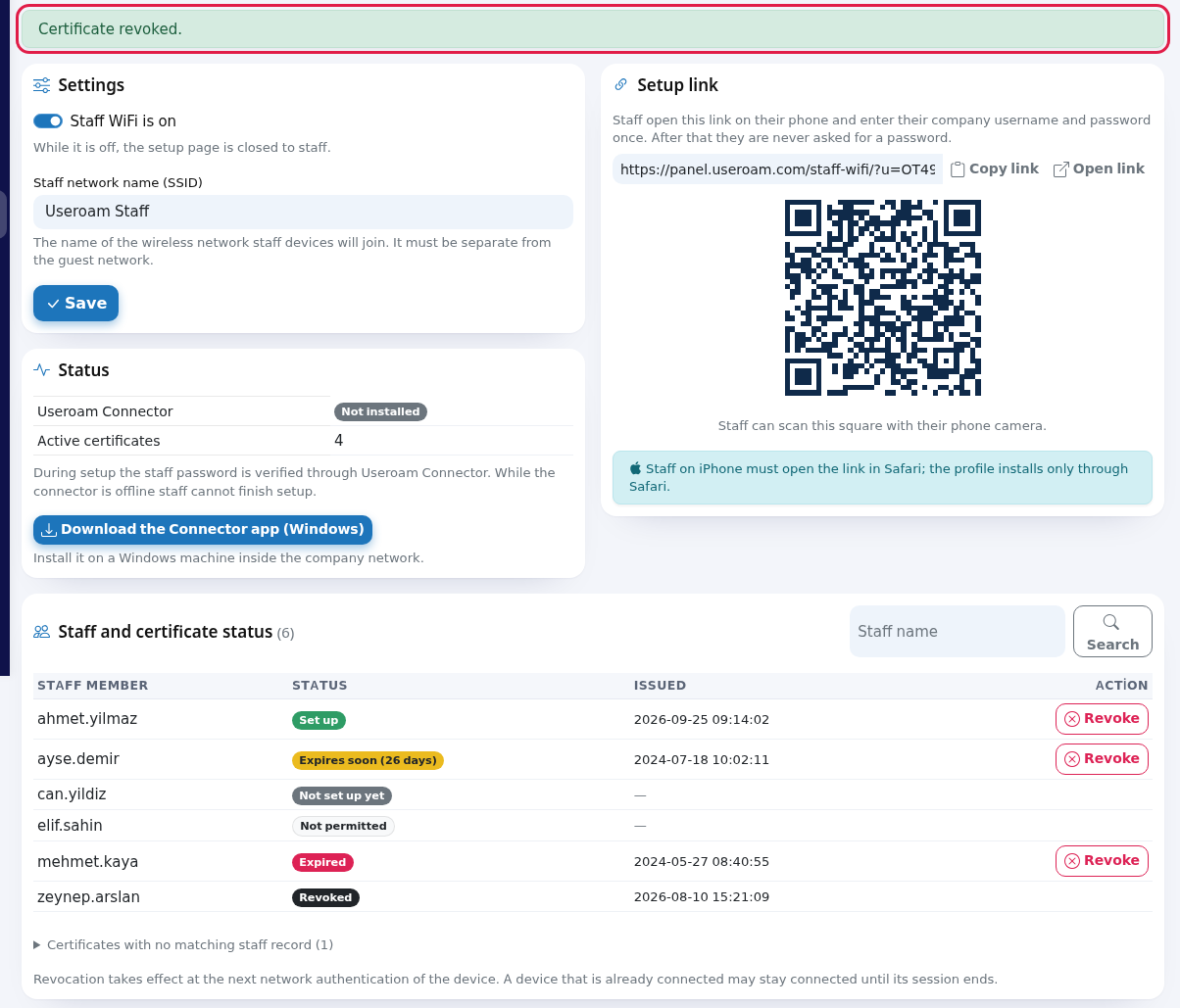
- Open Staff WiFi in the left menu and scroll to the Staff and certificate status card at the bottom. The number next to the title is the total number of staff on the device.
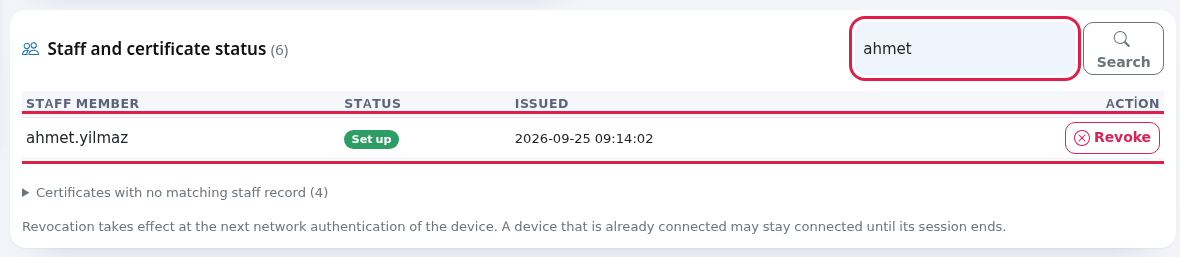
- To find the employee, type part of the name in the Staff name box at the top right and press Search.
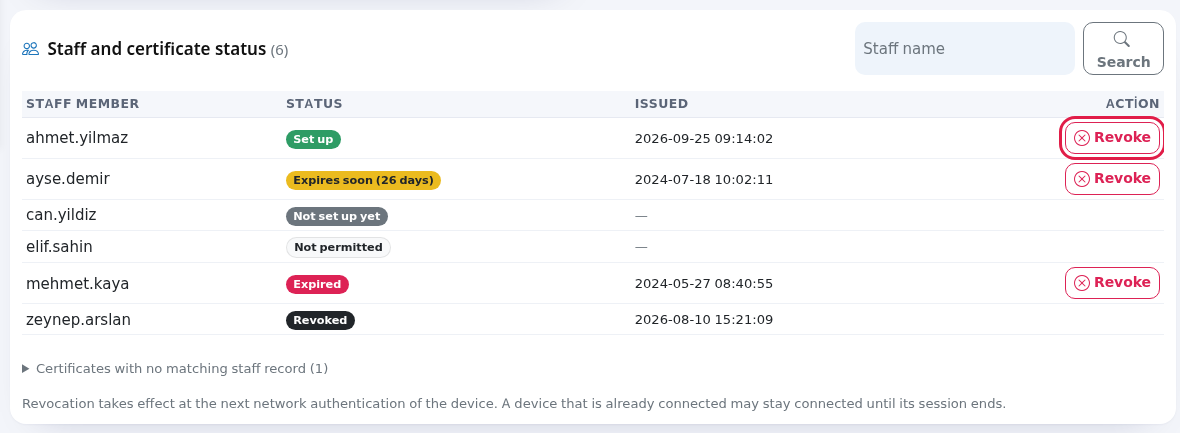
- Press Revoke at the end of the row. The browser asks "Revoke this certificate? The device will not be able to connect again and the staff member must run the setup once more."; press OK (or Cancel to go back).
- A green Certificate revoked. message appears at the top and the row shows the Revoked badge.
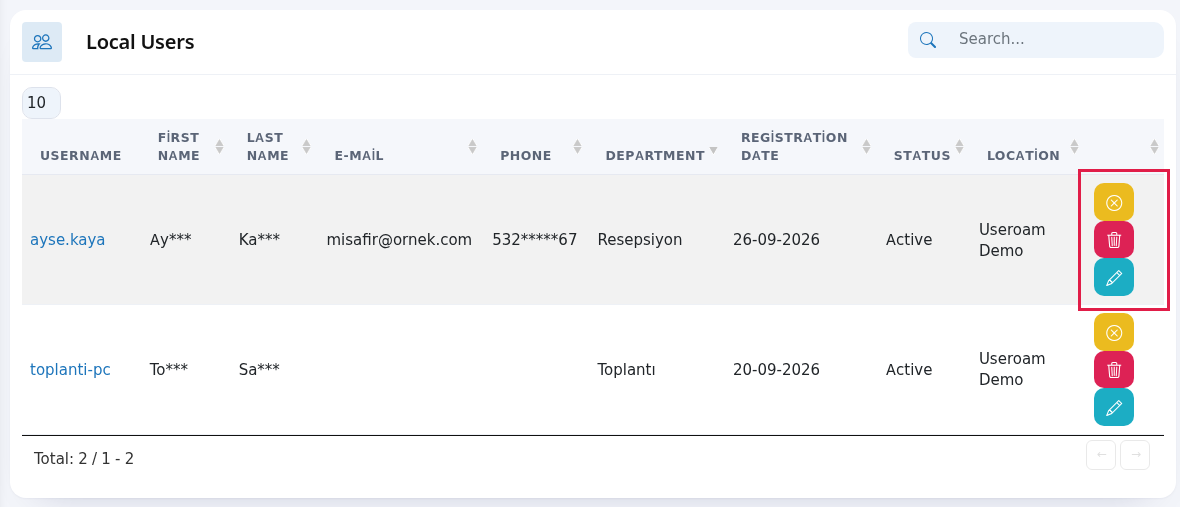
- If the employee has left for good, close their account too: delete or disable it in Local Users. If you use Active Directory, disable the account in the directory.
Status badges
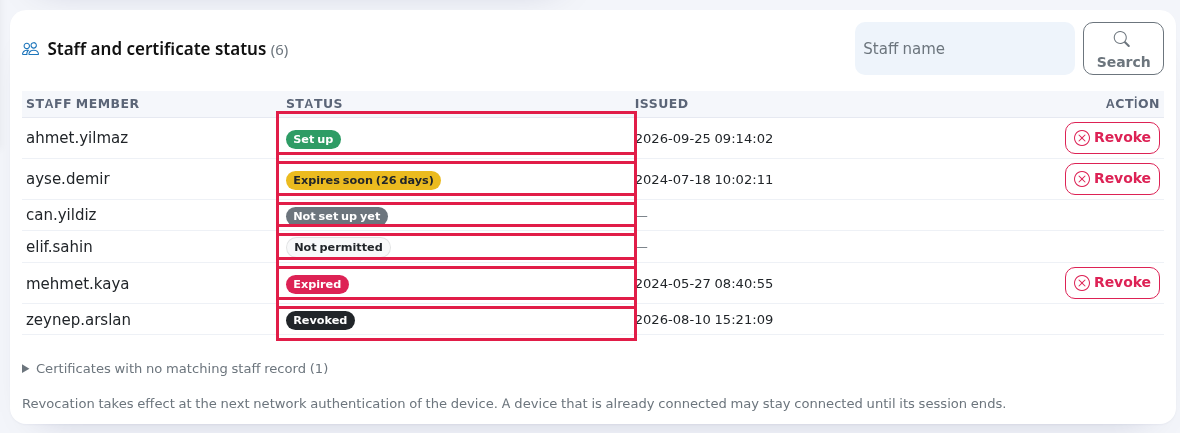
| Badge | What it means | What to do |
|---|---|---|
| Set up (green) | Has a valid certificate; the device can join the network. | Nothing. |
| Not set up yet (grey) | Has a staff record but has not run the setup. | Send the setup link. |
| Not permitted (white) | The local user was created as Hotspot user. This person cannot get a certificate even with the link. | If they need one, create them with the type Staff WiFi (certificate). |
| Expires soon (26 days) (yellow) | Less than 60 days left; the brackets show the days remaining. | Ask the employee to run the setup again. The new certificate replaces the old one. |
| Expired (red) | The certificate is no longer valid; the device cannot join. | Ask the employee to run the setup again. |
| Revoked (black) | The certificate has been revoked. | If the employee comes back, they run the setup again. |
Certificates are valid for 825 days and do not renew themselves. Staff who set up in the same period expire on the same days; do not wait when you see yellow badges.
Every field and button on the screen
| Field / Button | What it does |
|---|---|
| Staff name box and Search | Searches usernames. With no result it says "No staff member matches your search."
|
| Staff member | Company username. A short name (ahmet) and a full name (ahmet@firma.local) count as the same person. |
| Status | One of the badges above. If the person has several certificates, the newest one decides. |
| Issued | When the newest certificate was issued. A dash if there is none. |
| Action / Revoke | Shown for valid or expired certificates; not shown for revoked ones. |
| "Showing %d of %d staff. Use the search box." | The list shows at most 100 people at a time. Example: "Showing 100 of 240 staff." Use the search box for the person you need. |
| Note at the bottom of the card | "Revocation takes effect at the next network authentication of the device. A device that is already connected may stay connected until its session ends." |

Certificates with no matching staff record
Below the list you may see a folding section called Certificates with no matching staff record (1). When opened it shows the note "These were issued before the staff list check was added. Revoke them if they are not in use." and a table with User (with the start of the serial number below), Issued, Status (Valid or Revoked) and Action.
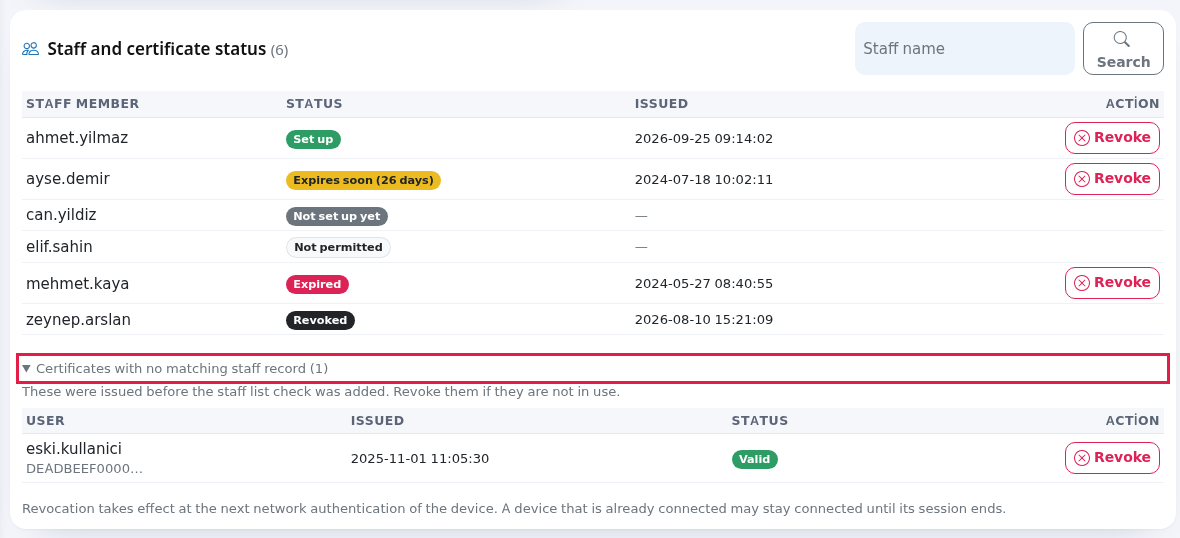
The owners of these certificates are not in the staff list. Revoke them if they are not in use: a valid certificate with no known owner is a device that can join the network but cannot be tracked in the list.
Frequently asked questions
I revoked it but the employee is still connected.
Revocation takes effect at the device's next network authentication. A device connected right now can stay connected until its session ends. If you must cut it off immediately, drop the device on the firewall side as well.
The same person set up with both a short name and a full name.
Revoke closes all valid certificates of that person on this device together.
Does revoking delete the staff record?
No. The person stays in the list with the Revoked badge. To delete the record, use Local Users.
Should I revoke the old certificate of an employee who changed phone?
No need. When the new setup is done, the same person's older certificates are revoked automatically.