
Coupon Codes
What is it for?
Coupon Codes creates single-use Wi-Fi login codes to hand out to guests. You download the codes as a PDF, print them and give them to guests on paper or a receipt. The guest types the code on the login screen and stays online for the time you set.
When do I use it?
- You want to give short-term Wi-Fi to guests who do not want to give a phone number, or to an event.
- You want to give Wi-Fi together with a service such as breakfast, a meeting or a waiting lounge.
- You want to track how many codes were used.
Before you start
- For coupon login to work, the coupon login option must be on for your captive portal. If your login screen has no coupon box, contact support.
- Codes are created for the selected device.
Step by step: creating coupons
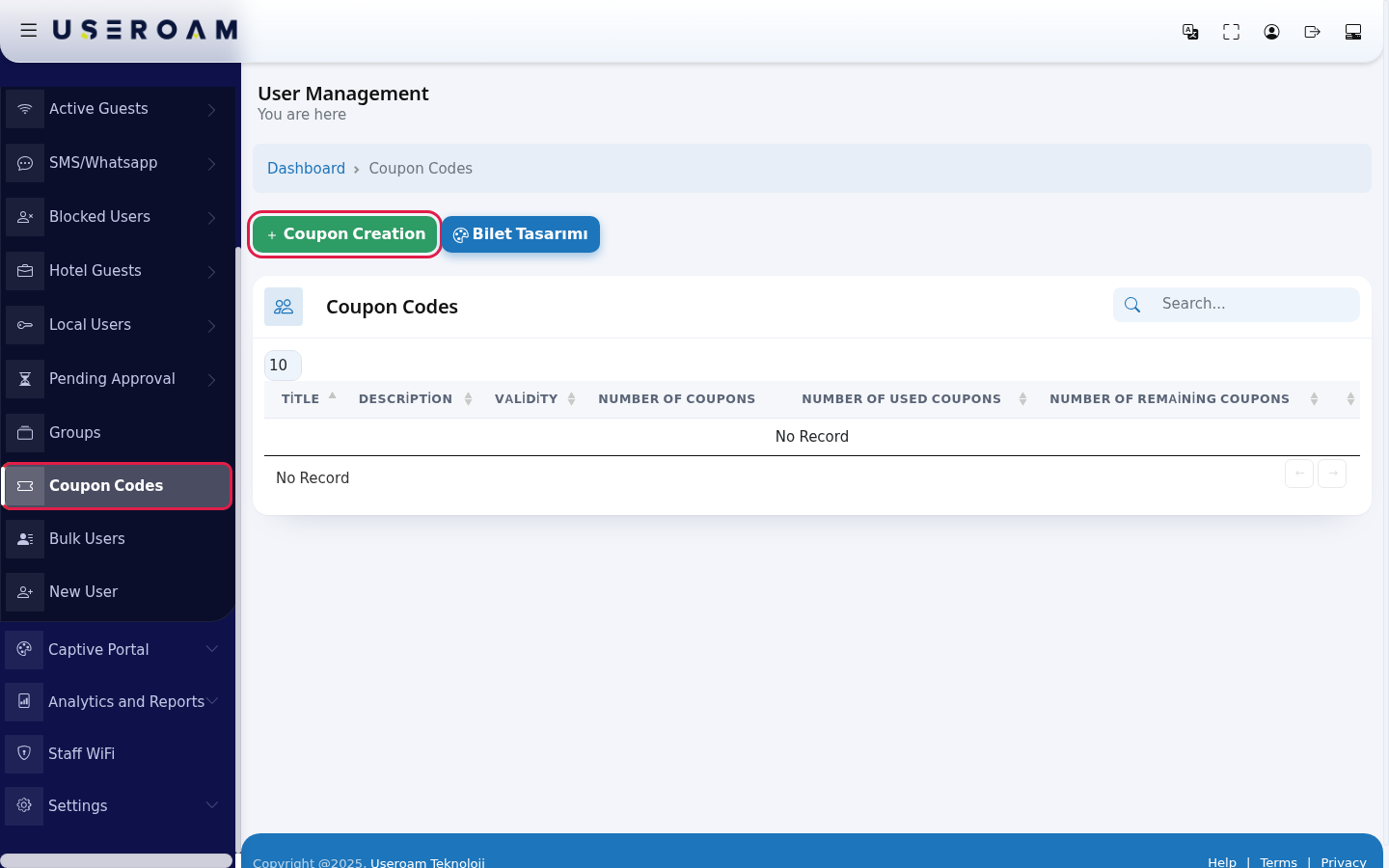
- In the left menu open Guests and click Coupon Codes. Press the green Coupon Creation button.
- Fill in the New Coupon form: Title (example:
Breakfast-Coupon), Description, Number of Coupons (how many codes, example:50), Character Length (characters per code, 6 by default) and Character Type (All, Letters Only, Numbers Only, Lowercase Letters Only, Uppercase Letters Only). The Unlimited switch is on by default; to set a time limit, turn it off and choose Validity and Duration (Hours / Minutes). Choose the language of the printed cards in PDF Language and press Save.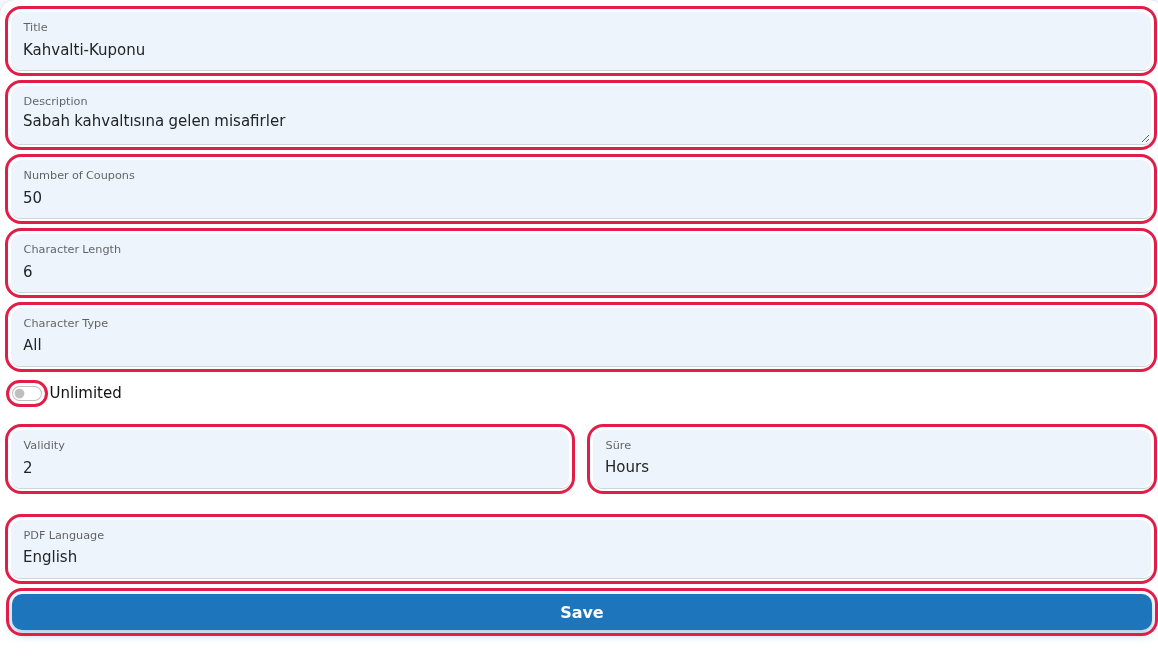
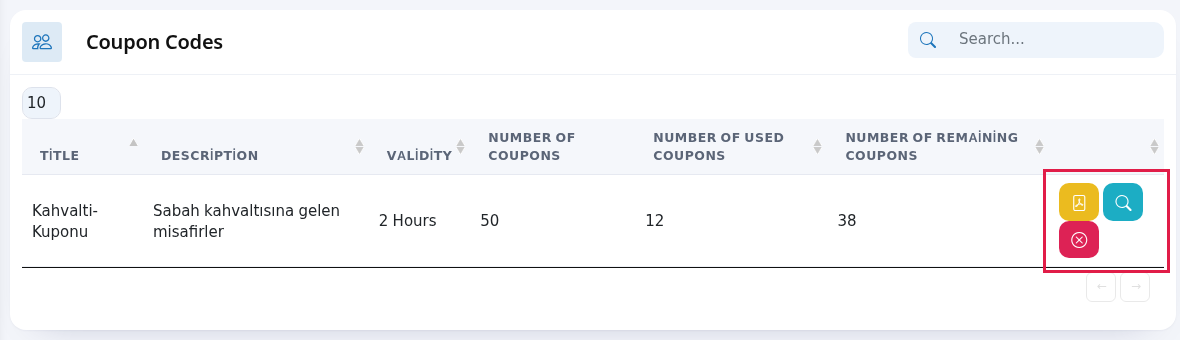
- The coupon batch appears in the list with Number of Coupons, Number of Used Coupons and Number of Remaining Coupons. Use the yellow PDF button on the row to download the codes as printable cards, the blue magnifier to see each code and whether it was used (Coupon Detail), and the red button to delete the batch.
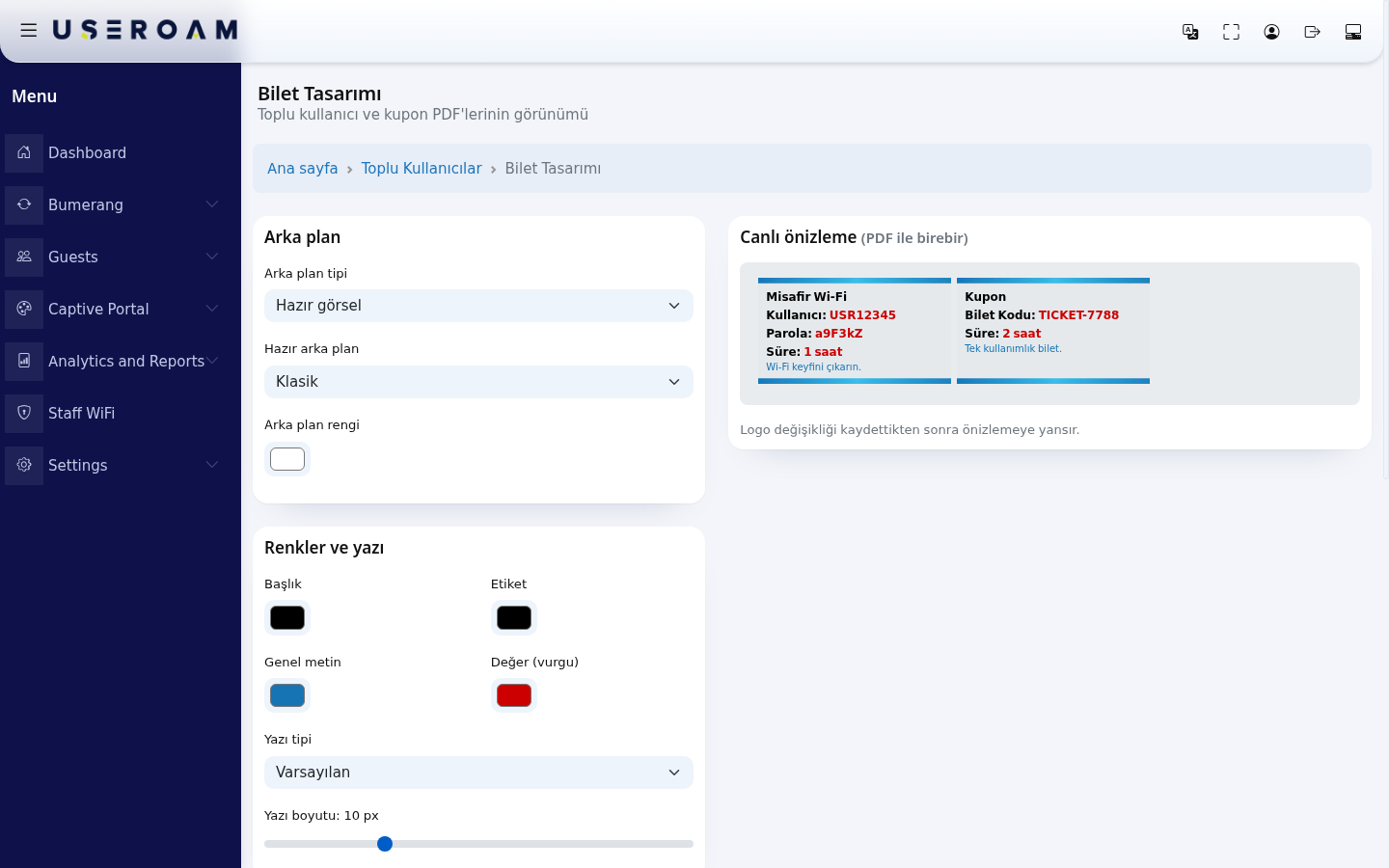
- To change how the cards look, use the Bilet Tasarımı (ticket design) button above the list (background, colours, font, logo). Details are on the Bulk Users page.
Every field and button on the screen
| Field / Button | What it does |
|---|---|
| Top of the page | The heading User Management with You are here under it; Dashboard in the path line returns to the home screen. While the table loads it shows Processing..., with no records No Record; All in the number box shows every row. |
| Search | Searches the coupon batches. |
| Coupon Creation | Opens the New Coupon form. |
| Bilet Tasarımı | Opens the design screen for the PDF cards (Turkish only). |
| Title, Description | Name and note of the coupon batch; may also appear on the printed card. |
| Number of Coupons | How many codes to create. 10 by default. |
| Character Length | Characters per code. 6 by default. |
| Character Type | Which characters the code uses. Numbers only is the easiest for guests to type. |
| Unlimited | When on, the code has no time limit. |
| Validity and Duration | How long one code keeps the guest online. |
| PDF Language | Language of the text on the printed cards. |
| Save | Creates the codes. |
| Title, Description, Validity (list) | Details of the coupon batch. |
| Number of Coupons, Number of Used Coupons, Number of Remaining Coupons | Total, used and remaining codes. |
| Yellow PDF button | Downloads the codes as a printable PDF. |
| Blue magnifier | Coupon Detail: each code with Coupon Code, Validity, Title, Description and In Use (Yes / No). |
| Red button | Deletes the coupon batch without asking. |
Frequently asked questions
The guest types the code but cannot sign in.
Check in Coupon Detail that the code is unused; it may have expired or already been used. If there is no coupon box on the login screen, coupon login is not on; contact support.
Can one code be used by several guests?
No, codes are single-use.
What is the difference between coupons and Bulk Users?
With a coupon the guest types one code. With Bulk Users every guest gets a user name and a password.