
New User
What is it for?
New User creates a single Wi-Fi account from the panel. Use it for people who cannot verify by SMS or who need a fixed account (staff, long-stay guests, a meeting room computer and so on). You can create two types of account: a Hotspot user who signs in with a user name and password, or a Staff WiFi (certificate) user who receives a setup link on their phone.
When do I use it?
- You want to give an employee or a long-stay guest a permanent Wi-Fi account.
- A device without a phone number (printer, computer) needs a login account.
- You want staff to connect securely to the company Wi-Fi with a certificate (Staff WiFi).
Before you start
- You need a group that sets the account's time and speed rules. If you have none, create one on Groups first; if the Group list is empty the user cannot be linked to a group.
- The account is created on the selected device. For another location, change the device on Device Selection first.
- If you need many accounts, use Bulk Users instead of creating them one by one.
Step by step
- In the left menu open Guests and click New User. The User Information form opens.
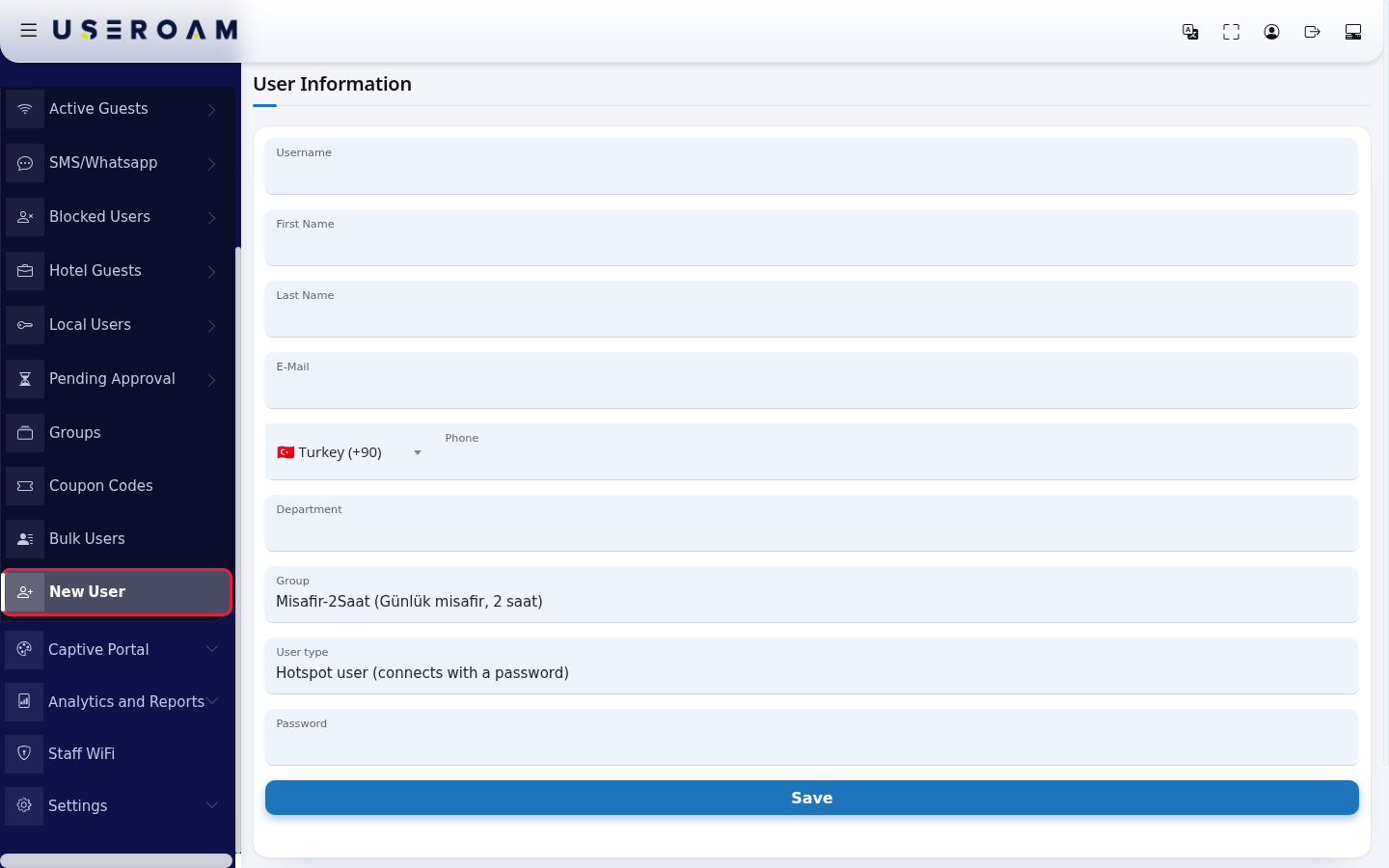
- Fill in Username (example:
ayse.kaya), First Name (Ayşe) and Last Name (Kaya); these three are required. If you like, also fill in E-Mail, Phone and Department. For the phone, pick the country in the list on the left (Turkey (+90) by default) and type the number on the right (example:532 123 45 67); the number is formatted as you type and letters are not accepted.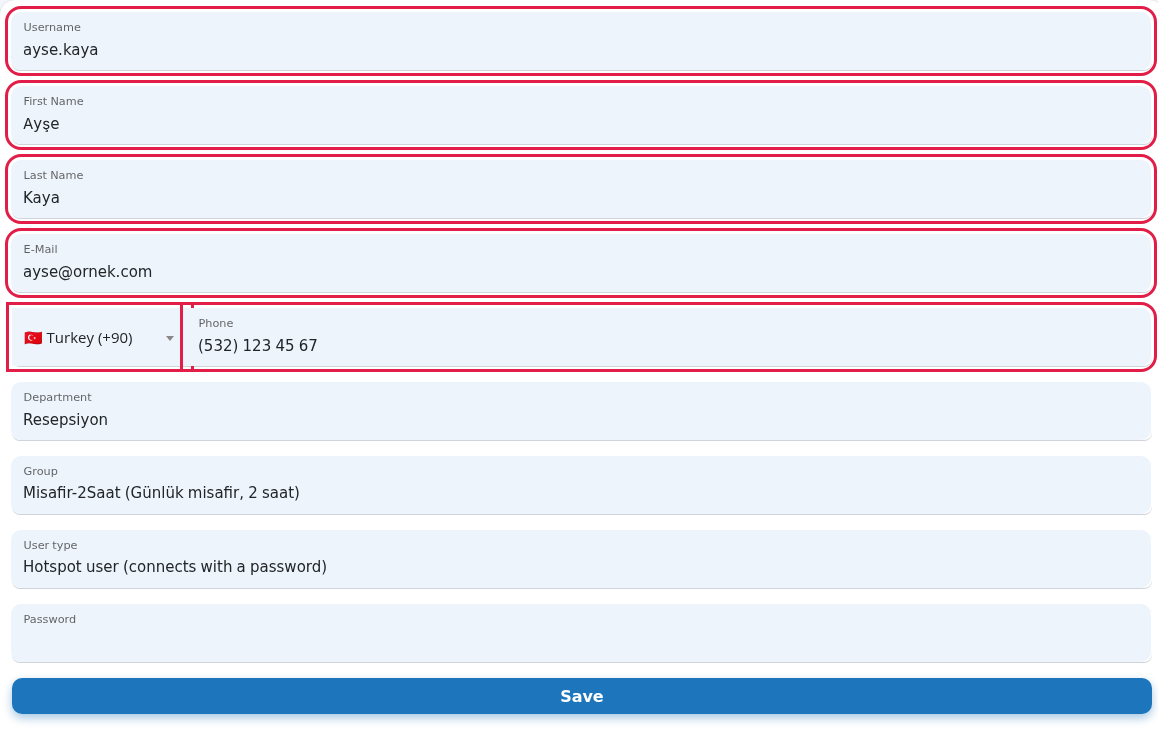
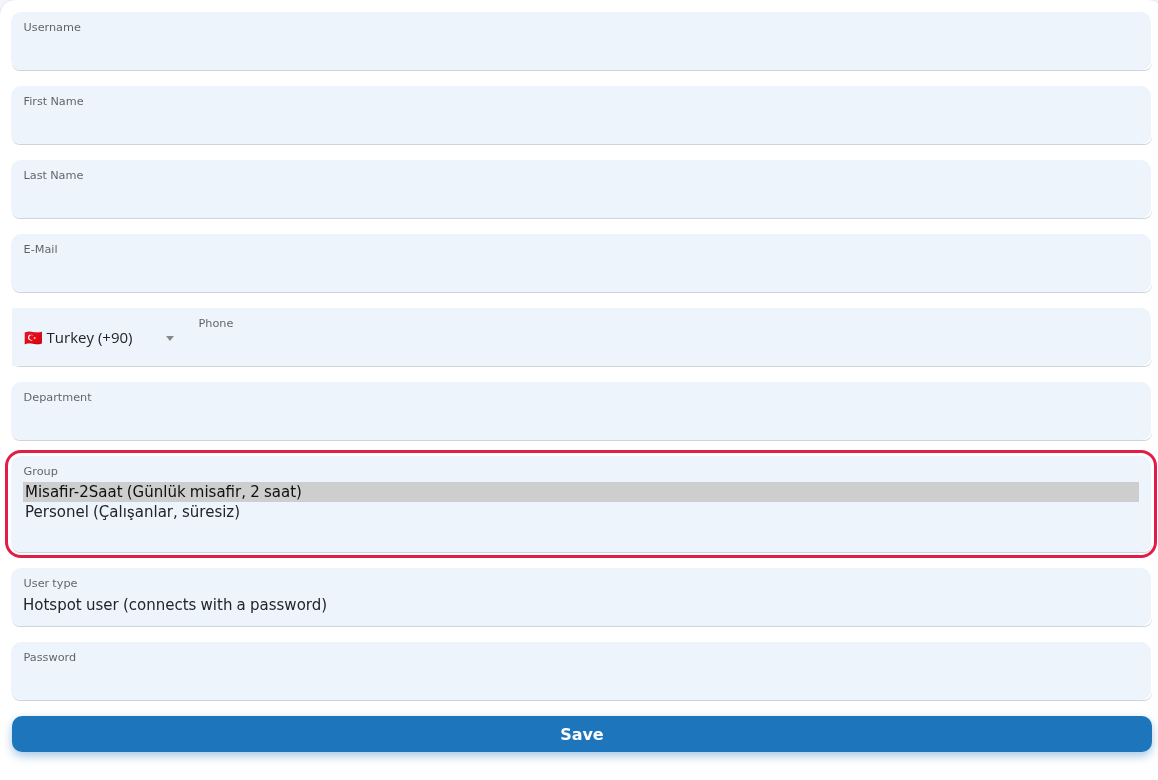
- In Group, pick the group for the account. Each group is shown with its description (example: Misafir-2Saat (Günlük misafir, 2 saat)).
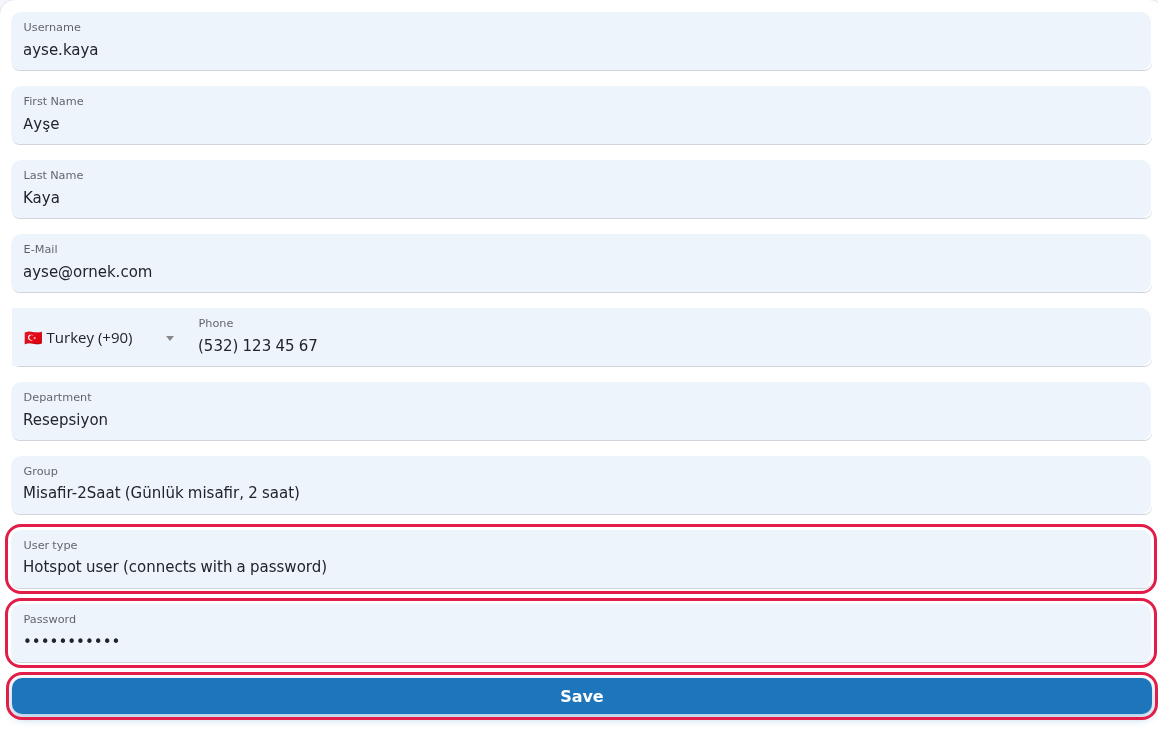
- If User type is Hotspot user (connects with a password), type the password the user will enter at the Wi-Fi login in Password and press Save. On success you are taken to the Local Users list, where the new account appears.
- For staff, if you pick Staff WiFi (certificate), the Password box disappears and Phone becomes required (a red star appears). This note is shown: "The password is generated automatically and the field is hidden. The setup link and the temporary password are sent to the mobile number: SMS for local numbers, WhatsApp for international ones. The phone field is required." Press Save; the staff member completes the setup with the link on their phone.
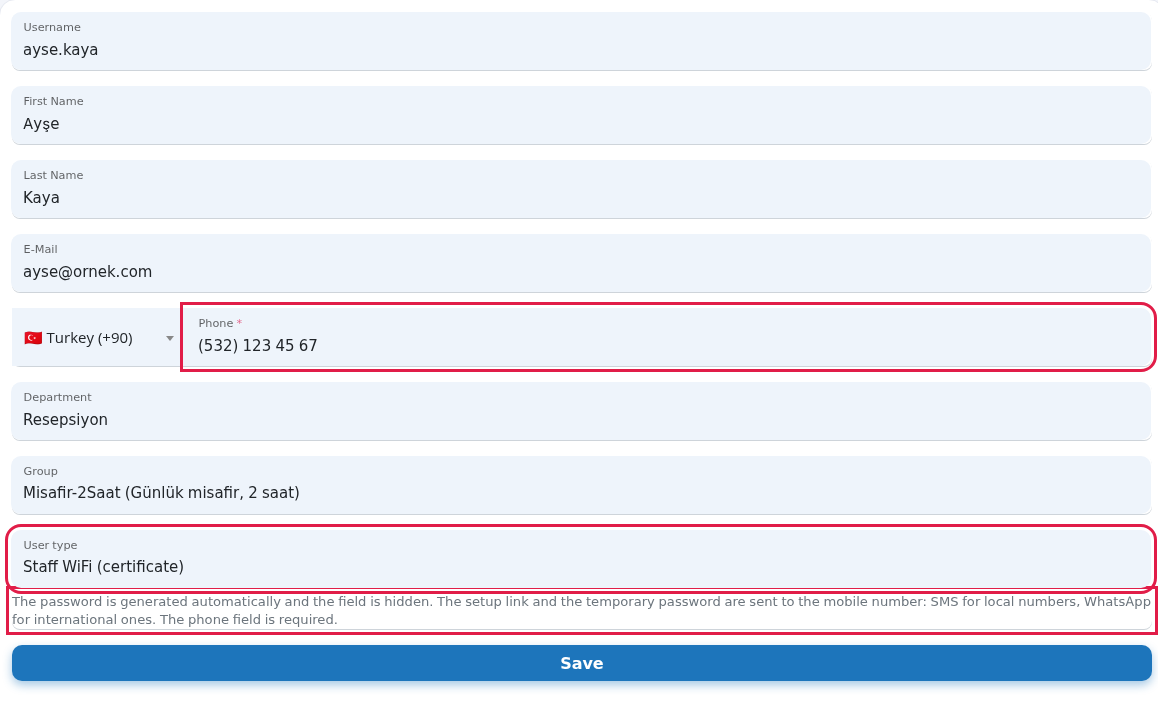
Every field and button on the screen
| Field / Button | What it does |
|---|---|
| Username | The name typed at the Wi-Fi login. Required. No quotes or backslashes, at most 50 characters. Choose something short that is easy to type on a phone. |
| First Name, Last Name | The account holder's name. Required. Shows who is who in reports. |
| Optional. | |
| Country list and Phone | Optional (required for Staff WiFi). Pick the country code on the left, type the number on the right; 7-15 digits. |
| Department | Optional unit name. |
| Group | The group that sets the account's time and speed rules. |
| User type | Hotspot user (connects with a password) or Staff WiFi (certificate). |
| Password | Required login password for a Hotspot user. Hidden for Staff WiFi, where the password is generated automatically. |
| Save | Creates the account. |
Messages you may see
| Message | Meaning / what to do |
|---|---|
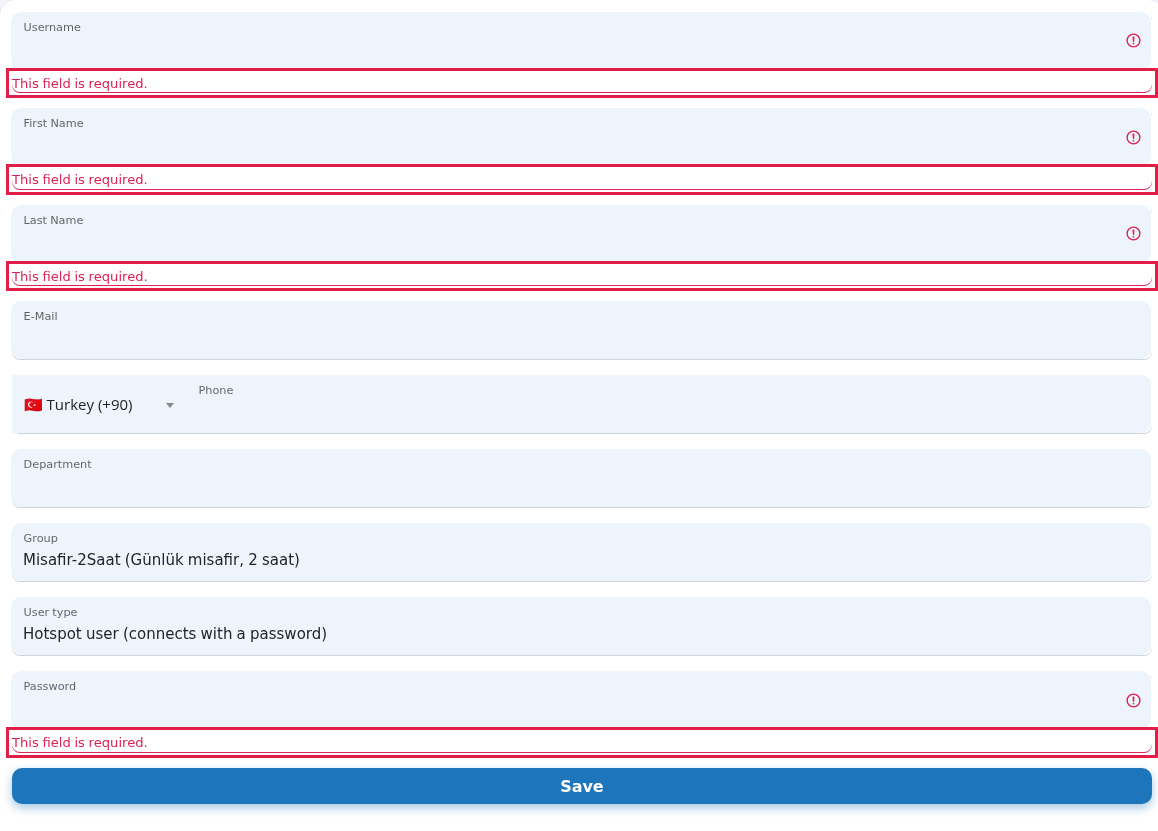
| This field is required. | A required box is empty. Fill in the box marked in red.
|
| Enter a valid phone number (7-15 digits). | Type the number in digits, without the country code. |
| Mobile phone is required for Staff WiFi (start with + for international numbers). | Fill in the phone if you chose Staff WiFi. |
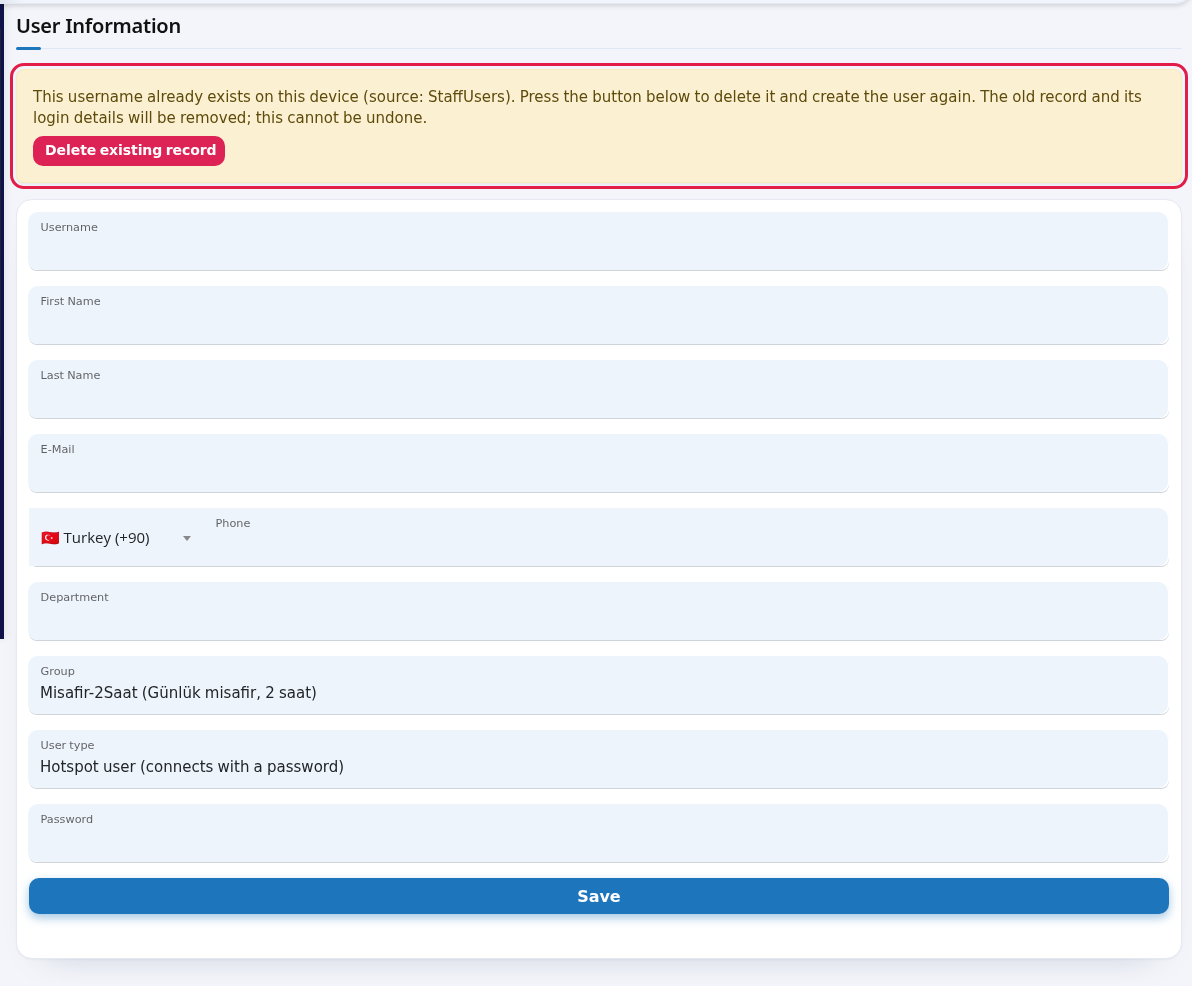
| This username already exists on this device (source: …). Press the button below to delete it and create the user again. … | An account with the same user name already exists. Use a different name, or press Delete existing record to remove the old account; the old record and its login details are deleted and this cannot be undone. The source shows which list the account comes from (example: StaffUsers = local users, SMSUsers = SMS/WhatsApp guests).
|
| The old record was deleted (…). You can create the user again now. | The old account was removed; fill in the form again and save. |
| The confirmation could not be verified, nothing was changed. Please try again. | The delete confirmation expired. Reload the page and try again. |
| Username not accepted: quote and backslash characters are not allowed, and the maximum length is 50 characters. | Fix the user name. |
| You chose Staff WiFi: enter a valid mobile number (…). The user was not created. | Fix the phone number and save again. |
| The user was created, but the setup link could not be sent via WhatsApp. … | WhatsApp to the international number failed and the link was tried by SMS. Delivery is not guaranteed; pass the setup link to the staff member yourself. |
| The operation could not be completed. Check the details and try again (error code: …). | Saving failed. Check the details and try again; if it keeps happening, contact support with the error code. |
Frequently asked questions
Where do I see the account after saving?
On the Local Users list. Changing the password or deleting the account is also done there.
How does the user connect?
A Hotspot user signs in with the user name and password if your Wi-Fi login page has those fields. A Staff WiFi user installs a certificate on their device by following the link sent to their phone; details are in the Staff Wi-Fi book.
I forgot the password. Can I see it?
Passwords are stored in a form that cannot be read back. Edit the account to set a new password.