
All Connections
What is it for?
All Connections (the heading on the screen is Last Connection Requests) lists sign-in attempts to your Wi-Fi from newest to oldest: who tried, when, whether the sign-in was accepted or rejected, and how they signed in (SMS, hotel, local user and so on).
When do I use it?
- A guest says "I cannot sign in" and you want to see whether their attempt reached the system and whether it was rejected.
- To look at sign-in activity during the day.
Step by step
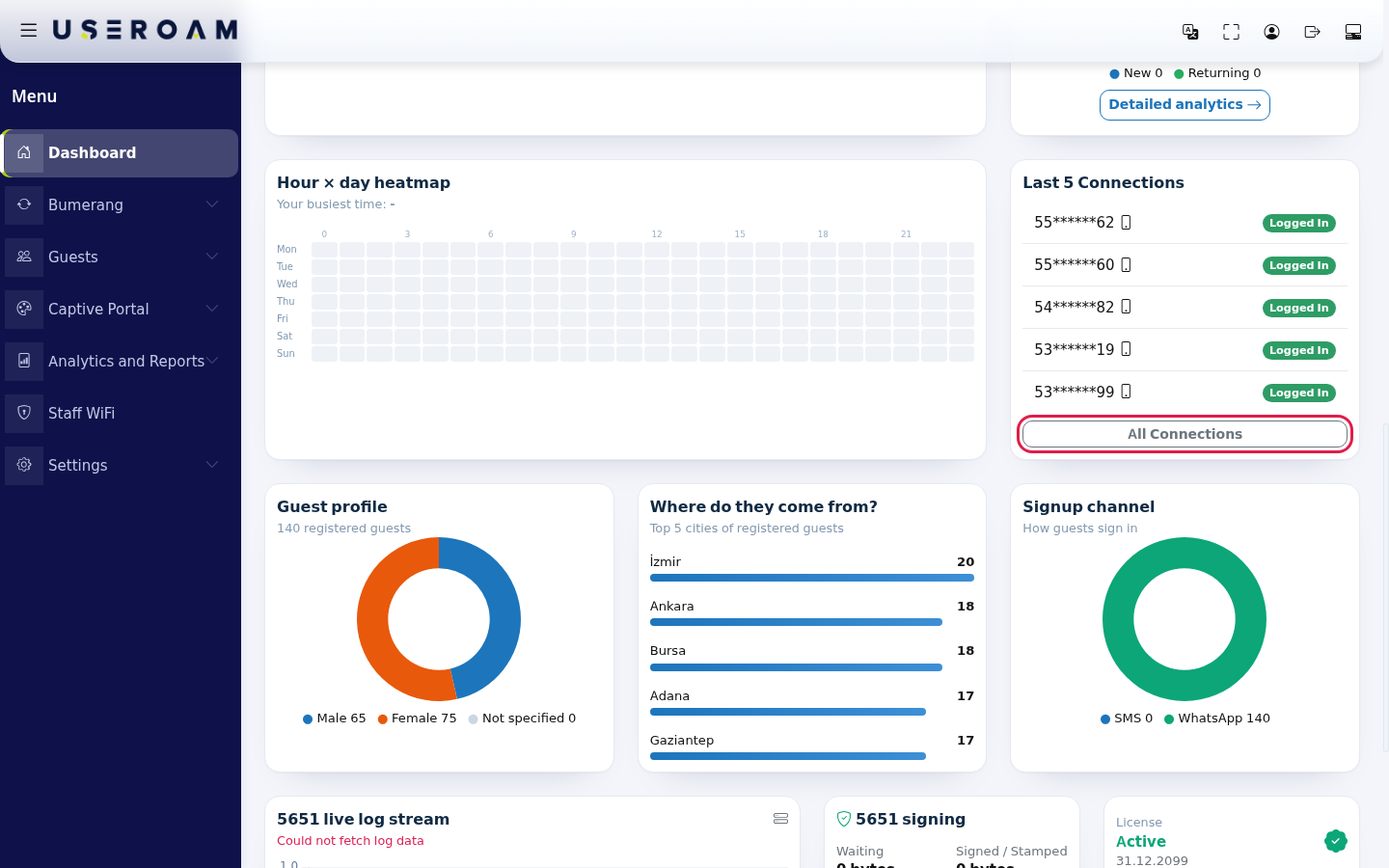
- This screen is not in the left menu. On the Dashboard, press All Connections under the Last 5 Connections card.
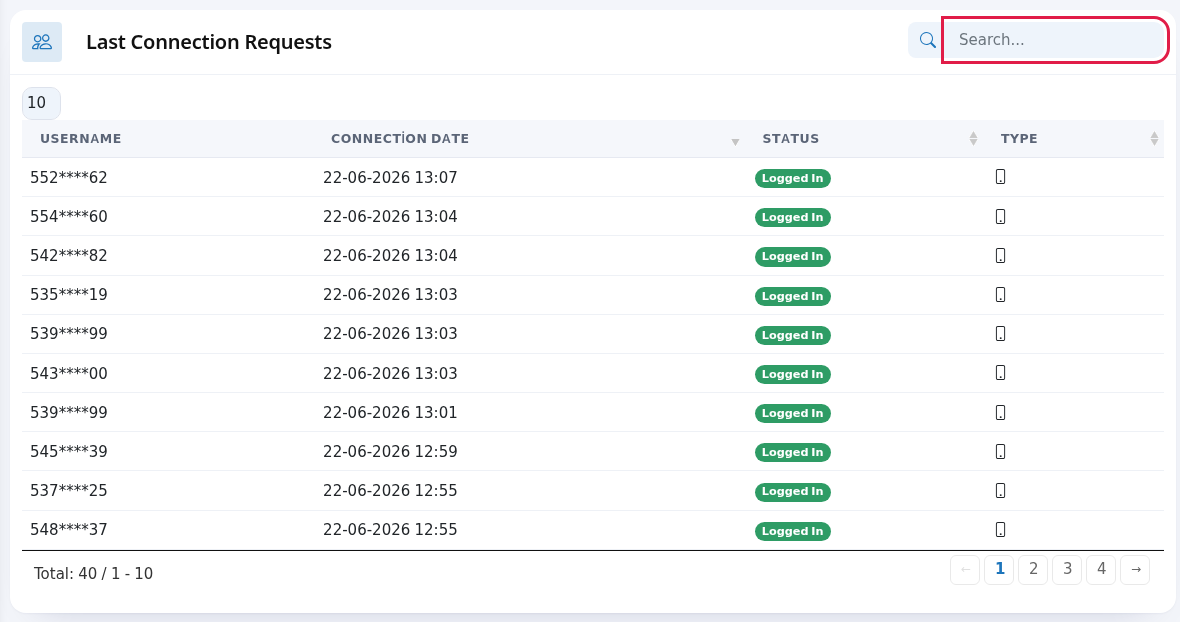
- The list opens. To find a guest, type part of their number in the Search... box at the top right. In the Status column a green Logged In is a successful attempt, a red Login Rejected a rejected one. Hover over the icon in the Type column to see the sign-in method.
Every field and button on the screen
| Field / Button | What it does |
|---|---|
| Top of the page | The heading User Lists with You are here under it; Dashboard in the path line returns to the home screen. While the table loads it shows Processing..., with no records No Record; All in the number box shows every row. |
| Username | The guest who tried to sign in (masked). |
| Connection Date | Date and time of the attempt. |
| Status | Logged In or Login Rejected. |
| Type | An icon; hovering shows SMS User, Hotel User, T.C. Identity User, Local User, Bulk User or Unknown. |
| Search..., number box, Total | Search, rows per page and total attempts; page numbers at the bottom. |
Frequently asked questions
The guest's attempt shows "Login Rejected".
They may have typed a wrong password or code, be blocked or be waiting for approval. Check Blocked Users and Pending Approval.
The guest's attempt is not on the list at all.
The attempt did not reach the system: the guest may not have finished the login screen or there may be a connection problem with the device. Contact support with the guest's approximate sign-in time.