
Creating a survey
What is it for?
This page walks you through setting up your first survey from a ready template or an empty draft and publishing it: you add questions, choose where and to whom the survey is shown, and send satisfied guests on to review sites (for example Google).
When do you use it?
- When you start measuring guest satisfaction for the first time.
- When you want more Google reviews (review redirection).
- When you change the questions, display settings or review sites of an existing survey.
Before you start
- You need the Bumerang marketing package.
- If you will use review redirection, have your venue's Google (or Booking, TripAdvisor...) review page address ready.
- Survey links by SMS and WhatsApp only go to guests who gave consent.
Step by step
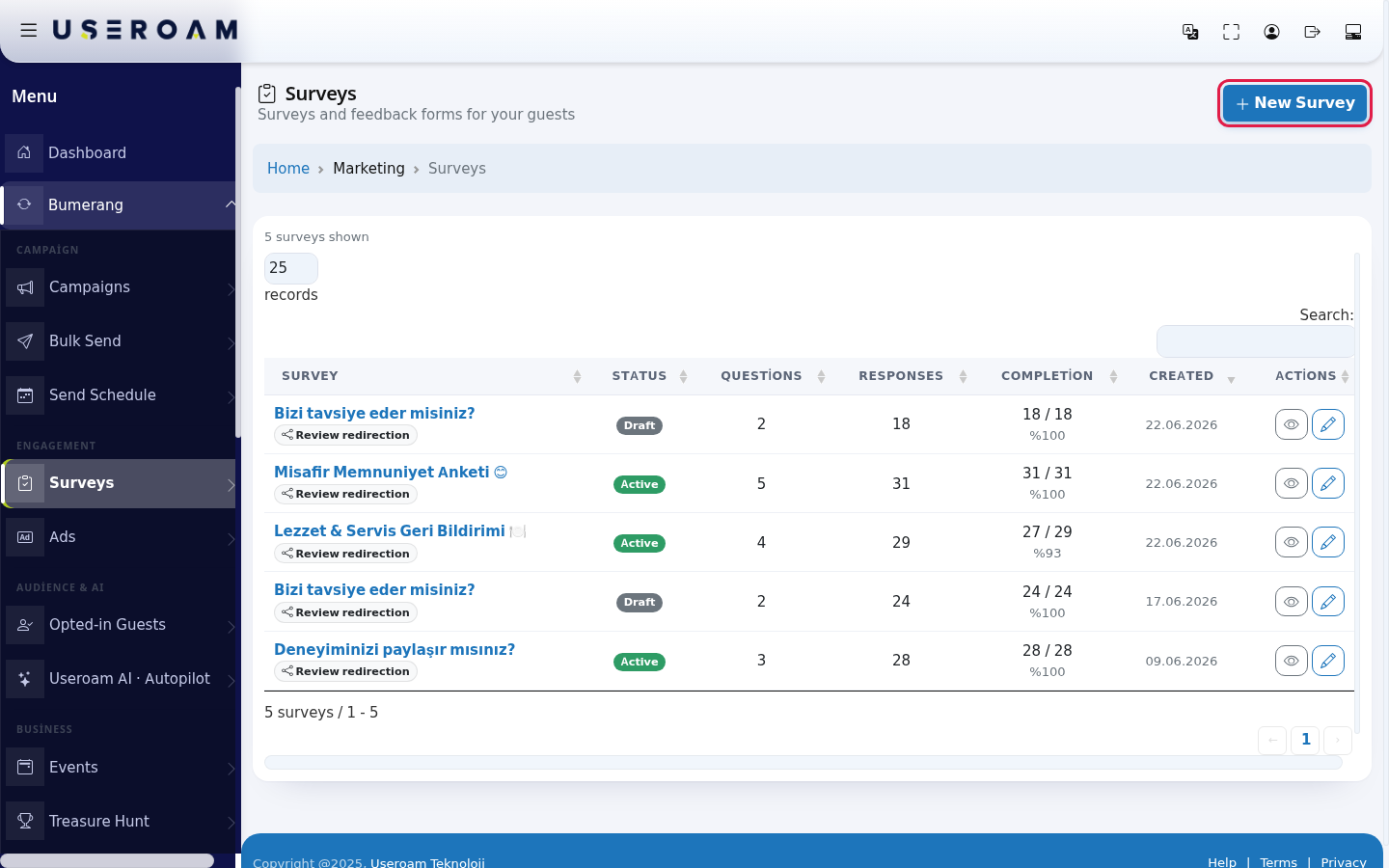
- In the left menu, under Bumerang, open Surveys and press New Survey at the top right.
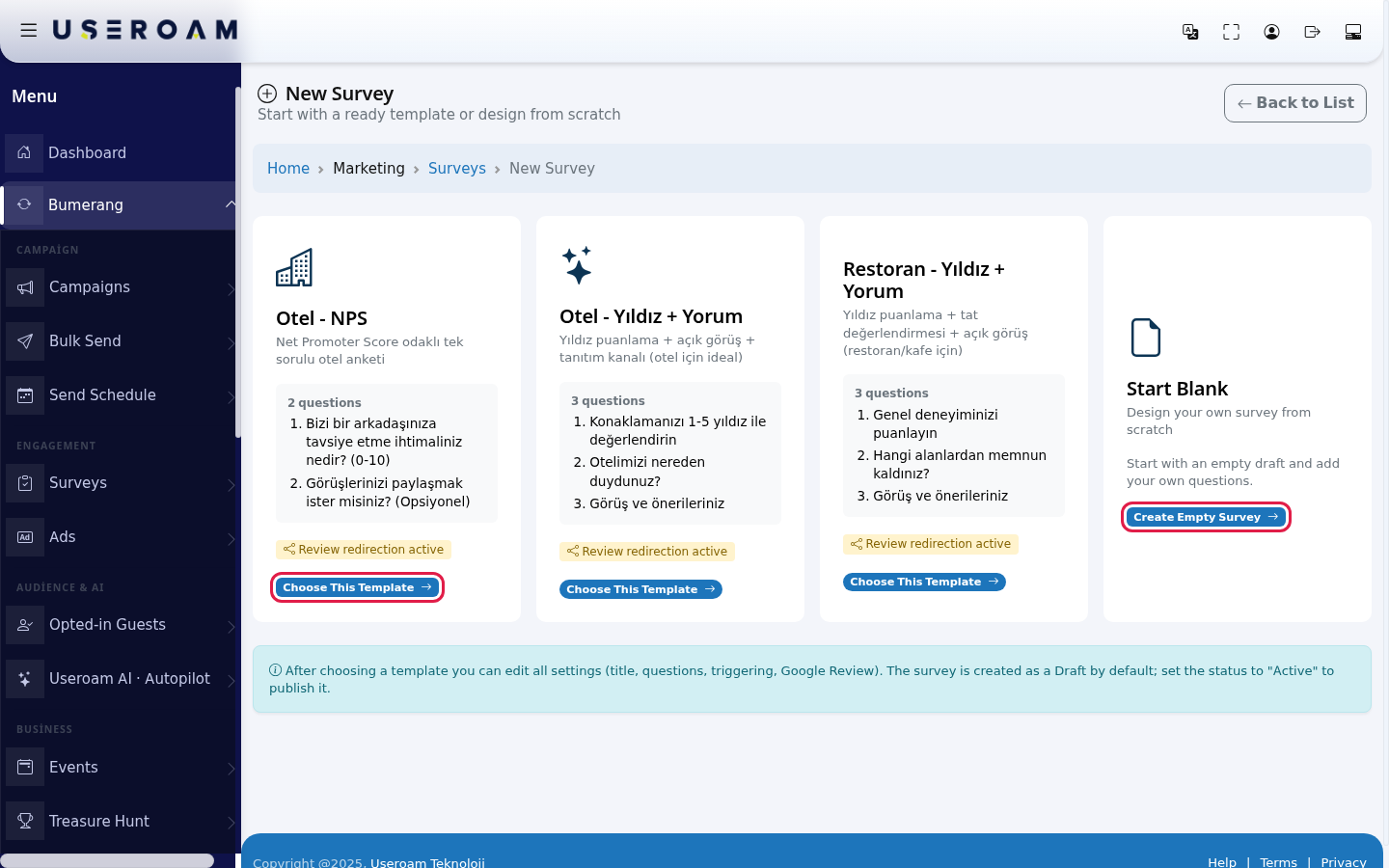
- Choose a template. The template names and questions are in Turkish: Otel - NPS (hotel, one recommendation score question), Otel - Yıldız + Yorum (hotel, stars + comment), Restoran - Yıldız + Yorum (restaurant, stars + comment) or Boş Başla (start empty). Each card shows the number of questions and the questions; the "Review redirection active" badge means redirection to review sites comes switched on. Press Choose This Template for a template or Create Empty Survey to start from scratch. The survey is created as a Draft and the edit screen opens.
- In the General card of the Survey Details tab, type the Survey Title (required, at most 200 characters; example:
Were you satisfied with our service?), the Description and the Thank You Message, and choose the Language (Türkçe or English). To publish, set Status to Active (published); if it is not ready, leave Draft (not shown).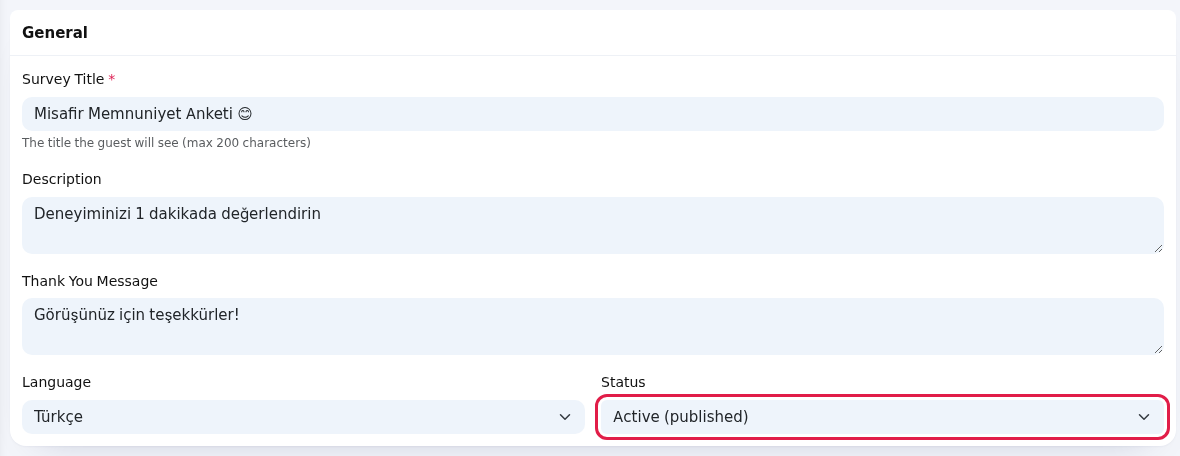
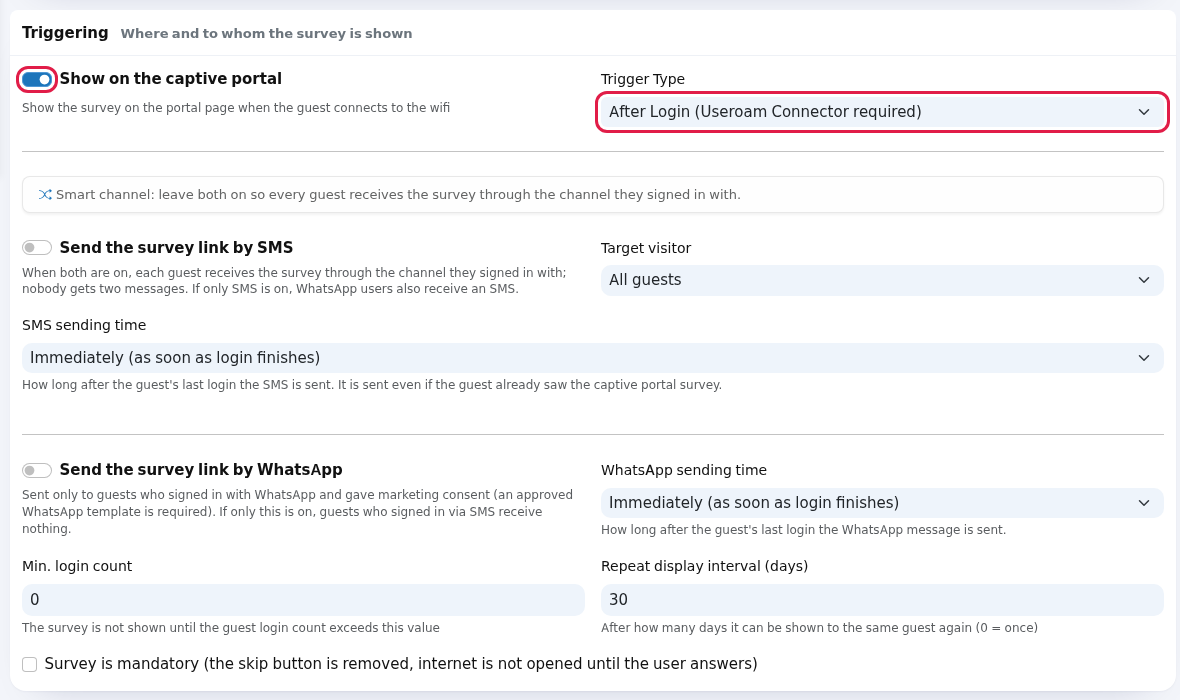
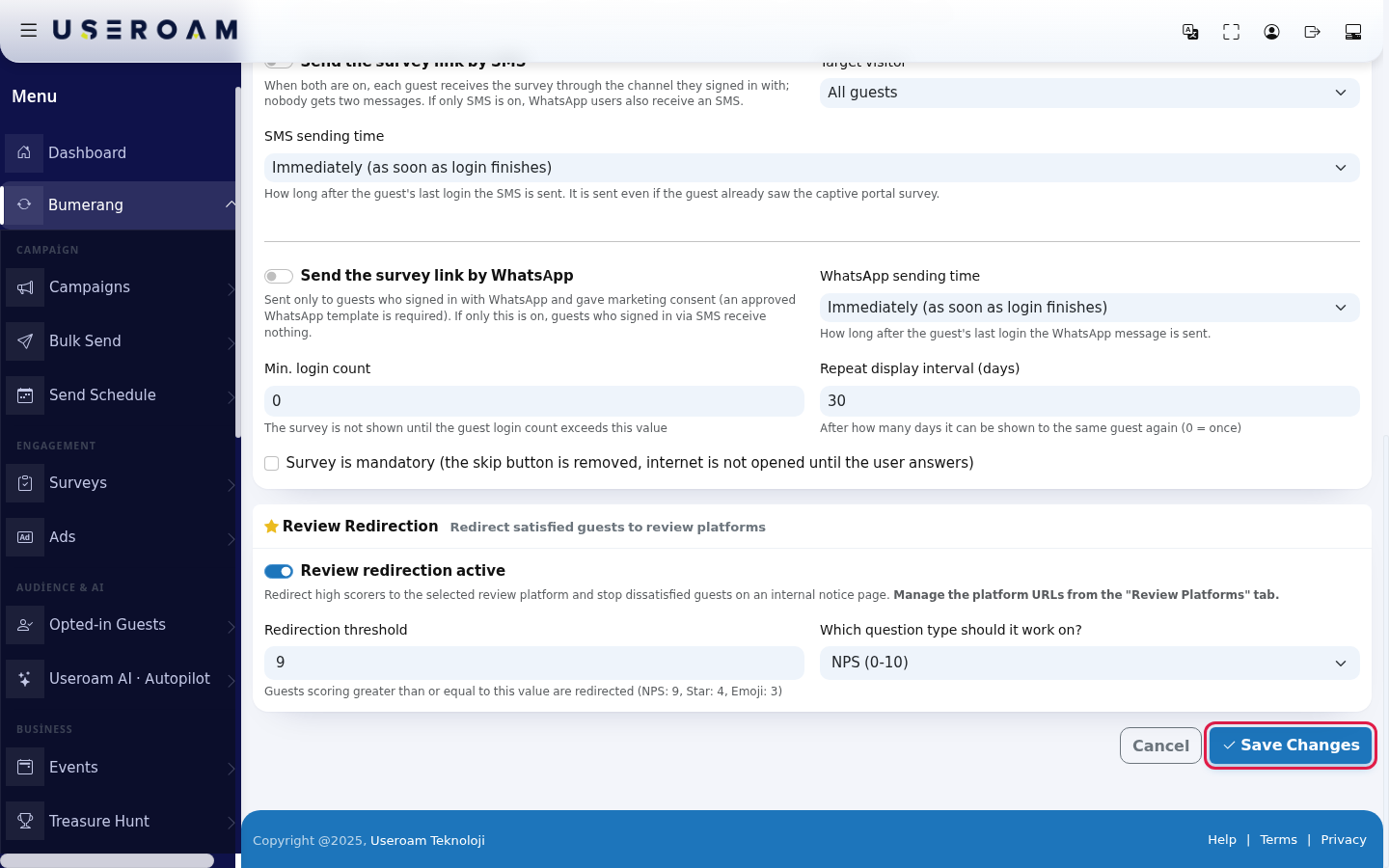
- In the Triggering card, choose where and to whom the survey is shown. To show it on the Wi-Fi login screen, switch on Show on the captive portal and choose the Trigger Type: Before Login (Without Signing In) or After Login (Useroam Connector required). To send the survey as a message, switch on Send the survey link by SMS and Send the survey link by WhatsApp, then choose the SMS sending time and WhatsApp sending time. With Target visitor choose All guests, First visit only or Returning guests only. At the bottom are Min. login count, Repeat display interval (days) and the Survey is mandatory box.
- In the Review Redirection card, switch on Review redirection active. Choose the Redirection threshold (example:
9for NPS,4for stars,3for emoji) and Which question type should it work on? (NPS (0-10), Star (1-5), Emoji (1-3)). A guest scoring at or above the threshold is sent to the review site; a dissatisfied guest is not sent there and stays on an internal notice page.
- To save the settings on this tab, press Save Changes (on a new survey the button is Create Survey). "The survey was saved successfully." appears. Cancel leaves without saving.
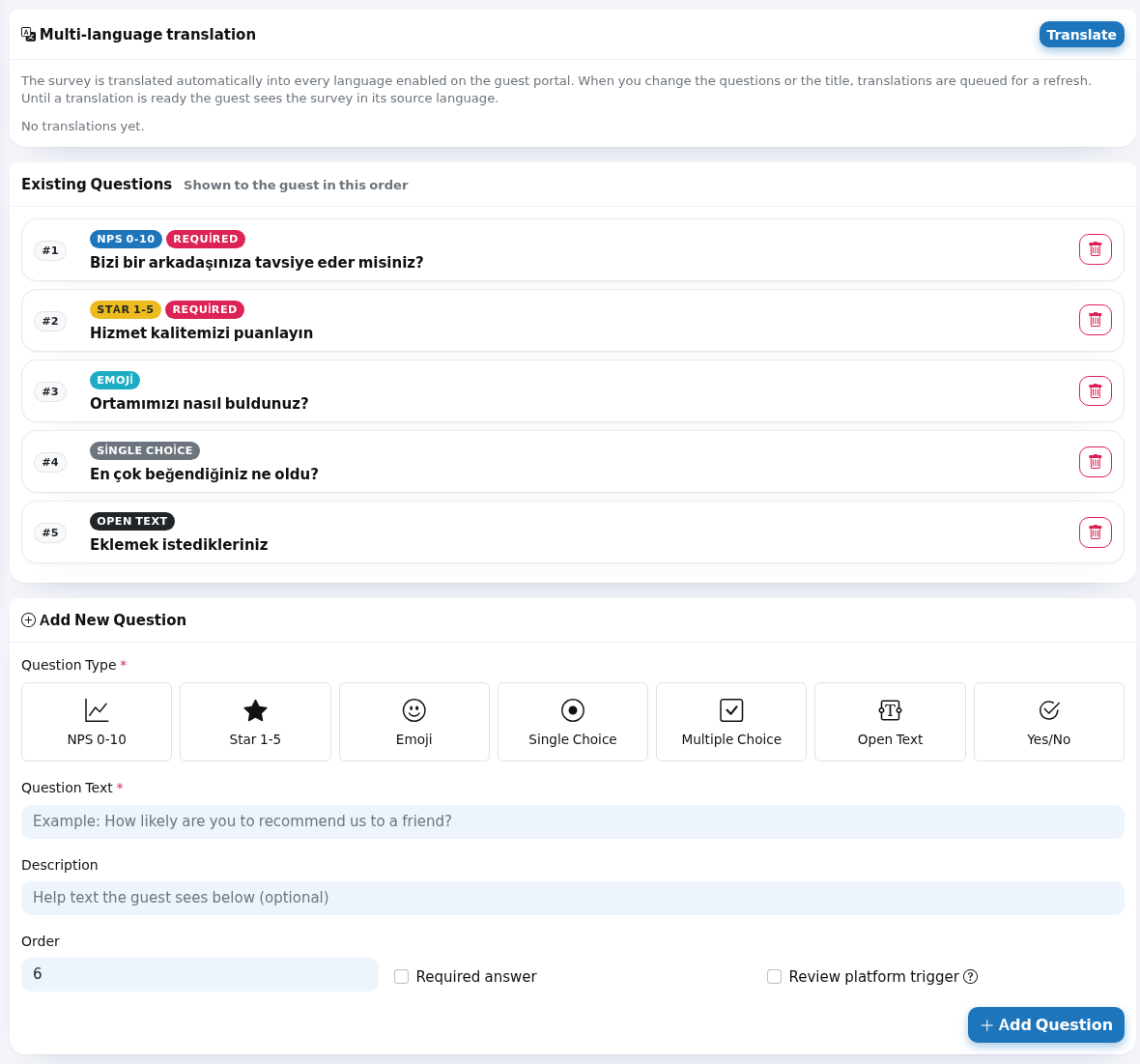
- Go to the Questions tab. Existing Questions lists the questions in the order guests see them; each shows its type, the Required and Redirector badges and its options. To delete one, press its Delete button and confirm. In the Multi-language translation card at the top, press Translate to have the survey translated into your portal's other languages.
- In the Add New Question form, choose the Question Type (NPS 0-10, Star 1-5, Emoji, Single Choice, Multiple Choice, Open Text, Yes/No) and type the Question Text (example:
How did you find our atmosphere?). For choice questions, write one option per line in Options. Set Order, Required answer and Review platform trigger (redirect to the review site if this question gets a high score), then press Add Question.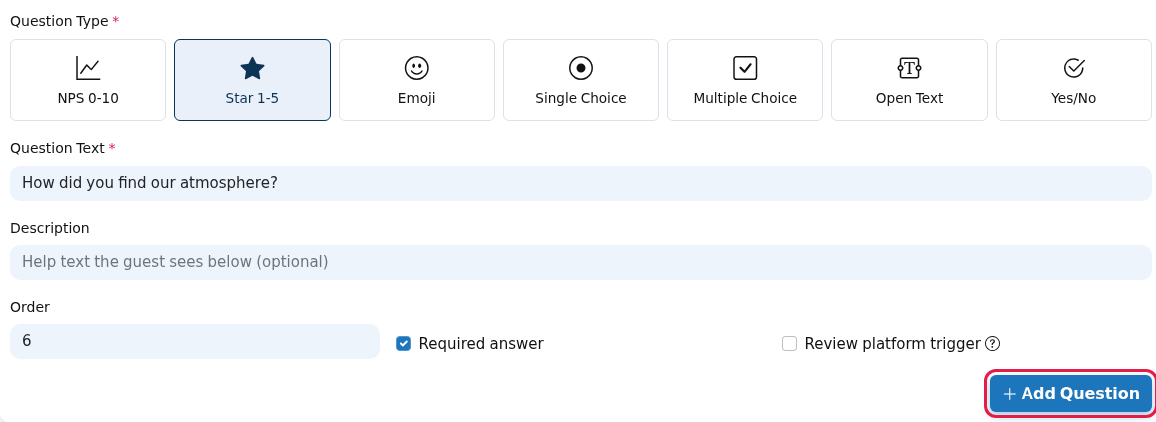
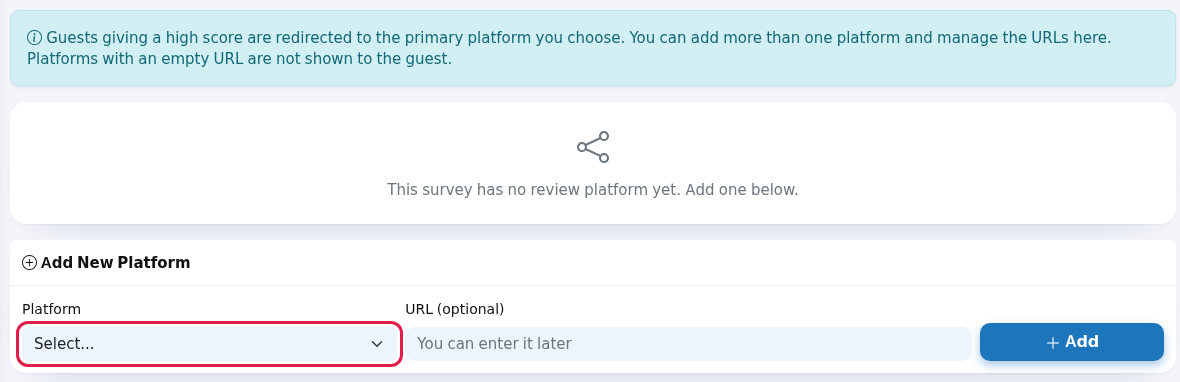
- On the Review Platforms tab, in Add New Platform, choose the Platform (Google, Booking.com, TripAdvisor, Tatil.com, Etstur, Tatilbudur, Yemeksepeti, Getir Yemek, DoktorTakvimi), paste your review page address into URL (optional) and press Add. A platform with an empty address is not shown to guests.
- If you ever need to delete a survey completely, use Delete Survey Permanently on the Danger Zone tab. This cannot be undone; all questions, sessions and answers are deleted with the survey. To keep the results, set the status to Archive instead.

Survey Details fields
| Field | What it does |
|---|---|
| Survey Title | "The title the guest will see (max 200 characters)". Grey example: "Example: Were you satisfied with our service?". |
| Description | "A short note about the purpose of the survey (optional)". |
| Thank You Message | "The message shown after the survey is completed". Grey example: "Thank you for sharing your feedback with us!". |
| Status | Draft (not shown), Active (published), Paused, Completed, Archive. Only an Active survey is shown to guests. |
| Show on the captive portal | "Show the survey on the portal page when the guest connects to the wifi". |
| Smart channel note | "Smart channel: leave both on so every guest receives the survey through the channel they signed in with." |
| Send the survey link by SMS | "When both are on, each guest receives the survey through the channel they signed in with; nobody gets two messages. If only SMS is on, WhatsApp sign-ins also get SMS." |
| SMS sending time / WhatsApp sending time | Immediately (as soon as login finishes), 30 minutes later, 2 hours later, 1 day later, 3 days later, 1 week later, 1 month later. "How long after the guest's last login the SMS is sent. It is sent even if the guest already saw the captive portal survey." |
| Send the survey link by WhatsApp | "Sent only to guests who signed in with WhatsApp and gave marketing consent (an approved WhatsApp template is required). If only this is on, SMS sign-ins get no survey." |
| Min. login count | "The survey is not shown until the guest login count exceeds this value". 0 means no login limit. |
| Repeat display interval (days) | "After how many days it can be shown to the same guest again (0 = once)". Example: 30. |
| Survey is mandatory | "Survey is mandatory (the skip button is removed, internet is not opened until the user answers)". Use with care; it can annoy guests. |
| Review redirection active | "Redirect high scorers to the selected review platform and stop dissatisfied guests on an internal notice page. Manage the platform URLs from the "Review Platforms" tab." |
| Redirection threshold | "Guests scoring greater than or equal to this value are redirected (NPS: 9, Star: 4, Emoji: 3)". |
Items on the Questions and Platforms tabs
| Item | Description |
|---|---|
| Existing Questions | "Shown to the guest in this order". With no questions: "This survey has no questions yet. Add the first one with the form below." Choice questions show an "Options:" list. |
| Question form hints | Question text example "Example: How likely are you to recommend us to a friend?"; description "Help text the guest sees below (optional)"; options "Each option must be on a separate line" (example: Very satisfied, Satisfied, Undecided, Not satisfied); trigger "Redirect to the review platform if this question gets a high score". |
| Multi-language translation | "The survey is translated automatically into every language enabled on the guest portal. When you change the questions or title, the translations are queued to be refreshed." A status badge per language: ready, queued, translating, error. With none: "No translations yet."; with no questions Translate is disabled. |
| Platform info box | "Guests giving a high score are redirected to the primary platform you choose. You can add more than one platform and manage the URLs here. Platforms with an empty URL are not shown to guests." |
| Linked Platforms | "Primary = main redirection target". Each row has the PRIMARY badge, an address box, an Active switch and Remove ("Are you sure you want to remove the … platform?"). After changing addresses press Save URLs. With none: "This survey has no review platform yet. Add one below."; when all are added: "All review platforms have been added to this survey. Set one to inactive to stop showing it to the guest." |
| New platform | The Platform box starts with "Select..."; URL (optional) shows "You can enter it later". |
| Template screen texts | Subtitle "Start with a ready template or design from scratch". The empty card says "Start with an empty draft and add your own questions.". The info box below: "After choosing a template you can edit all settings (title, questions, triggering, Google Review). The survey is created as a Draft by default; set the status to "Active" to publish it." Back to List returns to the Surveys list. |
| Card titles | The Triggering card: "Where and to whom the survey is shown"; the Review Redirection card: "Redirect satisfied guests to review platforms". When deleting a question you are asked "Are you sure you want to delete this question?". Danger Zone text: "Use the button below if you want to delete this survey completely. This action cannot be undone; all questions, sessions and answers are deleted with the survey." |
| Top buttons | Back to List and Details. The title is "Edit Survey: …" with the subtitle "Manage the survey details and questions" (on a new survey "Create a new survey for your guests"). Path: Home, Marketing, Surveys, Edit (or New). |
Messages you may see
| Message | What to do |
|---|---|
| "The survey was saved successfully." / "Question added." / "Question deleted." / "Review platforms saved." / "New platform added." / "Platform removed." | Done. |
| "Enter at least 1 option for choice type questions." | Write one option per line in Options. |
| "Platform selection is required." | Choose a site in Platform. |
| "The platform could not be added (it may already be linked)." | Check the Linked Platforms list. |
| "The survey could not be created." / "The survey could not be updated." / "The question could not be added." / "The question could not be deleted." / "The survey could not be deleted." / "The platform could not be removed." | Refresh the page and try again. |
| "Invalid template selection." / "Template could not be applied." / "Error: …" | Go back to New Survey and choose the template again. |
| "Are you sure you want to PERMANENTLY delete the survey and all its answers? This action cannot be undone." | Delete confirmation. If unsure, cancel and use Archive. |
Frequently asked questions
Should I choose Before Login or After Login?
Before Login shows the survey on the Wi-Fi login screen before the guest signs in. After Login shows it once the guest is online; this needs Useroam Connector on your device. If unsure, ask support which one works for your device.
How many times is the survey shown to the same guest?
Repeat display interval (days) decides. With 0 it is shown once.
Why was the guest not sent to the review site?
The score may be under the threshold, or the platform address is empty. Enter the address on the Review Platforms tab and press Save URLs.
Can I change a template's questions?
Yes. The template is only a starting point; the title, questions, triggering and review settings can all be edited later.
Related pages
- Surveys (results and export)
- Sending Calendar
- Opted-in Guests