
Adding a New Device
What is it for?
The New Device screen lets you add a new firewall (device) to your account. When you add the device, one of your unused licenses is linked to it and starts, the captive portal settings are prepared, and the device is ready to connect to Useroam.
How do I open it? On the Device Selection screen, click New Device at the top right. If your account has no device at all, the panel brings you straight to this screen.
When do I use it?
- You are setting up guest Wi-Fi for a new branch, hotel or office.
- You want to link a newly purchased license to a device.
- You replaced your old device with a different brand.
Before you start
- You need an unused license. The list only shows licenses that are not yet linked to a device and have not expired. If there is none, contact your dealer.
- Know the device's public IPv4 address (e.g. 85.100.64.10). Guest logins and 5651 records are matched by this address.
- Know the device brand (such as Sophos, MikroTik, Fortinet, PaloAlto, Zyxel).
- If you also want to set up the firewall API on your Sophos device right away, have the Sophos admin account ready; see Sophos Firewall API Setup.
Step by step
On the Device Selection screen, click New Device at the top right.
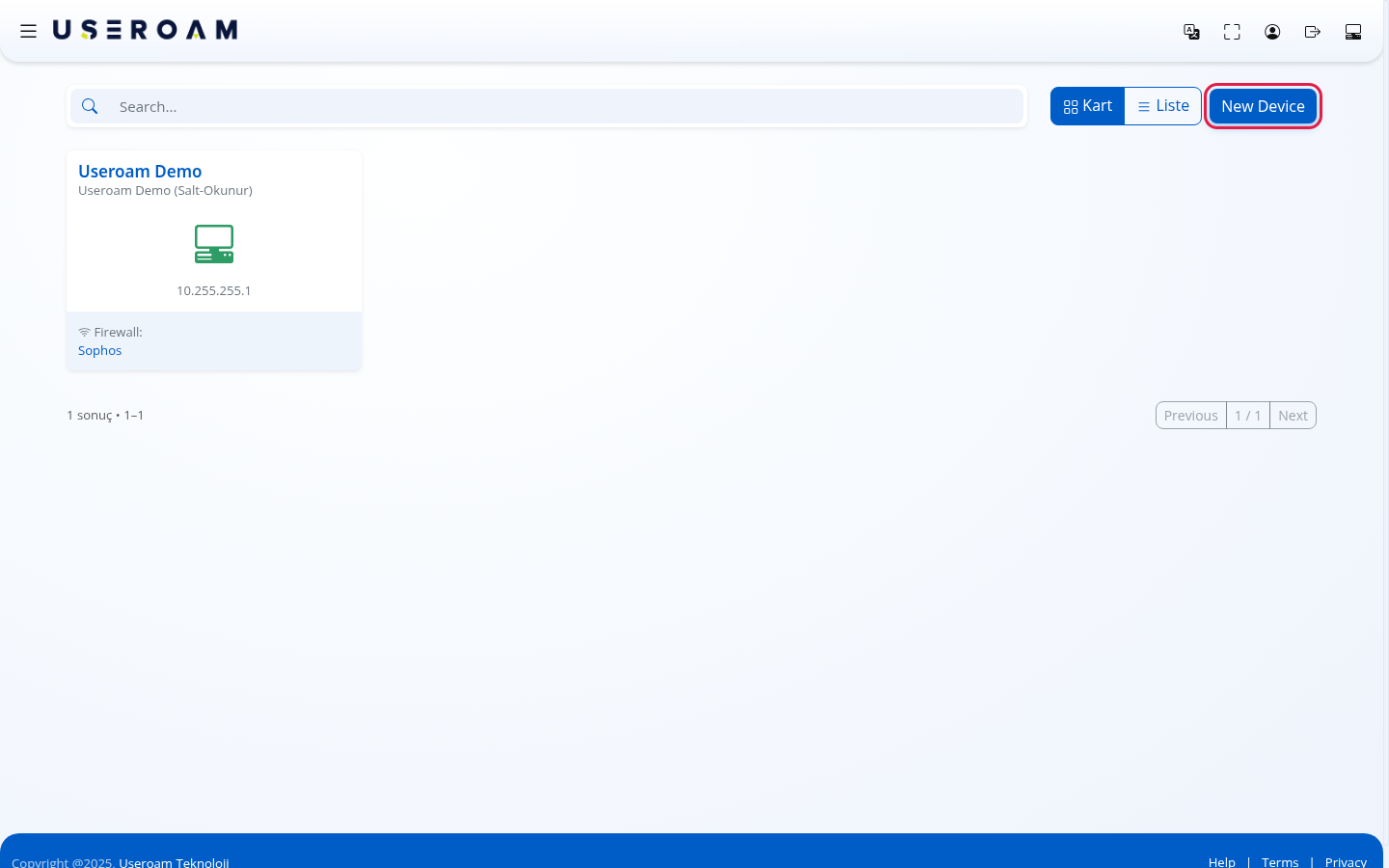
The Device Details form opens. In License Number: choose the license to link to this device. If you have only one, it is already selected.
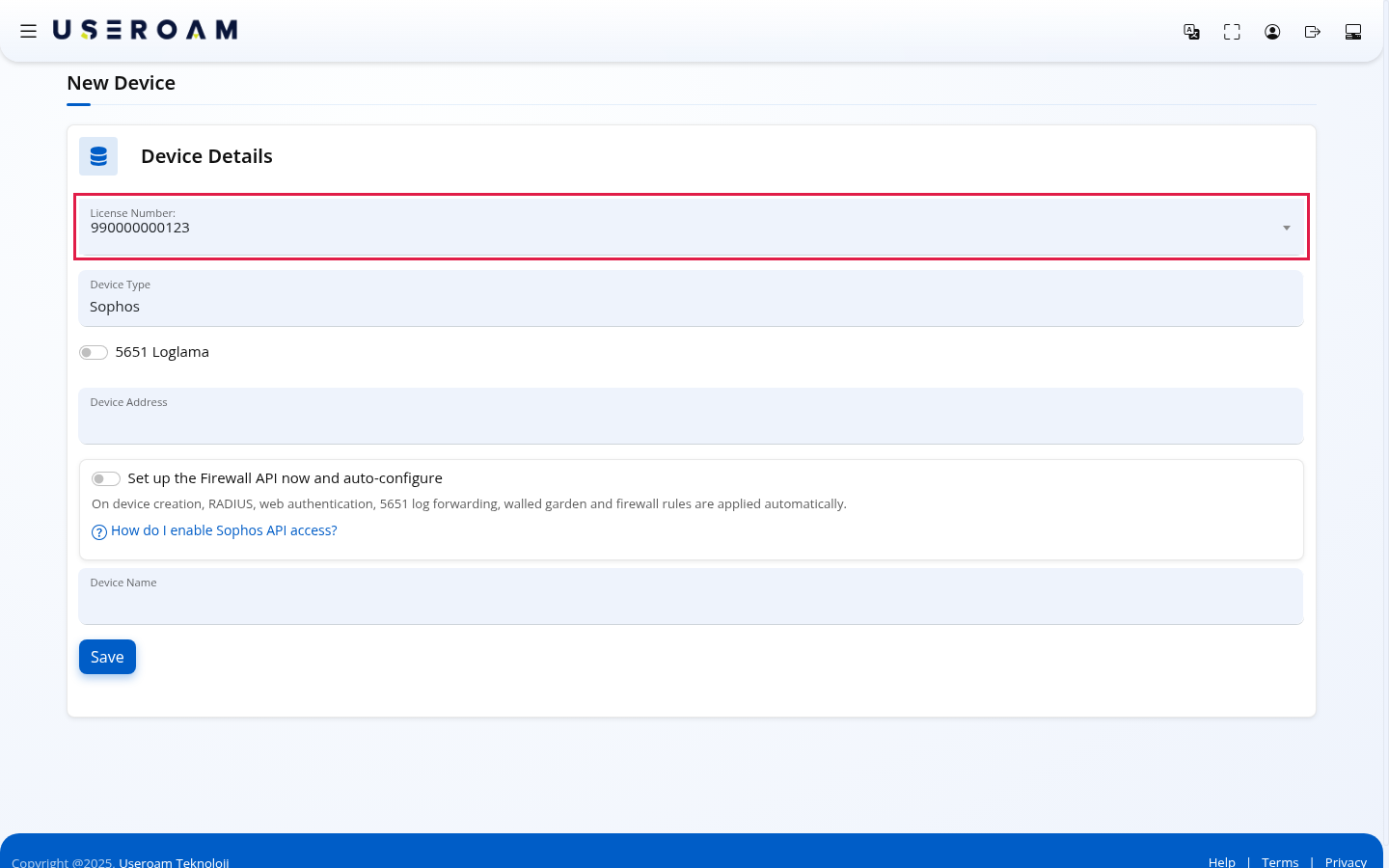
In Device Type choose your device brand. Depending on the brand, more fields may open in the form.
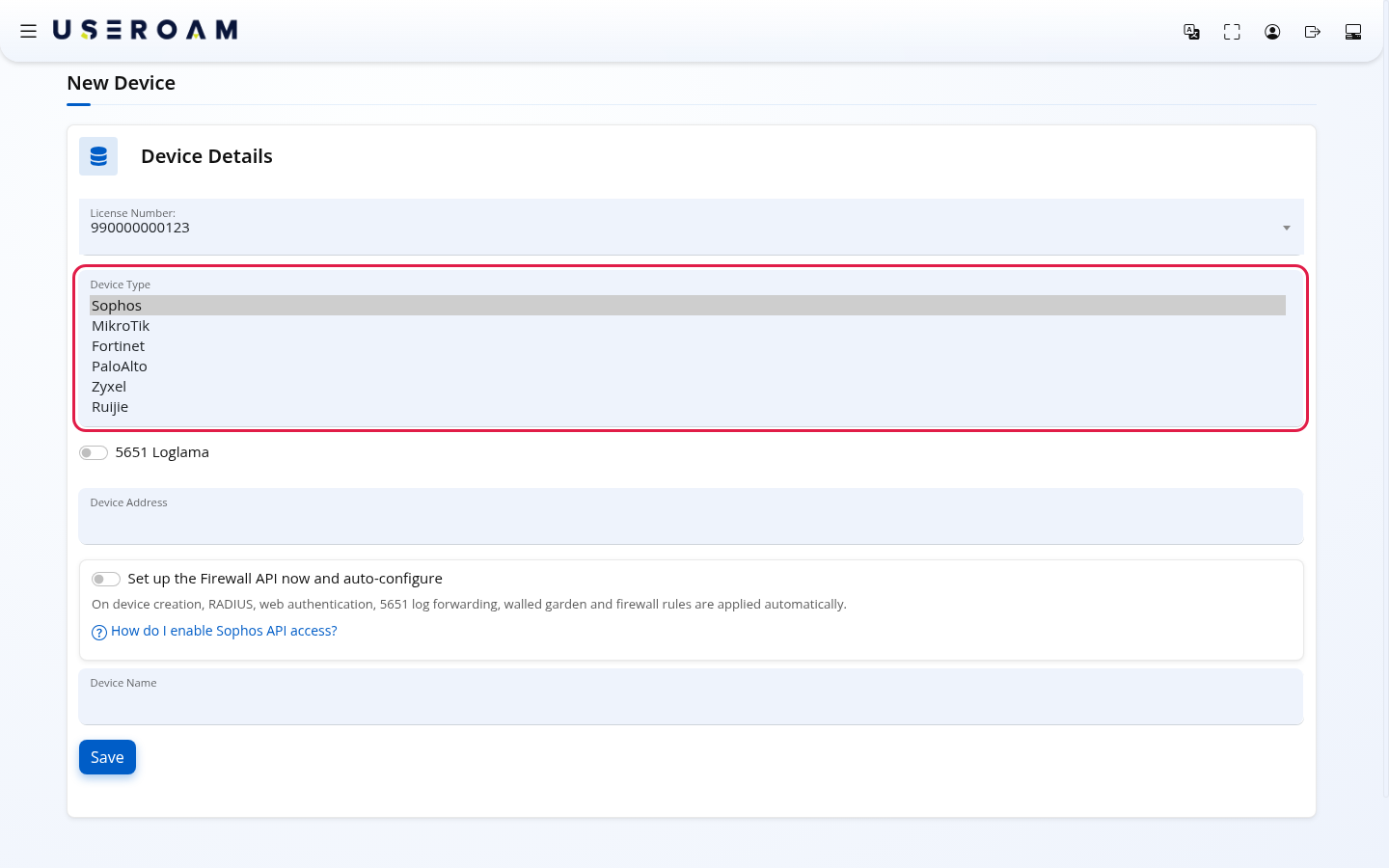
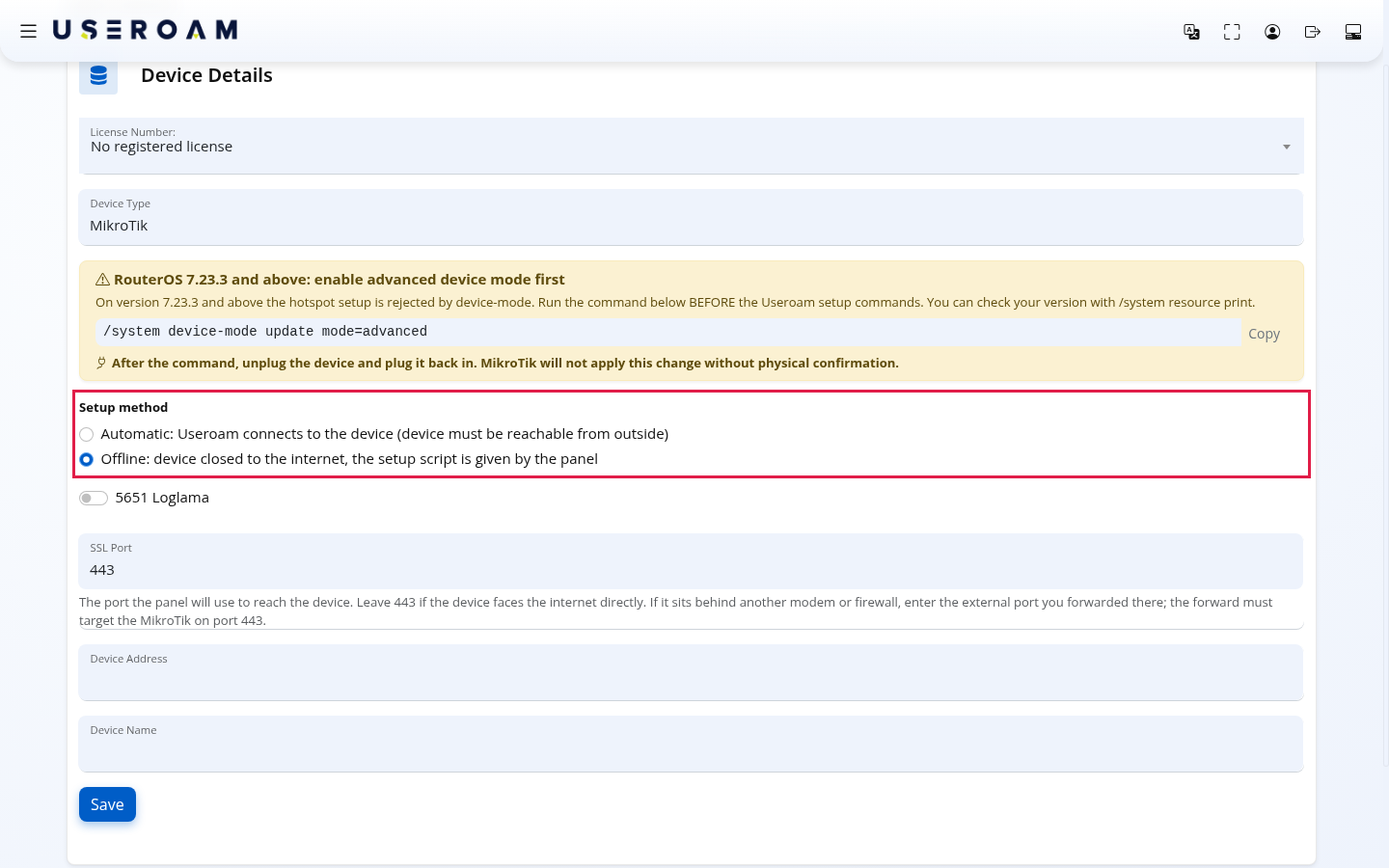
If you choose MikroTik, three things appear: the warning RouterOS 7.23.3 and above: enable advanced device mode first and the SSL Port field. Run the command in the warning (use Copy) on the device before the Useroam setup commands; after the command, unplug the device and plug it back in, because MikroTik will not apply this change without physical confirmation. You can check your version with /system resource print. Below SSL Port it says: The port the panel will use to reach the device. Leave 443 if the device faces the internet directly. If it sits behind another modem or firewall, enter the external port you forwarded there; the forward must target MikroTik's port 443.
The third is Setup method. With Automatic: Useroam connects to the device (device must be reachable from outside), Device Settings opens after saving and you set up as in the MikroTik Integration Guide. If you do not want to expose the router, choose Offline: device closed to the internet, the setup script is given by the panel: after saving, the panel takes you straight to the offline setup wizard. For Offline, the Device Address must be exactly the public address the router uses to reach the internet. Details: Setting up MikroTik without exposing it to the internet (offline).
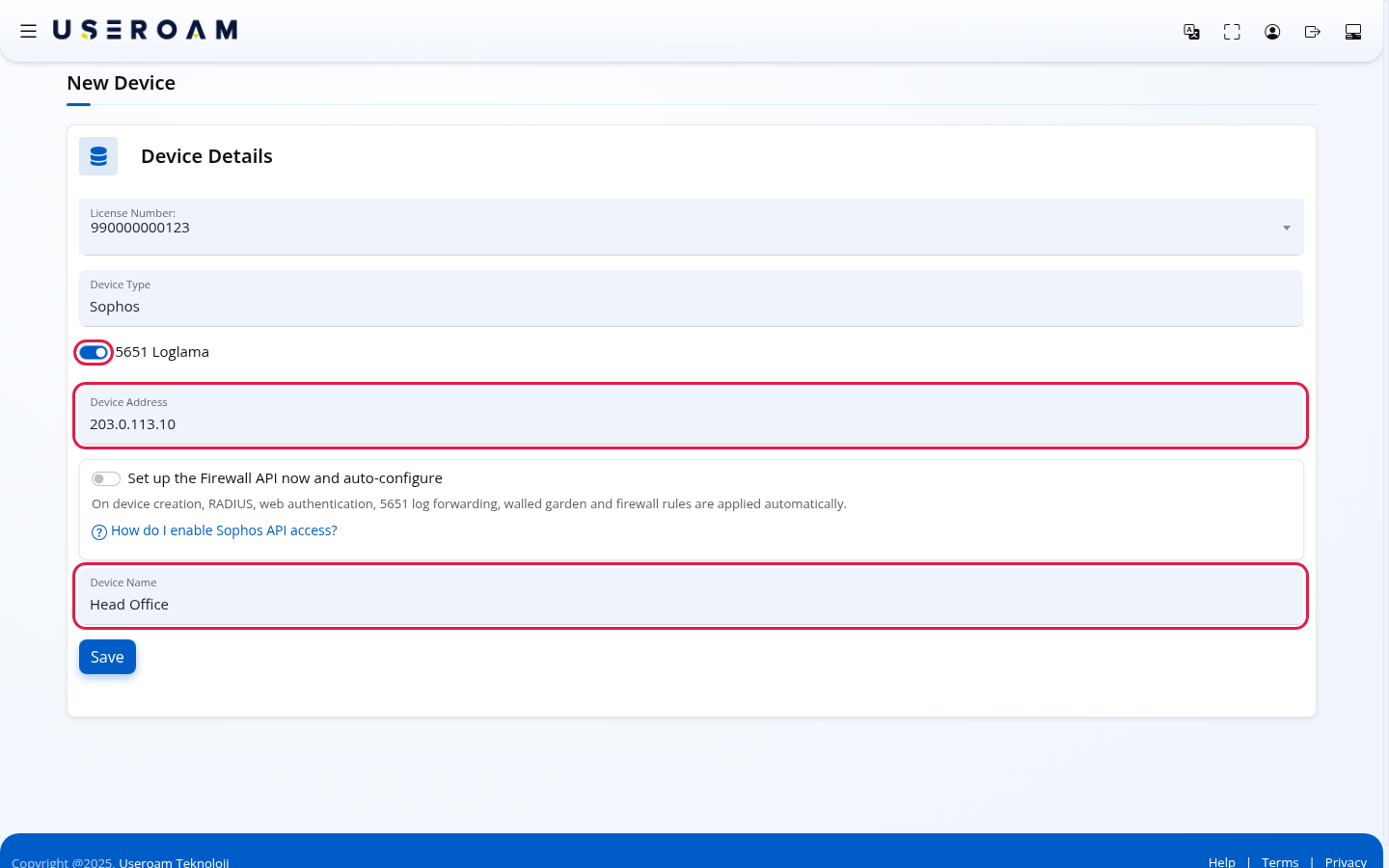
Turn on 5651 Loglama (5651 logging) for legal log recording. Type the device's public IPv4 address in Device Address and the name you will see in the panel in Device Name (e.g. Head Office).
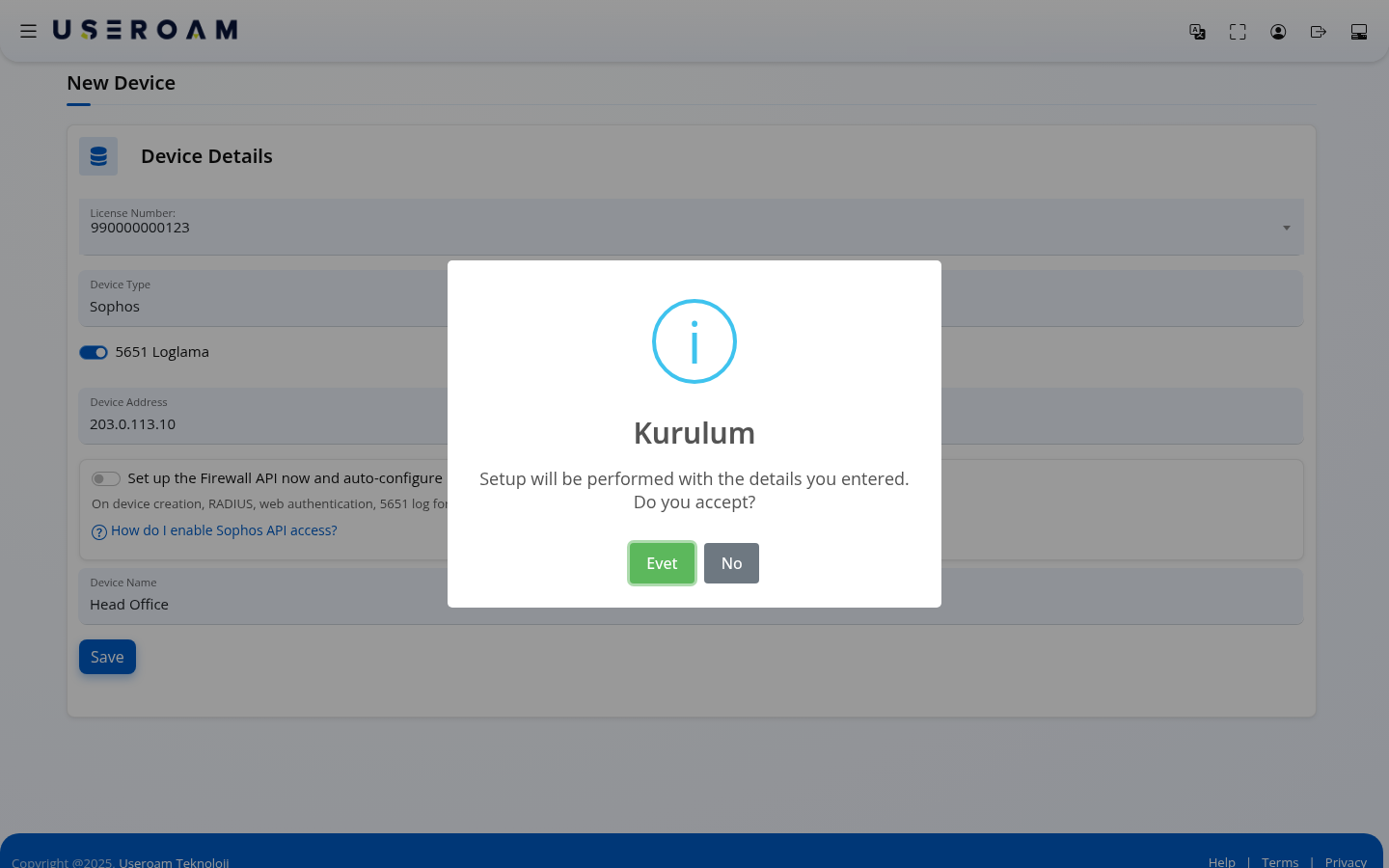
Click Save. A window titled Kurulum (setup) asks Setup will be performed with the details you entered. Do you accept? If the details are right click Evet (yes); to correct them click No.
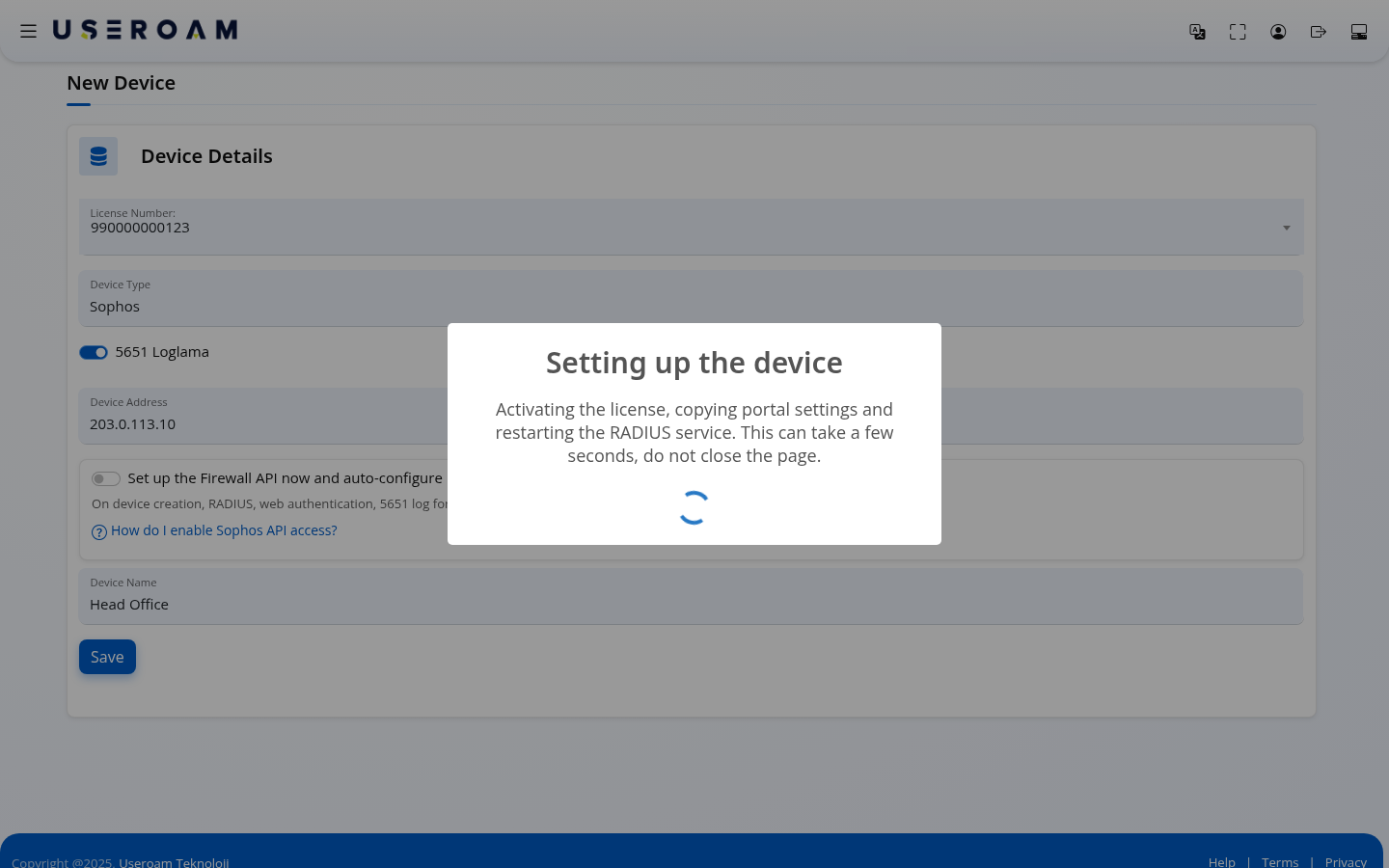
The Setting up the device window opens: Activating the license, copying portal settings and restarting the RADIUS service. This can take a few seconds, please do not close the page. Wait.
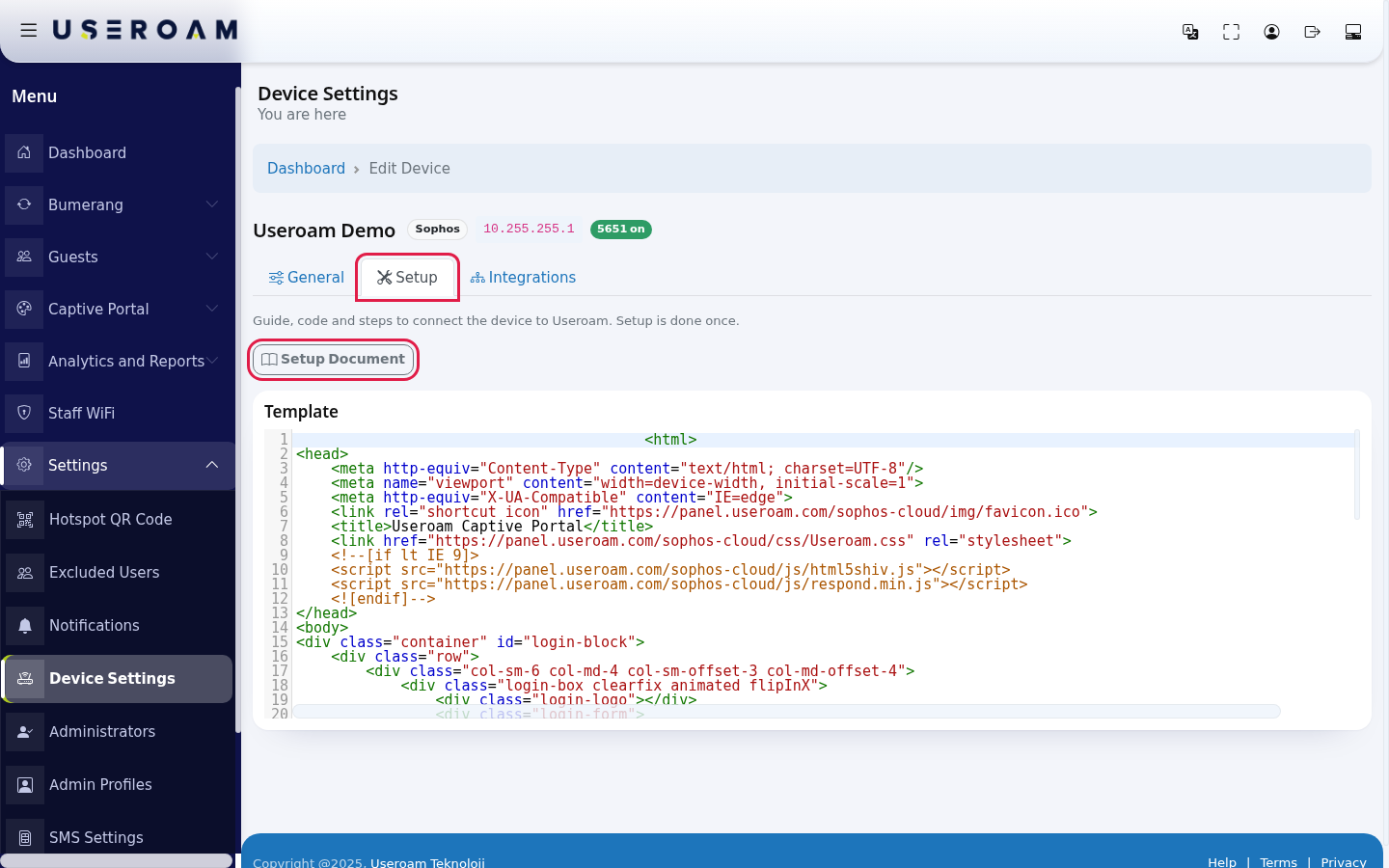
When it finishes, the panel takes you to the new device's Device Settings screen (for MikroTik with Offline selected, to the offline setup wizard); the new device is now the selected device. Complete the setup on the device side using the Setup Document and code on the Setup tab.
Every field and button on the screen
| Field / Button | What it does | Example |
|---|---|---|
| License Number: | The unused license to link. When the device is added the license starts: the start date is today and the end date is calculated from the license term. | 990000000123 |
| Device Type | The device brand. Decides the extra fields and the guide shown on the Setup tab. | Sophos |
| 5651 Loglama (5651 logging) | If on, logs from the device are recorded under 5651. | On |
| Device Serial Number | Only on device types that need a serial number; required when shown. | Serial number on the device label |
| SSL Port | MikroTik only. The port the panel uses to reach the device. | 443 |
| Setup method | MikroTik only. Automatic: Device Settings opens after saving and the panel sets up by connecting to the device. Offline: the offline setup wizard opens after saving; the router is not exposed. | Automatic |
| Device Address | The device's public IPv4 address. Required. Only digits and dots can be typed. | 85.100.64.10 |
| Set up the Firewall API now and auto-configure | Sophos only. See Sophos Firewall API Setup. | |
| Device Name | The device name shown in the panel. Required. | Head Office |
| Save | Checks the form, asks for confirmation and adds the device. |
Warnings and error messages
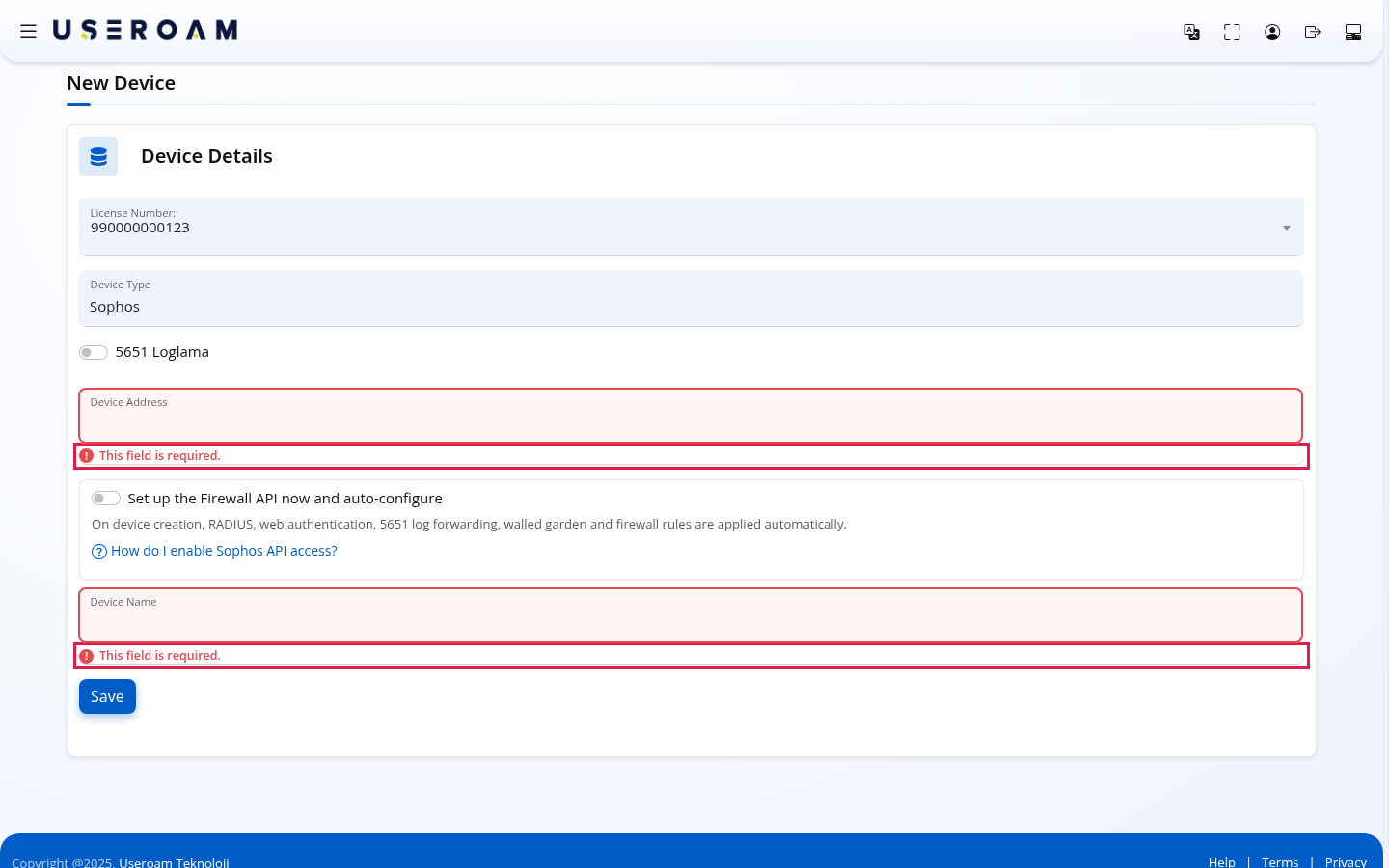
If a required field is empty, a red This field is required. appears under it and nothing is saved:
| Message | What to do |
|---|---|
| This field is required. | Fill in the field. |
| Gecerli bir IP adresi girin (orn. 192.168.1.1) (enter a valid IP address) | Type Device Address as a four-part IP. |
| No registered license | Your account has no unused license. Ask your dealer for a new one; it appears in the list once assigned. |
| Error: Cihaz adresi gecerli bir IP olmalidir (orn. 192.168.1.1) (device address must be a valid IP) | The address is invalid or registered as another device's backup WAN IP. Correct it; if it is in a backup WAN list, delete it there first. |
| Error: Bilgiler hatali lutfen kontrol edin (details are invalid) | The selected license cannot be used or the save could not complete. Check the license and fields and try again; if it continues, contact support. |
| Error: The details are not valid, please check them. | The server could not be reached. Check your connection and try again. |
For dealer users
If you signed in with a dealer account, two more lists are at the top of the form. First choose the customer in the account list (Please select an account); the license list then fills with that customer's unused licenses. If the customer has none you see No license was found for this account.; if the list cannot be loaded, An error occurred, please try again. or Error! An error occurred, please try again.
Frequently asked questions
The license list says "No registered license".
All your licenses are linked to devices or have expired. Contact your dealer for a new license.
Where do I find the device's public IP?
It is the static IP your internet provider gave you. It is also shown on the WAN interface in the device's admin interface.
I added the device with the wrong type.
You need to delete it on the Device Settings screen and add it again with the right type; deleting cannot be undone. If unsure, ask support first.
Can guests connect right after I save?
No. You also need to finish the setup on the device: use the guide and code on Device Settings → Setup.