
Sophos Firewall API Setup
What is it for?
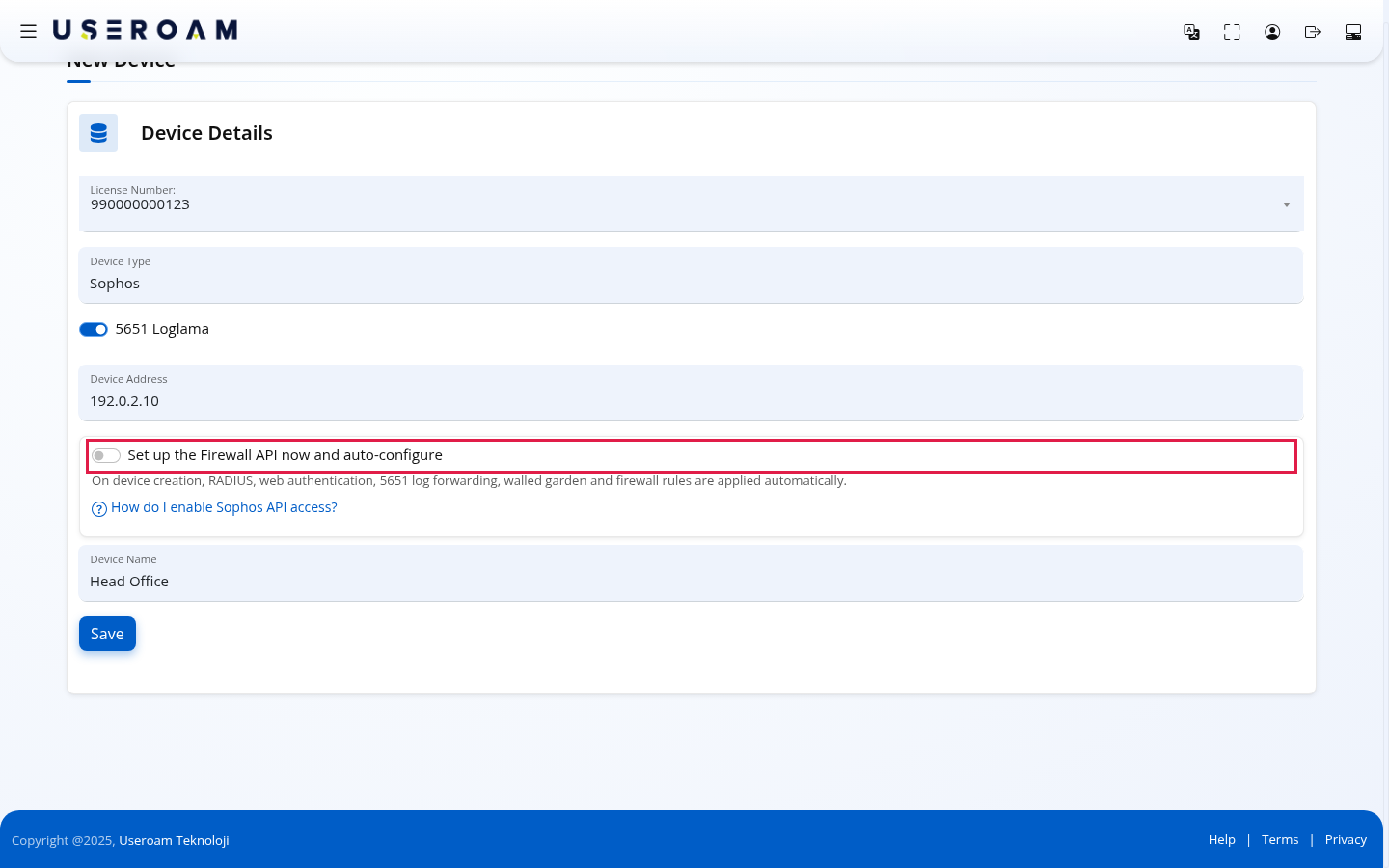
If you turn on Set up the Firewall API now and auto-configure while adding your Sophos device, Useroam does most of the guest Wi-Fi configuration on your device for you: on device creation, RADIUS, web authentication, 5651 log forwarding, walled garden and firewall rules are applied automatically. You do not have to configure each setting in the Sophos interface.
How do I open it? On Device Selection → New Device, choose Sophos as Device Type. The option appears below Device Address. The other form fields are explained on Adding a New Device.
When do I use it?
- You are adding a new Sophos device to Useroam and do not want to configure it by hand.
- You want the guest network firewall rules (DNS, Useroam, Internet) to be created automatically.
If the device is already added, manage the API connection on Device Settings → Integrations.
Before you start: preparation on Sophos
These are the steps the How do I enable Sophos API access? link in the form refers to. Do this once in the Sophos interface so Useroam can connect to your device:
Tip: Create a dedicated API-only admin account on Sophos for this. Credentials are stored AES-256 encrypted. Do not use your everyday admin account.
Step by step
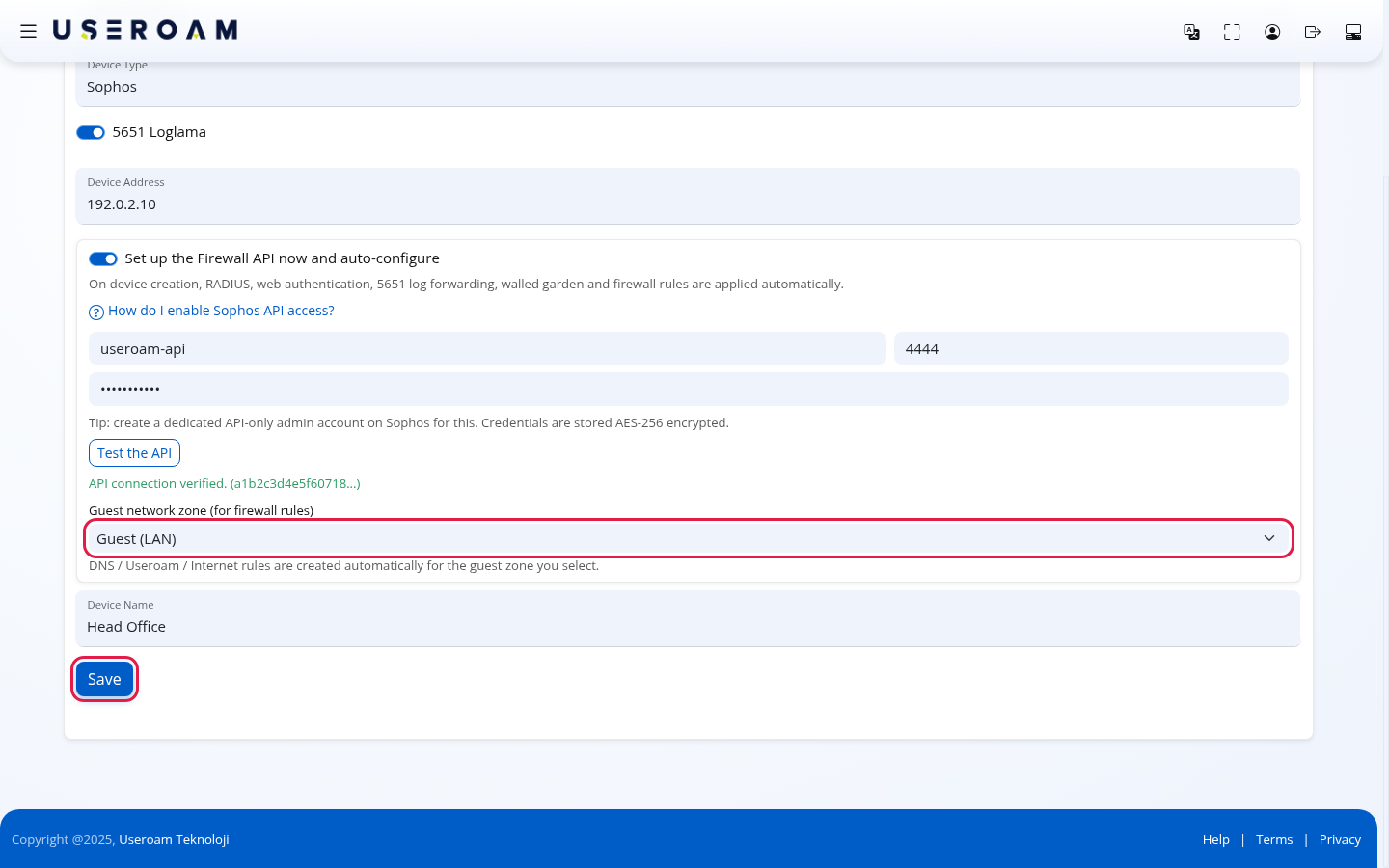
In the New Device form choose the license, keep Device Type as Sophos, turn on 5651 Loglama (5651 logging), type the device's public IP in Device Address and a Device Name. Then turn on Set up the Firewall API now and auto-configure.
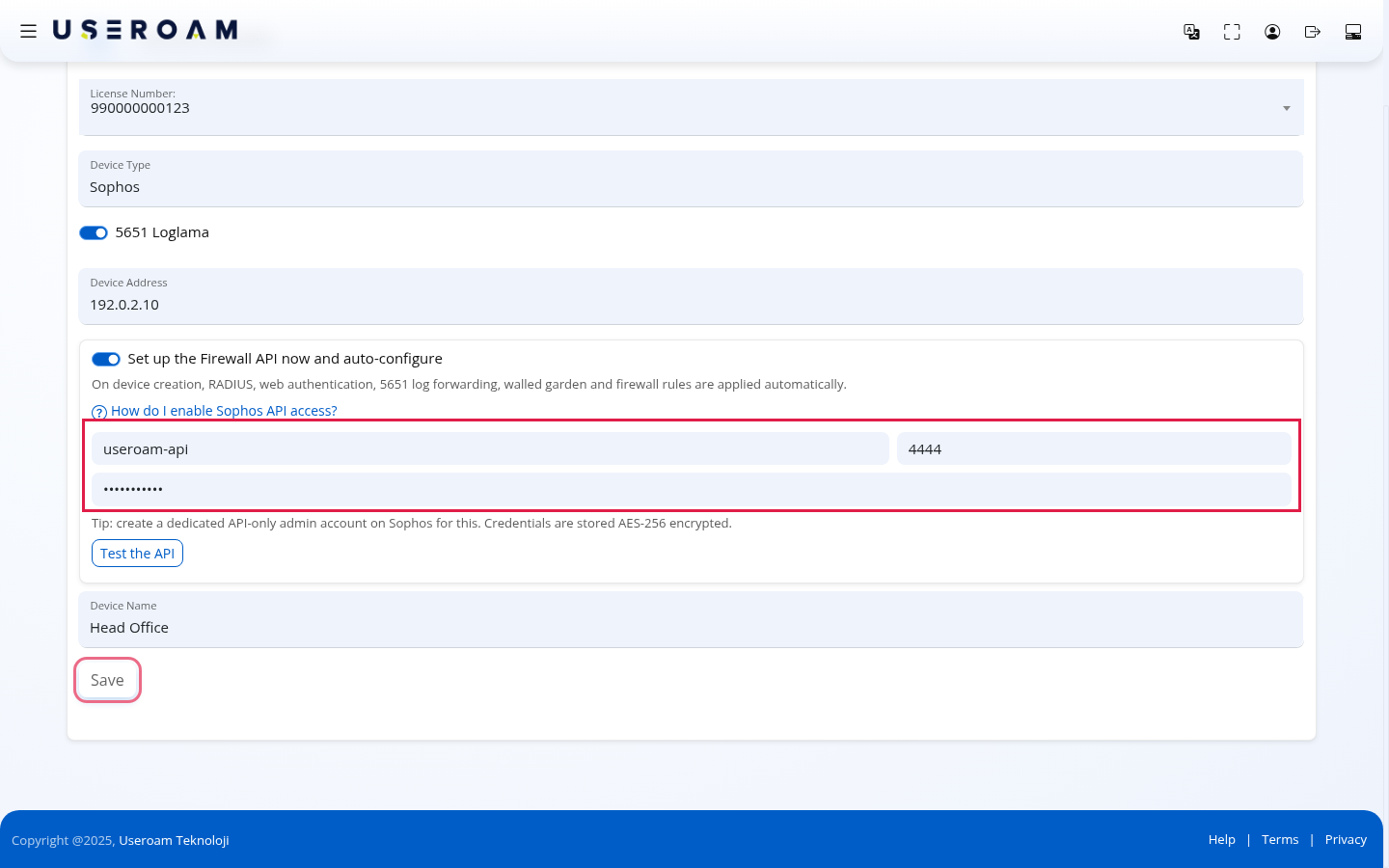
In the fields that open, enter the account you created on Sophos: Sophos admin username, Port (default 4444) and Sophos admin password. At this point Save is dimmed; you cannot save before the connection is verified.
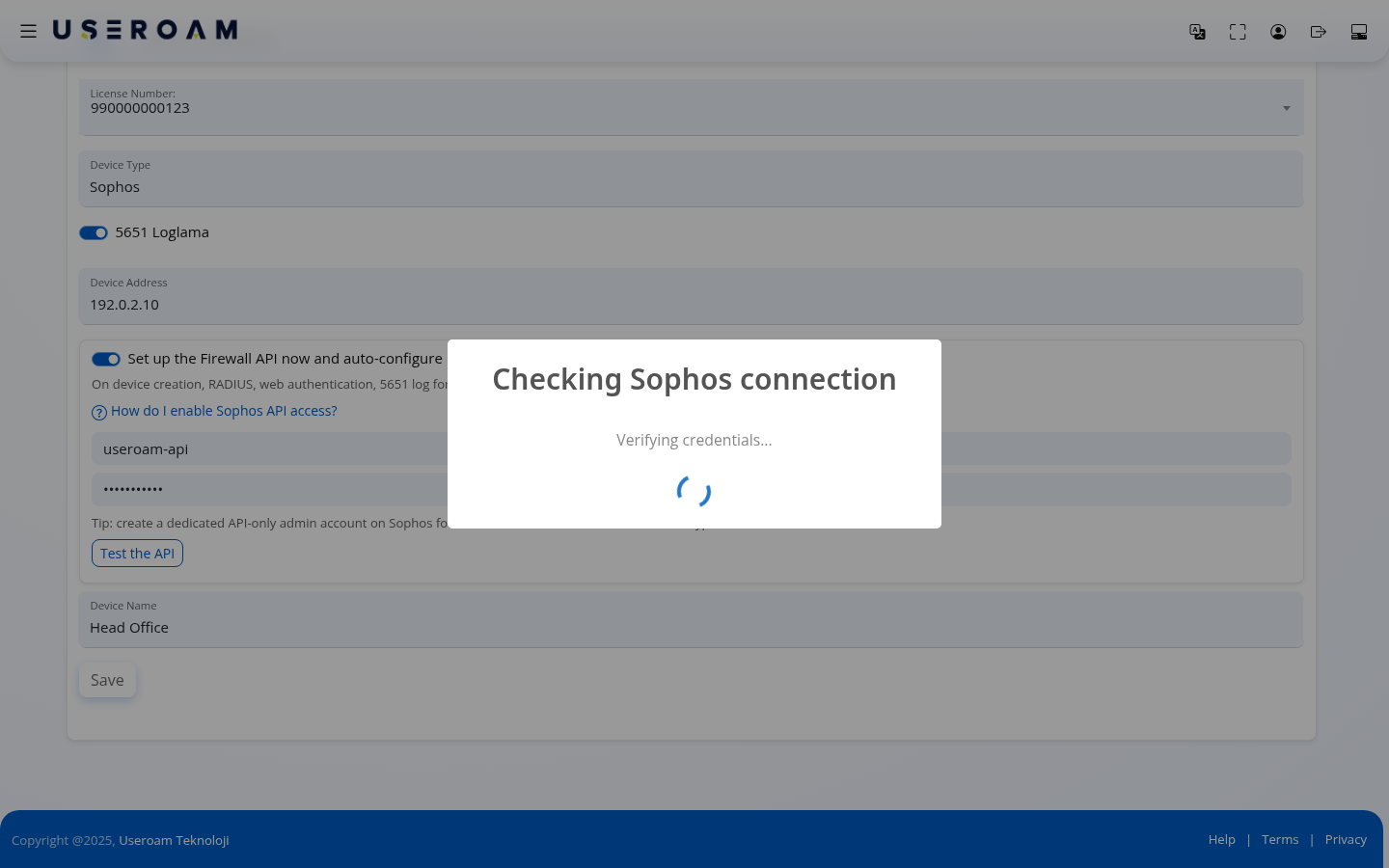
Click Test the API. The Checking Sophos connection window opens and shows the steps Connecting to device..., Verifying credentials..., Capturing certificate fingerprint..., Reading zone information... in turn.
If the test succeeds, an API connection verified. window shows briefly. Below the button a green API connection verified. appears, with the start of the device's certificate fingerprint in brackets. Below it the Guest network zone (for firewall rules) list opens, showing your device's zones with their name and type.
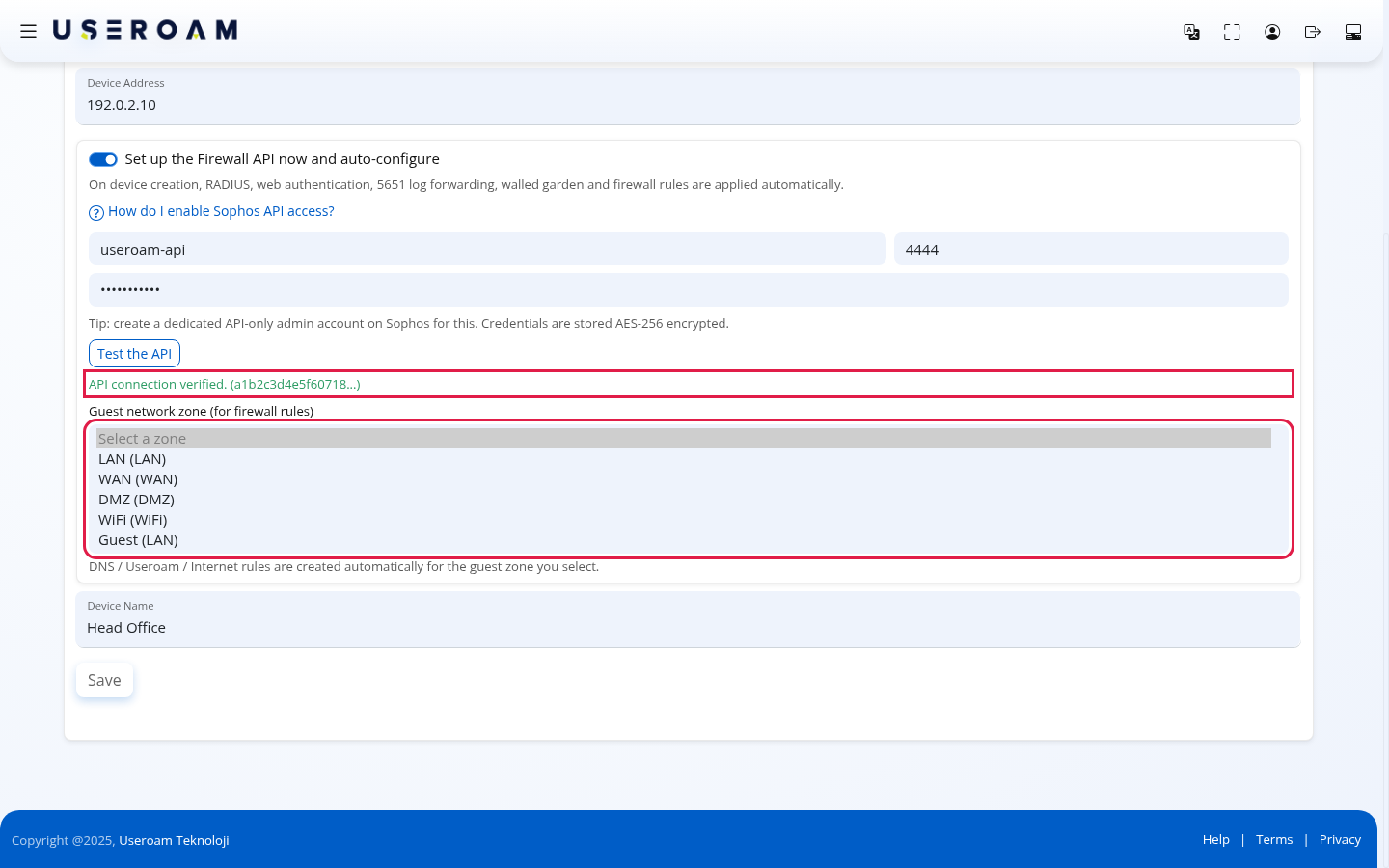
Choose the zone your guests connect to. DNS / Useroam / Internet rules are created automatically for the guest zone you select. Once a zone is selected, Save is enabled; click it and answer Evet (yes) to the Kurulum (setup) question.
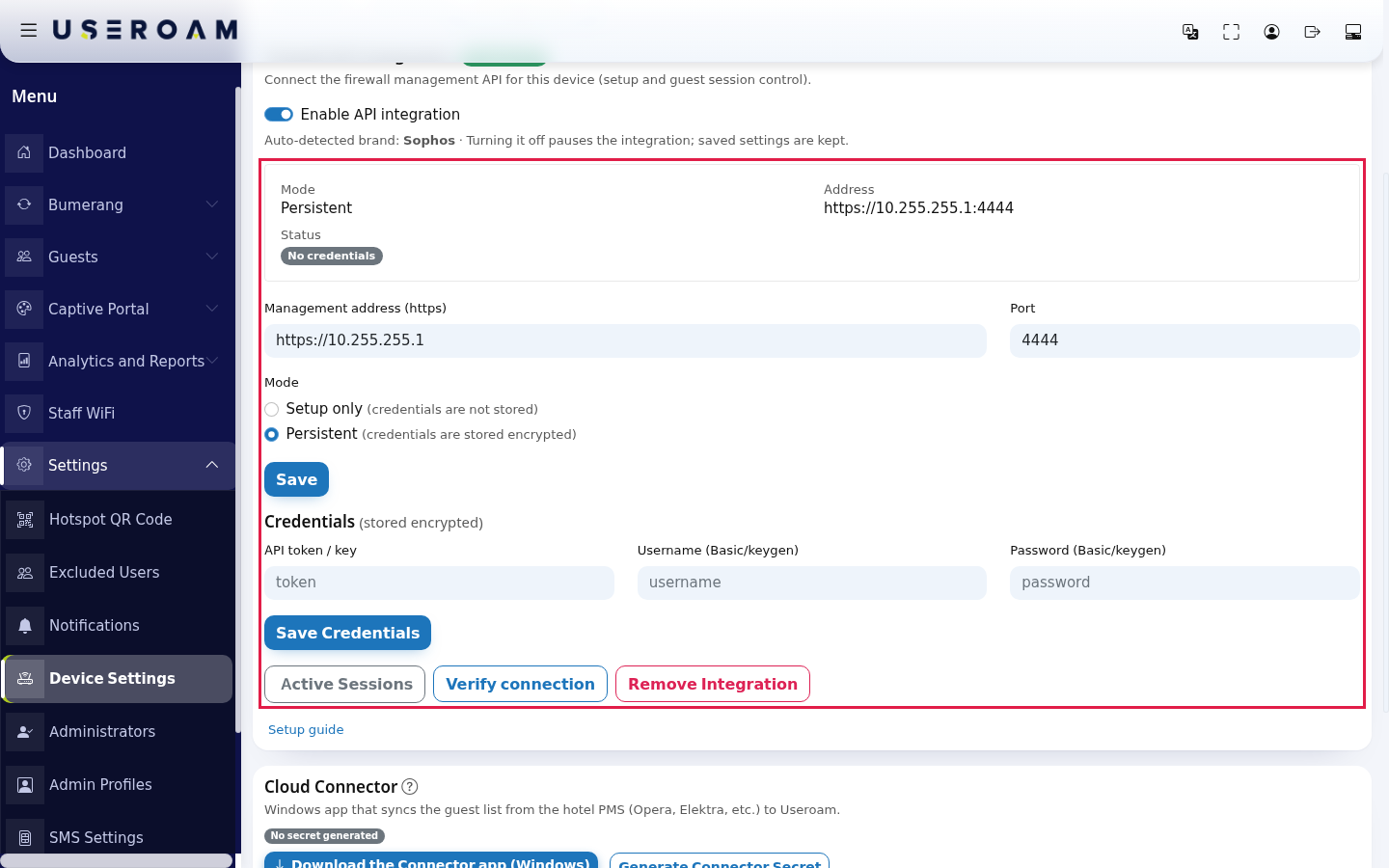
When setup finishes, the panel opens Device Settings. The coloured boxes at the top show the result of the automatic setup (see the table below). On the Integrations tab the integration appears in Persistent mode with the Credentials stored and (if a fingerprint was captured) Certificate pinned badges. In the example view below no credentials were entered yet, so it shows No credentials.
If the test fails
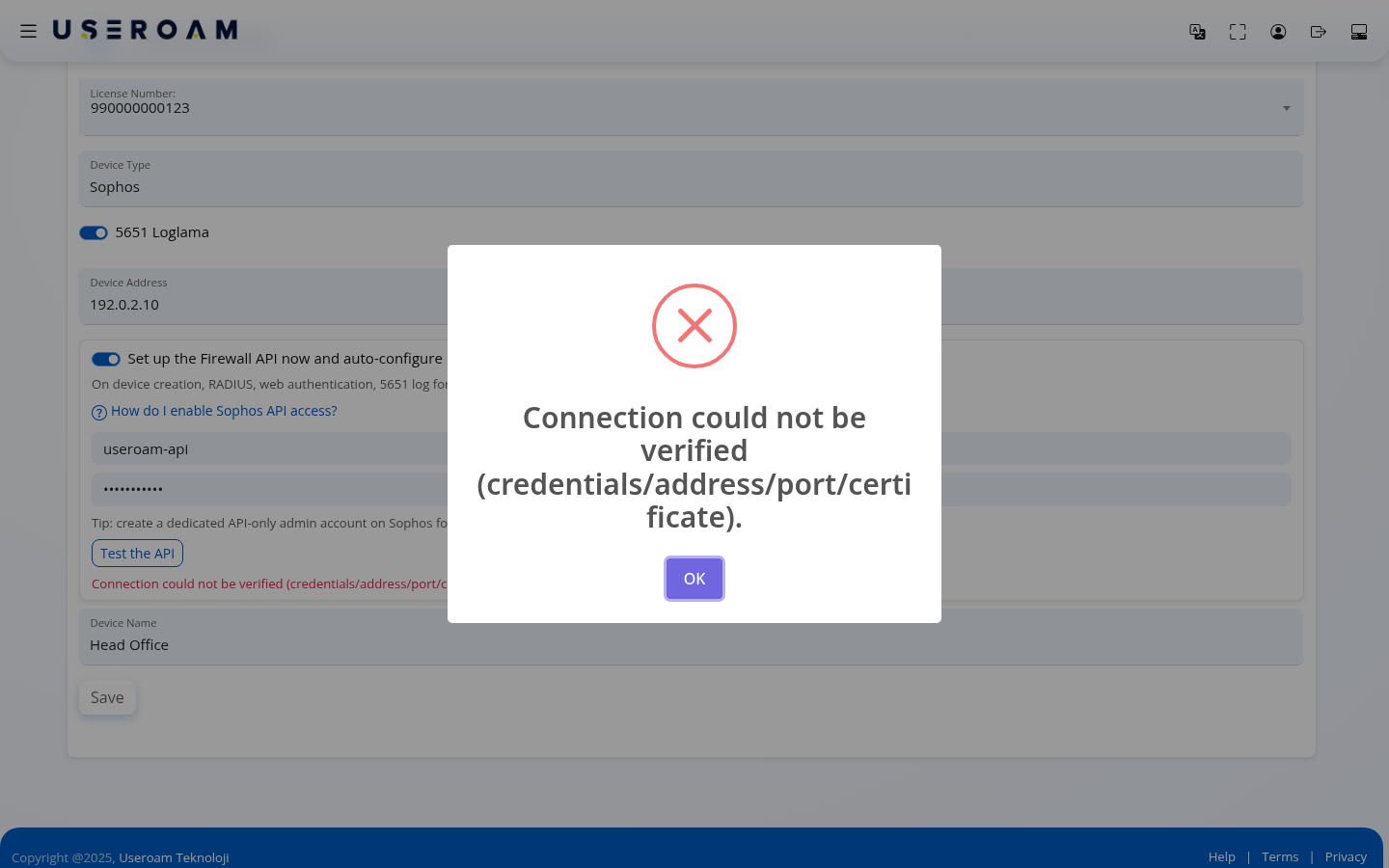
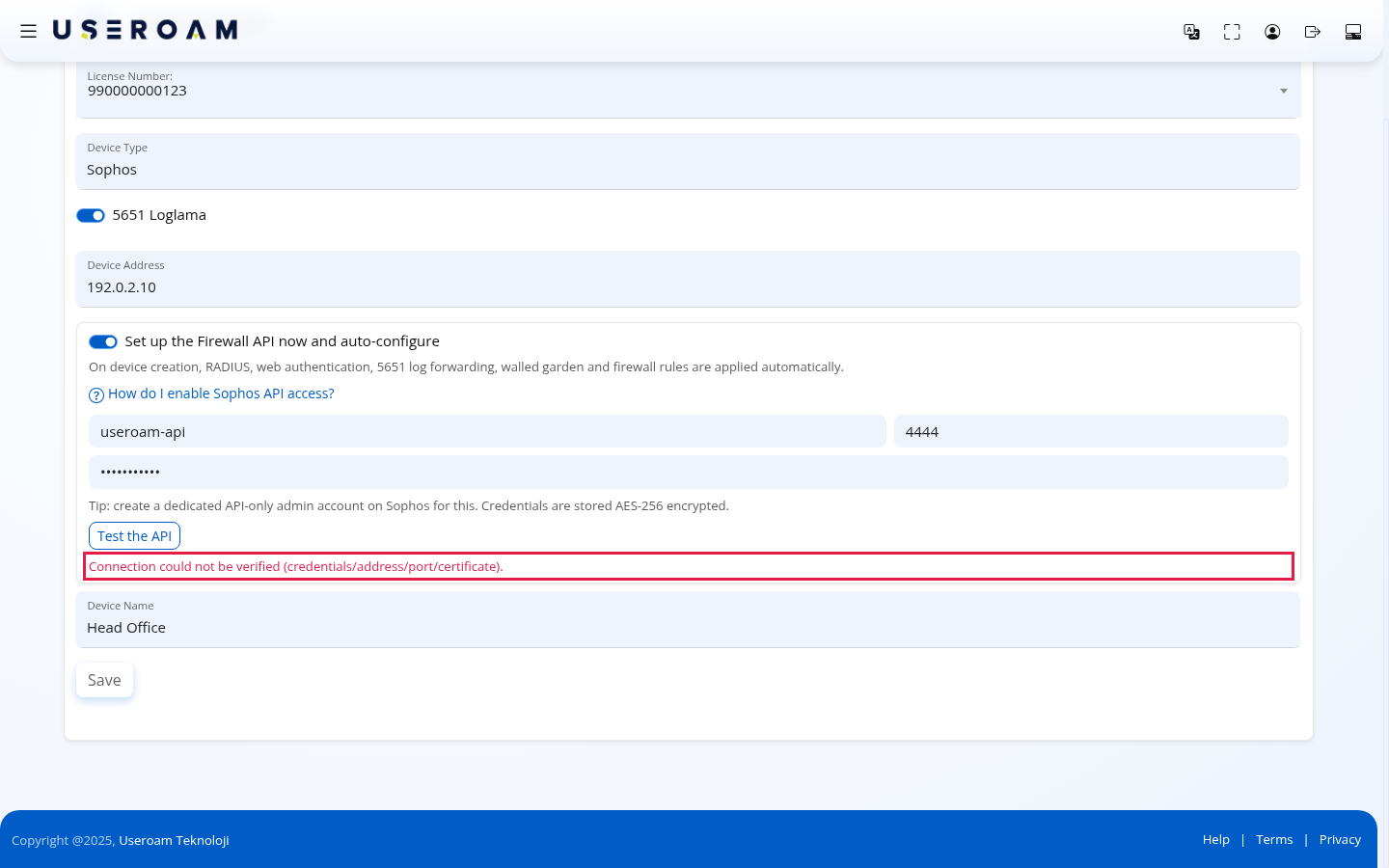
If no connection can be made, a Connection could not be verified (credentials/address/port/certificate). window appears and the same text shows in red under the button. Close it with OK.
Check the following:
- Is Device Address the device's public IP?
- Is Port the device's management port (usually 4444)?
- On Sophos, is API configuration enabled and 104.247.174.120 in the allowed addresses?
- Are username and password right? Do not retry a wrong password repeatedly; Sophos may lock the account temporarily.
Every field and button on the screen
| Field / Button | What it does | Example |
|---|---|---|
| Set up the Firewall API now and auto-configure | When on, the credential fields appear. When off, the device is added without the API. | |
| How do I enable Sophos API access? | Reminds you of the preparation on Sophos; the steps are at the top of this page. | |
| Sophos admin username | The user you created on Sophos for the API. | useroam-api |
| Port | Sophos management port. | 4444 |
| Sophos admin password | That user's password. Stored encrypted. | |
| Test the API | Connects to the device, verifies the credentials, captures the certificate fingerprint and the zone list. If username, password, port or Device Address change, the test result is cleared and you must test again. | |
| Guest network zone (for firewall rules) | The guest zone the firewall rules are created for. The list shows Select a zone by default. | Guest (LAN) |
| Save | With the switch on, it is enabled only after a successful test and a selected zone. |
Messages
| Message | Where | What to do |
|---|---|---|
| Host, admin username and password required. | Under Test the API | Fill in Device Address, username and password. |
| API connection verified. | Window and under the button | Choose a zone. |
| Connection could not be verified (credentials/address/port/certificate). | Window and under the button | Go through the checklist above. |
| First verify the connection with Test the API. | Sophos API access window | Click Test the API. |
| Auto-setup applied: RADIUS server, Web authentication, ... | Top of Device Settings (green) | The listed steps were done on the device. |
| Failed (verify on device): ... | Top of Device Settings (red) | The listed steps could not be done. Do them on the device by hand as in the Sophos setup guide. |
| Manual steps remaining: ... | Top of Device Settings (yellow) | For example Captive portal HTML (paste from panel Template), Move Useroam to top of auth methods, Firewall rules (guest zone unclear). Do these on the device yourself. The captive portal code is on Device Settings → Setup. |
| TLS certificate fingerprint pinned: ... | Top of Device Settings (green) | For information. If the device's certificate changes, the connection is refused. |
| Firewall API connection could not be verified (credentials/address/certificate). Config saved; retry from the /device card. | Top of Device Settings (red) | The device was added but the API could not connect. Retry with Verify connection on the Integrations tab. |
| Firewall API: admin credentials missing, setup skipped. | Top of Device Settings (red) | The device was added without the API. Set up the connection from Device Settings. |
What does the automatic setup do?
- RADIUS server: adds Useroam to your device as the authentication server.
- Web authentication: sets up redirecting guests to the login page.
- 5651 log forwarding (Syslog): only if 5651 Loglama is on, sets up sending the device's logs to Useroam.
- Walled garden (allowed addresses): allows the addresses that must open before the guest logs in.
- Firewall rules: only if you chose a zone, creates DNS, Useroam and Internet rules for that zone.
- Captive portal HTML: uploads the login page code to the device.
After setup, the boxes at the top of Device Settings tell you which of these succeeded.
Frequently asked questions
I cannot click Save.
With the switch on, Save is enabled only after Test the API succeeds and a zone is selected. If you do not want to set up the API, turn the switch off.
No zone list appeared.
If the test succeeded but no zones could be read, the list is not shown. If Save stays disabled, turn the switch off and add the device without the API; set up the API later from Device Settings and create the firewall rules on the device by hand.
Is my password safe?
Credentials are stored AES-256 encrypted. Still, use a separate account just for the API.
I already added the device. Can I set up the API later?
Yes. Use the Device Settings → Integrations → Firewall API Integration card.