
Request Management
Request Management is the controlscreen screenwhere ofyou yourfollow every hotel operation:request filterin everyone incominglist, request,whether the guest opened it from the portal or reception entered it by hand, assign it to staff,staff and close itit. Room cleaning, malfunctions, extra requests, late check-out, room service and readreservation requests all land here.
What is it for?
- Shows open work, waiting times and who is handling each request at a glance.
- Lets you assign a request to a staff member, nudge the
end-of-daypersonsummary.responsibleUseon their phone and message theRequestguest. - Gives today's summary at
receptionthefortopfast(total,operationcompleted, open, average response, approved extra sales).
When do you use it?
- At the start of a shift, to see open requests and overdue work.
- To record a request that came by phone or at the desk (Open New Request (reception)).
- To hand a job to someone else or remind the person responsible.
- To search past requests by date, status, type, room and staff member.
Before you start
- A hotel profile must exist. If it doesn't, this screen
fortakesoversightyouandtoreporting.GuestPortal
. - If
dotheIhotel has never received a request, the first time you openthisthescreen?screen the panel sends you once to the Venue Setup Wizard (hotel mode). You can come back afterwards; the wizard does not open by itself again. - To assign requests to people, staff must be linked to a hotel department (Staff). A hotel without staff can still use the screen; requests wait in the department pool.
How
Step by step: handling a request from start to finish
- Open the screen.
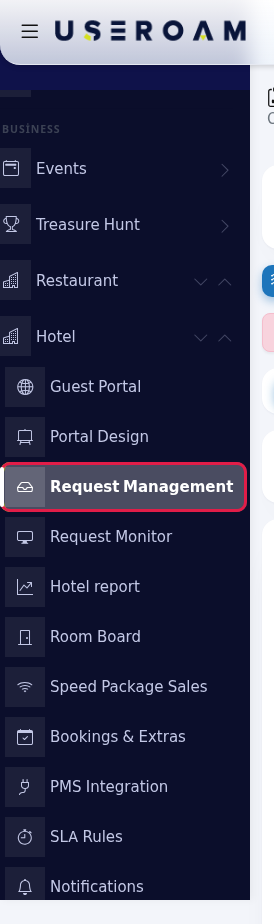
FromIn the leftmenu,menugo topressBumerang → BUSINESSHotel → Request Management.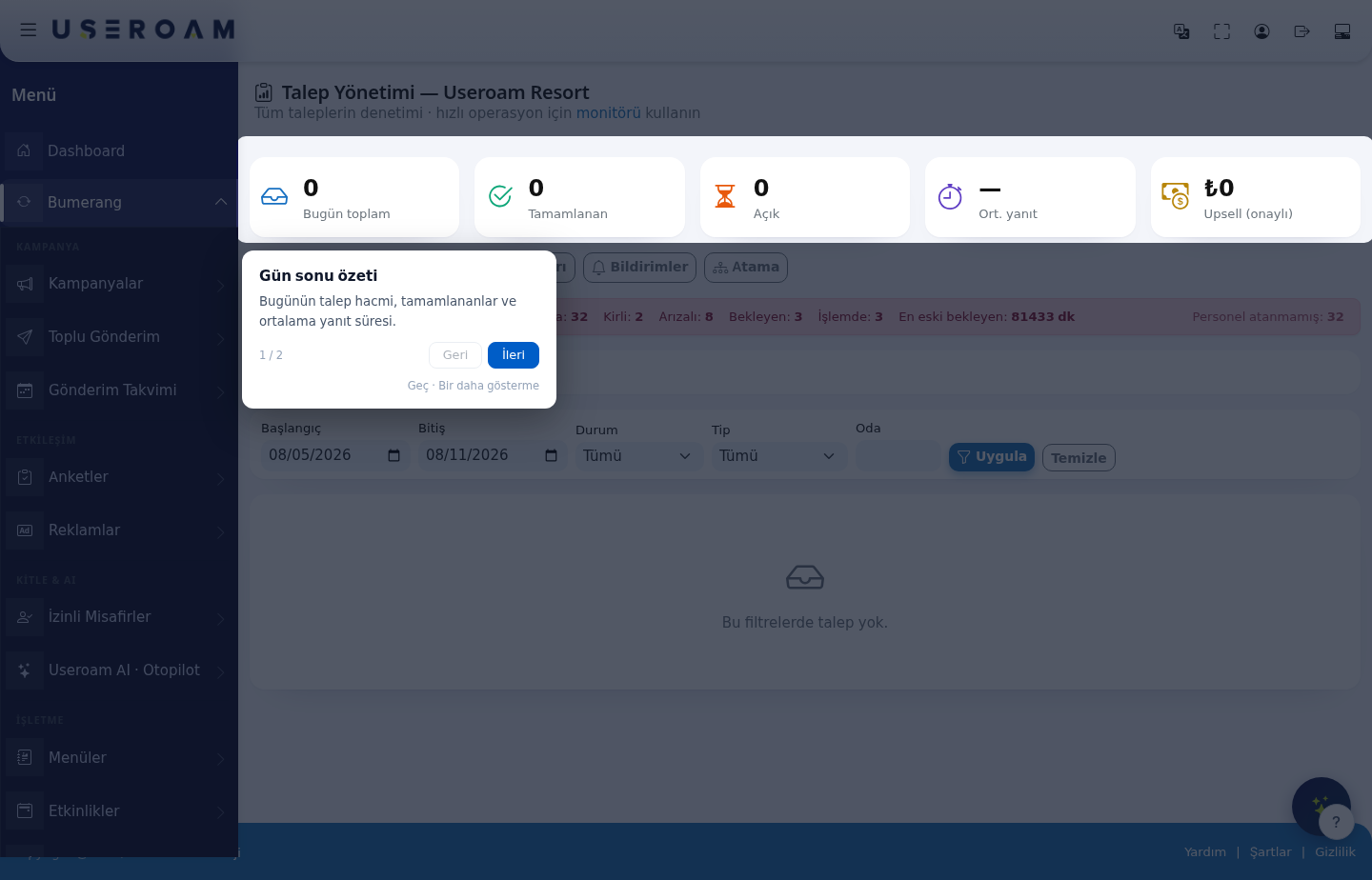
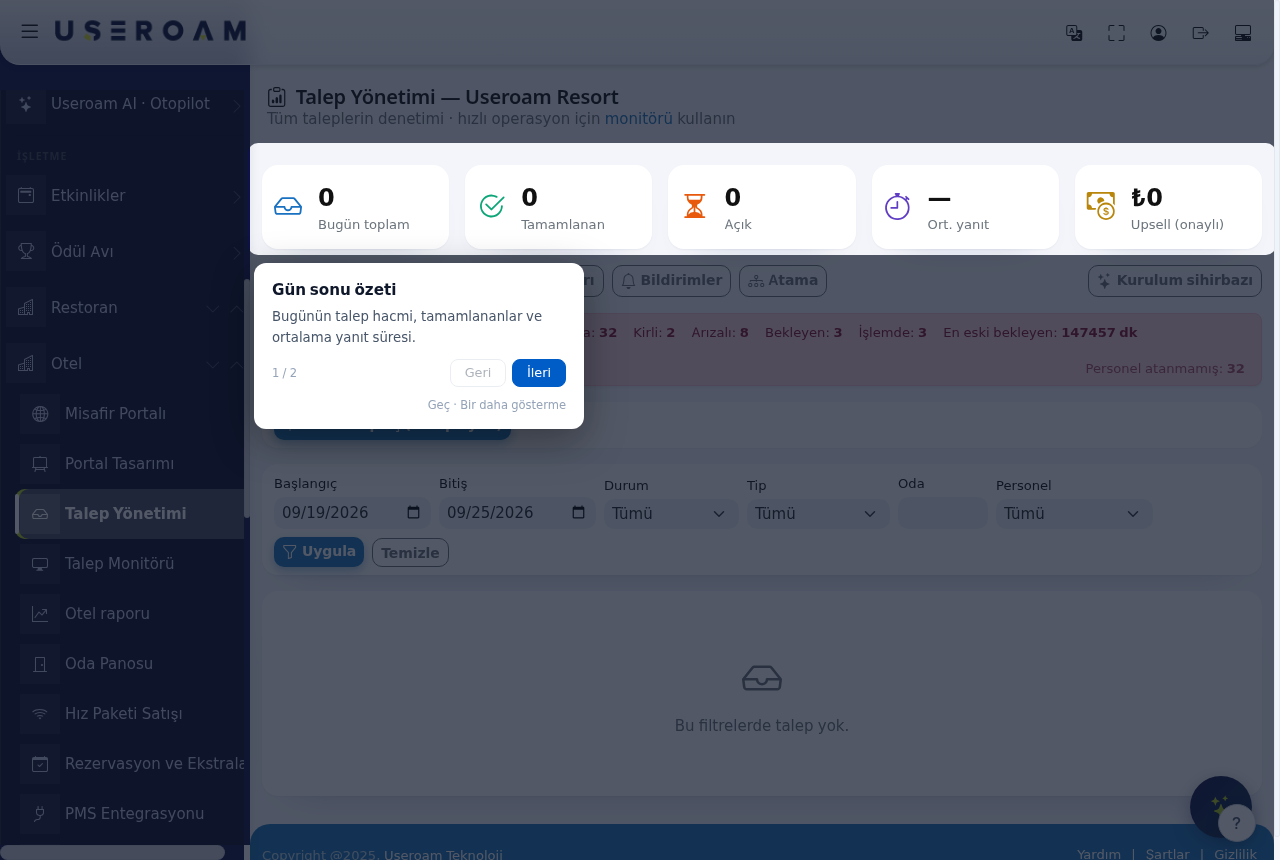
1. Headline figuresTotal today:requests opened during the day.Completed:Read the summary and live status.requestsThethatfivehavecardsbeenatclosed.the top show today's numbers; the coloured strip below shows the current state. The tabs (Requests, Rooms, SLA Rules, Notifications, Assignment) and the Setup wizard button on the right are here too.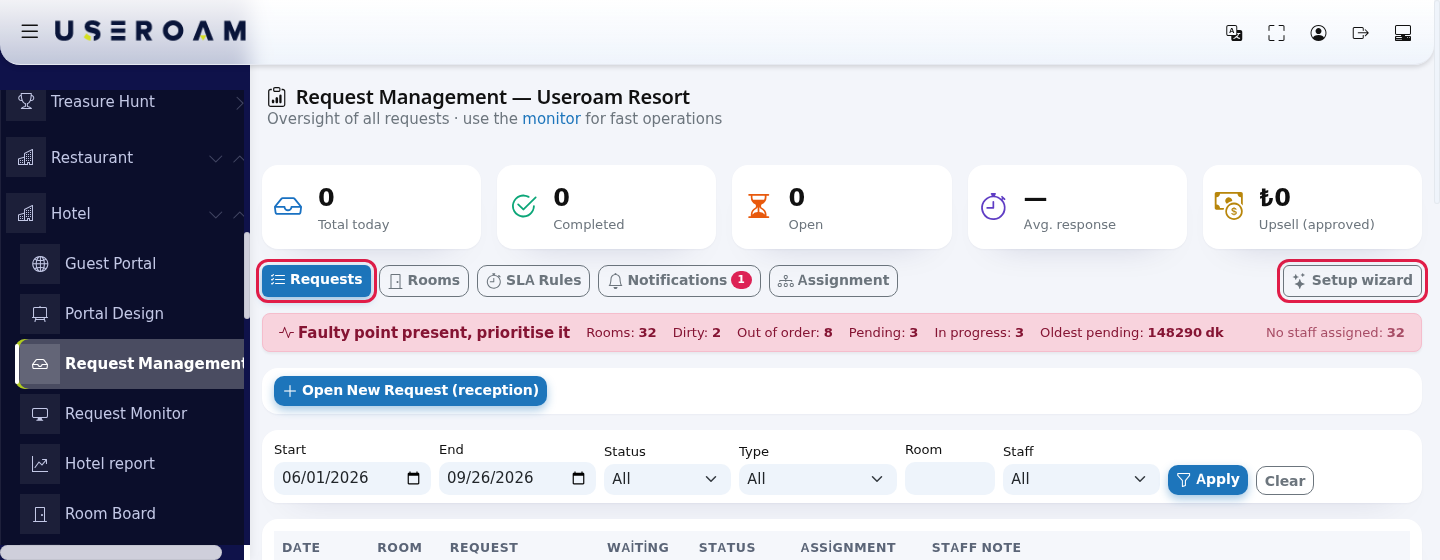
Open:Open a request by hand if needed.requestsPressstillOpenwaiting.New Request (reception). Type the room number in Room (for example305), pick a Type and write a short note in Description. Time (opt.) and Assign to staff (opt.) are optional. Press Open. If you don't pick anyone, the request goes to the department that matches its type.
Avg. response:Filter theaveragelist. Set Start and End dates and, if needed, Status, Type, Room and Staff, then press Apply. Clear removes all filters. The screen opens on the last 7 days.
- Assign the request and nudge if needed. Pick the person from the list in the row's Assignment column; the choice is saved as soon as you select it. When the request is open and has someone responsible, a Nudge button appears below it; pressing it sends a reminder notification to that person's phone.

- Take the request and close it. On a pending request press Take. When the work is done, press Complete, Approve ₺... on paid requests, or Close with photo on a malfunction. In the same row you can type a Staff Note and save it with the tick next to it, or press the speech bubble to message the guest.

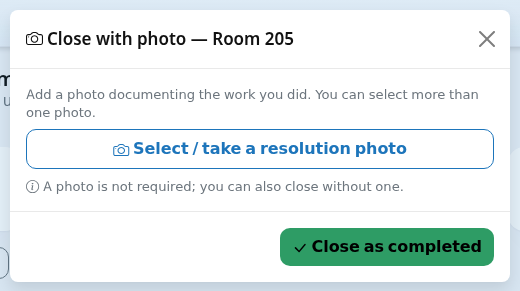
- Close a malfunction with a photo. In the Close with photo window press Select / take a resolution photo, choose the photo and press Close as completed. If a photo is not required you can also close without one.
Room service orders
Room service requests (type Room Service) follow their own flow. The status column shows the order stage: New Order → Preparing → Ready → Delivered. The green button in the row always names the next stage: Start preparing, Marked ready, Delivered. A delivered order counts as completed.

Messaging the guest
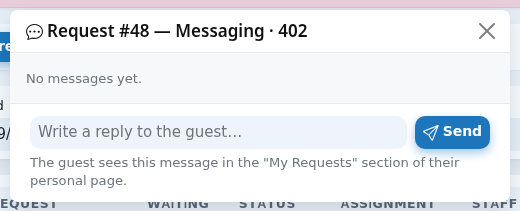
The speech bubble in the row opens the Messaging window. The title shows the request number and the room (Request #... Messaging and the room, for example 402). When there is no conversation yet you see No messages yet. Type in Write a reply to the guest… and press Send. The guest sees the message in the My Requests section of their personal page. While the window is open, new messages arrive by themselves every few seconds; messages are labelled Hotel and Guest. The number next to the bubble is the message count for that request.
Every field and button on the screen
Top section
| Field / button | What it does | Example |
|---|---|---|
| Subtitle: Oversight of all requests · use the monitor for fast operations | The monitor link opens the Request Monitor. | - |
| Total today | Requests opened today. | 12 |
| Completed | Requests opened and completed today. | 9 |
| Open | Requests opened today that are still pending or in progress. | 3 |
| Avg. response | Average time | 18 min |
| Upsell (approved) | Total | ₺1,200 |
| Requests, Rooms, SLA Rules, Notifications, Assignment | Tabs. A red number appears on Notifications when there are unread alerts. | - |
| Setup wizard | Opens the Venue Setup Wizard in hotel mode. | - |
StatusLive status strip
The strip beneathappears summariseson every tab and gives a verdict rather than a number:
| Strip text | When it appears | What to do |
|---|---|---|
| Faulty point present, prioritise it (red) | At least one room is Out of order. | Check the |
| A pending request is overdue (yellow) | The oldest pending request is older than 30 minutes. | Take the request or nudge the person responsible. |
| Open work in progress (yellow) | There is a dirty room or a pending request but nothing is late. | Normal work; keep an eye on it. |
| Everything is on track (green) | No dirty or out-of-order rooms and no pending requests. | - |
Numbers on the strip: Rooms (total)total rooms), Dirty, FaultyOut of order, Pending, In progress, Oldest pending (minutes) andand, on the right, UnassignedNo staff assigned. When(rooms something needs priority,without a warningresponsible appearsperson). aboveDirty, (forOut exampleof "There is a faulty point, give it priority").
2. Tabs
The screen is divided into five tabs: Requests, Rooms, SLA Rules, Notificationsorder and Assignment.In Rooms, SLA Rules and Notificationsprogress are describedhidden onwhen theirthey ownare pages.zero.
3. Open New Request (reception)
When
| Field | What | Example |
|---|---|---|
| Room | The
| e.g. 305 |
| Room Cleaning, Extra, Late | Malfunction | |
| Short | e.g. | |
| Time ( | Preferred time: As soon as possible, 10: | As |
| Assign to staff ( | Default automatic: | automatic |
| Open | Opens the request as | - |
Filters
| Field | What it |
|---|---|
| Start, End | Date range in which the request was opened. Default: last 7 days. |
| Status | All, Pending, In Progress, Completed, Cancelled. |
| Type | One of the request types, or All. |
| Room | Requests of a single room. |
| Staff | Requests assigned to or taken by reviewing
photos |
| Filters / removes all filters. |
Request list
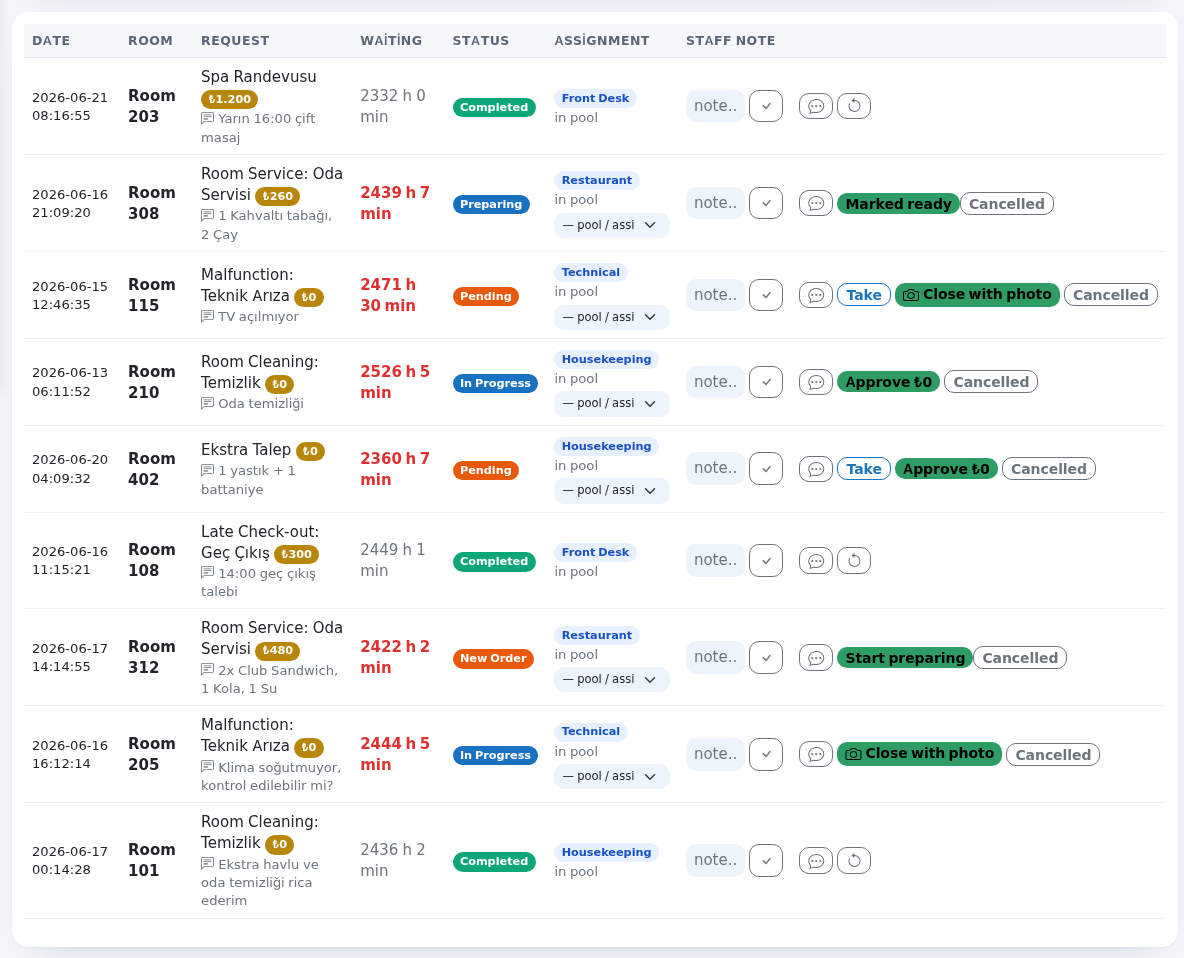
| Column | What it shows |
|---|---|
| Date | When the |
| Room number. | |
| Request | Type and, if any, which extra or service; a gold amount badge; the guest's note; the preferred time for cleaning. The small picture with a red frame is the guest's Malfunction (before) |
| Waiting | Time since opening (until closing if closed), for example 2 h 15 min. On open requests it turns orange after 30 minutes and red after 60. |
| Status | Badge: Pending, In |
| Assignment | The blue badge is the request's department (Housekeeping, Technical, Restaurant, Front Desk). Below it you see the assigned person or in pool. On open requests the pool / assign list picks a person; the choice saves at once. Open requests with someone responsible get a Nudge button; hovering it shows Sends a reminder notification to the phone of the person responsible for |
| Staff
| A |
| Buttons | Speech bubble (Messaging), Take (pending only), Complete or Approve ₺... on paid requests, Close with photo on malfunctions and on types that require a closing photo, and the cancel button (the English panel labels it Cancelled). On a closed request the circular arrow is Reopen; it sets the request back to pending. |
The list shows at most 300 records; if there are nomore you see First 300 records, use filters to narrow down. at the bottom. When nothing matches you see No requests for these filters."
Close 5.with Closingphoto window
| Item | What it does |
|---|---|
| Title: Close with photo and the room | Shows which request you are closing. |
| Add a
| Explanation. |
| Select / take a | Opens the camera on a phone, the file picker on a computer. After choosing, a count such as 2 photo(s) selected appears. |
| A photo is not required; you can also close without one. | Shown when this type has no closing-photo rule. |
| At least ... photo(s) are required to close this request. | Shown when there is a rule; you cannot close without enough photos (Closing photo requirement on the SLA Rules page). |
| Close as completed | Completes the request. For
malfunction requests the room goes back to Clean. |
Alerts and messages
| On screen | Meaning / what to do |
|---|---|
| This request can only be closed with at least ... photo(s). It was not closed; upload the photos and try again. | Not enough photos were uploaded. Open Close with photo again and pick photos. |
| Reminder notification sent. | The nudge worked. |
| A reminder was already sent for this request in the last 5 minutes. Please try again shortly. | A request can be nudged once every 5 minutes. |
| This request is not assigned to anyone. First pick a person in the row and save. | Pick a person from the Assignment list first. |
The first time you open the screen a short tour shows three bubbles: End-of-day summary card shows the day'(Today's request volume, completions and average response time.), ItFilters is(Review history by date, status, type and room.) and Status flow (Take, Complete / Cancel. Turns orange after 30 minutes of waiting, red after an hour.).
What does the summaryguest to read at shift handover.
7. New: Assign, Nudge and company notificationsee?
- When
ayoustaff member tapspress TakeinortheComplete,app,atheguestjobwhobecomesallowedtheirs. If it is given to someone else, the previous ownernotifications getsa"Yournotification that the job has moved to someone else. If no one is picked, the job goes to the least busy staff member of the department; a manager gets it only if no one elserequest is in progress" / "Your request is completed" on their phone, in their own language. No notification is sent for a cancellation; tell thedepartment.guest - yourself. Details: The hotel portal your guests see.
Frequently asked questions
🔔The list is empty but guests say they opened requests.
The screen shows the last 7 days. Move Start back and press Apply; check that Status is All.I can't see the Nudge button.
Nudge only appears on open (pending or in progress) requests that have someone responsible. Pick a person in the Assignment list first.There is nobody in the Assignment list.
Only active staff linked to this hotel appear. Add staff on the Staff screen and link them to a hotel department.Why does a request
rowIsendsclosed on the monitor behave differently?
Done on the monitor only completes the request. Setting the room back to clean and notifying the guest happen when you close it on this screen.Where is checkout?
It is done per room: Room Board.Related pages
- Setting up your hotel on day one
- Request Monitor · Room Board · SLA Rules · Hotel Notifications · Automatic Assignment
- Automation (e-mailing a
remindermalfunction totheyourpersonsupportholding the job (once every 5 minutes per job).company) IfRoleaguide:faulthotelrequest matches anAutomationrule, an e-mail goes to the service company and the row shows✉ Company namemanager ·Sent.RoleUseguide:Notifyhotelcompanystaffto(Useroamsend one manually.Go)
The Operations and Automation screens are described in theRestaurant Solutionbook; they work the same way for hotels.Related pages:Hotel Solution → Request Monitor,Room Board,SLA Rules,Hotel Notifications.