
Request Monitor
The Request Monitor (screen title Hotel Requests) shows pending guest requests as large cards and is meant to stay open at reception or in the housekeeping office. It beeps when a new request arrives.
What is it for?
- Shows new requests without anyone refreshing the page; the screen updates itself every 8 seconds.
- Lets you close simple jobs with one button (Done).
When do you use it?
- To keep it open all day on the reception computer or a tablet.
- To follow requests in small hotels that don't use the staff app.
Step by step
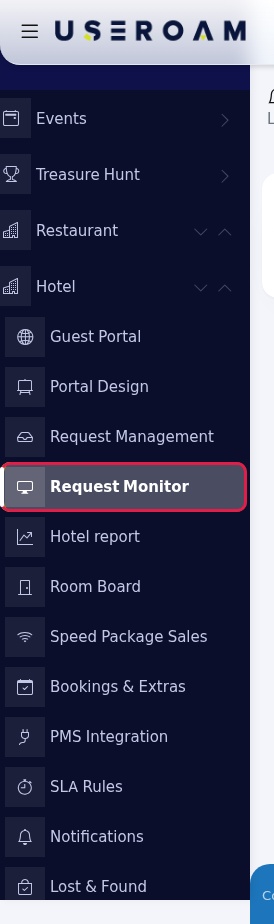
- Open the monitor. In the left menu press Hotel → Request Monitor (or the monitor link in the Request Management subtitle).
- Leave the screen open. Each pending request is a card: room, request label (blue Housekeeping for cleaning, orange request name for others), preferred time for cleaning (for example As soon as possible), the guest's note and when it was opened. Click the screen once; browsers do not allow sound before the first click. Close when done. Press Done on the right of the card; the card disappears.
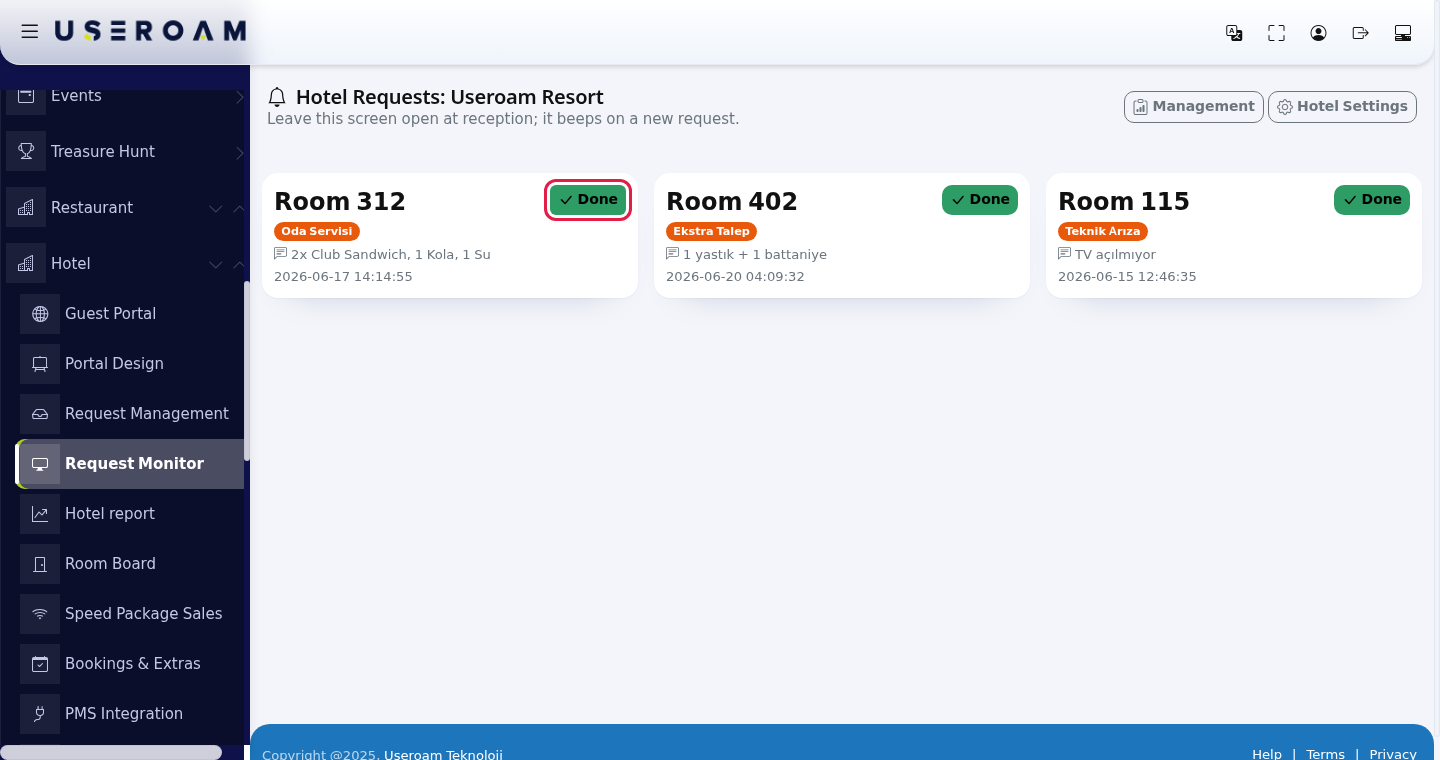
Every field and button on the screen
| Item | What it does |
|---|---|
| Subtitle: Leave this screen open at reception; it beeps on a new request. | - |
| Management | Opens Request Management. |
| Hotel Settings | Opens the Guest Portal settings. |
| Card | Only Pending requests, oldest first; at most 100 cards. |
| Done | Marks the request completed. |
| No waiting requests | Shown with a green tick when nothing is pending. |
| This request can only be closed with at least ... photo(s). Photos cannot be uploaded from this screen; close it from the Hotel Management page or the staff app. | If this type requires a closing photo, Done shows this warning. Close the request with a photo on Request Management or in Useroam Go. |
On first open a short tour shows two bubbles: Request monitor (Guest requests land here instantly and it beeps on a new one. Leave the screen open at reception.) and Hotel settings (Manage information, request types and room QR codes here.).
Monitor versus Request Management
- The monitor does not show requests that were taken (In Progress); only pending ones.
- Done only closes the request: it does not set the room to clean and does not send the guest a "your request is completed" notification. For those, close the request on Request Management.
- Assigning, nudging and messaging are only on Request Management.
Frequently asked questions
There is no sound.
Click the screen once after opening it and check the computer's volume. The sound only plays when a new request arrives.
A request I see on Request Management is not here.
It may have been taken or closed; the monitor shows only pending requests.