
SMS / WhatsApp Users
What is it for?
The SMS/Whatsapp list shows the guests who signed up to your Wi-Fi with their phone number (SMS or WhatsApp verification). From here you can approve, block or delete a guest, or change their details, group and password.
When do I use it?
- You want to see whether a guest is registered and when they signed up.
- You want to stop (block) a guest's logins or allow them again.
- You want to move a guest to a longer-lasting group or delete their record.
Before you start
- The list shows the guests of the selected device.
- Numbers, first names and last names are masked under the Turkish data protection law, KVKK (example:
5306****15,Yu***). If you are allowed to see full values, open them with the eye icon; every reveal is written to the Audit Log. - Employees on the Excluded Users list are not shown here.
Step by step
- In the left menu open Guests and click SMS/Whatsapp.
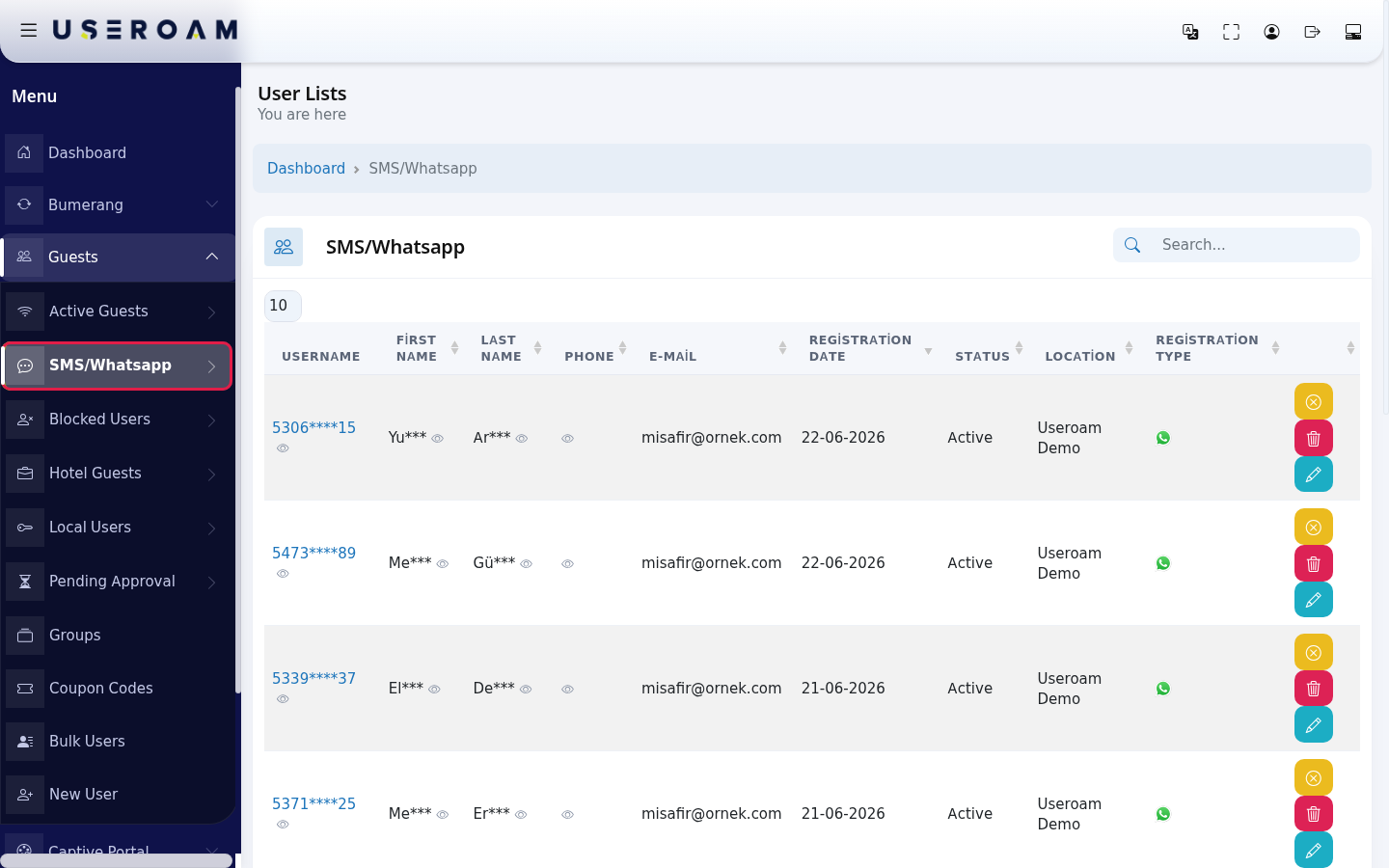
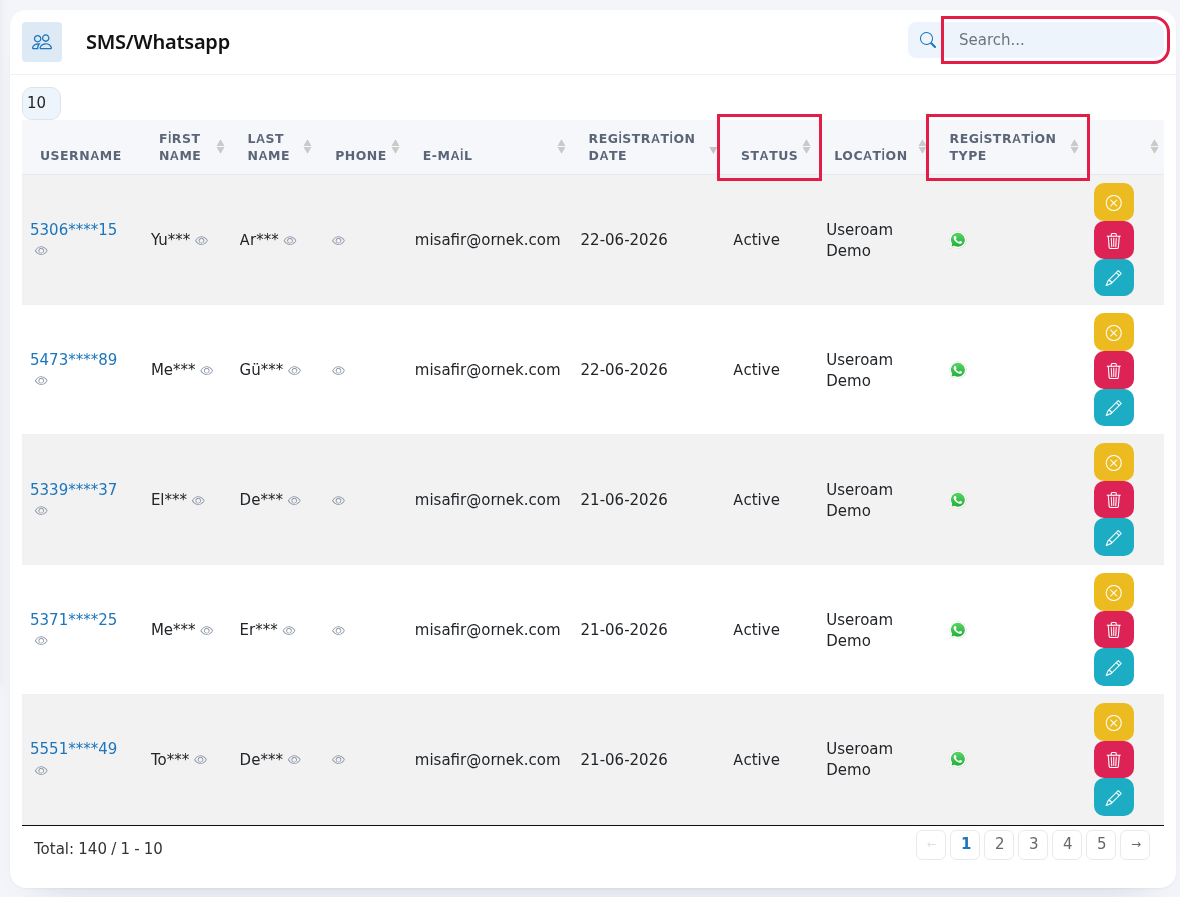
- To find a guest, type in the Search... box at the top right. The newest sign-up is at the top. The Status column shows whether the guest can sign in; the Registration Type column shows whether they signed up by SMS (phone icon) or WhatsApp (WhatsApp icon).
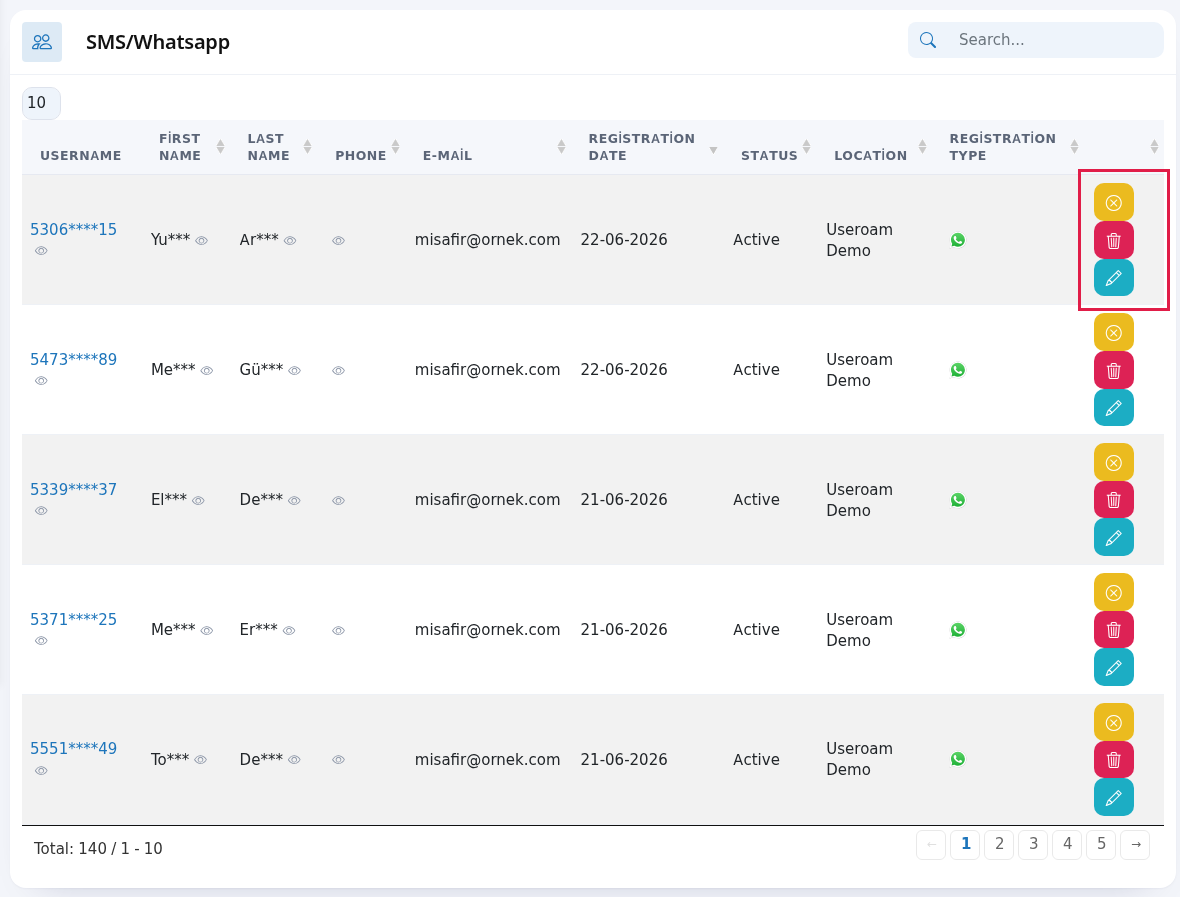
- Use the buttons at the end of the row. Hover over a button to see its name: yellow Disable User (green Enable User if blocked), red Delete User, blue Edit User. If the guest is waiting for approval, a green Confirm button appears first.
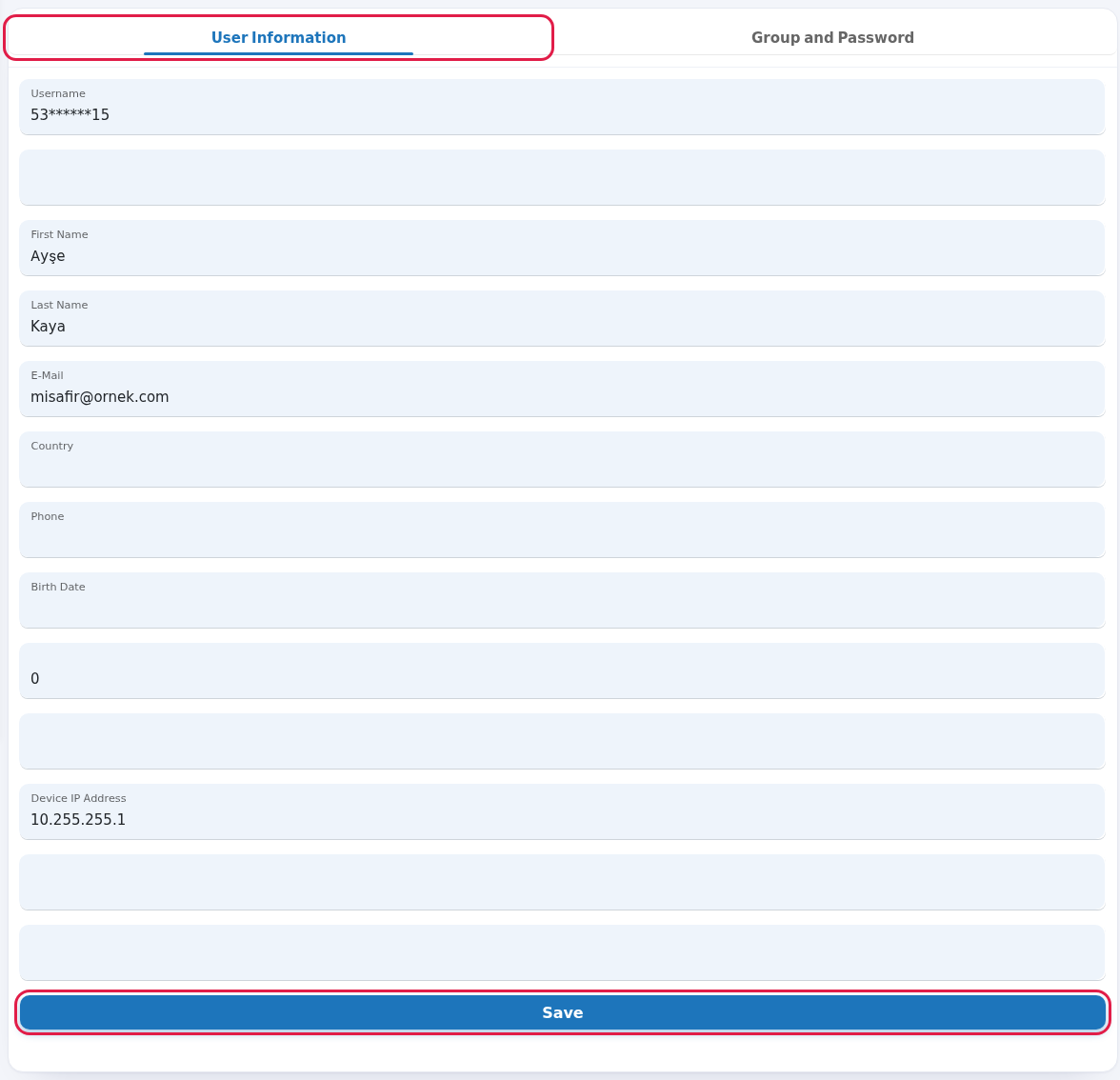
- When you press Edit, the User Information tab opens. Change the guest's details and press Save.
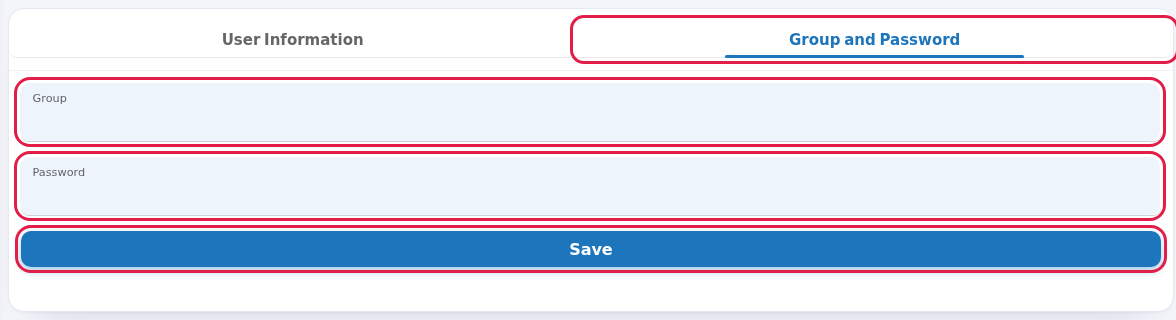
- To change the guest's group or password, go to the Group and Password tab, pick the new group in Group, type a new Password if needed and press Save.
Every field and button on the screen
| Field / Button | What it does |
|---|---|
| Top of the page | The heading User Lists with You are here under it; Dashboard in the path line returns to the home screen. While the table loads it shows Processing..., with no records No Record; All in the number box shows every row. |
| Search... | Searches the list. |
| Number box at the top left | Rows per page: 10, 25, 50, 100, All. |
| Username | The guest's login name, i.e. the phone number (masked). |
| First Name, Last Name, Phone | Details given at sign-up (masked). |
| If the guest gave an e-mail at sign-up. | |
| Registration Date | Day of the first sign-up (day-month-year). |
| Status | Active (can sign in), Passive (blocked) or Waiting for Approval. |
| Location | The device where the sign-up happened. |
| Registration Type | Phone icon means SMS, WhatsApp icon means WhatsApp. |
| Confirm | Approves a guest waiting for approval; a login code is sent to the guest. See Pending Approval. |
| Disable User / Enable User | Blocks / allows the guest's sign-in. A blocked guest appears on Blocked Users. |
| Delete User | Deletes the guest's record and login without asking. If the guest wants to connect again, they sign up again. Deleting affects only the record on the device selected in the top menu; if the same phone is registered on another of your devices, that record stays. |
| Edit User | Opens the edit screen. |
| User Information tab | The guest's sign-up details. The username box is locked (shown masked) and cannot be changed. Boxes without a label are internal system fields (for example the device IP address); anything typed there is not saved. If you leave a date box empty, or the date cannot be read, the stored date stays as it is. |
| Group and Password tab | Group (time and speed rules) and a new Password. |
| Save | Saves the changes; "Successful - Successfully updated" appears at the top. If saving fails, a red Error - Could not save. Check the details and try again. appears; the change was not saved. |
| Toplam: … / … - … | Total guests and the range shown (label still Turkish: "Toplam" = Total). No Record if empty, Processing... while loading. |
Frequently asked questions
The guest is on the list but cannot sign in.
Check the Status column. If it is Passive the guest is blocked; press Enable User. If it is Waiting for Approval, approve them.
Will a deleted guest come back?
If the guest connects and verifies by SMS/WhatsApp again, they are added as a new record. If you do not want them back, block instead of deleting.
Can I send a bulk message to the guests on this list?
Yes, only to guests who gave permission: use the Opted-in Guests and Bulk Send screens under Bumerang.
I pressed Save and a red "Could not save" appeared.
The change was not saved. Check that the device the guest is registered on is selected in the top menu, reload the page and try again. You cannot change the username or the device IP address on this screen; if a guest's username has changed, they need to sign up as a new record.