
Advertisements
What is it for?
Ads manages your own ads and announcements shown on the Wi-Fi login screen (captive portal), after login or on the hotel guest portal: "Ads shown on the captive sign-in page and after login". You use the screen guests already look at while connecting to promote your campaign.
When do you use it?
- When you want everyone who connects to Wi-Fi to see a discount, a new product or an event.
- When you want to show a different announcement at certain hours or days.
- When you want to see how often an ad was shown and clicked.
Before you start
- You need the Bumerang marketing module; without it the screen says "Bumerang marketing module is disabled".
- The right device must be selected in the panel; otherwise you see "No device selected. Please pick a device from the top menu."
Step by step: create an ad
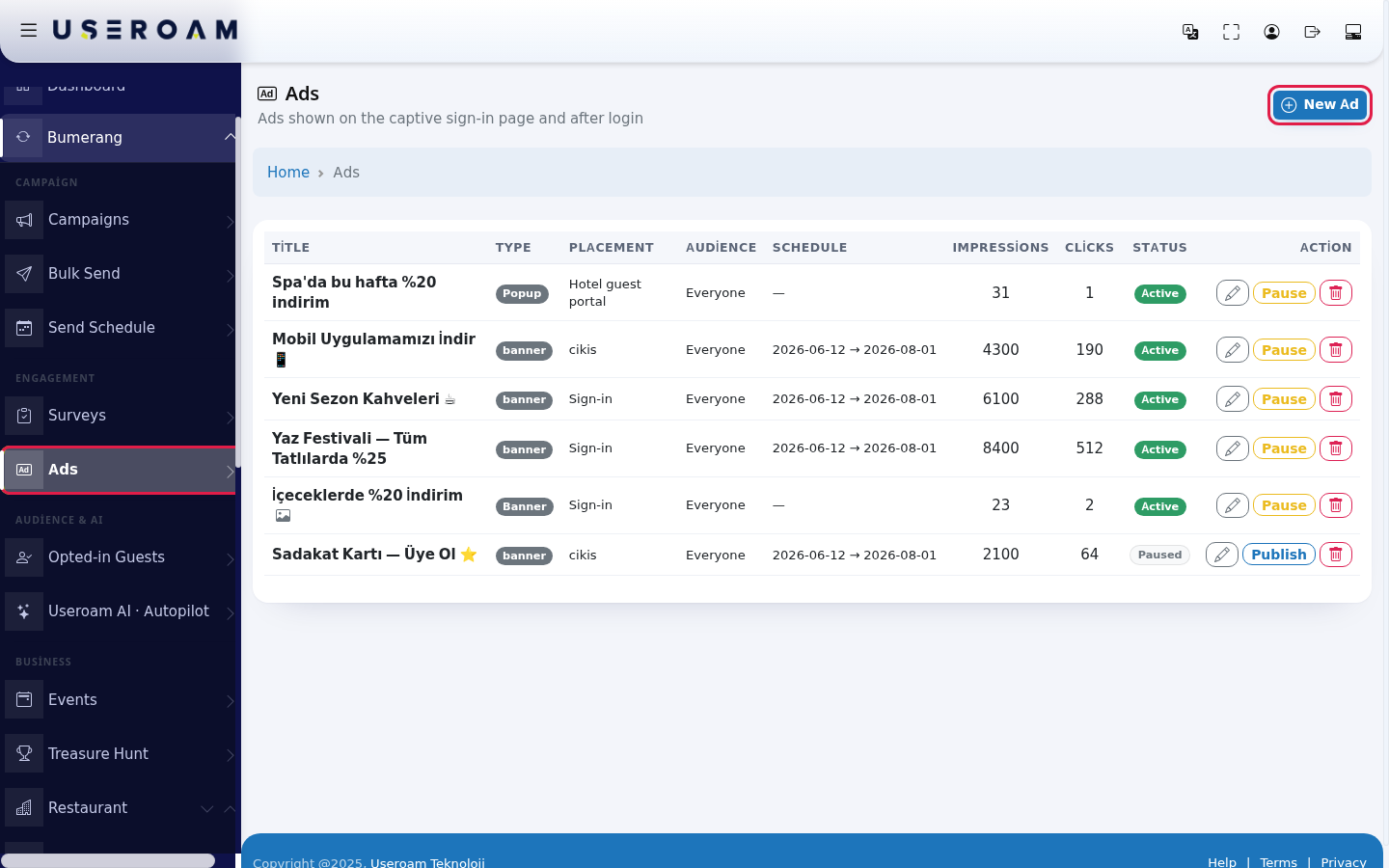
- In the left menu, under Bumerang, open the ENGAGEMENT heading, click Ads and press New Ad at the top right. With an empty list you see "No ads yet." and a Create your first ad link.
- In the Content card, fill in Title (optional) and Text (HTML allowed) (example:
20% off at the spa this week). If you add an image or video, the text is not required.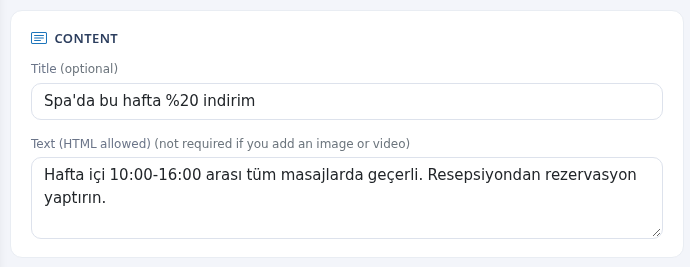
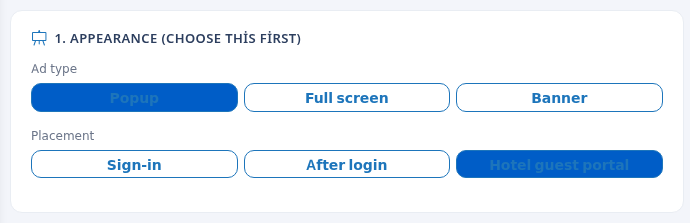
- In the 1. Appearance (choose this first) card, choose the Ad type (Popup, Full screen, Banner) and the Placement (Sign-in, After login, Hotel guest portal). The selected button turns solid blue.
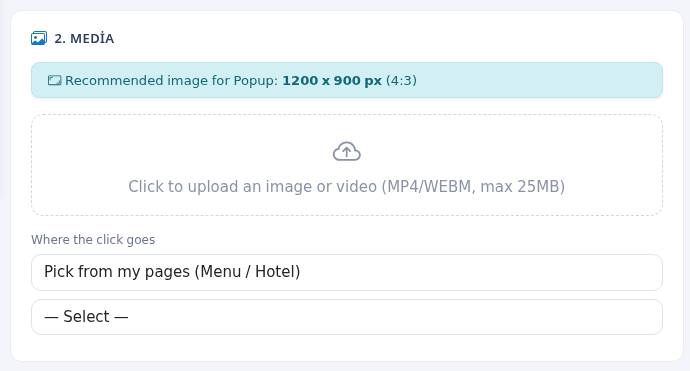
- In the 2. Media card, upload an image or video (MP4/WEBM, max 25MB). The blue strip shows the recommended size for the chosen type: Popup 1200 x 900 px (4:3), Full screen 1080 x 1920 px (9:16, portrait), Banner 1500 x 300 px (5:1, wide). When you upload an image, pick the area in the Crop image window and press Crop and use. For Where the click goes, choose Pick from my pages (Menu / Hotel) or Custom address (URL).
- In the Targeting card, choose the Audience (Everyone, New, Returning) and Show to the same guest at most (once every N hours) (
0= show on every connection).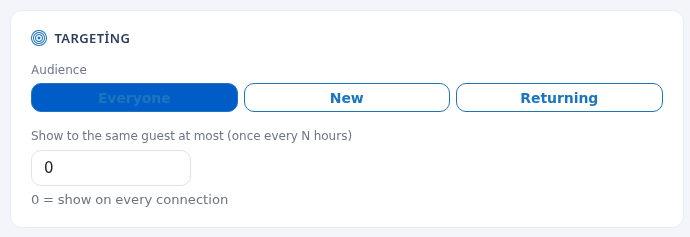
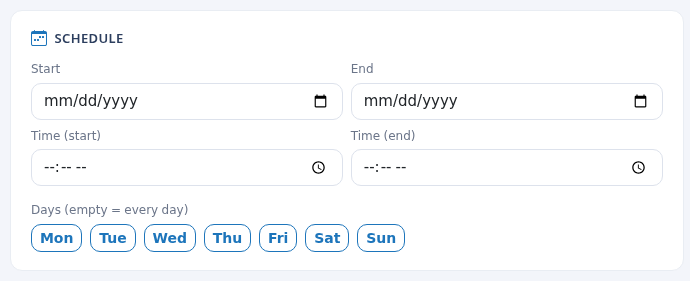
- In the Schedule card you can choose a Start and End date, Time (start), Time (end) and Days (empty = every day). If you leave them empty, the ad is always shown.
- In the Publishing card, enter Auto-close (sec) (
0= manual, the guest closes it) and Weight (rotation) ("how often it shows when there are several ads"), switch on Active (live) and press Save. "Ad saved." appears. Cancel leaves without saving.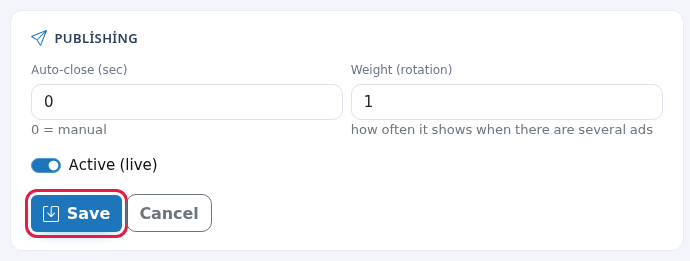
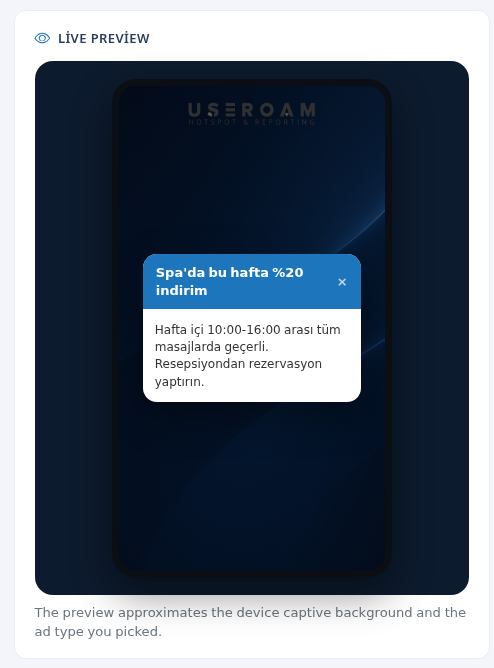
- Check the Live Preview on the right to see how the ad looks on a phone: "The preview approximates the device captive background and the ad type you picked." With an empty title it shows "Ad title", with empty text "Content preview".
Step by step: pause, edit or delete an ad
- On the ad's row in the list, edit it with the pencil (Edit Ad), take it off air with Pause, put it back with Publish, or delete it with the bin (confirm the question; it is shown in Turkish, "Reklam silinsin mi?").
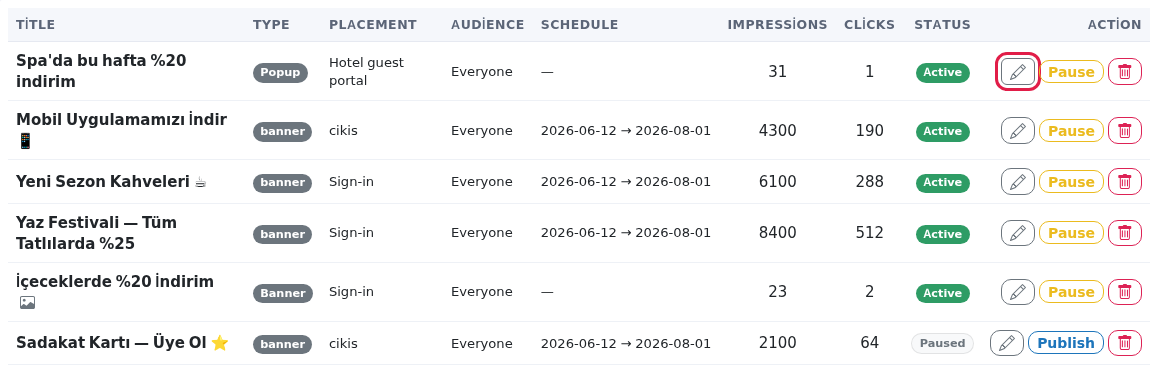
List columns
| Column | Meaning |
|---|---|
| Title | The ad's title. |
| Type | Popup, Full screen, Banner. Older ads may show "banner". |
| Placement | Sign-in, After login, Hotel guest portal. Older ads may show a raw value (for example "cikis"). |
| Audience | Everyone, New, Returning. |
| Schedule | Start and end date; empty means no end. |
| Impressions / Clicks | How often it was shown and clicked. |
| Status / Action | Active or Paused; edit, Pause / Publish, delete. |
Warnings when saving
| Warning | What to do |
|---|---|
| "If you do not add an image or video, enter at least a title or some text." | Add a title, text or media. |
| "Video must be MP4/WEBM and at most 25MB." / "Video could not be uploaded." | Save the video as MP4 or WEBM under 25MB and upload it again. |
| Form hints | Next to the text field "(not required if you add an image or video)"; in the upload box "Click to upload an image or video (MP4/WEBM, max 25MB)"; the size strip, for example "Recommended image for Popup: 1200 x 900 px (4:3)", "Recommended image for Full screen: 1080 x 1920 px (9:16, portrait)", "Recommended image for Banner: 1500 x 300 px (5:1, wide)". The page list is split into Menus and Hotel in-house groups. The path at the top: Home, Ads, Edit. |
| "Record not found." | The ad may have been deleted; go back to the list. |
| "This device has no menu or hotel page; you can enter a custom address." | Choose Custom address (URL) and type your web address. |
| When editing: "There is an existing image (upload a new one to replace it)" | Leave it if you do not want to change the image. |
Frequently asked questions
My ad is not shown.
Check that Active (live) is on, the schedule covers today and the audience is right. If Show to the same guest at most is high, the same guest will not see the ad for a while.
Which image size should I use?
The blue strip in the Media card shows the recommended size for the chosen type.
After login or Sign-in?
Sign-in is shown on the login screen before the guest gets online. After login is shown once they are connected.