
Summary
What is it for?
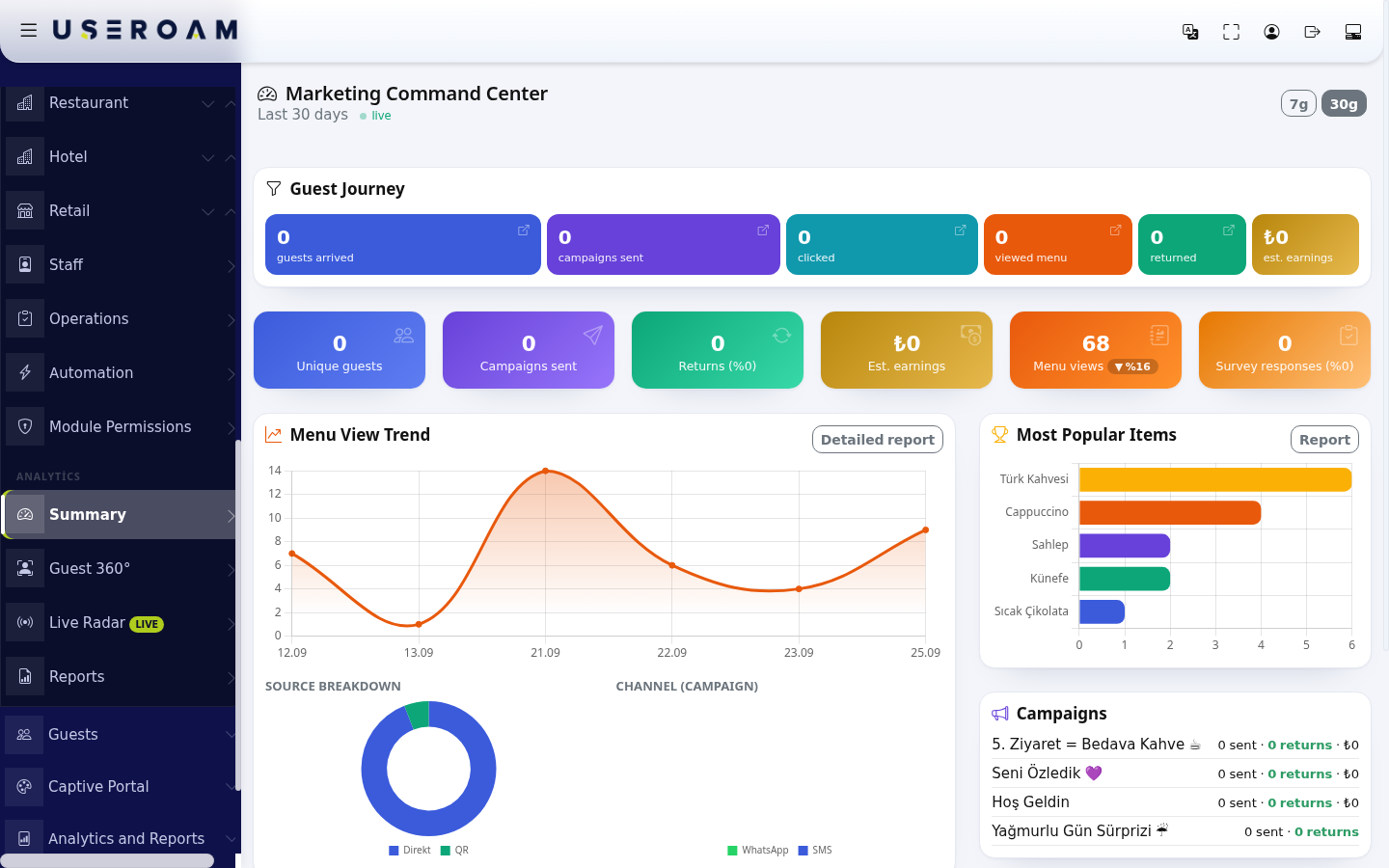
The Summary screen (titled Marketing Command Center) is Bumerang's one-page summary: how many guests came, how many campaign messages went out, how many were clicked, how many guests came back and what that is roughly worth. It is the screen to open in the weekly meeting. Each box opens the related detailed report.
When do you use it?
- When you want a quick look at how marketing is going overall.
- When you want to see which campaign works best and which product draws most interest.
- When you want to quickly read what guests wrote in surveys.
Step by step
- In the left menu, under the ANALYTICS heading, click Summary. Under the title you see the selected period ("Last 30 days") and a green live mark.
- Use the 7g or 30g button at the top right to choose the last 7 or 30 days (the buttons keep the Turkish "g" for day).

- Read the Guest Journey strip from left to right: guests arrived, campaigns sent, clicked, viewed menu, returned, est. earnings. Click a step (Open report) to open the related report. The six cards below it (Unique guests, Campaigns sent, Returns, Est. earnings, Menu views, Survey responses) are clickable too; the percentage next to them is the conversion %.

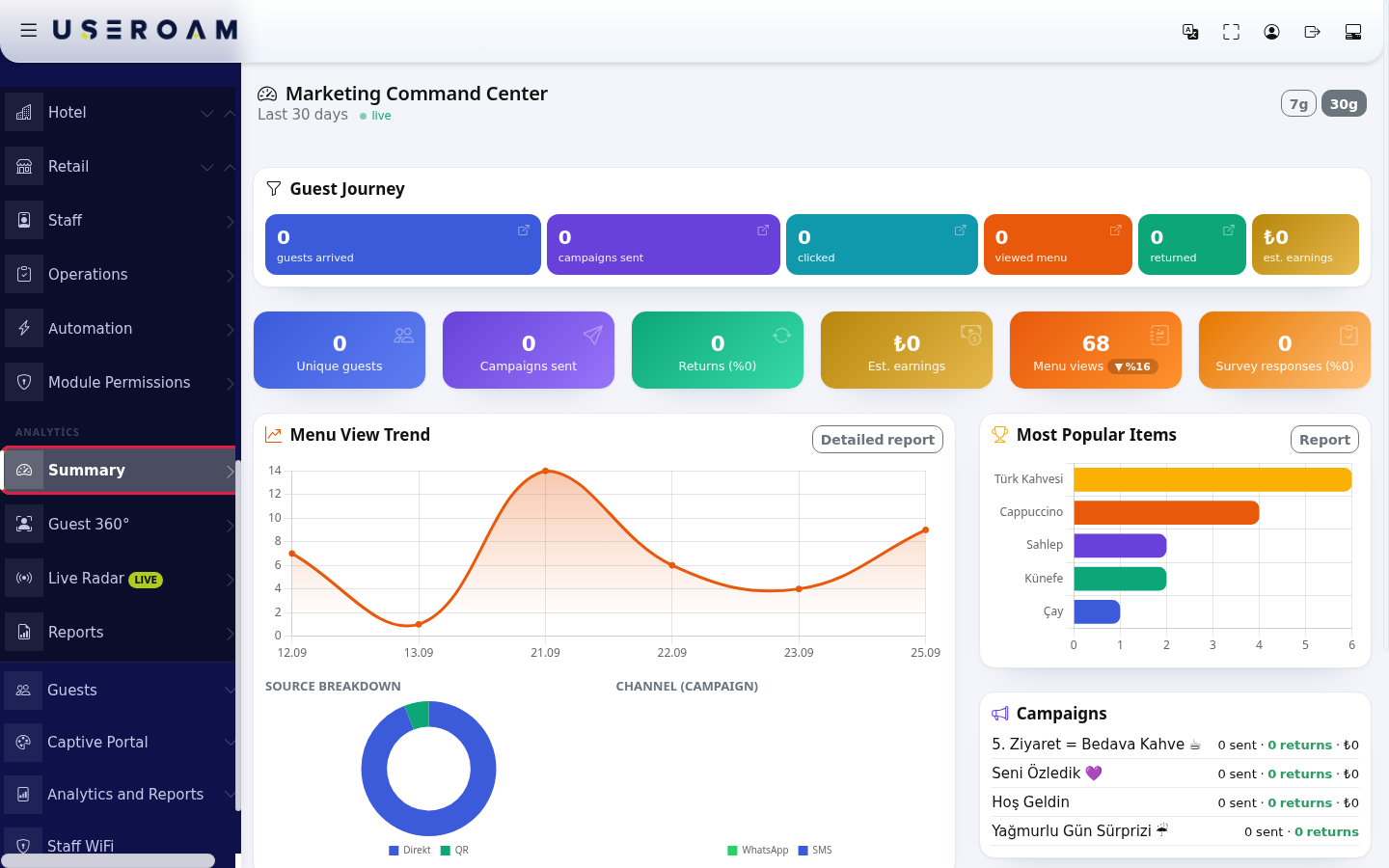
- The Menu View Trend chart shows daily menu opens. Below are the SOURCE BREAKDOWN (Direct, QR, Wi-Fi, Campaign) and CHANNEL (CAMPAIGN) (WhatsApp, SMS) charts. Press Detailed report for more.
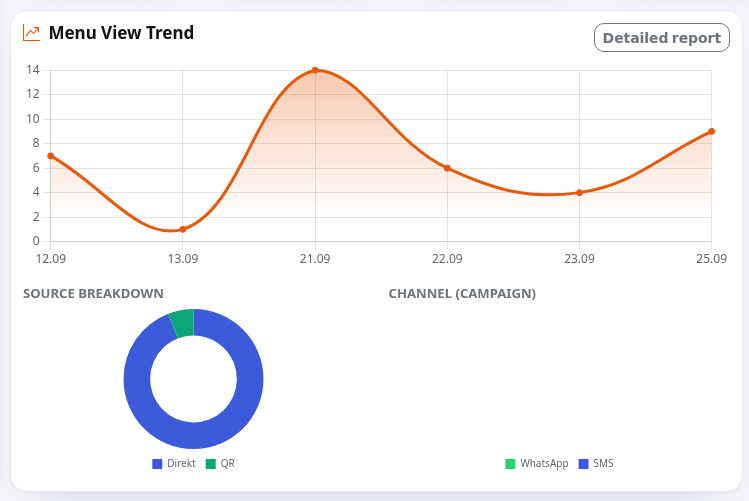
- The Most Popular Items list on the right shows the most opened menu items; under it you see how many were never opened ("… items never viewed"). The Report button opens the Product Performance report. The Campaigns list shows each campaign's sends (sent), returns and earnings; the best campaign has a BEST badge.
- The Guest Voice section at the bottom shows the avg. score, the number of responses and the latest written comments from surveys.

Empty states and hints
| Text | What to do |
|---|---|
| "No campaigns yet" with a create your first link | Press the link to set up your first campaign (see Creating your first campaign). |
| In Guest Voice: "No text comments yet" and "add an open-ended question to your rating survey" | Add an Open Text question to your survey. |
| Page tour | Guest Journey ("Arriving guests, sent campaigns, clicks and returns in one strip. Click a step to open the related report."), Period summary ("Six core metrics. Each card is clickable; the related report opens pre-filtered."), Period selection ("Switch between the 7- and 30-day view."), Your campaigns ("Your active campaigns' performance is here. Use the Report button for details."), Guest Voice ("Survey scores and recent comments are collected here."). |
Frequently asked questions
Everything shows 0.
There was no activity in the selected period (7 or 30 days). For a longer period, widen the date range in Bumerang Reports.
Guest Voice shows short comments like "Evet" (Yes).
The section shows the text answers from surveys; short answers are listed too.
How is the estimated earnings figure calculated?
Returning guests times the average check you entered in the campaign, minus the coupon cost.