
Opted-in Guests
What is it for?
Opted-in Guests is the list of guests who allowed marketing messages on your Wi-Fi login screen (captive portal). Bumerang campaigns can only go to these people, so this pool is the largest audience your campaigns can reach. On the screen the report itself is titled Consented Guests.
When do you use it?
- Before setting up a campaign, to see how many people you can reach.
- To follow whether the pool is growing (how many new consents came in the last 7 days).
- When you need the consented guest list as a file for your KVKK records or accounting.
Before you start
- The pool only grows if the consent box is shown on the Wi-Fi login screen. The box is switched on with the consent option on the SMS Portal Settings and WhatsApp Portal screens under Captive Portal. If you use Retail, the consent box in the store QR registration also adds guests to the pool.
- This screen is the same as the Consented Guests tab of the Reports screen; it also has its own shortcut in the left menu.
Step by step
- In the left menu, under Bumerang, open the AUDIENCE & AI heading and click Opted-in Guests.
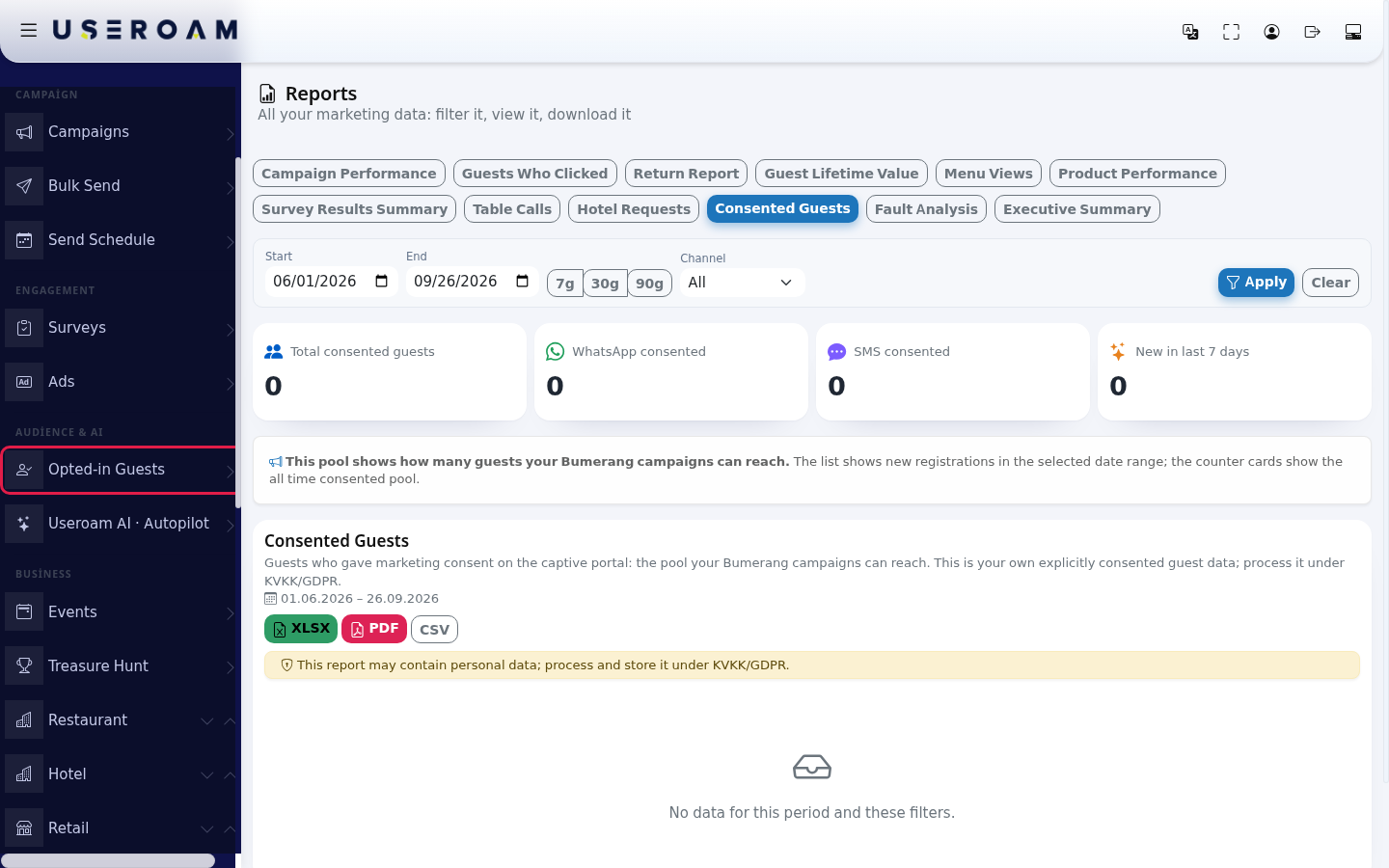
- Read the four counter cards at the top: Total consented guests, WhatsApp consented, SMS consented, New in last 7 days. The cards show the all time pool, whatever dates you choose. The list below only shows new guests who consented within the selected date range.
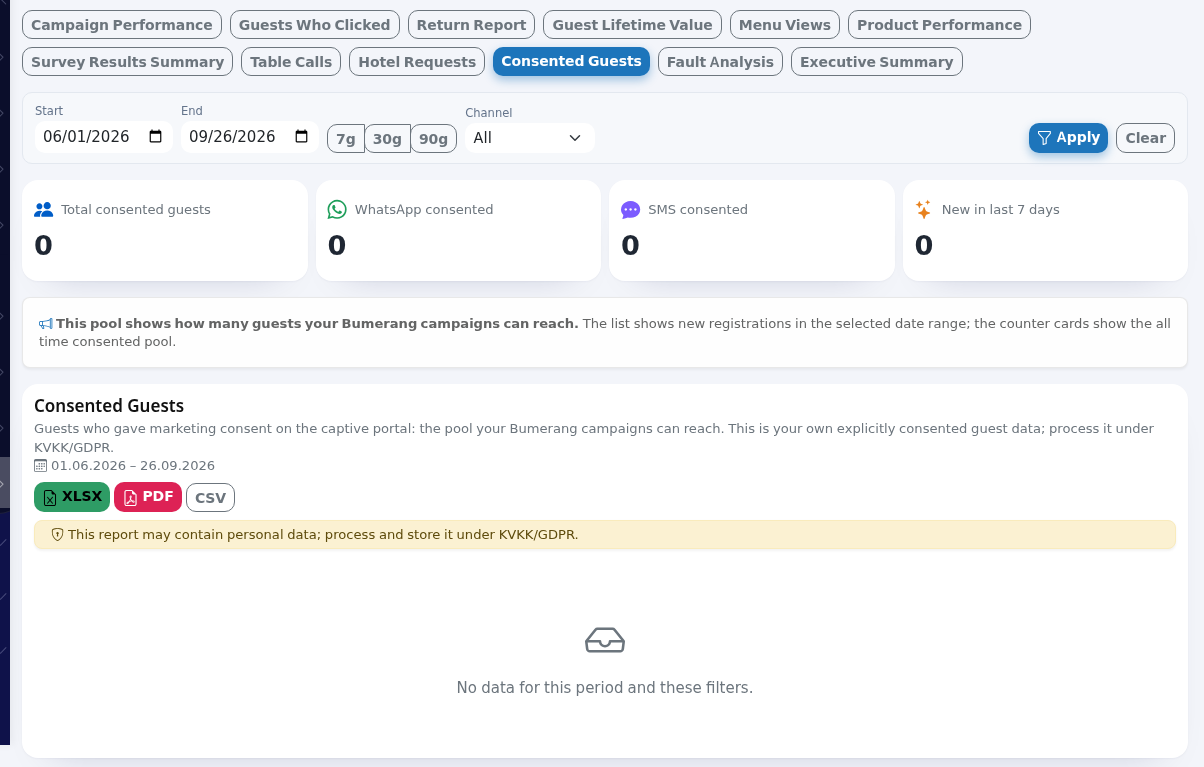
- To narrow the list, choose a date range (Start, End or 7g / 30g / 90g). In Channel choose All, WhatsApp or SMS and press Apply. Clear resets the filters.

- To get the list as a file, press XLSX, PDF or CSV. If you click a row, that guest's Guest Journey card opens (see Bumerang Reports).
Fields on the screen
| Field / column | Meaning |
|---|---|
| Total consented guests | All guests who gave consent (the same phone number is counted once). |
| WhatsApp consented / SMS consented | Guests who registered and consented through WhatsApp or through SMS. |
| New in last 7 days | Guests who joined the pool in the last 7 days: how fast the pool grows. |
| Info box | "This pool shows how many guests your Bumerang campaigns can reach. The list shows new registrations in the selected date range; the counter cards show the all time consented pool." |
| Phone | Masked number. If you have the View guest data (unmask) permission, the eye icon reveals it. |
| Registration Type | WhatsApp or SMS. |
| Full Name | The name the guest entered (masked). If no name was entered, the cell is empty (a dash). |
| Registration Date / Last Login / Login Count | First registration, last Wi-Fi login and total number of logins. |
| Overseas Consent | Shows Yes if the guest also allowed their personal data to be transferred abroad. |
| "No data for this period and these filters." | No new consents in the selected range. Widen the date range; the cards still show the whole pool. |
Frequently asked questions
The cards say 500 but the list has 20 people. Is it a bug?
No. The cards show all time, the list only shows guests who consented within the selected date range.
Everything shows 0.
The consent box may be switched off on your Wi-Fi login screen. Check the consent option on the SMS Portal Settings and WhatsApp Portal screens. The box is never pre-ticked; the guest ticks it.
Why are my staff not on the list?
Phone numbers on the Excluded Users list are removed from this pool.
Should I choose WhatsApp or SMS?
If you have more WhatsApp consents than SMS consents, keeping the WhatsApp channel on in your campaigns lets you reach more people.