
Staff Wi-Fi Administration
What is it for?
Staff WiFi lets your employees join the company network without typing a password. A personal certificate is installed once on each employee's device; after that the device joins the network on its own. When someone leaves, you close their access with one button; nobody has to be given a new password.
It is completely separate from the guest network. The guest portal ties a sign-in to a phone number; Staff WiFi ties the connection to a person.
When do you use it?
- Your staff network has one Wi-Fi password that everyone knows and you want to get rid of it.
- You want to stop a former employee from joining without changing the password for everyone.
- You want your records to answer "whose device is this?".
Before you start
- An administrator account. The Staff WiFi menu is shown only to users with administrator rights. Restricted users cannot open this screen.
- A separate wireless network (SSID) for staff. It cannot have the same name as the guest network. Setting that network up for certificate sign-in is done on the device (firewall) side, together with your reseller.
- Staff records. There are two ways:
- Organisations using Active Directory or LDAP: install Useroam Connector; employees are brought in automatically.
- Organisations without Active Directory: create each employee in Guests > New User with the user type Staff WiFi (certificate).
Step by step: first setup
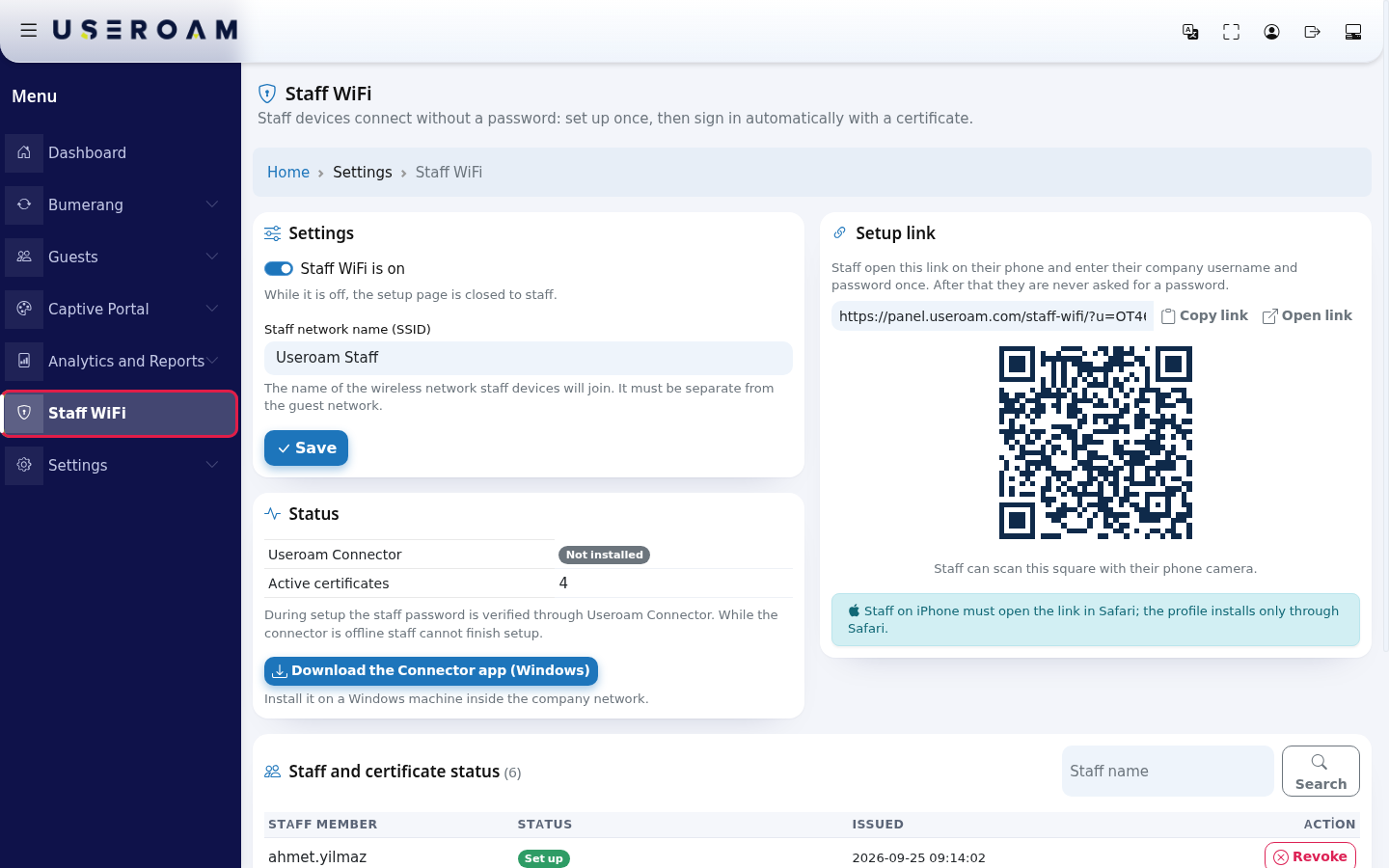
- In the left menu click Staff WiFi (between Captive Portal and Settings).
- On the Settings card turn on Staff WiFi is on, type your staff network name in Staff network name (SSID) (example:
Useroam Staff) and press Save. Details: Settings and Status.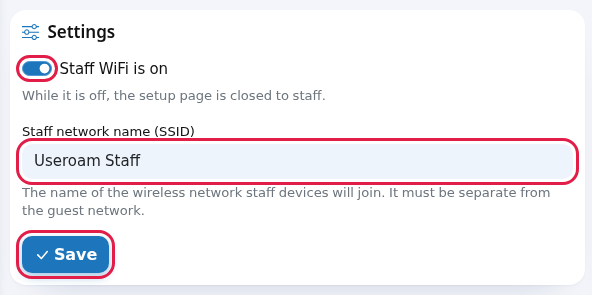
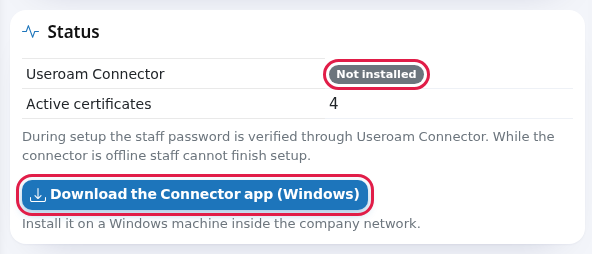
- Add your staff. If you use Active Directory, install the Connector with Download the Connector app (Windows) on the Status card. If not, create each employee in New User with the type Staff WiFi (certificate); the setup link is sent to the employee's phone automatically.
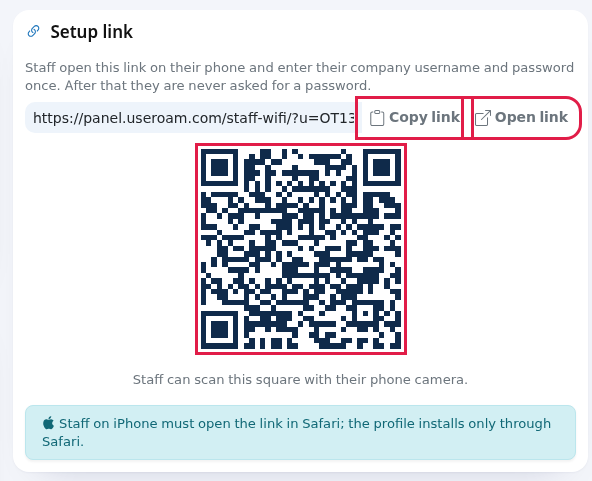
- Share the setup link with your staff: copy it from the Setup link card or let them scan the QR code. Details: Inviting Staff.
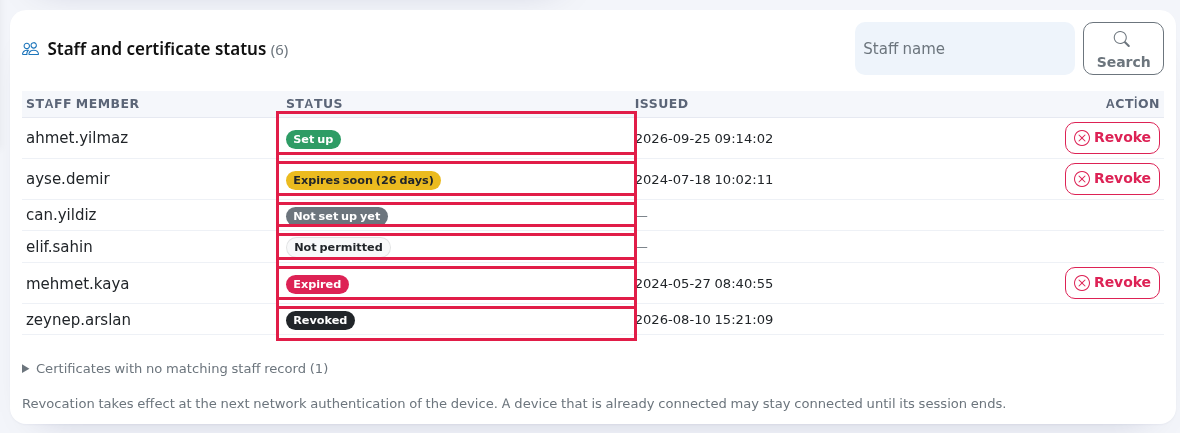
- As employees finish the setup, a Set up badge appears next to their name in Staff and certificate status. Details: Certificates and Staff.
The cards on the screen
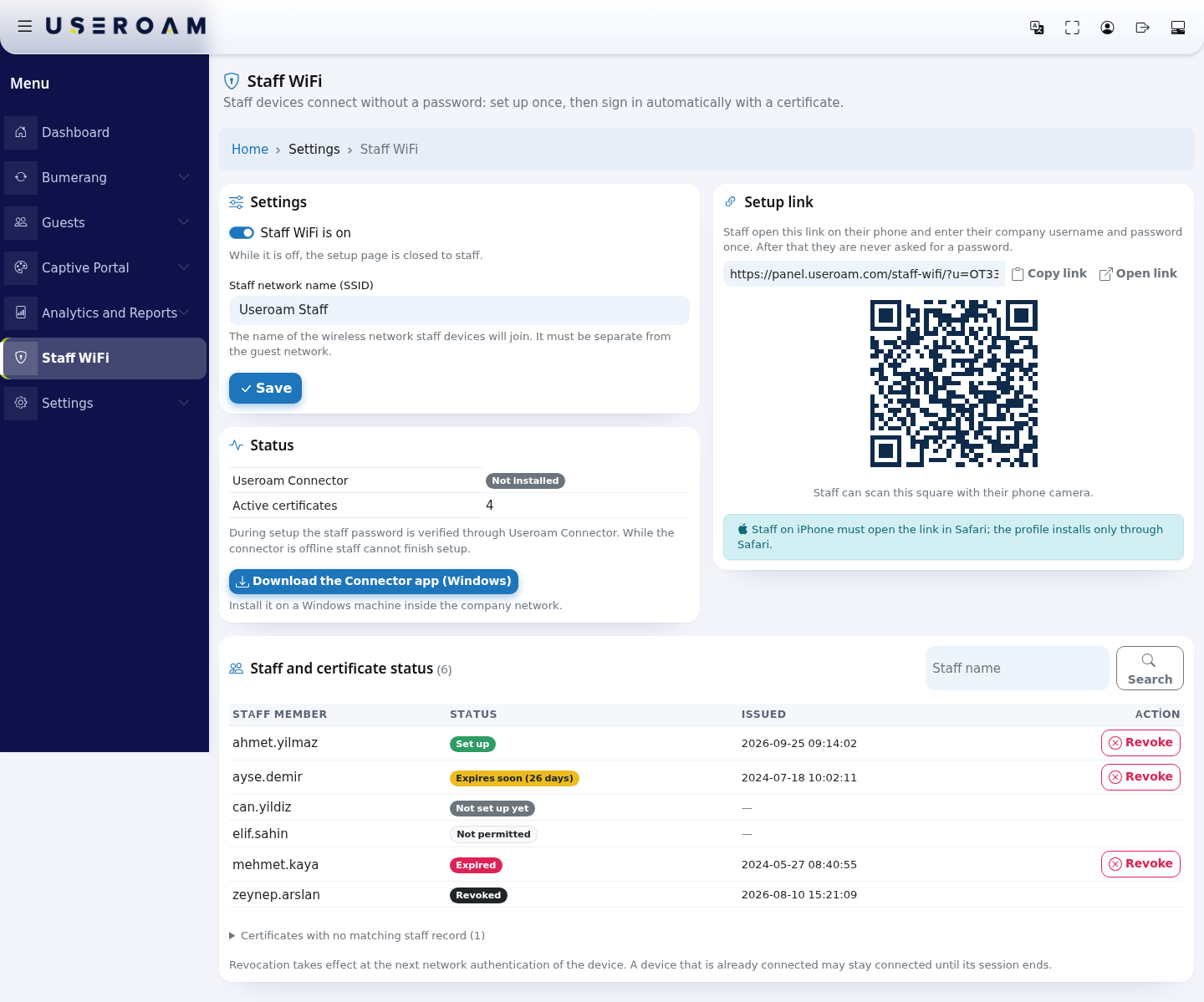
| Card | What it does | Explained in |
|---|---|---|
| Title Staff WiFi | Below it: "Staff devices connect without a password: set up once, then sign in automatically with a certificate." Breadcrumb: Home > Settings > Staff WiFi. | This page |
| Settings | Turns the feature on, holds the staff network name. | Settings and Status |
| Status | Connector status and the number of active certificates. | Settings and Status, Useroam Connector |
| Setup link | The address staff open, and its QR code. | Inviting Staff |
| Staff and certificate status | Each employee's setup status and certificate revocation. | Certificates and Staff |
Settings are per device: you see the settings of the device selected in the top menu. If no device is selected, a yellow "No device selected. Pick a device from the top menu." warning appears; pick a device.
"Staff" means three different things in the panel
| Screen | What it is for |
|---|---|
| Staff WiFi (this book) | Installing a certificate on an employee's device so it joins the company network without a password. |
| Excluded Users | Removing the phone numbers of employees who use the guest network from guest reports and bulk messages. 5651 records are kept in full for everyone; this list does not touch the legal log. |
| Useroam Go staff (Bumerang > Staff) | App accounts for requests, rooms and tasks. |
Wi-Fi accounts created by hand (hotspot or Staff WiFi type) appear in the Local Users list. For many hotspot accounts there are Bulk Users and Coupon Codes; they do not issue certificates.
Frequently asked questions
I cannot see Staff WiFi in the menu.
Your account is not an administrator, or you are a restricted user. Your account needs administrator rights.
Staff see "Open this page on the company network" when they open the link.
For security, the setup page opens only from the internet connection of a network connected to Useroam. The employee should join your company Wi-Fi and open the link again; it does not open over mobile data.
Is the network less secure without a password?
No. A password can be shared; a certificate belongs to one device, cannot be shared and is revoked individually.
Do certificates renew themselves?
No. A certificate is valid for 825 days. 60 days before it ends the list shows Expires soon; ask that employee to run the setup again.
Related pages
- Settings and Status
- Useroam Connector
- Inviting Staff
- Certificates and Staff
- Portal Texts
- Guides to send to employees: iPhone and iPad, Android, Windows