
Administrator Profiles
What is it for?
On the Operator Profiles screen you create permission groups (profiles). Each profile lists the panel screens, and for each screen you choose None, Read or Read/Write. You assign a profile to administrators on the Administrators screen.
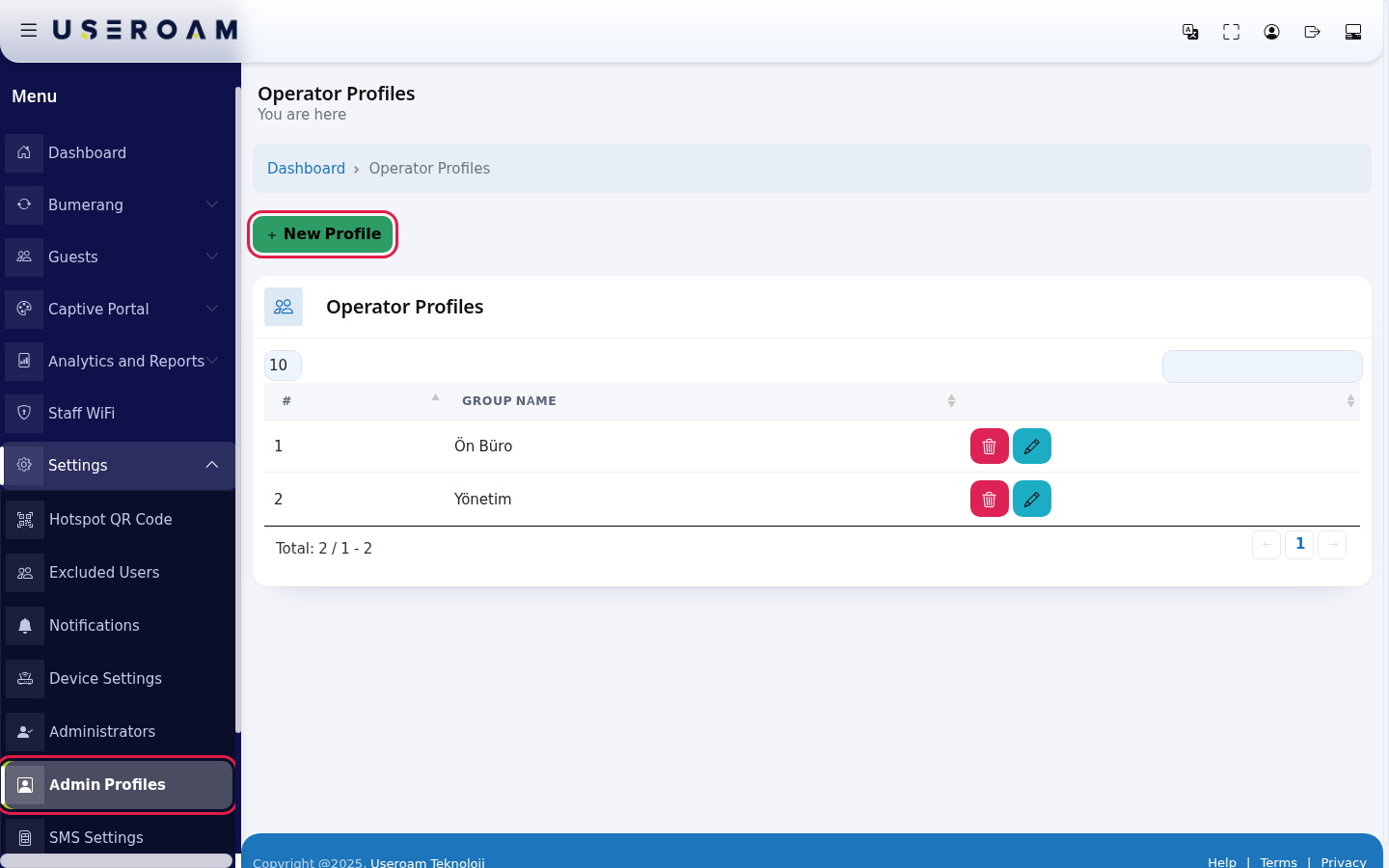
How do I open it? In the left menu, click Settings → Admin Profiles.
Under the screen title it says You are here. Click Dashboard in the path line at the top to return to the home screen.
When do I use it?
- You want different permission levels for staff with different jobs (e.g. Front Desk, Management).
- There is no suitable profile in the Permission Group list when adding an administrator.
- Your screen shows Permission Denied instead of the Edit and Delete buttons (see the FAQ below).
What does a profile affect?
A profile decides whether the person can perform certain actions. For example, the Edit and Delete buttons on this screen are shown only to people whose profile has the Operator Profile row set to Read/Write; others see Permission Denied. Actions such as approving pending guests also need the related row set to Read/Write.
To restrict which modules a person sees in the menu, use the Module Permissions screen.
Step by step: creating a profile
In the left menu, click Settings → Admin Profiles, then the green New Profile button.
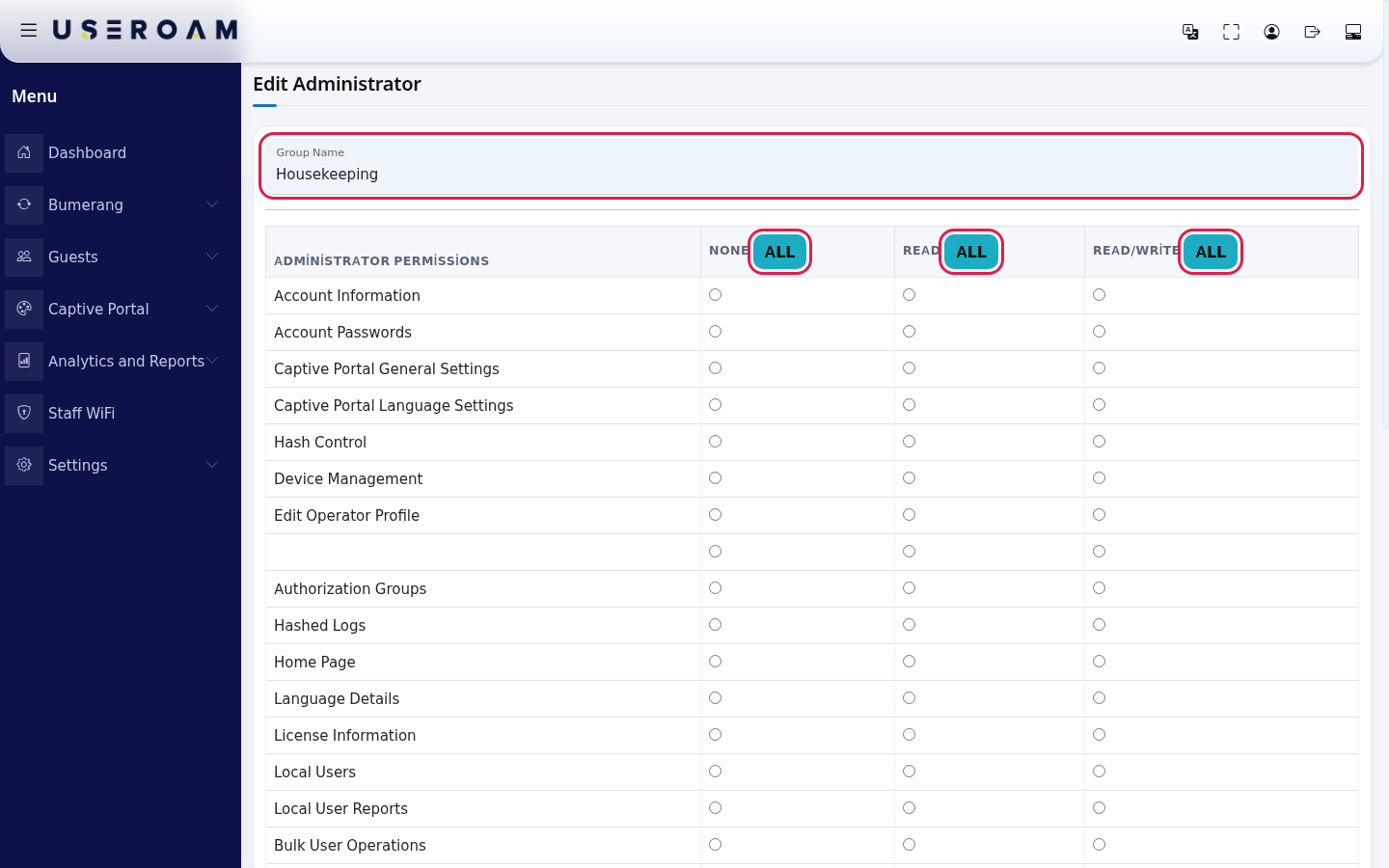
Type the profile name in Group Name (e.g. Housekeeping). The All buttons in the table header select that column for every row at once: None, Read or Read/Write.
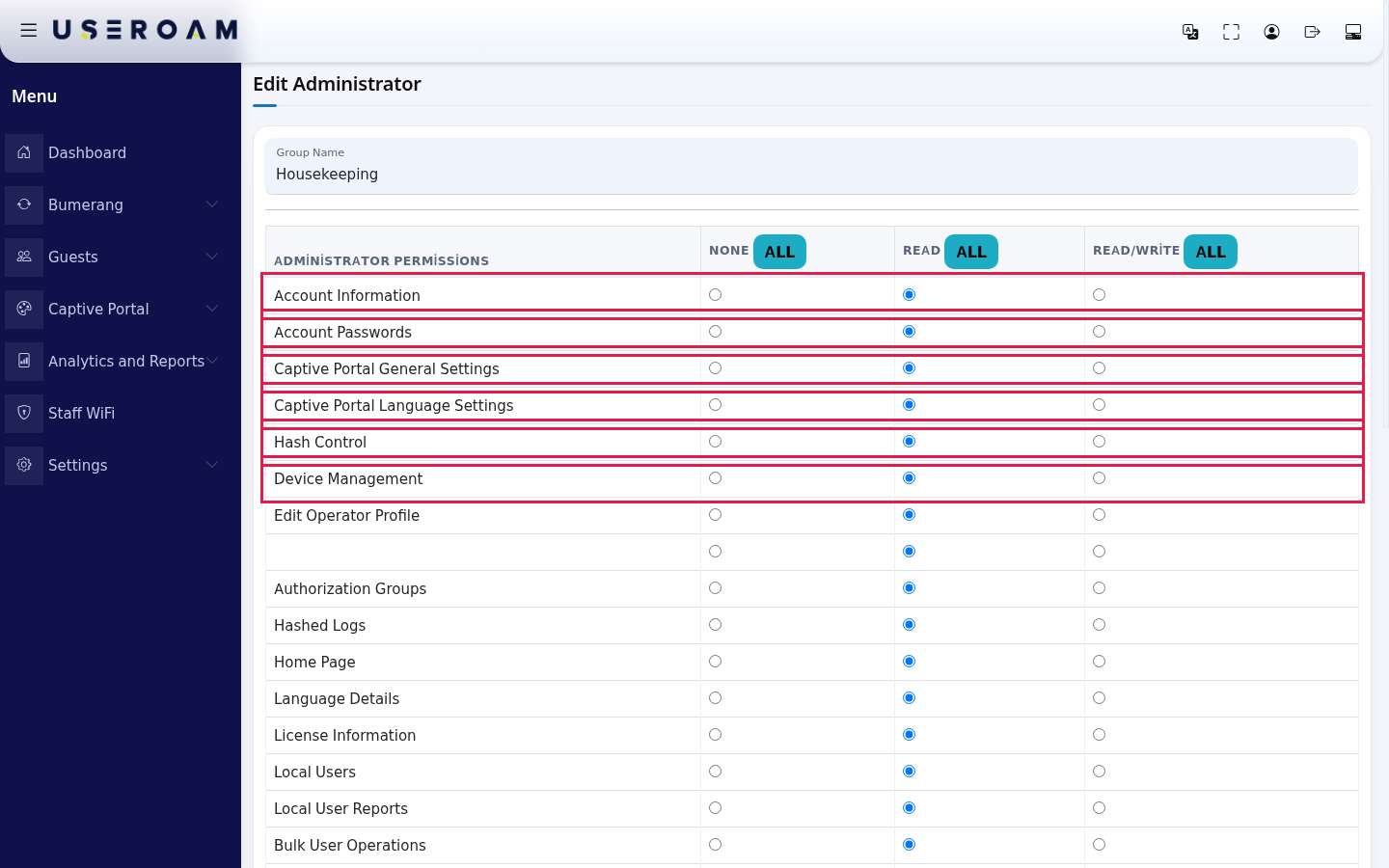
Make a choice for every screen in the Administrator Permissions column. The fastest way is to click All in one column first and then change single rows.
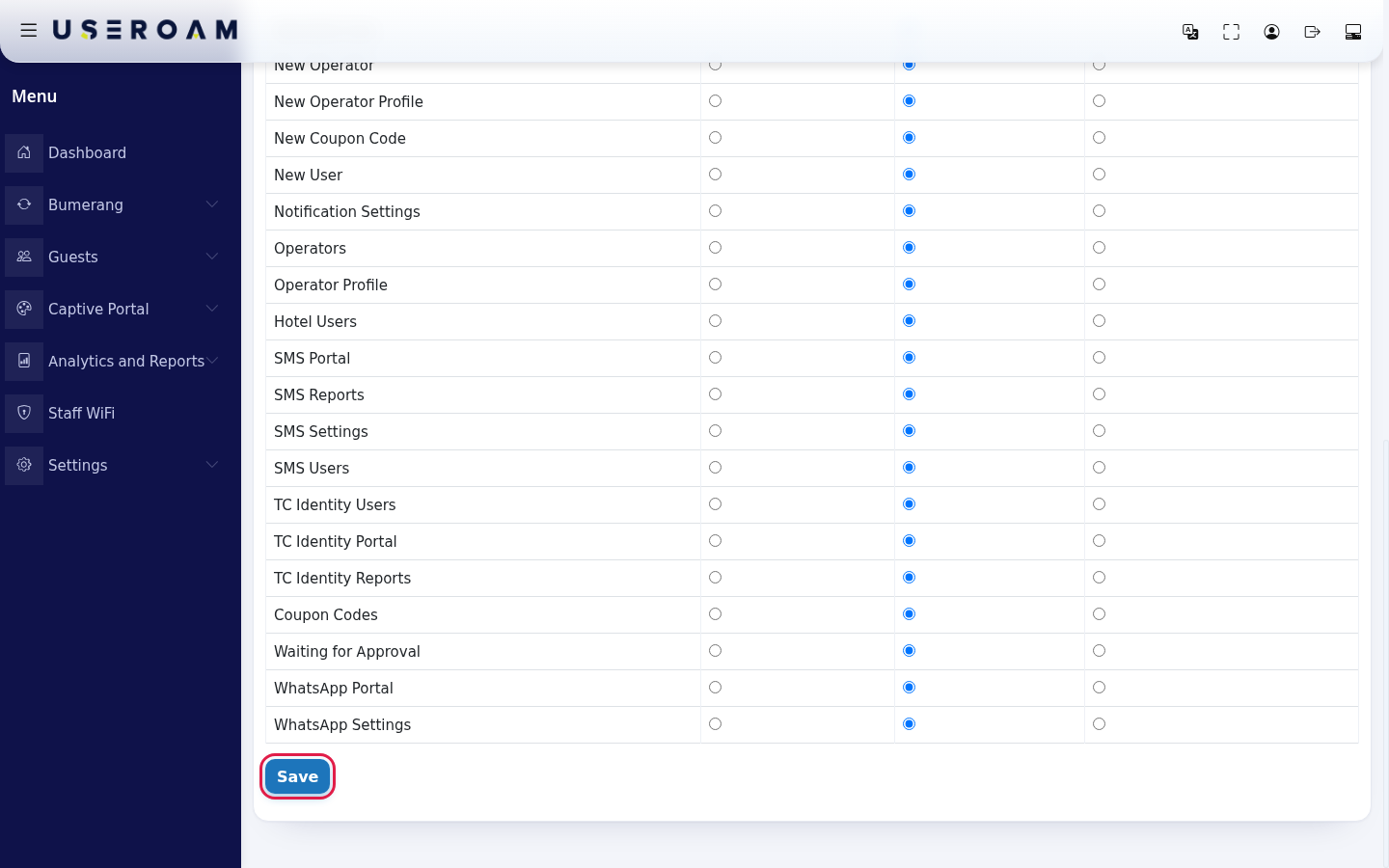
Click Save at the bottom. The profile appears in the list and can be chosen in Permission Group.
Step by step: editing or deleting a profile
Click the blue pencil (Edit) on the profile's row. The saved choices are selected; change them and click Save. To delete, click the red trash can (Delete). It deletes without asking. If an administrator is linked to the profile, it is not deleted; first give those people another profile.
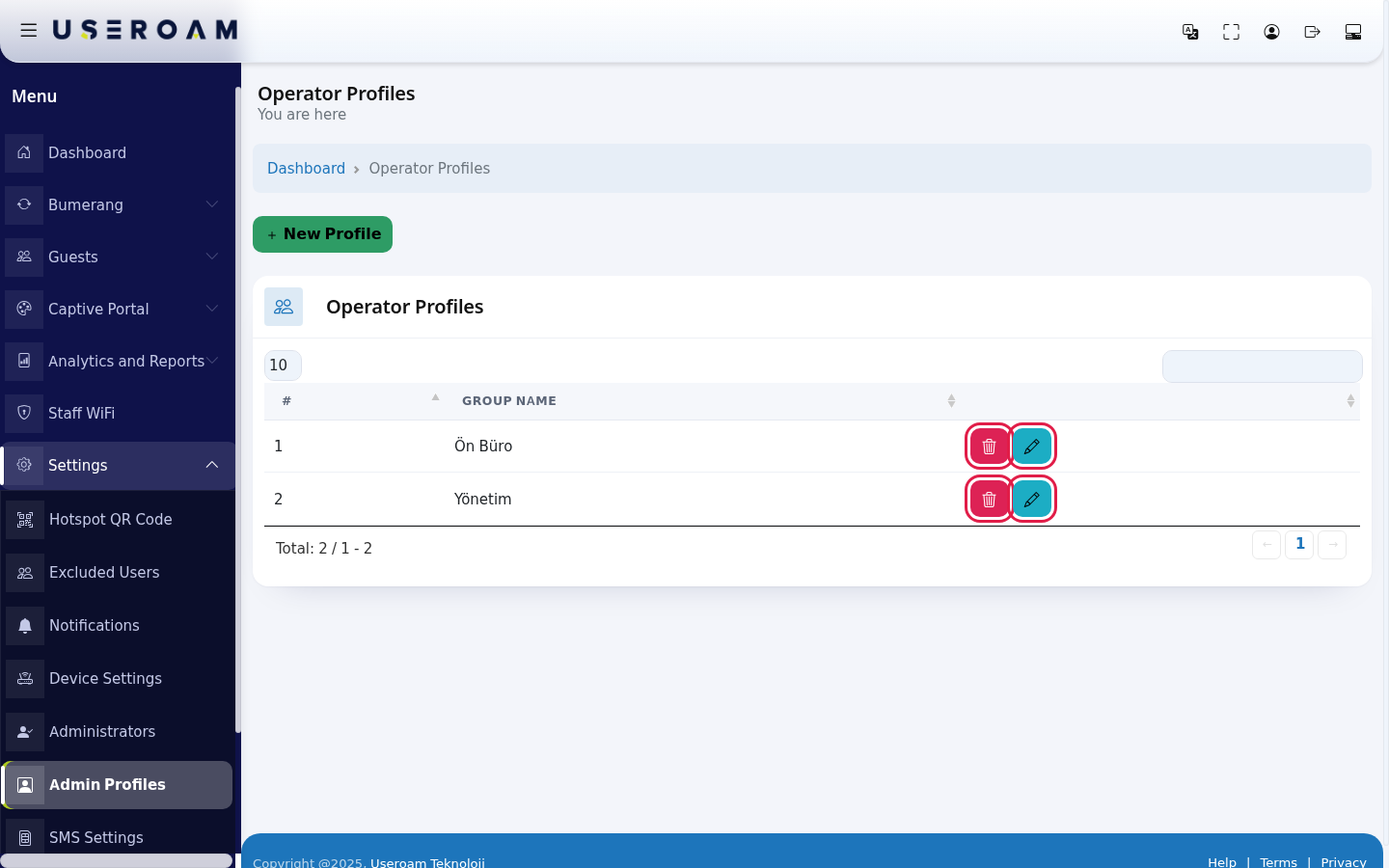
Every field and button on the screen
| Field / Button | What it does |
|---|---|
| New Profile | Opens the new profile form. The form title reads Edit Administrator. |
| # | Row number in the list. |
| Group Name | The profile name. Required. |
| Administrator Permissions | The list of panel screens (e.g. Account Information, Device Management, Authorization Groups, License Information). |
| None | No permission for this screen. |
| Read | Permission to view the screen. |
| Read/Write | Permission to view and change the screen. |
| All | Button in the column header; selects that column on every row. |
| Save | Saves the profile. |
| Pencil (Edit), trash can (Delete) | Edits or deletes the profile. Without permission, Permission Denied is shown instead. |
| Number box at the top left, search at the top right | Rows per page (10, 25, 50, 100, All) and search. A Total line is at the bottom; with no profiles it says No Record; Processing... may show while the table loads. |
Frequently asked questions
It says "Permission Denied" instead of Edit and Delete.
In your profile the Operator Profile row is not Read/Write. Ask an administrator whose profile has this row set to Read/Write to update your profile, or contact support.
I deleted the profile but it is still in the list.
At least one administrator is linked to it. Give those people another profile on Administrators and delete again.
One row in the table has no name.
The name of this row is missing in the panel. Your choice does not affect other rows; you can leave it as it is.
Does a profile narrow an employee's menu?
To restrict modules in the menu, use Module Permissions.