
Panel Layout: Side Menu, Top Bar and Language
Every panel screen has the same two bars: at the top the language, full screen, profile, sign-out and device selection icons; on the left the menu leading to every screen. This page explains where each menu is, which package shows it and how to change the panel language.
What is it for?
It helps you find the screen you need quickly and understand why a menu item may be missing.
When do I use it?
- When you start using the panel and want to learn the menu.
- When a colleague says "go to that menu" and you cannot find it.
- When you want to use the panel in English (or back in Turkish).
Top bar

| Icon (left to right) | Name (on hover) | What it does |
|---|---|---|
| Three lines (far left) | Hides or shows the side menu. On a phone this opens the menu. | |
| USEROAM logo | Returns to the Dashboard. | |
| Language icon (A and 文) | Language | Opens Türkçe / English. See the steps below. |
| Four corners | Full Screen | Makes the panel full screen (wide screens only). Press Esc to exit. |
| Person | My Profile | Your details, password, 2FA and API keys: My Profile. |
| Arrow leaving a door | Log Out | Closes the session and returns to the sign-in screen. |
| Computer (far right) | Device Selection | Opens Device Selection to switch branch/device. |
The blue strip at the bottom of each page has Help (this help site), Terms and Privacy links.
Step by step: changing the panel language
Step 1: Click the language icon
Click the language icon, the first of the icons on the right. The small menu shows a tick next to the current language.
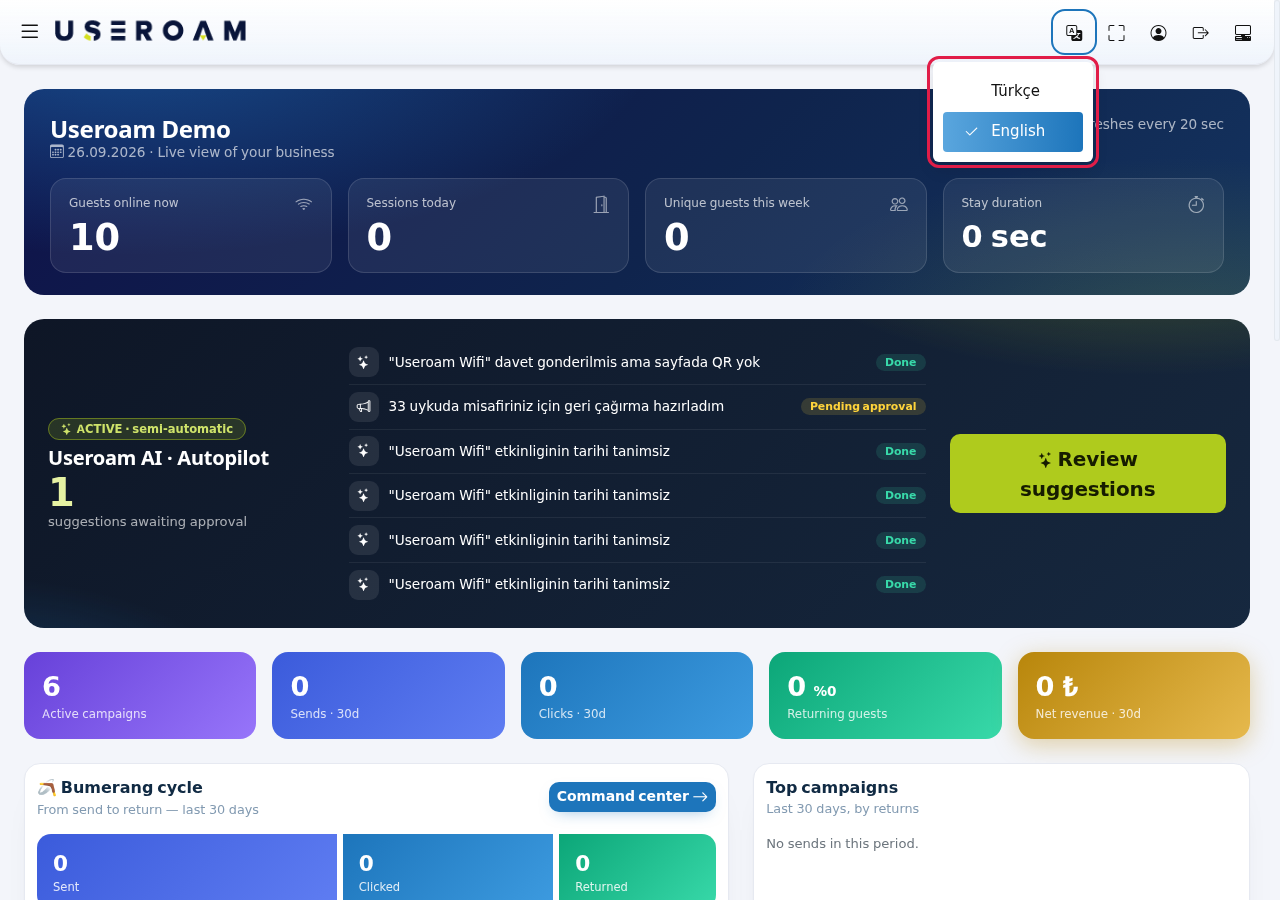
Step 2: Choose English or Türkçe
Click the language you want. The same page reloads in the new language. Your choice is saved to your profile and applies to later sign-ins too (even if you pick another language on the sign-in screen).
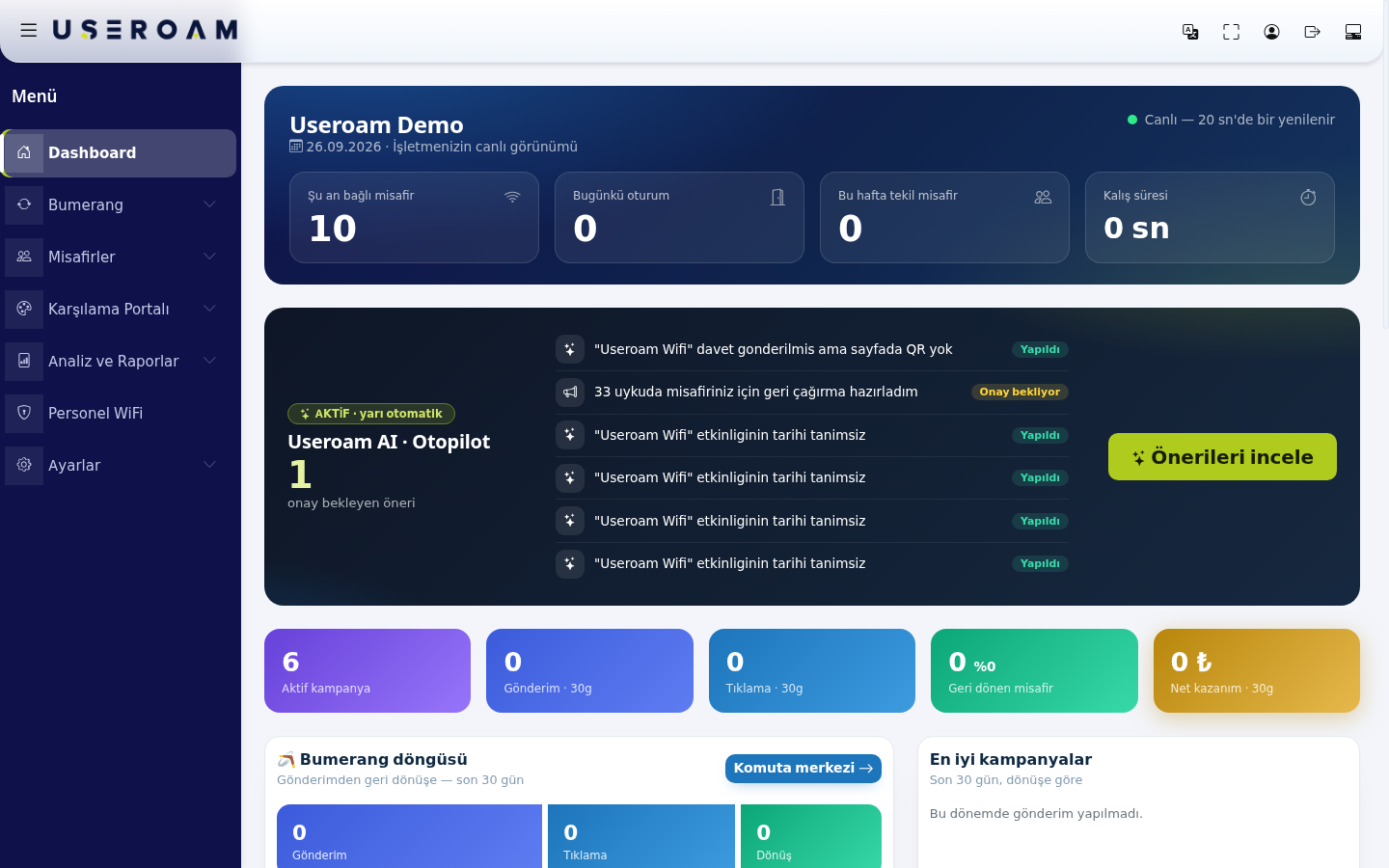
The same setting is the Panel Language box in My Profile. The Language box on the sign-in screen applies only if no language is saved in your profile.
Note: in the English panel some screens and fields (2FA screens, Forgot Password, agreement texts, some descriptions) are still Turkish. Names that come from your own data (menus, departments, request types) stay in the language you typed them.
Side menu map
Bumerang open (Campaign, Engagement, Audience & AI, Business, Analytics sections):

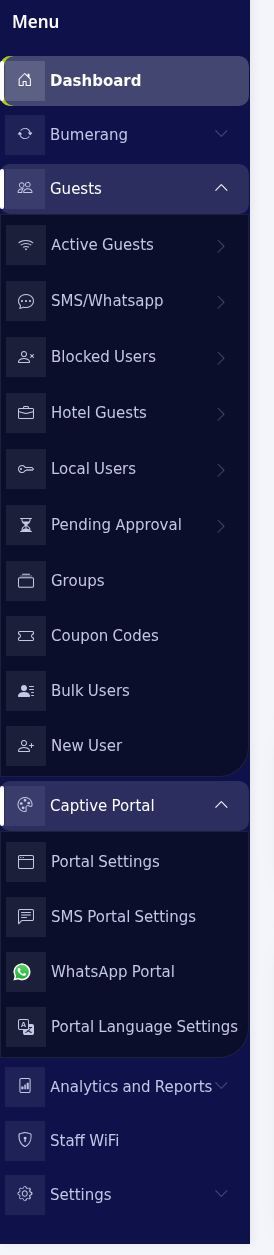
Guests and Captive Portal open:
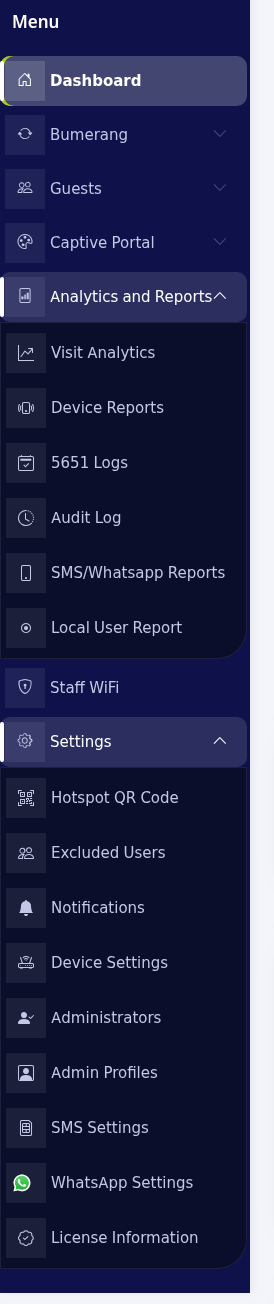
Analytics and Reports and Settings open:
| Menu | Section | What is inside | Help page | When it is shown |
|---|---|---|---|---|
| Dashboard | Live summary of your business: connected guests, visits, 5651 logs and licence status. | Dashboard | Hidden for module-restricted users. | |
| MikroTik Management | Console to manage your MikroTik device from the panel. | MikroTik Management | Only when the selected device is MikroTik. | |
| Bumerang | Campaign | Campaigns, Bulk Send, Send Schedule: automatic or bulk SMS/WhatsApp messages to guests. | Campaigns, Bulk Sending, Sending Calendar | With the marketing (Bumerang) package. |
| Bumerang | Engagement | Surveys and Ads shown at Wi-Fi sign-in. | Surveys, Advertisements | With the marketing package. |
| Bumerang | Audience & AI | Opted-in Guests (guests who gave marketing consent) and Useroam AI · Autopilot (AI suggestions). | Opted-in Guests, Autopilot | With the marketing package. |
| Bumerang | Business | Events, Treasure Hunt; depending on your business type Restaurant (Menus, Requests, Board, Request Types, Settings), Hotel (Guest Portal, Portal Design, Request Management, Request Monitor, Hotel report, Room Board, Speed Package Sales, Bookings & Extras, PMS Integration, SLA Rules, Notifications, Lost & Found, Studio), Retail (Store & QR Signup, Coupon & Wheel, Checkout / Verify Coupon, Request Monitor, Segments, Reports, Automation, Store Texts, Studio); also Staff, Operations, Automation, Module Permissions. | Events, Treasure Hunt, Restaurant Requests, Menus, Hotel Guest Portal, Hotel Request Management, Retail, Staff, Operations, Automation, Module Permissions | With the marketing package and only if the module is installed (modules switched on in Module Permissions). |
| Bumerang | Analytics | Summary, Guest 360°, Live Radar (with a LIVE badge), Reports. | Summary, Guest 360°, Live Radar, Bumerang Reports | With the marketing package. |
| Guests | Active Guests, SMS/Whatsapp, Blocked Users, Hotel Guests, Local Users, Pending Approval, Groups, Coupon Codes, Bulk Users, New User: guests using the Wi-Fi and their accounts. | Active Guests, SMS / WhatsApp Users, New User | Hidden with the 5651-log-only package and for module-restricted users. | |
| Captive Portal | Portal Settings, SMS Portal Settings, WhatsApp Portal, Portal Language Settings: the sign-in page guests see when joining the Wi-Fi. | Portal Settings, SMS Portal, WhatsApp Portal, Portal Language Settings | Hidden with the 5651-log-only package and for module-restricted users. | |
| Analytics and Reports | Visit Analytics, Device Reports, 5651 Logs, Audit Log, SMS/Whatsapp Reports, Local User Report. | Visit Analytics, 5651 Logs, Audit Log, SMS / WhatsApp Reports, Local User Report; Device Reports (help page in preparation) | 5651 Logs, Audit Log and Device Reports in every package; the others are hidden with the 5651-log-only package. Never shown to module-restricted users. | |
| Staff WiFi | A separate, password-free, certificate-based Wi-Fi for your employees. | Staff Wi-Fi Administration | Administrator (admin) users only; hidden for module-restricted users. | |
| Settings | Hotspot QR Code, Excluded Users, Notifications, Device Settings, Administrators, Admin Profiles, SMS Settings, WhatsApp Settings, License Information. | Hotspot QR Code, Notifications, Device Settings, Administrators, Administrator Profiles, SMS Settings, WhatsApp Settings, License Information; Excluded Users (help page in preparation) | Hidden for module-restricted users. Excluded Users only if that module is on. |
Why can't I see a menu item?
- Your package: without the marketing (Bumerang) package, Bumerang is a single line; clicking it opens a page introducing Bumerang and starting a free 10-day discovery demo. With the 5651-log-only package, Guests, Captive Portal, Visit Analytics, SMS/Whatsapp Reports and Local User Report are hidden. See your package in License Information.
- Module not installed: Restaurant, Hotel, Retail, Events, Treasure Hunt and other business modules appear only when installed and not switched off in Module Permissions.
- Restricted user: if the main administrator limited you to certain modules (Module Permissions), only those modules appear under Bumerang; Dashboard, Guests, Captive Portal, Analytics and Reports, Staff WiFi and Settings are hidden.
- Device type: MikroTik Management appears only when the selected device is MikroTik.
- Not an administrator: Staff WiFi and Module Permissions are shown only to administrator (admin) users.
Frequently asked questions
I changed the language but it went back next time. The top-bar language menu saves the choice to your profile. If it went back, check Panel Language in My Profile.
It says Restaurant instead of Hotel. The business menu name follows the installed module; if both are installed, both appear.