
Guest Portal
Guest Portal (screen title Hotel Guest Portal) is where you set up the basics of your hotel's guest page: hotel name, phone numbers, languages, cover and logo, late check-out and early check-in fee, the request types guests can pick, hotel information, events and room QR codes. Guests open the page from the QR code in the room; with one QR they ask for cleaning, send requests and see information and the menu.
Which screen does what?
The hotel guest page is managed from three screens. So you don't look for the same setting in two places:
| Screen | What you do there |
|---|---|
| Guest Portal (this page) | Content and rules: profile, fees, languages, request types, hotel information, events, room QR codes, whether the page is published. |
| Portal Design | The layout: which cards (blocks) appear and in what order, extra pages. The colour and font settings on its Design tab are shared with Studio. |
| Studio | Appearance on a live preview: style, accent colour, font, background, cover photo; editing request types and hotel information in place. |
The page guests see: The hotel portal your guests see.
When do you use it?
- When you first set up the hotel module (the wizard's first step creates this profile).
- When a phone number, fee or language changes.
- To add a request type or a piece of hotel information.
- To prepare QR labels to print for the rooms.
Before you start
- The hotel module must be on (Module Permissions, Venue Modules card).
- Without a profile, the screen shows a Create your hotel portal card: With the QR code in the room your guests can request housekeeping, send requests and see hotel information and your menu. Type the Hotel name, choose the business type (Hotel / Accommodation or Restaurant / Cafe) and press Create; it says Your hotel portal has been created; customise it below. Creation adds sample information (pool and breakfast hours) and sample request types (towel, pillow, blanket, water); you can change them all later. Easier route: the Venue Setup Wizard.
Step by step
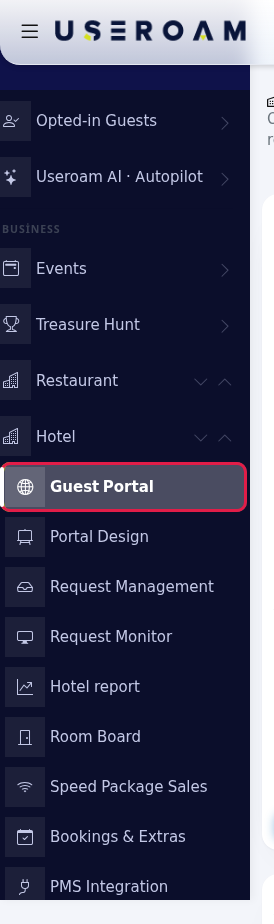
- Open the screen. In the left menu press Hotel → Guest Portal. Below the title it says One QR for your in-house guests: housekeeping, requests, information, menu.
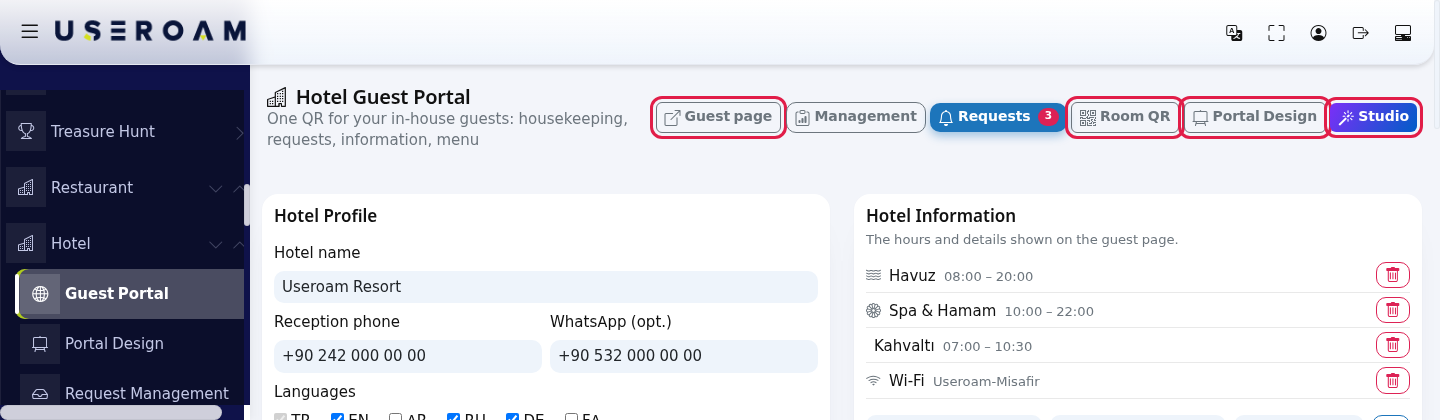
- Get to know the top buttons. Guest page opens the page guests see in a new tab. Management opens Request Management and Requests opens the Request Monitor (the red number is the pending count). Room QR opens the QR label window. Portal Design and Studio go to those screens.
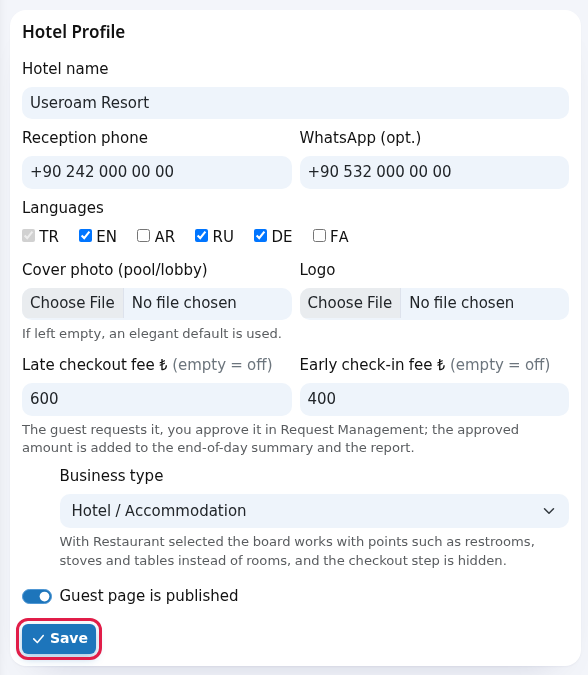
- Fill in the hotel profile. In the Hotel Profile card fill in Hotel name, Reception phone, WhatsApp (opt.), Languages, Cover photo (pool/lobby), Logo, Late checkout fee ₺ and Early check-in fee ₺. Keep Guest page is published on. Press Save; it says Saved.
- Edit the request types. Type a new need in the Request Types card (for example
Iron) and press Add; it says Request type added. The bin removes a type.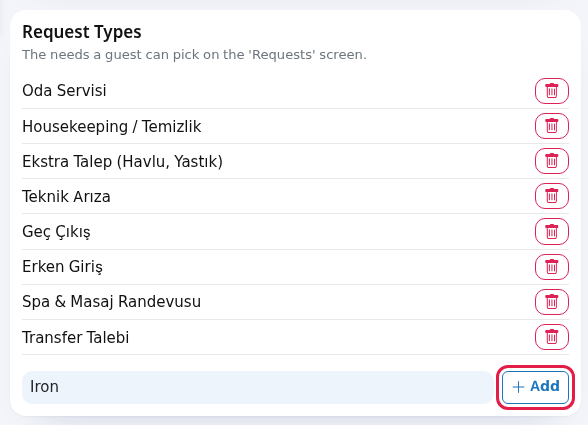
- Add hotel information. In the Hotel Information card pick an icon (Pool, Spa, Breakfast / Cafe, Wi-Fi, Hours, Parking, Laundry, Activity, General), type a Title (for example
Pool) and a Value (for example08:00-20:00) and press the plus; it says Information added.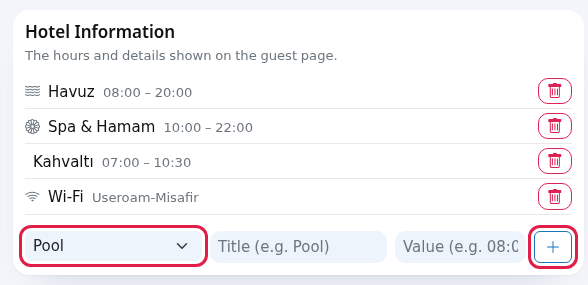
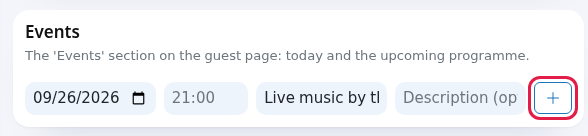
- Add an event (optional). In the Events card enter date, time, Title and Description (opt.) and press the plus; it says Event added. Today's and upcoming events appear in the Events section of the guest page.
- Print room QR labels. Press Room QR at the top. Type the first and last room in Room range: (for example
101and110), press Create, then Print. At most 200 labels are made in one go.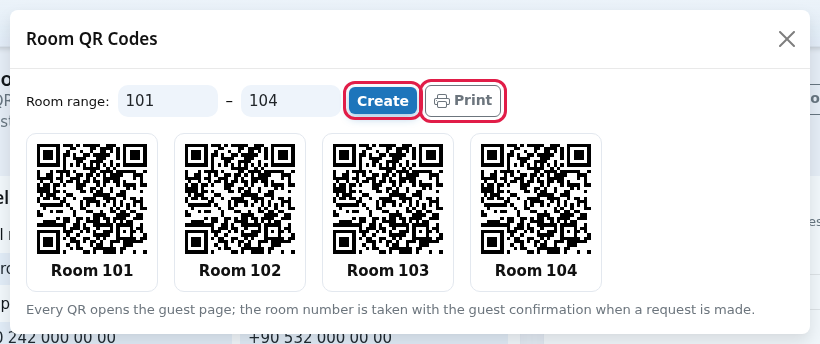
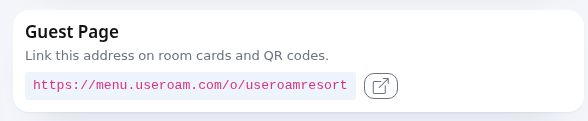
- Share the staff app and the page address. Staff scan the QR in the Staff App card on the right; Open the app opens it. You can put the address in the Guest Page card (for example
https://menu.useroam.com/o/...) on room key cards, the TV screen or WhatsApp messages.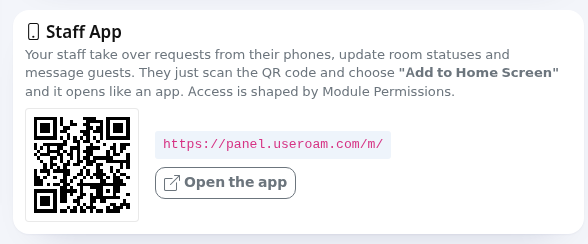
Every field and button on the screen
Hotel Profile
| Field | What it does | Example |
|---|---|---|
| Hotel name | Title of the guest page. Cannot be empty (Hotel name is required.). | Sea Hotel |
| Reception phone | The number called from the Reception card on the guest page. | +90 242 000 00 00 |
| WhatsApp (opt.) | If filled, guests can message reception on WhatsApp. | 905320000000 |
| Languages | Languages the page is offered in: TR (always on), EN, AR, RU, DE, FA. Guests pick the language at the top of the page. | TR, EN, RU, DE |
| Cover photo (pool/lobby), Logo | JPG, PNG or WEBP. If left empty, an elegant default is used. | - |
| Late checkout fee ₺, Early check-in fee ₺ (empty = off) | If filled, the Late Check-out / Early Check-in card appears on the guest page with its price. The guest requests it, you approve it in Request Management; the approved amount is added to the end-of-day summary and the report. | e.g. 750 / e.g. 500 |
| Business type | Hotel / Accommodation or Restaurant / Cafe. With Restaurant selected the board works with points such as restrooms, stoves and tables instead of rooms, and the checkout step is hidden. Do not change it for a hotel. | Hotel / Accommodation |
| Guest page is published | When off, the guest page does not open. | on |
| Save | Saves the profile. | - |
Other cards
| Card | What it does |
|---|---|
| Request Types | The needs a guest can pick on the 'Requests' screen. The box shows the example e.g. Iron; type and Add, the bin deletes. |
| Hotel Information | The hours and details shown on the guest page. Icon, Title (e.g. Pool), Value (e.g. 08:00-20:00) and plus. |
| Events | The 'Events' section on the guest page: today and the upcoming programme. |
| Staff App | Your staff take over requests from their phones, update room statuses and message guests. They just scan the QR code and choose "Add to Home Screen" and it opens like an app. Access is shaped by Module Permissions. Details: Useroam Go. |
| Guest Page | Link this address on room cards and QR codes. The button next to it opens the page. |
| Room QR Codes window | Room range:, Create, Print. Each label reads Room 101 underneath. Every QR opens the guest page; the room number is taken with the guest confirmation when a request is made. So all labels point to the same address; the guest enters the room number when making a request. |
The first time you open the screen a short tour shows these bubbles: Hotel profile (Name, contact, languages and cover photo: the identity of your guest page.), Request types (The list of needs a guest can pick. Adjust it for your hotel.), Hotel information (Pool, spa and breakfast hours: the guest sees them at a glance.), Room QR (Give a room range and get print-ready QR labels.) and Request monitor (Guest requests land here; keep it open on the reception screen.).
Frequently asked questions
The guest page does not open.
Check that Guest page is published and the hotel module in Module Permissions are on. The page also needs an active marketing (Bumerang) licence or trial on the account.
The late check-out card doesn't show for guests.
If Late checkout fee is empty the card is off. Enter an amount and save.
Should I print a separate QR for each room?
The labels point to the same address; the room number only appears on the label. Using a single QR in the lobby is also fine.
Where do I change the order of the cards?
In Portal Design.