
Bookings and Extras
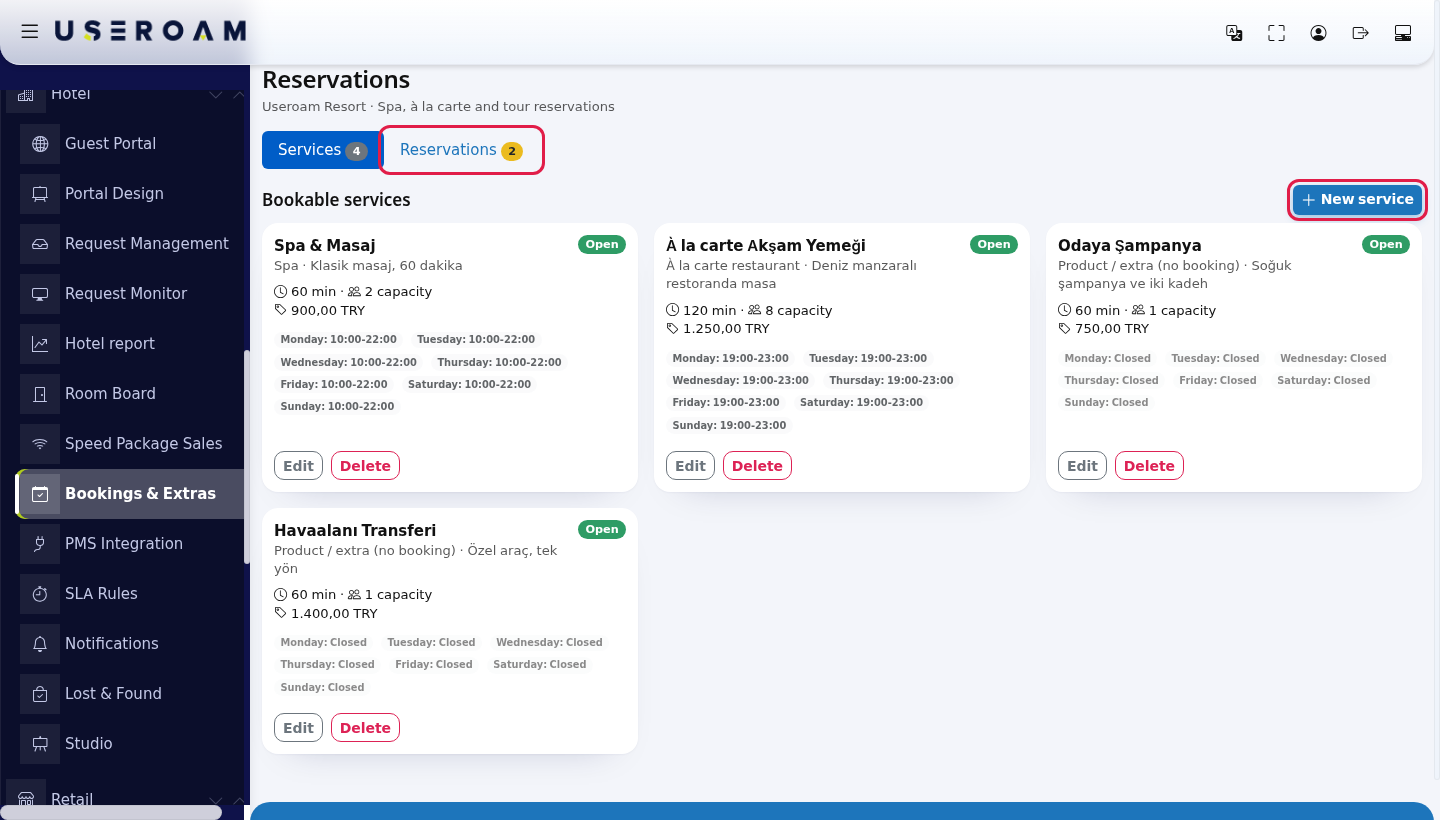
Bookings & Extras (screen title Reservations) is where you define the services guests book with a time slot from the hotel portal (spa, à la carte restaurant, tours) and the extras they buy without a time (champagne to the room, airport transfer), and where you manage incoming reservations.
What is it for?
- Guests see free slots and book without calling reception; bookings above capacity for the same slot are refused.
- The price is charged to the room; you track payment here.
- Every reservation also opens as a job for staff, visible in Useroam Go and Request Management.
When do you use it?
- When you put a timed service on sale, such as spa, massage, an à la carte dinner or a tour.
- When you offer a product that needs no time (champagne, fruit plate, transfer).
- To confirm, complete or cancel the day's reservations.
Before you start
- A hotel profile must exist (Guest Portal).
- For guests to see the services, the portal needs a Reservation block and, for products, an Extra Sale block (Portal Design).
- Guests verify with room number and surname before booking, so their stay must come from your hotel system (PMS) (PMS Integration).
Step by step: adding a service
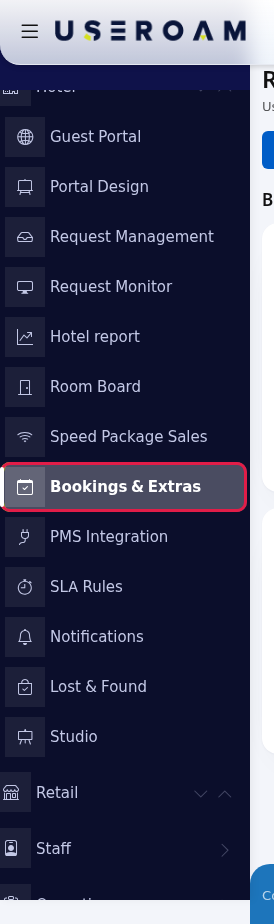
- Open the screen. In the left menu press Hotel → Bookings & Extras. The subtitle reads Spa, à la carte and tour reservations and the service list is headed Bookable services.
- Start a new service. On the Services tab press New service. The number on the tab is the number of services; the number on Reservations is the pending reservations.
- Describe the service. Enter a Service name (for example
Classic massage) and pick a Type. Fill in Duration (minutes), Capacity, Max guests, Days ahead, Price and Order. Leave Show to guests on.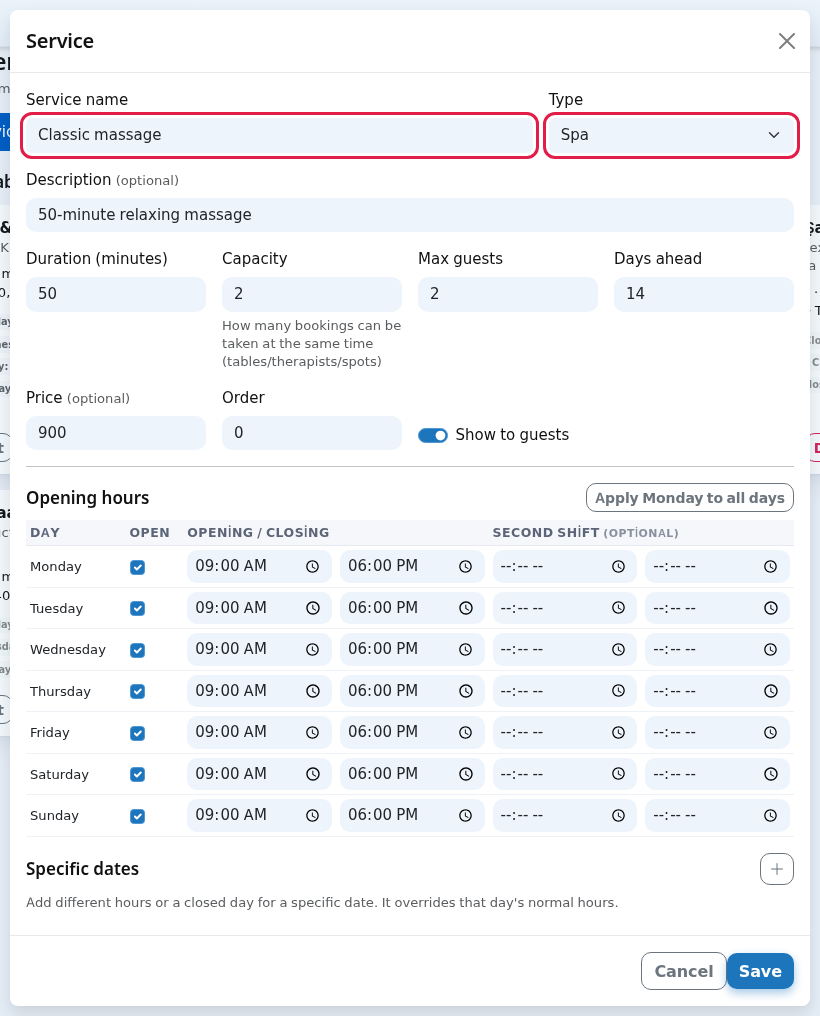
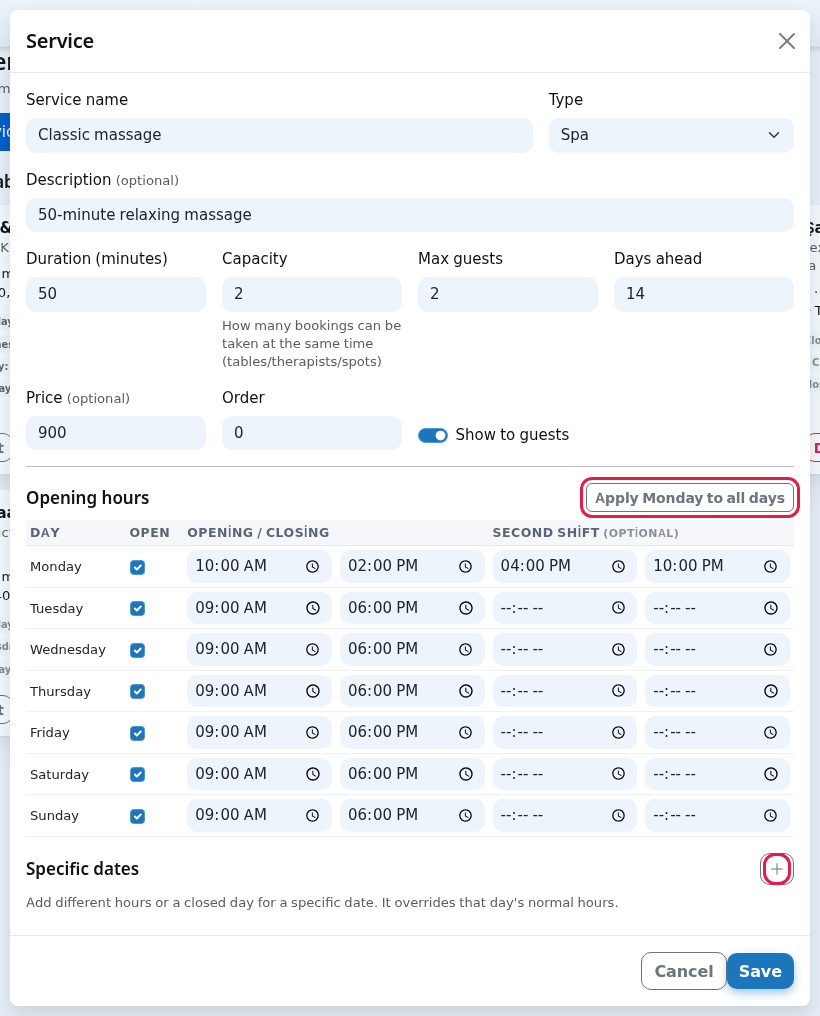
- Enter the opening hours. In the Opening hours table tick the open days and type the Opening / closing times. If there is a midday break, also fill in the Second shift. Fill Monday and press Apply Monday to all days to copy it. For a holiday or maintenance day press the plus next to Specific dates and set a date with hours or Closed. Press Save.
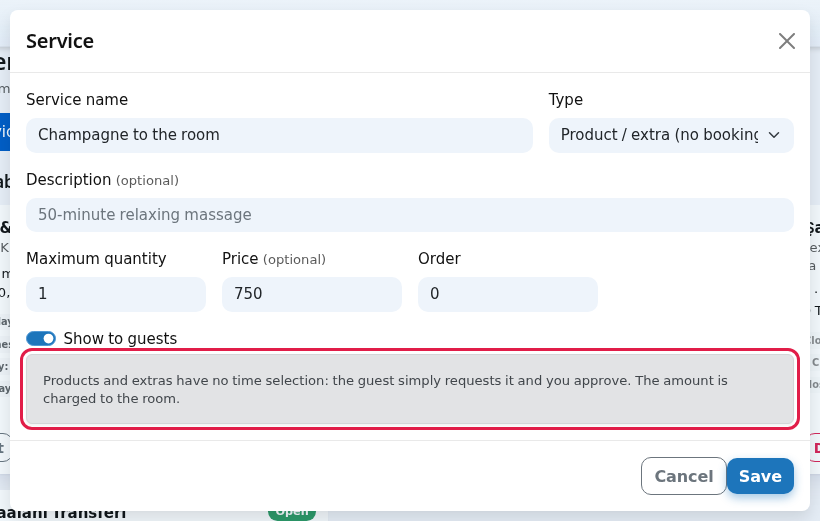
- Change the type for a product without a time. Choosing Product / extra (no booking) as Type removes the hours table, replaces Max guests with Maximum quantity and shows this note: Products and extras have no time selection: the guest simply requests it and you approve. The amount is charged to the room.
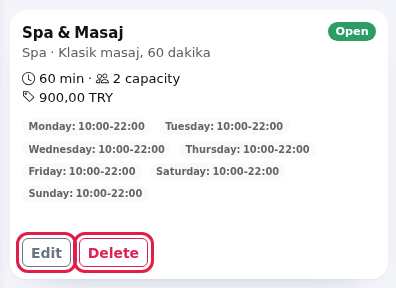
- Check the card. A saved service becomes a card: name, type, description, duration, capacity, price and the hours per day (including Closed days). The top right shows an Open or Closed badge, and a note such as 2 special date(s) if you added specific dates. Edit opens the same window; Delete deletes the service after Delete this service?
Step by step: managing reservations
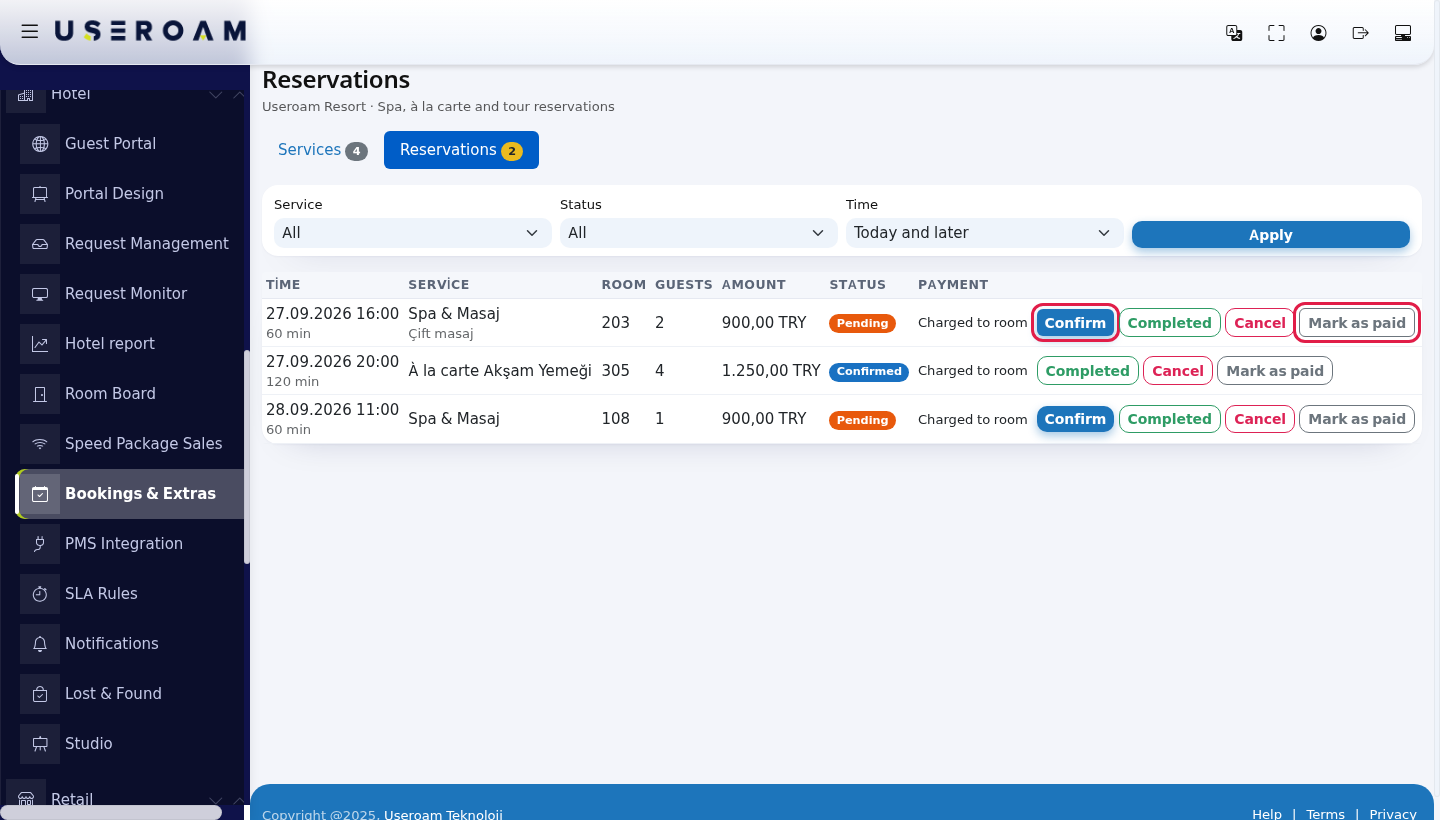
- Open the Reservations tab. Pick Service, Status and Time (Today and later, Past, All) and press Apply. Confirm. On a pending reservation press Confirm; the status becomes Confirmed and the staff job moves to in progress. After the service press Completed. If the guest is not coming, press Cancel and confirm Cancel this reservation?; the slot becomes free again. When the amount is paid press Mark as paid.
Every field and button on the screen
Service window
| Field | What it does | Example |
|---|---|---|
| Service name | The name guests see. Required. | Classic massage |
| Type | Spa, À la carte restaurant, Tour / activity, Product / extra (no booking). | Spa |
| Description (optional) | Short introduction. | 50-minute relaxing massage |
| Duration (minutes) | Length of one reservation; slots are split by it (5-600). | 60 |
| Capacity | How many bookings can be taken at the same time (tables/therapists/spots). | 2 |
| Max guests / Maximum quantity | Most guests in one reservation; for products, the most items in one order. | 2 |
| Days ahead | How many days ahead guests can book (0-120). | 7 |
| Price (optional) | Amount per reservation, charged to the room. Empty means free. | 900 |
| Order | Display order on the portal; smaller first. | 0 |
| Show to guests | When off, the service is hidden on the portal. | on |
| Opening hours: Day, Open, Opening / closing, Second shift (optional) | Which days and hours accept bookings. Rows: Monday, Tuesday, Wednesday, Thursday, Friday, Saturday, Sunday. | 10:00-14:00 and 16:00-22:00 |
| Apply Monday to all days | Copies Monday's row to the other days. | - |
| Specific dates (plus button) | Add different hours or a closed day for a specific date. It overrides that day's normal hours. The cross on the row removes it. | 31.12 Closed |
| Cancel / Save | Closes the window / saves the service. | - |
Reservation list
| Column / button | What it shows / does |
|---|---|
| Time | Start and duration of the reservation. |
| Service | Service name and the guest's note. |
| Room, Guests, Amount | Room number, number of guests, amount (a dash if free). |
| Status | Pending, Confirmed, Completed, Cancelled. |
| Payment | Charged to room, Paid, Cancelled. |
| Confirm | Only on pending reservations. The staff job becomes in progress. Completed and Cancel appear on every reservation that is neither completed nor cancelled. |
| Completed | The service was delivered; the job closes too. |
| Cancel | After Cancel this reservation? it cancels the reservation, frees the slot and closes the job. |
| Mark as paid | Sets the payment to Paid. |
Messages
| On screen | Meaning |
|---|---|
| Service saved. / Service deleted. / Reservation updated. | Done. |
| The service has reservations, so it was closed to guests instead of deleted. | To keep past records intact, the service is not deleted but set to Closed. |
| No service added yet. Add at least one service so guests can book. | The service list is empty. Press New service. |
| No reservations for this filter. | Widen the filter (Time: All). |
| The form is incomplete or invalid. | Check the required fields and save again. |
| Session check failed, please try again. | The page was open for a long time; refresh it and try again. |
| You are not allowed to access this record. | The reservation belongs to another venue; refresh the page. |
The guest side
In the portal's Reservation section the guest picks the service, date, a free time and the number of guests, and can add a note. If the slot has just filled up, they get a warning. A room can make at most 10 reservations a day. Products have no time; the guest picks a quantity and you approve. Details: The hotel portal your guests see.
Frequently asked questions
The guest can't see the service on the portal.
Check that Show to guests is on, that hours are set for that day and that the portal has a Reservation block.
Two bookings came for the same time.
That is normal with Capacity 2. If you have one therapist, set capacity to 1.
Why do reservations also appear on Request Management?
Each reservation also opens as a request of type Reservation so staff can see it. Confirming or completing it here updates that request too.
Related pages
- Portal Design · Request Management · Hotel Report (Revenue)