
What is Useroam Go?
Useroam Go is the mobile app for the staff on the floor at businesses using Useroam. Hotel, restaurant, event and store staff see the requests assigned to them, their daily tasks and the status board on their own phone — take them on and close them without ever opening the admin panel.
Who uses it? Shift teams such as housekeeping, technical services, reception, waiting staff and kitchen. Every staff member defined in the panel gets their own account in the app.
1. What the app does
- Requests: See requests raised by guests or managers, pick them up and complete them.
- Daily tasks: Tick off opening, round, measurement, security and closing tasks on time, entering the reading for measurement tasks.
- Board: Change point and room status (clean / dirty / out of order) from the phone.
- Orders and calls: On the restaurant side, work through orders placed at the table and waiter / bill calls.
Anything done in the app appears in the panel immediately, and changes made in the panel show up in the app.
2. Installing
iOS (iPhone / iPad)
The app is published on the App Store as Useroam Go. Install it by searching the App Store, or from the App Store link on the Bumerang → BUSINESS (İŞLETME) → Staff (Personel) screen in the panel.
Android
The app is published on Google Play as Useroam Go. Install it by searching Google Play, or with the Google Play button on the panel's Staff screen.
Web app (PWA)
If you prefer not to install from a store, the same app also runs in the browser:
- Open panel.useroam.com/m in the phone's browser.
- Choose Add to Home screen from the browser menu.
- The app appears on the home screen with its own icon and opens full screen.
Once added to the home screen it behaves like a normal app: it can send notifications and shows an offline screen when the connection drops.
Download page: If you would rather give staff a single address, share panel.useroam.com/m/_indir.php.
3. Signing in
Staff do not create their own credentials; the business manager defines them in the panel:
- Username: The staff member's mobile phone number (e.g. 5321234567).
- Password: The password set by the manager on the Staff screen.
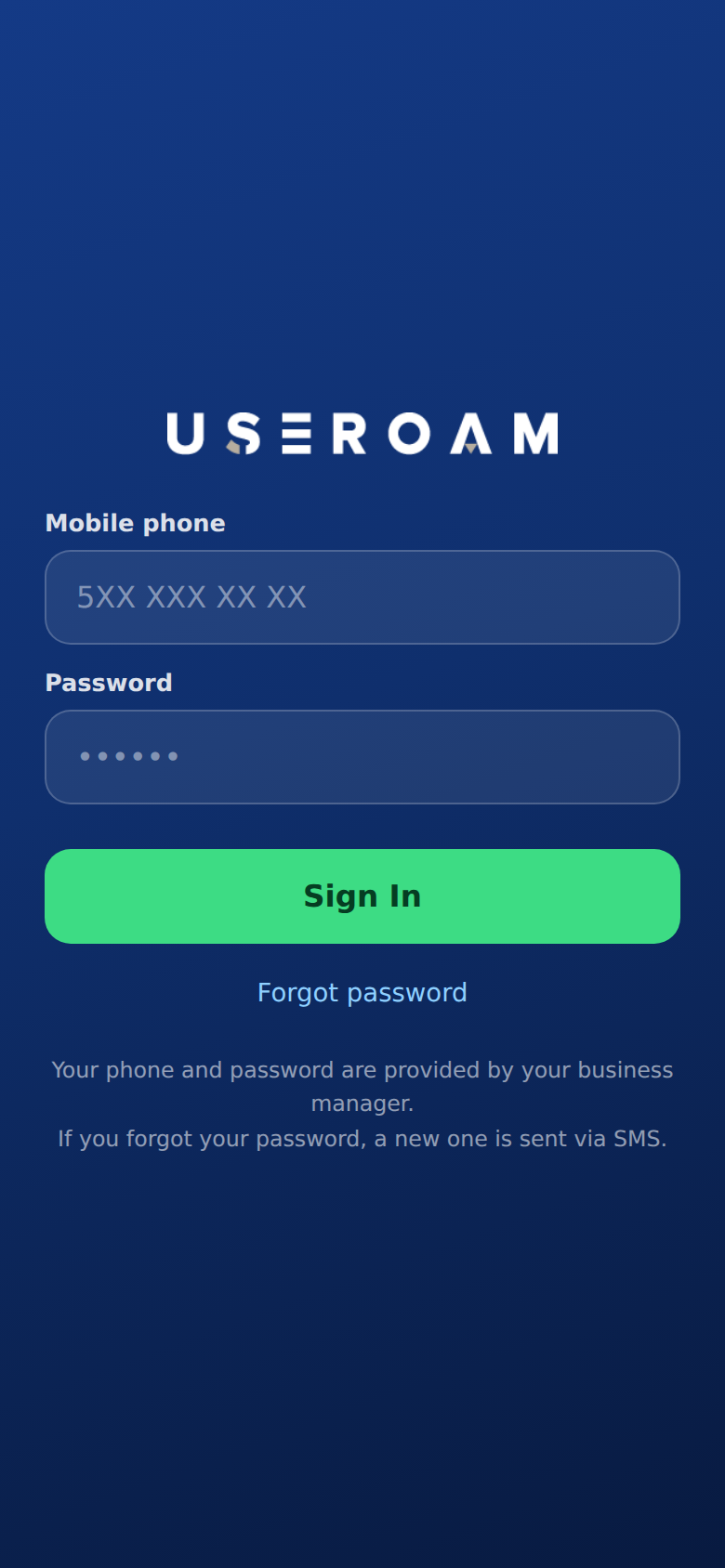
- Open the app. Under the Useroam Go title it says "Hotel staff app", and "Your phone and password are provided by your business manager. If you forgot your password, a new one is sent via SMS."
- Enter your number in Mobile phone (5XX XXX XX XX; a leading 0 or +90 is accepted).
- Enter your Password.
- Tap Sign In. The button shows "Signing in..." and the app opens.
- If you work at more than one branch you are asked Which branch are you at?: choose it and tap Continue.
Forgot password
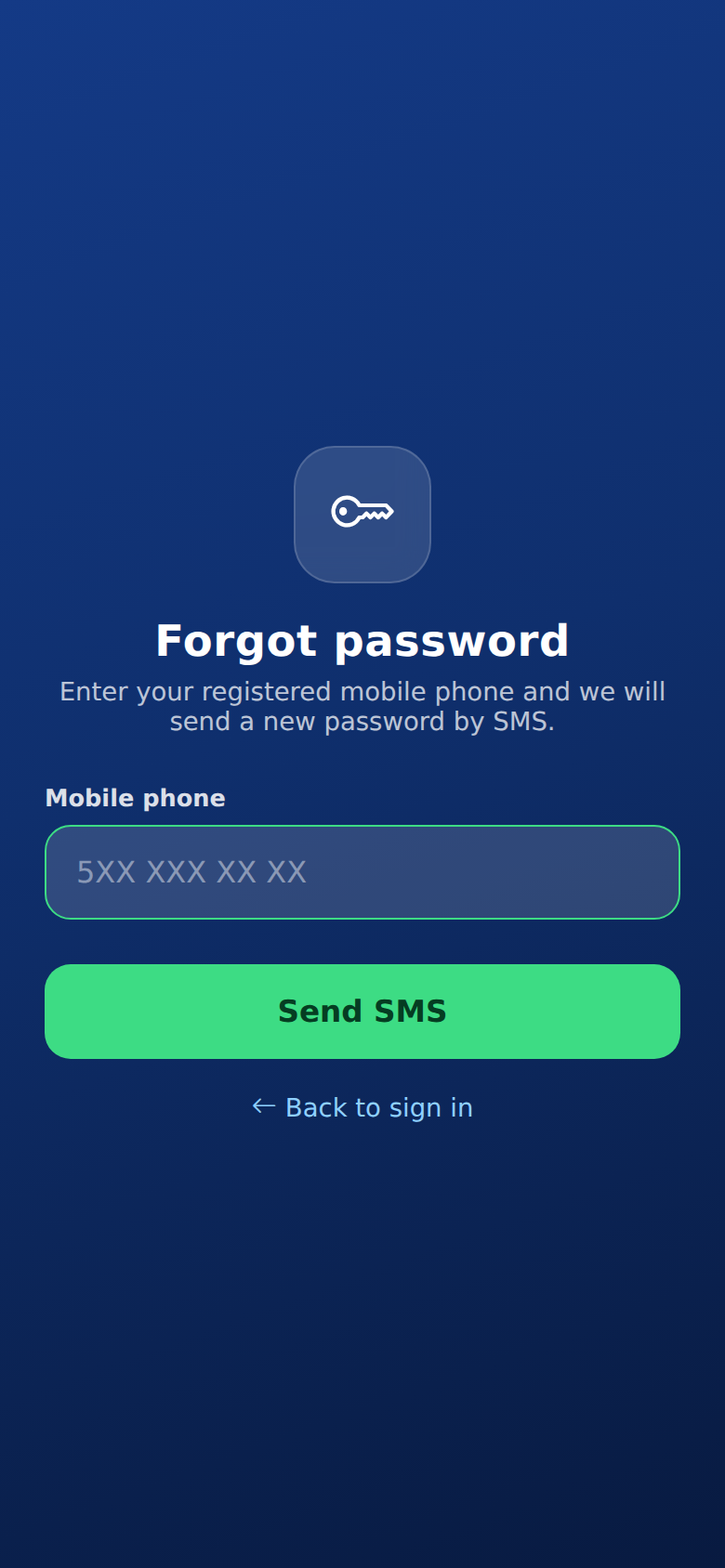
- Tap Forgot password on the sign-in screen.
- Enter your number where it says "Enter your registered mobile phone and we will send a new password by SMS."
- Tap Send SMS ("Sending…").
- You see "If your number is registered, a new password has been sent by SMS.". Sign in with the password from the SMS; Back to sign in returns to the sign-in screen.
If you continue without a number you see "Enter your mobile phone first.".
If sign-in fails
- Incorrect phone number or password. or Sign in failed.: check your details or use Forgot password.
- Too many attempts. Try again in 2 minutes.: after 10 failed attempts in a row sign-in closes briefly.
- This sign-in is for business staff only.: your account is not enabled for the staff app; you may be using a panel account, or your manager has not given you access.
- This app can only be used on the business network.: the venue has turned on the network restriction; connect to its Wi-Fi.
- Connection problem, please try again.: check your internet connection.
These messages appear in English when your phone is set to English, otherwise in Turkish.
Creating accounts is covered on the Staff Accounts and Departments page.
Network restriction: When "Allow access only from the business network" is on in the Staff App Access Security card of the panel's Staff screen, staff can open the app only from the business Wi-Fi. Managers can sign in from anywhere. This prevents jobs from being ticked off remotely outside a shift.
Demo account: To try the app, sign in with mobile 5000000000 and password demo2026. The demo account is view only; a "Demo mode: viewing only, changes are not saved." strip is shown at the top. Trying to save anything shows "Changes are disabled in demo mode; this app is for viewing only."
Related pages: Useroam Go → Staff Accounts and Departments, App Screens by Department; Restaurant Solution → Settings.